
הקדמה
This user manual provides detailed instructions for the installation, operation, maintenance, and troubleshooting of your Xprinter XP-K200L 80mm Thermal Receipt Printer. Please read this manual thoroughly before using the printer to ensure proper function and to extend the product's lifespan. Keep this manual for future reference.
זיכערקייַט אינפֿאָרמאַציע
- ניצט שטענדיק דעם מאַכט אַדאַפּטער וואָס קומט מיטן דרוקער.
- שטעלט נישט אויס דעם דרוקער צו וואַסער אָדער פייכטקייט.
- פֿאַרמײַדט צו שטעלן דעם דרוקער אין דירעקטער זון אָדער לעבן היץ־קוואַלן.
- פאַרזיכערן געהעריק ווענטאַליישאַן אַרום די דרוקער.
- פּרוּווט נישט צו צענעמען אָדער פאַרריכטן דעם דרוקער אַליין. קאָנטאַקט קוואַליפֿיצירטע סערוויס פּערסאָנעל.
- האַלטן אויס פון דערגרייכן פון קינדער.
פּעקל אינהאַלט
Please check the package contents upon unpacking. If any items are missing or damaged, contact your vendor.
- Xprinter XP-K200L Thermal Receipt Printer
- מאַכט אַדאַפּטער
- מאַכט שנור
- וסב קאַבלע
- Thermal Paper Roll (starter roll)
- קאַש שופלאָד קאַבלע
- באַניצער מאַנואַל (דעם דאָקומענט)
פּראָדוקט איבערview
Familiarize yourself with the main components of your Xprinter XP-K200L thermal receipt printer.

פיגורע 1: זייַט view of the Xprinter XP-K200L thermal receipt printer. On the right, the power switch is visible, and on the left, a button to open the paper cover is present.
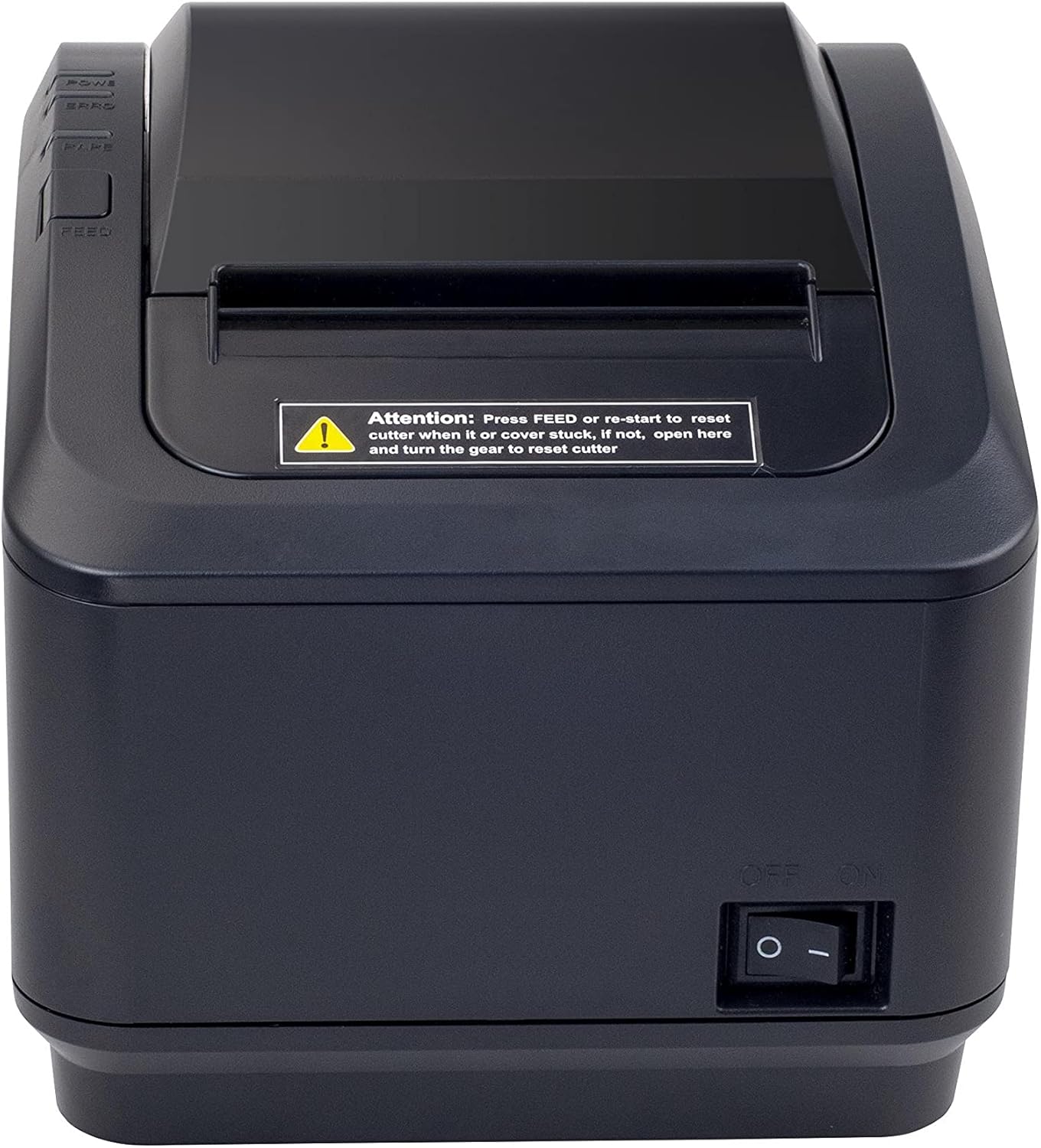
Figure 2: A front view of the Xprinter XP-K200L thermal receipt printer. The paper output slot is at the top, and below it are control buttons for functions like feed and error reset. A warning label is also visible.

Figure 3: This image displays the Xprinter XP-K200L thermal receipt printer with its top cover open, showing the internal compartment where the thermal paper roll is loaded. The print head mechanism is also visible.
סעטאַפּ
1. פֿאַרבינדן די מאַכט
- Ensure the printer's power switch is in the OFF שטעלע.
- Connect the power adapter to the printer's power port.
- צאַפּן די מאַכט שנור אין אַ פּאַסיק עלעקטריקאַל ווענטיל.
2. לאָדן טערמיש פּאַפּיר
- Press the cover open button (refer to Figure 1) to open the top cover of the printer.
- Insert a new 80mm thermal paper roll into the compartment, ensuring the paper feeds from the bottom and the leading edge extends slightly out of the printer.
- Close the top cover firmly until it clicks into place. Ensure there is no slack in the paper roll.
3. Connecting to a Computer/Network
The XP-K200L printer supports both USB and LAN (Ethernet) connectivity.
USB קשר:
- פֿאַרבינדט איין עק פֿונעם USB קאַבל צום דרוקער'ס USB פּאָרט.
- פאַרבינדן די אנדערע סוף פון די וסב קאַבלע צו אַ בנימצא וסב פּאָרט אויף דיין קאָמפּיוטער.
- Install the printer drivers. Drivers are typically provided on a CD or can be downloaded from the manufacturer's webזייטל. גיי נאך די אינסטרוקציעס אויפן עקראַן פאר אינסטאַלאַציע.
לאַן (עטהערנעט) פֿאַרבינדונג:
- Connect one end of an Ethernet cable to the printer's LAN port.
- פאַרבינדן די אנדערע סוף פון די עטהערנעט קאַבלע צו דיין נעץ ראַוטער אָדער באַשטימען.
- Configure the printer's network settings (e.g., IP address) if necessary. This usually involves printing a self-test page to get the current IP address and then accessing the printer's web interface or using a utility tool provided by the manufacturer.
- Install the printer drivers on your computer, selecting the network connection option during setup.
4. Connecting a Cash Drawer
- Connect the cash drawer cable to the dedicated cash drawer port on the printer.
- Ensure your POS software is configured to send commands to open the cash drawer via the printer.
אַפּערייטינג ינסטראַקשאַנז
מאַכט אויף / אַוועק
- To power on the printer, flip the power switch (refer to Figure 1) to the ON שטעלע.
- To power off the printer, flip the power switch to the OFF שטעלע.
יקערדיק פּרינטינג
Once the printer is connected and drivers are installed, you can print receipts from your POS software or any application that supports printing.
- זיכער מאַכן אַז דער דרוקער איז אנגעצינדן און האָט פּאַפּיר אַרייַנגעלייגט.
- From your application, select the print option.
- Choose the "Xprinter XP-K200L" from the list of available printers.
- Confirm print settings and click "Print".
Self-Test Page
To print a self-test page, which provides information about the printer's settings and status:
- Ensure the printer is powered off and the paper roll is loaded.
- דריקן און האַלטן די פיטער קנעפּל.
- בשעת האלטן די פיטער button, turn the power switch to ON.
- מעלדונג די פיטער button after the printer starts printing.
וישאַלט
רייניקונג די פּרינטער
- דרוק קאָפּ: ניצט אַ וואַטע שטעכל לײַכטampened with isopropyl alcohol to gently wipe the thermal print head. Allow it to dry completely before use. Clean regularly to ensure print quality.
- שניידער: If the cutter becomes jammed or dirty, carefully clean it with a soft brush or cloth.
- עקסטעריע: Wipe the exterior of the printer with a soft, dry cloth. Do not use abrasive cleaners or solvents.
Replacing Thermal Paper
When the paper roll is depleted or near its end, replace it following the steps in the "Loading Thermal Paper" section under Setup.
טראָובלעשאָאָטינג
| פּראָבלעם | מעגלעך סיבה | לייזונג |
|---|---|---|
| דער דרוקער גייט נישט אן. | Power cord or adapter not connected properly; power outlet issue. | קאָנטראָלירט אַלע שטראָם פֿאַרבינדונגען. פּרוּווט אַן אַנדער שטראָם אַוטלעט. |
| קיין דרוקעריי. | No paper; paper loaded incorrectly; printer offline; driver issue; incorrect connection. | Load paper correctly. Check printer status. Reinstall drivers. Verify USB/LAN connection. |
| נעבעך דרוק קוואַליטעט. | Dirty print head; low quality thermal paper. | Clean the print head (see Maintenance). Use recommended thermal paper. |
| Paper jam or cutter error. | Paper loaded incorrectly; debris in cutter mechanism. | As per printer label: דרוק פיטער or re-start to reset cutter. If the issue persists, open the top cover and carefully turn the gear to reset the cutter mechanism. Ensure paper is loaded correctly and remove any obstructions. |
| Cash drawer does not open. | Cable not connected; POS software not configured. | Check cash drawer cable connection. Verify POS software settings for cash drawer trigger. |
ספּעסאַפאַקיישאַנז
| שטריך | דעטאַל |
|---|---|
| סאָרט | Xprinter |
| מאָדעל נאָמען | XP-K200L |
| דרוקער טעכנאָלאָגיע | טערמאַל |
| קאַנעקטיוויטי טעכנאָלאָגיע | יו-עס-בי, לאַן (עטערנעט) |
| ספּעציעלע פֿעיִקייטן | נעץ גרייט |
| קאָליר | שוואַרץ |
| דרוקער רעזולטאַט | מאָנאָטשראָמע |
| פּונקט וואָג | 1.5 קג |
| פּראָדוקט דימענשאַנז (דקסווקסה) | 19.5 סענטימעטער X 14 סענטימעטער X 13.8 סענטימעטער |
| Compatible OS/Controller Type | Android (and typically Windows/Linux via drivers) |
| דרוק מידיאַ | Plain Thermal Paper |
| דרוק קאָליר | שוואַרץ |
| האַכלאָטע | 576 x 512 dots per inch (or dots per line) |
| Max Print Resolution B/W | 576 דפּי |
| צוגעלייגטע דרוקער פונקציעס | דרוק בלויז |
| קאָנטראָל מעטאָד | ווייַט |
| מאַקסימום מעדיע גרייס | 80 מם |
| פּאַפּיר גרייס | 79.5 מם |
| מאַכט | 60 וואטס |
| אַרייַנגערעכנט קאַמפּאָונאַנץ | Power adapter, Cash drawer cable |
| סעריע | XP-K |
| ספּעציפיש ניצט | Restaurants, bars, cinemas, garages, transportation, hospitals, clinics |
| גאַנץ וסב פּאָרץ | 1 |
וואָראַנטי און שטיצן
For warranty information and technical support, please refer to the documentation provided with your purchase or contact your vendor directly. Keep your proof of purchase for warranty claims.
For driver downloads and further support resources, visit the official Xprinter webפּלאַץ.