
PROVISION ISR PROVISION ISR
Provision ISR All-in-one Webקאַם באַניצער מאַנואַל
Model: PROVISION ISR
הקדמה
Thank you for choosing the Provision ISR All-in-one Webcam. This device is designed to simplify your online video activities by integrating a high-quality webcam, microphone, speaker, and adjustable LED light into a single, convenient unit. This manual provides detailed instructions for setup, operation, maintenance, and troubleshooting to ensure you get the most out of your new webקאַם.

The Provision ISR All-in-one Webcam, shown with its packaging, highlighting its integrated features.
פּראָדוקט איבערview
The Provision ISR All-in-one Webcam combines essential features for a seamless video communication experience.
- גאַנץ הד Webקאַם: Delivers crystal clear 1080p video at 60 frames per second.
- געבויט-אין רעדנער: Integrated 2.5W speaker for clear audio output.
- ראַש-קאַנסאַלינג מיקראָפאָן: Captures clear audio while reducing background noise.
- 3-לעוועל אַדזשאַסטאַבאַל געפירט ליכט: Provides optimal illumination for various lighting conditions.
- Integrated Privacy Cover: Ensures privacy when the webקאַם איז נישט אין נוצן.
- יו-עס-בי פּלאַג און שפּיל: No drivers required for quick and easy setup.
- 2-Axis Rotating Clip: ערלויבט פֿאַר פלעקסאַבאַל פּאַזישאַנינג און ווינקל אַדזשאַסטמאַנט.

שליסל פֿעיִקייטן פון די webcam including Full HD video, adjustable LED light, built-in speaker, and noise-cancelling microphone.

די webcam in use during a video conference, highlighting its all-in-one capabilities.
סעטאַפּ
Setting up your Provision ISR Webcam is a simple plug-and-play process.
- ופשליסן די Webקאַם: קערפאַלי אַראָפּנעמען די webקאַם פֿון זײַן פּאַקאַדזשינג.
- בארג די Webקאַם:
- Open the flexible clip base.
- בארג די webcam on top of your monitor, laptop screen, or a flat surface.
- Adjust the clip to ensure the webcam is stable and securely positioned. The 2-axis rotating clip allows for 360° horizontal rotation and 90° vertical tilt.
- פאַרבינדן צו דיין קאָמפּיוטער:
- שטעקט אריין דעם USB קאבל פון דעם webקאַם אין אַ בנימצא וסב פּאָרט אויף דיין קאָמפּיוטער.
- די webcam is plug-and-play, meaning no additional drivers are typically required. Your operating system should automatically detect and install the necessary components.
- באַשטעטיקן קשר:
- Open a video conferencing application (e.g., Zoom, Skype, Google Meet) or your computer's camera application.
- Select the "Provision ISR Webcam" as your video and audio input device in the application settings.

די webcam features USB Plug & Play connectivity, compatible with various operating systems and video conferencing applications.

Physical dimensions of the webcam and the flexibility of its 2-axis rotating clip for optimal positioning.
אַפּערייטינג ינסטראַקשאַנז
Adjusting the LED Fill Light
די webcam features an integrated LED fill light with three adjustable brightness levels to ensure you are well-lit in any environment.
- To turn on the light or cycle through brightness levels, gently touch the touch-sensitive area on the top of the webקאַם.
- There are three distinct brightness settings. Continue touching to cycle through the levels and turn the light off.

Demonstration of the LED fill light providing illumination, with an illustration of its three adjustable levels.

The adjustable LED light is controlled via a simple touch interface.
ניצן די פּריוואַטקייט קאָווער
For enhanced privacy and security, the webcam includes a built-in privacy cover.
- To cover the lens, simply slide the cover over the camera lens.
- To uncover the lens, slide the cover away from the camera lens.

די webcam features a built-in privacy cover for security, along with its speaker and microphone.

The privacy cover can be easily opened and closed with a single finger.
Video and Audio Quality
די webcam is equipped with a 6-layer F1.6 glass lens for superb video quality and a 100° wide field of view, ideal for conferences and family video calls.
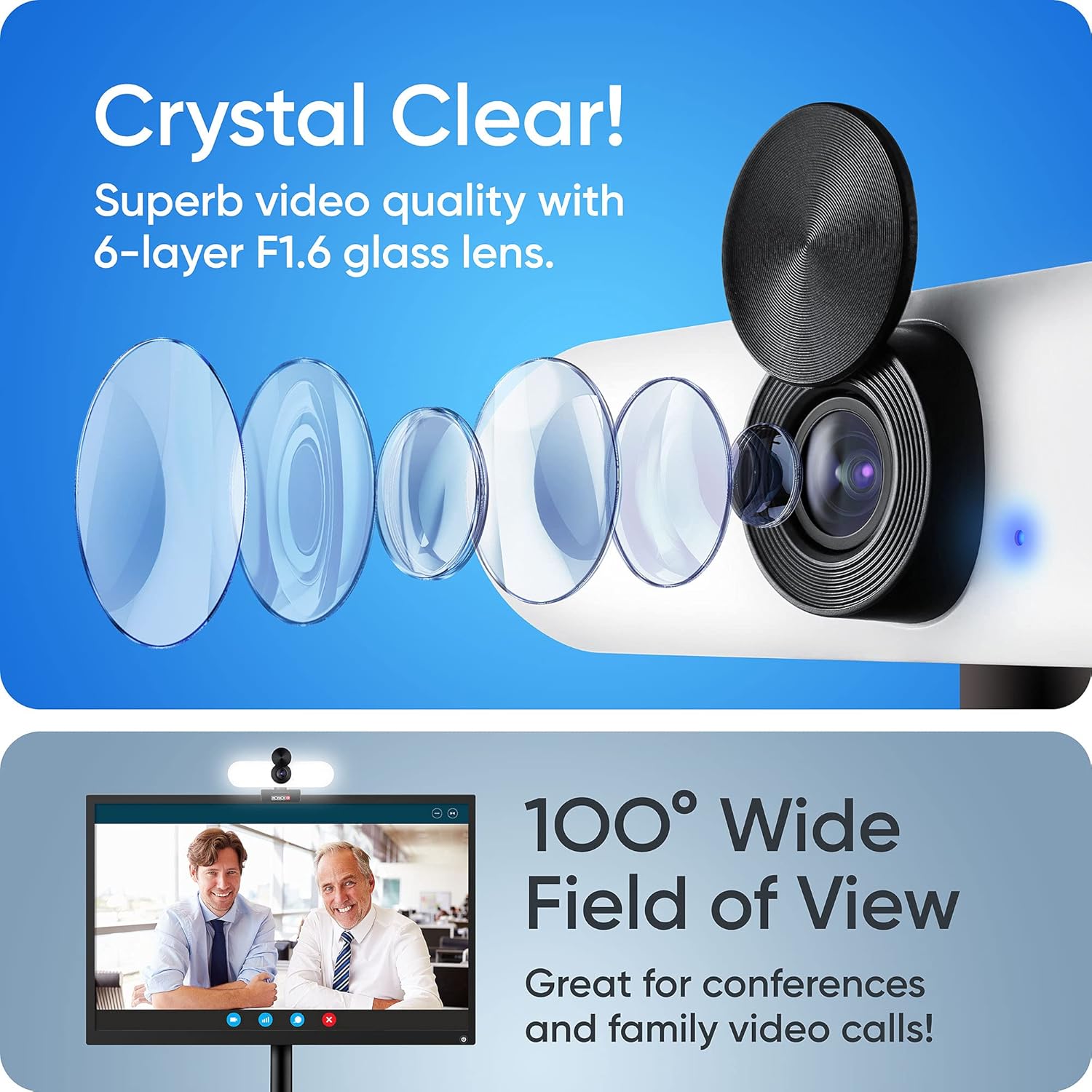
די webcam's advanced lens system provides crystal clear video and a wide field of view.

די webcam automatically adjusts for optimal exposure correction.

די webcam provides sharp focus for clear image capture.
קאַמפּאַטאַבילאַטי
The Provision ISR Webcam is designed for broad compatibility with various operating systems and popular video conferencing applications.
שטיצט אַפּערייטינג סיסטעמס:
- Windows 7, 8, 10
- מעק אַס 10.6+
- אַנדרויד 5.0+
- קסבאָקס
- קראָום אַס
קאַמפּאַטאַבאַל אַפּלאַקיישאַנז:
- פארגרעסער
- סקיפּע
- ווהאַצאַפּפּ
- Facebook מעסינדזשער
- סיסקאָ Webex
- מייקראָסאָפֿט טימז
- Google טרעפן
- GoToMeeting
- און נאך אסאך מער...
וישאַלט
Proper maintenance will ensure the longevity and optimal performance of your webקאַם.
- רייניקונג די לענס: Use a soft, lint-free cloth specifically designed for optical lenses to gently wipe the camera lens. Avoid using harsh chemicals or abrasive materials.
- רייניקונג דעם גוף: ווישן די webcam body with a soft, dry cloth. If necessary, a slightly damp מען קען ניצן אַ שטאָף, אָבער זאָרגט זיך אַז קיין נאַס זאָל נישט אַרײַנגיין אין דעם אַפּאַראַט.
- סטאָרידזש: ווען נישט אין באַנוץ פֿאַר לענגערע צייטן, זאָל מען עס אַוועקלייגן webcam in a cool, dry place, away from direct sunlight and extreme temperatures. Use the privacy cover to protect the lens.
- ויסמיידן טראפנס און ימפּאַקץ: שעפּן די webקאַם מיט פֿאָרזיכט צו פֿאַרמייַדן שאָדן פֿון פֿאַלן אָדער קלאַפּן.
טראָובלעשאָאָטינג
If you encounter issues with your Provision ISR Webקאַם, פּרוּווט די פֿאָלגנדיקע פּראָבלעם־לייזונג טריט:
- Webקאַם נישט דעטעקטירט:
- זיכער מאַכן אַז דער USB קאַבל איז זיכער אַרײַנגעשטעקט אין ביידע webקאַמעראַ און דיין קאָמפּיוטער.
- פּרוּווט פּלאַגינג די webקאַמעראַ אין אַן אַנדער USB פּאָרט אויף דיין קאָמפּיוטער.
- ריסטאַרט דיין קאָמפּיוטער.
- קוק אין אייער אפערירן סיסטעם'ס דעווייס מענעדזשער (ווינדאָוס) אדער סיסטעם אינפארמאציע (מעק) צו זען אויב די webקאַם איז ליסטעד.
- קיין ווידעא/שוואַרצער עקראַן:
- Make sure the privacy cover is open.
- ענשור די ריכטיק webcam is selected in your video conferencing application's settings.
- Check if another application is currently using the webcam, which might prevent access.
- No Audio Input (Microphone):
- Verify that "Provision ISR Webcam" is selected as the microphone input device in your application's audio settings.
- Check your computer's sound settings to ensure the microphone is not muted and its volume is adequate.
- Ensure no other application is exclusively using the microphone.
- No Audio Output (Speaker):
- Verify that "Provision ISR Webcam" or "USB Audio Device" is selected as the speaker output device in your application's audio settings and your computer's sound settings.
- Check the volume levels on both your computer and within the application.
- נעבעך ווידעא קוואַליטעט:
- Ensure the lens is clean (refer to Maintenance section).
- Check your internet connection speed, as a slow connection can affect video quality in online calls.
- Adjust the LED fill light for better illumination.
ספּעסאַפאַקיישאַנז
Detailed technical specifications for the Provision ISR All-in-one Webקאַם.
| שטריך | באַשרייַבונג |
|---|---|
| סאָרט | PROVISION ISR |
| מאָדעל נומער | PROVISION ISR |
| ASIN | B094W6SSRR |
| ווידעא האַכלאָטע | 1080 פּ גאַנץ הד |
| ראַם קורס | 60 fps (implied from title) |
| לענס עפענונג | F1.6 (implied from image) / 1.6 Millimeters |
| פעלד פון View | 100° ברייט ווינקל |
| אָפּטיש פארגרעסער | 1x מולטיפּליער |
| דיגיטאַל פארגרעסער | 2x מולטיפּליער |
| ספּעציעלע פֿעיִקייטן | Low light performance, Built-in LED light (3 levels), Built-in Speaker (2.5W), Noise-Cancelling Microphone, Privacy Cover |
| קאַנעקטיוויטי טעכנאָלאָגיע | וסב |
| בילד סטאַביליזאַטיאָן | ניין |
| סענסאָר טעכנאָלאָגיע | קמאָס |
| פּעקל דימענשאַנז | 14.3 רענטגענ 6.9 רענטגענ 6.6 סענטימעטער; 240 גראַמז |
| וסב קאַבלע לענג | 5.25 Feet (implied from image) |
וואָראַנטי און שטיצן
Information regarding warranty and customer support for your Provision ISR Webקאַם.
Specific warranty details are not provided in the product information. Please refer to the product packaging or the official Provision ISR webפּלאַץ פֿאַר די מערסט ופּדאַטעד וואָראַנטי אינפֿאָרמאַציע.
For technical support or further assistance, please visit the official Provision ISR support page or contact their customer service department. Contact information can typically be found on the manufacturer's webפּלאַץ אָדער פּראָדוקט דאַקיומענטיישאַן.

Provision ISR, a company with expertise in video surveillance and web cameras since 2007.