
1. הקדמה
Welcome to the user manual for your Bmax Y13Pro 13.3-inch Convertible 2-in-1 FHD Touchscreen Laptop. This document provides essential information to help you set up, operate, maintain, and troubleshoot your device. Please read this manual thoroughly to ensure optimal performance and longevity of your laptop.
2. פּעקל אינהאַלט
Upon unpacking your Bmax Y13Pro laptop, please verify that all the following items are included:
- BMAX MaxBook Y13Pro (2-in-1 laptop) x 1
- 24W DC Power Adapter x 1 with Replaceable Plug x 3 (US Standard Plug x 1, UK Standard Plug x 1, EU Standard Plug x 1)
- גאַראַנטירן קאָרט X 1
- User Guide x 1 (This document)
- Safety Document x 1

Image: The Bmax Y13Pro laptop in its closed state, showcasing the sleek metal body from a top perspective.
3. אויפשטעלן און ערשטע באנוץ
3.1. Charging the Laptop
Before initial use, connect the provided 24W DC Power Adapter to the laptop's charging port and a power outlet. Allow the laptop to charge for at least 30 minutes or until the battery indicator shows sufficient charge. The laptop can be used while charging.
3.2. פּאָווערינג אויף / אויסגעלאשן
- צו מאַכט אויף: Press and hold the power button located on the side of the laptop until the screen illuminates.
- צו מאַכט אַוועק: Click the Windows Start button, then select 'Power' and choose 'Shut down'. Alternatively, press and hold the power button for several seconds to force a shutdown (use only when necessary).
3.3. ערשטע Windows 10 סעטאַפּ
The first time you power on the laptop, you will be guided through the Windows 10 setup process. Follow the on-screen instructions to configure language, region, network connection, user account, and privacy settings. An active internet connection is recommended for this process to ensure all necessary updates are downloaded.
3.4. קאַנעקטינג צו ווי-פי
During the Windows setup or at any time:
- Click the Wi-Fi icon in the taskbar (usually in the bottom-right corner).
- אויסקלייבן אייער געוואונטשענע Wi-Fi נעץ פון דער ליסטע.
- אַרייַן דעם נעץ זיכערהייט שליסל (פּאַראָל) אויב געבעטן.
- דריקט 'פאַרבינדן'.
4. אפערירן דיין לאַפּטאָפּ
4.1. קאָנווערטאַבאַל מאָדעס
The Bmax Y13Pro features a 360-degree hinge, allowing it to transform into various modes:
- לאַפּטאָפּ מאָדע: טראדיציאנעלע לאַפּטאַפּ קאָנפיגוראַציע פֿאַר טייפּינג און פּראָדוקטיוויטי.
- געצעלט מאָדע: Fold the screen back to form an inverted 'V' shape, ideal for watching videos or presentations in confined spaces.
- שטאַנד מאָדע: Fold the screen back so the keyboard acts as a stand, bringing the display closer for touch interaction.
- טאַבלעט מאָדע: Fold the screen completely back against the base, converting the device into a tablet for touch-first applications.

Image: The Bmax Y13Pro laptop configured in tent mode, with the screen angled for viewing.

Image: The Bmax Y13Pro laptop fully converted into tablet mode, with the display facing upwards.
4.2. טאָוטשסקרין פאַנגקשאַנאַליטי
The 13.3-inch FHD IPS display supports 10-point multi-touch. You can interact with the operating system and applications using touch gestures similar to a tablet or smartphone. Common gestures include tapping, swiping, pinching to zoom, and two-finger scrolling.
4.3. Backlit Keyboard
The Bmax Y13Pro features a backlit keyboard with two adjustable brightness levels. To control the backlight:
- דרוק די F2 key to cycle through backlight settings: Off, Low, High.
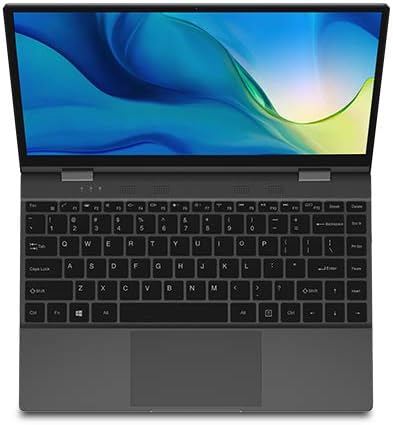
בילד: א פון אויבן אראפ view of the Bmax Y13Pro laptop, open to reveal the keyboard and display.
4.4. פּאָרטן און פֿאַרבינדונגען
דער לאַפּטאָפּ איז אויסגעשטאַט מיט פֿאַרשידענע פּאָרטן פֿאַר קאָנעקטיוויטי:
| פּאָרט טיפּ | באַשרייַבונג |
|---|---|
| USB-C (Full Function) | Supports Power Delivery, HDMI output, and USB 3.0 data transfer. |
| וסב-C (וסב 3.0) | Supports USB 3.0 data transfer. |
| סד קאָרט לייענער | פֿאַר לייענען און שרייבן צו SD זכּרון קאַרדס. |
| אַודיאָ קאָמבאָ דזשאַק | פֿאַרבינדט כעדפאָונז אָדער אַ כעדסעט מיט אַ מיקראָפאָן. |
| דק מאַכט פּאָרט | Dedicated port for connecting the power adapter. |
The laptop also supports 802.11a/b/g/n/ac Wi-Fi and Bluetooth 4.2 for wireless connectivity.
5. וישאַלט און קער
5.1. רייניקן דיין לאַפּטאָפּ
- פאַרשטעלן: ניצן אַ ווייך, לינט-פֿרייַ שטאָף לייטלי דampגעוואשן מיט וואַסער אָדער אַ רייניקונג לייזונג פֿאַרן עקראַן. פֿאַרמייַדן שאַרפע כעמיקאַלן.
- Body and Keyboard: ניצט אַ ווייכע, טרוקענע שטאָף. פֿאַר שווערע שמוץ, אַ ביסל טרוקןamp cloth can be used. Ensure no liquid enters ports or openings.
- פּאָרץ: ניצט קאמפרעסט לופט צו פארזיכטיק רייניגן שטויב פון די פארטן.
5.2. באַטערי מאַנאַגעמענט
צו מאַקסאַמיזירן באַטאַרייע לעבן און פאָרשטעלונג:
- פֿאַרמײַדט אָפֿט פֿולשטענדיק אויסצולאָדן די באַטעריע.
- שטעלט נישט אויס דעם לאַפּטאָפּ צו עקסטרעמע טעמפּעראַטורן.
- Unplug the charger once the battery is fully charged if you plan to use it on battery power soon.
- אויב איר לייגט אפ דעם לעפטאפ פאר א לענגערע צייט, לאדט עס אויף צו בערך 50-70% איידער איר מאכט עס אויס.
5.3. ווייכווארג דערהייַנטיקונגען
קאָנטראָלירט און אינסטאַלירט רעגלמעסיק ווינדאָוס דערהייַנטיקונגען צו זיכער מאַכן אַז אייער סיסטעם האט די לעצטע זיכערהייט פּאַטשאַז און פאָרשטעלונג פֿאַרבעסערונגען. גייט צו סעטטינגס > דערהייַנטיקונג און זיכערהייט > ווינדאָוז דערהייַנטיקונג.
6. טראָובלעשאָאָטינג
This section addresses common issues you might encounter with your Bmax Y13Pro laptop.
6.1. דיווייס גייט נישט אן
- זיכער מאַכן אַז דער מאַכט אַדאַפּטער איז זיכער פארבונדן צו ביידע דעם לאַפּטאַפּ און אַ אַרבעטנדיקן מאַכט ווענטיל.
- באַשטעטיקן אַז די עלעקטרישע ווענטיל אַרבעט דורך אַרײַנשטעקן אַן אַנדער דעוויס.
- Allow the laptop to charge for at least 15-30 minutes before attempting to power it on again.
- Try a hard reset by holding the power button for 10-15 seconds.
6.2. לאַנגזאַמע פאָרשטעלונג
- Close unnecessary applications and browser tabs.
- ריסטאַרט די לאַפּטאַפּ.
- קוקט נאָך און אינסטאַלירט אַלע וואַרטנדיקע ווינדאָוז דערהייַנטיקונגען.
- פירט אויס א דיסק רייניקונג און דעפראַגמענטאַציע (פֿאַר האַרט דיסק, נישט נייטיק פֿאַר ססד).
- זייט זיכער אז אייער סטאָרידזש (SSD) איז נישט כּמעט פול.
6.3. Battery Draining Quickly / Overheating
- רעדוצירן פאַרשטעלן ברייטנאַס.
- Close power-intensive applications running in the background.
- Ensure proper ventilation; do not block air vents.
- Avoid using the laptop on soft surfaces like beds or couches that can obstruct airflow.
- דיסקאָנעקט עקסטערנע פּעריפערישע דעוויסעס ווען נישט אין באַנוץ.
- Update drivers, especially graphics drivers.
6.4. Wi-Fi or Bluetooth Connectivity Issues
- Toggle Wi-Fi/Bluetooth off and on in Windows settings.
- ריסטאַרט דיין ראַוטער/מאָדעם.
- Ensure you are within range of the Wi-Fi network or Bluetooth device.
- דערהייַנטיקן נעץ אַדאַפּטער דרייווערס דורך דיווייס מאַנאַדזשער.
6.5. Keyboard Backlight Not Working
- דרוק די F2 key to ensure the backlight is not turned off or set to the lowest brightness.
- ריסטאַרט די לאַפּטאַפּ.
7. ספּעסאַפאַקיישאַנז
Below are the technical specifications for the Bmax Y13Pro laptop:
| שטריך | באַשרייַבונג |
|---|---|
| מאָדעל נאָמען | Y13Pro |
| פּראַסעסער | Intel Core m5-6Y54 (up to 2.70GHz) |
| אָפּערייטינג סיסטעם | Windows 10 היים 64-ביסל |
| גראַפיקס | ינטעגראַטעד Intel HD Graphics 515 |
| באַראַן | 8 GB LPDDR3 2133 MHz (Onboard) |
| סטאָרידזש | 256 GB M.2 2280 SATA SSD |
| ווייַז | 13.3-inch FHD (1920 x 1080) IPS Glossy Multi-touch |
| אַפּאַראַט | 720p HD קאַמעראַ |
| אַודיאָ | Built-in Two-channel Speaker |
| באַטערי לעבן | Up to 6 hours (FHD) |
| דימענשאַנז (ב x ד x ה) | 12.1 X 8.2 X 0.6 אינטשעס (307.5 X 208 X 14.7 מם) |
| וואָג | 2.8 לבס (1.25 קג) |
| קאַנעקטיוויטי | 802.11a/b/g/n/ac Wi-Fi, Bluetooth 4.2 |
| פּאָרץ | 1x USB-C (PowerDelivery, HDMI, USB 3.0 Full Function), 1x USB-C (USB 3.0), 1x SD Card Reader, Audio Combo Jack |
| גוף מאַטעריאַל | אַלע-מעטאַל גוף |
8. וואָראַנטי און שטיצן
8.1. וואָראַנטי אינפֿאָרמאַציע
Your Bmax Y13Pro laptop comes with a Guarantee Card. Please refer to this card for detailed information regarding the warranty period, terms, and conditions. Keep your proof of purchase in a safe place as it may be required for warranty claims.
8.2. קונה שטיצן
If you encounter issues that cannot be resolved using the troubleshooting steps in this manual, or if you require further assistance, please contact Bmax customer support. Refer to the contact information provided on your Guarantee Card or visit the official Bmax webפּלאַץ פֿאַר שטיצן רעסורסן.