
1. הקדמה
This manual provides instructions for the setup, operation, and maintenance of your Nixplay 10.1 inch Smart Digital Photo Frame (Model W10J). Please read this manual thoroughly before using your device to ensure proper functionality and longevity.
2. פּראָדוקט איבערview
The Nixplay Smart Digital Photo Frame allows you to display photos and videos from your connected accounts or directly uploaded content. It features Wi-Fi connectivity for easy content management.
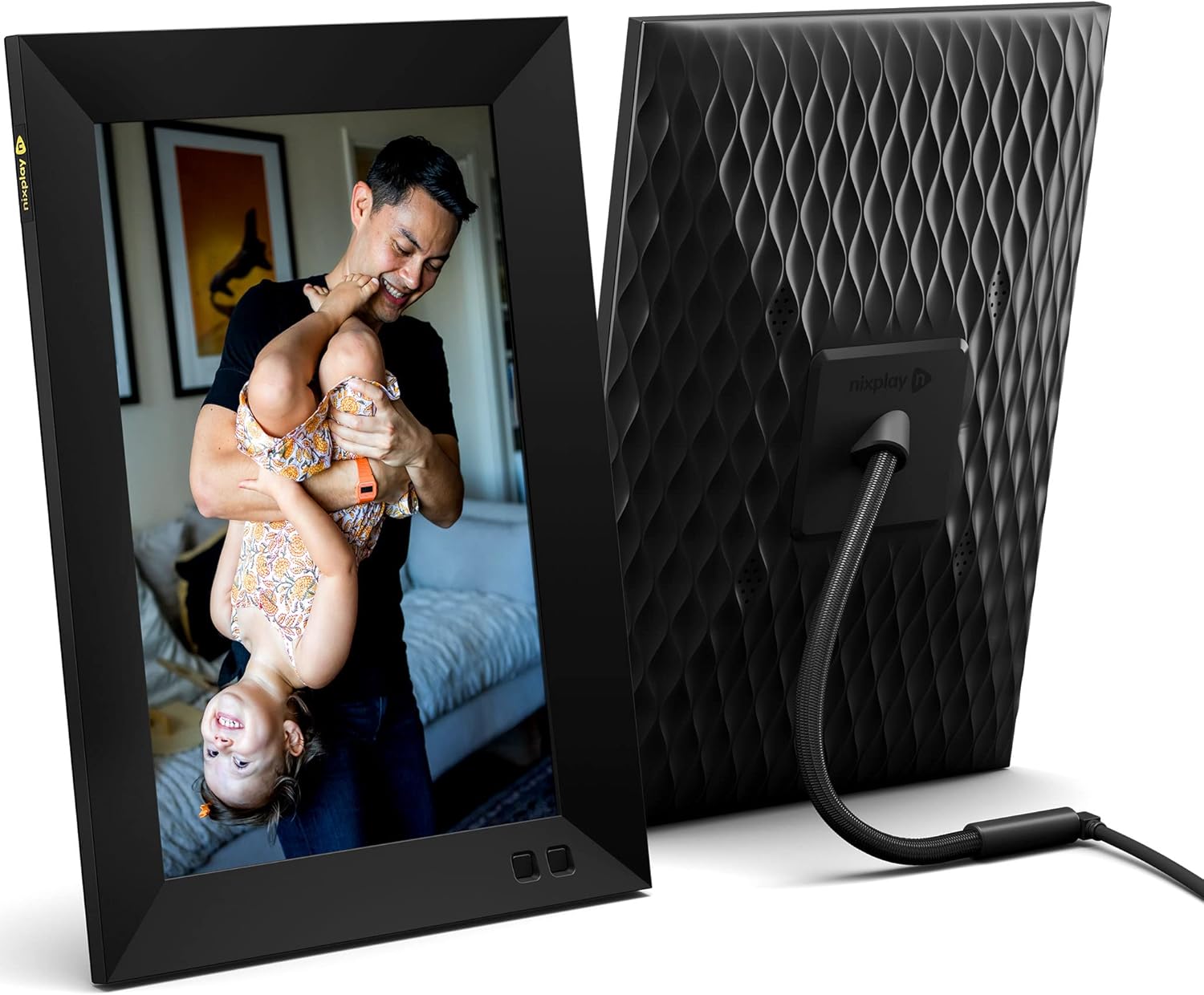
פיגורע 2.1: פראָנט און דערציען view of the Nixplay 10.1 inch Smart Digital Photo Frame. The front displays an image of a person holding a child, while the rear shows the textured back panel and power cable connection.
2.1 פּעקל אינהאַלט

פיגורע 2.2: Contents of the Nixplay Smart Digital Photo Frame package. Includes the frame, power adapter, remote control, wall mounting guide, screws, and a brief guide.
Upon unboxing, verify that all items are present:
- Nixplay 10.1 inch Smart Digital Photo Frame
- מאַכט אַדאַפּטער
- ווייַט קאָנטראָל
- Wall Mounting Guide and Hardware
- שנעל אָנהייב גייד
3. סעטאַפּ
3.1 Powering On the Frame
- Connect the power adapter to the frame's power port.
- צאַפּן די מאַכט אַדאַפּטער אין אַ וואַנט ווענטיל.
- The frame will automatically power on and display the Nixplay logo.
3.2 Initial Wi-Fi and Account Setup
Follow the on-screen prompts to connect your frame to a Wi-Fi network and create or log in to your Nixplay account. This process typically involves:
- Selecting your Wi-Fi network and entering the password.
- Downloading the Nixplay app on your smartphone or tablet.
- Pairing your frame with your Nixplay account using the app.

פיגורע 3.1: The Nixplay app displayed on a smartphone, illustrating how to share photos and videos instantly. The digital frame is shown displaying a family photo.
4. אַפּערייטינג ינסטרוקטיאָנס
4.1 Managing Content with the Nixplay App
The Nixplay app is the primary tool for managing your frame's content. It allows you to upload photos and videos, create playlists, and invite others to share content.
- ופּלאָאַדינג פאָטאָס / ווידיאס: Use the app to select media from your device or linked cloud services (e.g., Google Photos, Dropbox) and upload them to your Nixplay account.
- Creating Playlists: Organize your uploaded media into playlists. You can assign specific playlists to your frame.
- ייַנטיילונג: Invite family and friends to contribute photos and videos to your frame via email or the Nixplay app.

פיגורע 4.1: The Nixplay app interface displaying various playlists, including "Google Photos family," "Christmas Playlist," and "Wedding." This demonstrates the app's content organization features.
4.2 ניצן די רימאָוט קאָנטראָל
The included remote control allows for basic navigation and settings adjustments directly on the frame. Functions typically include:
- Navigating through menus.
- Adjusting volume (for videos).
- Pausing/playing slideshows.
- Accessing frame settings.
4.3 באַוועגונג סענסאָר פאַנגקשאַנאַליטי
The frame features a motion sensor that can be configured to turn the display on when motion is detected and off after a period of inactivity, conserving energy.
5. וישאַלט
5.1 רייניקן דעם ראַם
- Use a soft, dry, lint-free cloth to clean the screen and frame exterior.
- Avoid using abrasive cleaners, solvents, or aerosol sprays, as these can damage the surface.
- פֿאַר שווערע פֿלעקן אויף דעם עקראַן, לייכט ווייכןampen the cloth with water, then wipe gently.
5.2 ווייכווארג דערהייַנטיקונגען
Ensure your frame's software is up to date for optimal performance and new features. The frame typically updates automatically when connected to Wi-Fi, or you may be prompted to install updates via the Nixplay app.
6. טראָובלעשאָאָטינג
| אַרויסגעבן | מעגלעך לייזונג |
|---|---|
| דער ראַם גייט נישט אָן. | זיכער מאַכן אַז דער מאַכט אַדאַפּטער איז זיכער פארבונדן צו ביידע די ראַם און אַ אַרבעטנדיק מאַכט אַוטלעט. פּרוּווט אַן אַנדער אַוטלעט. |
| קענען ניט פאַרבינדן צו ווי-פי. | באַשטעטיקט דאָס Wi-Fi פּאַראָל. מאַכט זיכער אַז דער ראַם איז אין דער ראַוטער'ס ראַוטער ראַם. ריסטאַרט דעם ראַוטער און דעם ראַם. |
| Photos are not appearing on the frame. | Check your Nixplay app to confirm photos are uploaded and assigned to the correct playlist for your frame. Ensure the frame is connected to Wi-Fi. |
| ווייַט קאָנטראָל איז נישט ארבעטן. | Ensure there are no obstructions between the remote and the frame. Replace the remote control battery if necessary. |
7. ספּעסאַפאַקיישאַנז
- מאָדעל נומער: W10J
- פאַרשטעלן גרייס: 10.1 אינטשעס
- רעזאלוציע: 1280 X 800
- קאָליר: שוואַרץ
- פּראָדוקט דימענשאַנז: 8.54 X 35 X 0.99 אינטשעס
- נומער וואָג: 2.86 פונט
- קאַמפּאַטאַבאַל דעוויסעס: סמאַרטפאָנע, טאַבלעט
- באַטעריז: 1 Lithium Metal battery (included, for remote control)
- פאַבריקאַנט: ניקספּליי
- ASIN: B09364Y1QJ
8. וואָראַנטי און שטיצן
For warranty information and technical support, please refer to the documentation included with your product or visit the official Nixplay support webזייטל. קאָנטאַקט אינפֿאָרמאַציע פֿאַר קונה סערוויס קען טיפּיש געפֿונען ווערן אויף דער פאַבריקאַנט'ס webפּלאַץ.