
1. הקדמה
The FLAMMA FS07 Stereo Cabinet Simulation Pedal is a high-quality effects unit designed for electric guitarists. It offers advanced cabinet simulation and Impulse Response (IR) loading capabilities, allowing users to achieve diverse tonal characteristics. With 7 user preset slots, each capable of storing two different cabinet settings, and support for third-party IR files, the FS07 provides extensive sound customization. This manual details the pedal's features, setup, operation, and maintenance to ensure optimal performance.
2. זיכערקייַט אינסטרוקציעס
- Use only a 9V DC power supply with a minimum current of 304mA. Insufficient current may cause operational issues.
- Ensure the power supply polarity is center negative.
- שטעלט נישט אויס דעם אַפּאַראַט צו רעגן, פייכטקייט, אדער עקסטרעמע טעמפּעראַטורן.
- פֿאַרמײַדט צו לאָזן פאַלן אָדער אויסשטעלן דאָס אַפּאַראַט צו שטאַרקע קלאַפּן.
- פרובירט נישט צו צענעמען אדער פאררעכטן דעם איינהייט אליין. לאָזט איבער אלע סערוויסעס צו קוואַליפֿיצירטע פּערסאָנעל.
3. פּעקל אינהאַלט
The FLAMMA FS07 Stereo Cabinet Simulation Pedal package includes the following items:
- FLAMMA FS07 Pedal
- וסב קאַבלע
- שנעל אָנהייב גייד

Figure 1: FLAMMA FS07 pedal, USB cable, and quick start guide as packaged.
4. קאָנטראָלס און פֿעיִקייטן
The FLAMMA FS07 features intuitive controls for easy sound shaping and preset management.

פיגורע 2: איבערview of FLAMMA FS07 controls.
- LEVEL קנופּ: אַדזשאַסטירט די אַלגעמיינע אַרויסגאַנג באַנד פון די פּעדאַל.
- טיפּ קנעפּל: Selects one of the 11 factory cabinet simulations or loaded IRs.
- LATENCY Knob: Adjusts the latency of the cabinet simulation.
- נידעריק שנייַדן קנעפּל: Controls the low-frequency cutoff point.
- HIGH CUT קנופּ: Controls the high-frequency cutoff point.
- SAVE A/B Button: Used to save current settings to a preset slot. Each slot can store two different cabinet settings (A and B).
- Preset LEDs (1-7): Indicate the currently selected preset slot.
- פאָאָטסוויטש: Activates/bypasses the effect or cycles through presets, depending on its assigned mode.
5. קאַנעקשאַנז
The FS07 offers flexible connectivity options for various setups.

Figure 3: Pedalboard connection diagrams.
- INPUT L (MONO) / INPUT R Jacks: Connect your guitar or other effects pedals here. Use INPUT L for mono input.
- OUTPUT L (MONO) / OUTPUT R Jacks: פאַרבינדן צו דיין amplifier, mixer, audio interface, or FRFR system. Use OUTPUT L for mono output.
- DC 9V אַרייַנשרייַב: Connect a 9V DC center-negative power supply (minimum 304mA).
- וסב פּאָרט: Connect to a computer for software editing and IR loading.
קשר דיאַגראַמז:
- מאָנאָ סעטאַפּ: Guitar -> Stompbox/Effect Pedals/Preamp -> FS07 Input L (Mono) -> FS07 Output L (Mono) -> Mixer/Monitor/Audio Interface/FRFR System.
- סטערעאָ סעטאַפּ: Guitar -> Stompbox/Effect Pedals/Preamp -> FS07 Input L (Mono) & Input R -> FS07 Output L & Output R -> Mixer/Monitor/Audio Interface/FRFR System.
- Multi-Effect Setup: Guitar -> Multi-Effect Board -> FS07 Input L (Mono) -> FS07 Output L (Mono) -> Mixer/Monitor/Audio Interface/FRFR System.
- FX לופּ מיט Ampלייבער: Guitar -> Multi-Effect Board (Send) -> FS07 Input L (Mono) -> FS07 Output L (Mono) -> Mixer/Monitor/Audio Interface/FRFR System. Multi-Effect Board (Return) -> Amplifier. (Note: In this setup, connect the output to the amplifier to bypass the cab sim. The other output connecting to the mixer/FRFR system should have the cab sim on.)
6. Factory Cabinet Simulations
The FS07 comes pre-loaded with 11 high-quality factory cabinet simulations. These can be selected using the TYPE knob.

Figure 4: Factory Cabinet Simulation List.
| נאָמען | באַשרייַבונג |
|---|---|
| DLX 112 | Based on Fender® '65 Deluxe reverb 112 cabinet |
| בלוז 112 | Based on Fender® Blues Deluxe 112 cabinet |
| סאָניק 112 | Based on Fender® Super Sonic 112 cabinet |
| US BASS 410 | Based on Fender® '59 Bassman 410 cabinet |
| US TWN 212 | Based on Fender® '65 Twin Reverb 212 cabinet |
| וק 212 | Based on VOX® AC30 212 cabinet |
| BLUENO 212 | Based on Bruno® 212 Football cabinet |
| רעק 412 | Based on MESA/Boogie® Rectifier® STD 412 cabinet |
| CALI 412-1 | Based on MESA/Boogie® Recto Trad 412 cabinet |
| VHS 412 | Based on Diezel® 412 FV 412 cabinet |
| EV 5050 412 | Based on EVH® 5150 412 cabinet |
*NOTES: All product names belong to their owners and are only used in this product and manual as a reference to tone types.
7. Software Editor and IR Loading
The FLAMMA FS07 comes with specialized editor software for quick management of your presets and loading third-party Impulse Response (IR) files.

Figure 5: FS07 connected to the editor software.
- Connect the pedal to your computer via the USB port.
- Use the editor software to customize parameters, organize presets, and load your own IR files into the pedal's 7 user preset slots.
אפיציעלע פּראָדוקט ווידיאס:
Video 1: FLAMMA FS07 Stereo Cabinet Simulation Guitar Pedal Cab Simulator. This video demonstrates the features and sound of the FS07 pedal.
Video 2: FLAMMA FS07 Cabinet Simulation Pedal Connection Guide. This video provides a guide on connecting the FS07 pedal in various setups.
Video 3: FLAMMA FS07 Cabinet Simulation Effects Pedal Demo. This video showcases the different effects and sounds achievable with the FS07 pedal.
Video 4: FLAMMA FS07 Stereo Cabinet Simulation Guitar Pedal 7 User Preset Slots Support IR Load. This video highlights the preset management and IR loading features of the FS07.
8. Footswitch Modes
The footswitch on the FS07 can be customized to operate in different modes, offering flexibility during live performance or practice.
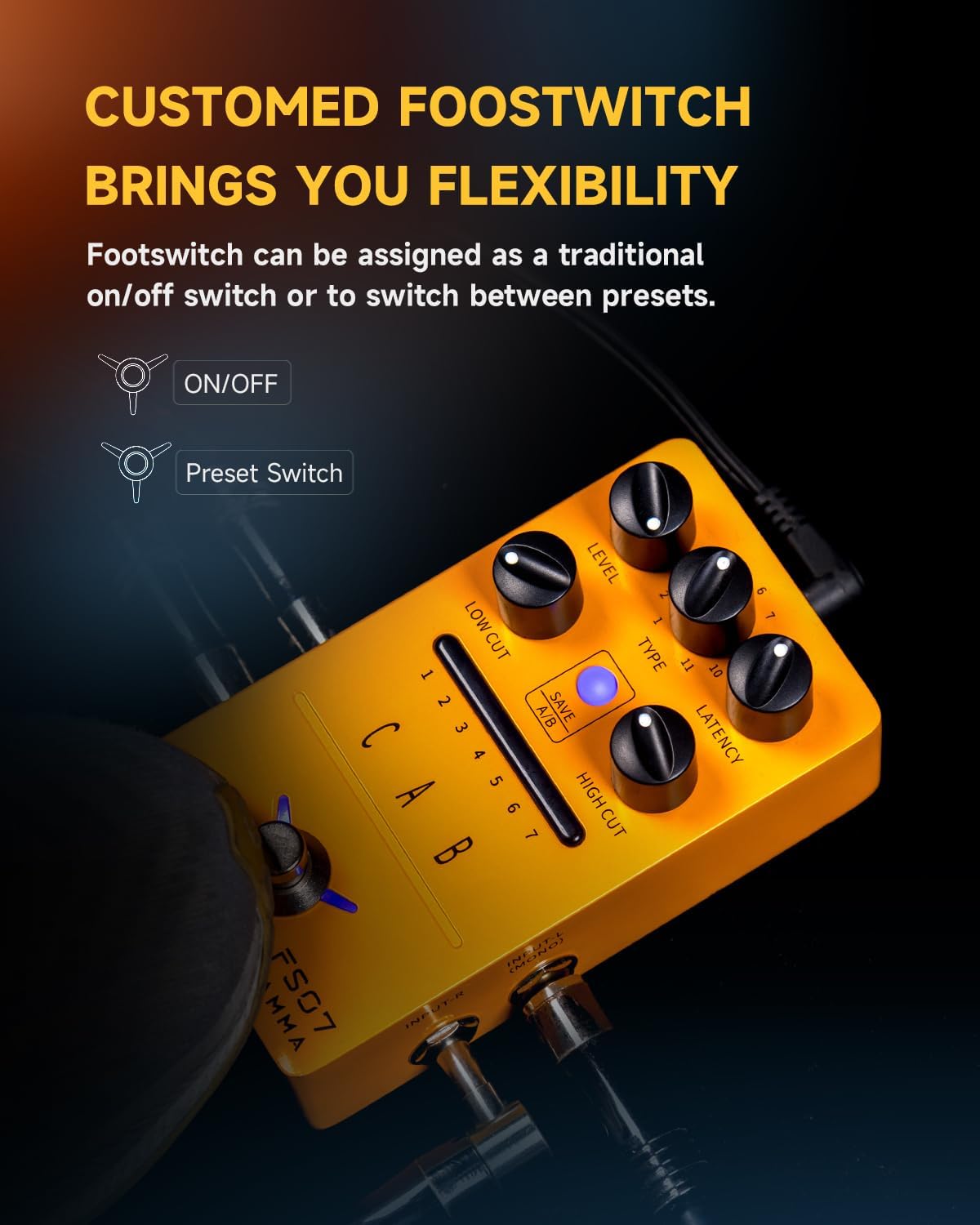
Figure 6: Footswitch functionality options.
- ON/OFF מאָדע: In this mode, a single press of the footswitch toggles the effect on or off.
- Preset Switch Mode: In this mode, a single press of the footswitch cycles through the saved presets (1-7).
Refer to the editor software for instructions on how to assign the footswitch mode.
9. ספּעסאַפאַקיישאַנז
Detailed technical specifications for the FLAMMA FS07 pedal.
| באַשרייַבונג | ווערט |
|---|---|
| פּונקט וואָג | 10.6 אונס (0.3 קילאָגראַמס) |
| פּראָדוקט דימענשאַנז | 2.76 X 1.99 X 4.78 אינטשעס |
| גוף מאַטעריאַל | מעטאַל |
| קאָליר | FS07 Cab Sim (Orange) |
| קאַנעקטער טיפּ | 1/4 אינטש (6.35 מ״מ) אַודיאָ דזשעק |
| ייַזנוואַרג צובינד | 1/4-אינטש אַודיאָ, USB |
| סיגנאַל פֿאָרמאַט | אַנאַלאָג |
| שטיצט ווייכווארג | FS07 CAB Edit |
| מאַכט מקור | Corded Electric (9V DC, center negative, >304mA) |
10. טראָובלעשאָאָטינג
- קיין קול: Check all cable connections, ensure the power supply meets specifications (9V DC, >304mA, center negative), and verify the pedal is not in bypass mode.
- נעבעך געזונט קוואַליטעט: Ensure correct input/output connections, check instrument cables, and adjust the LOW CUT/HIGH CUT knobs to fine-tune the tone.
- פּעדאַל רעאַגירט נישט: Disconnect and reconnect the power supply. If issues persist, try resetting the pedal via the editor software (if available).
- ווייכווארג קאנעקשאן פראבלעמען: Ensure the USB cable is securely connected and the correct drivers are installed (if required). Try restarting the software and your computer.
11. וישאַלט
- Clean the pedal's exterior with a soft, dry cloth. Avoid using abrasive cleaners or solvents.
- Store the pedal in a dry environment away from direct sunlight and extreme temperatures.
- When not in use for extended periods, disconnect the power supply.
12. וואָראַנטי און שטיצן
FLAMMA products are covered by a limited warranty against defects in materials and workmanship. For specific warranty terms and conditions, please refer to the warranty card included with your product or visit the official FLAMMA website. For technical support, troubleshooting assistance, or service inquiries, please contact FLAMMA customer support through their official channels.