
EinCar FBA.AG7024LWC.2+32-NZQ
EinCar Double Din Car Stereo User Manual
Model: FBA.AG7024LWC.2+32-NZQ
1. הקדמה
This manual provides comprehensive instructions for the installation, operation, and maintenance of your EinCar Double Din Car Stereo. Please read this manual thoroughly before using the product to ensure proper functionality and to prevent damage.
The EinCar Double Din Car Stereo is a multimedia system designed for in-car entertainment and navigation. It features a 7-inch HD touch screen, Android 10.0 operating system, and supports various functions including Bluetooth, CarPlay, Android Auto, GPS navigation, FM/AM radio, and multimedia playback.
2. פּראָדוקט איבערview
The EinCar Double Din Car Stereo offers a complete multimedia experience with its advanced features and user-friendly interface.

פיגורע 2.1: פראָנט view of the EinCar Double Din Car Stereo displaying CarPlay and Android Auto connectivity.
שליסל פֿעיִקייטן:
- 7-Inch HD Touch Screen: High-definition display (1024x600) for clear visuals.
- אַנדרויד 10.0 סיסטעם: Provides a stable and feature-rich operating environment.
- קאַרפּליי און אַנדרויד אויטאָ: Seamless integration with compatible smartphones for navigation, communication, and entertainment.
- בלועטאָאָטה קאַנעקטיוויטי: Supports hands-free calling and audio streaming.
- גפּס נאַוויגאַציע: Built-in offline maps and support for online navigation apps.
- FM/AM/RDS ראַדיאָ: Access to various radio stations with automatic and semi-automatic tuning.
- מולטימעדיאַ פּלייבאַק: Supports multiple audio and video formats via USB and AUX-in.
- הינטערשטע קאַמעראַ אַרייַנשרייַב: Automatic display switch when reversing.
- סטירינג ראָד קאָנטראָל: Compatibility with existing steering wheel controls for convenience.
- געבויט-אין EQ: Customizable audio settings for an enhanced listening experience.

פיגורע 2.2: איבערview of the Android 10.0 system interface with icons for navigation, radio, music, Bluetooth, video, and other functions.
3. פּעקל אינהאַלט
ביטע באַשטעטיקן אַז אַלע זאכן וואָס זענען ליסטעד אונטן זענען אַרייַנגערעכנט אין דיין פּעקל. אויב עפּעס פעלנדיק אָדער צעבראָכן, קאָנטאַקט דיין הענדלער.
- 1 x EinCar Double Din Car Stereo
- 1 x מאַכט קאַבלע
- 2 x AV Cables
- 2 רענטגענ וסב קאַבלעס
- 1 רענטגענ גפּס אַנטענע
- 2 x Installation Brackets (with 8 x Screws)
- 1 x Installation Frame
- 1 רענטגענ פונדרויסנדיק מיקראָפאָן
- 1 x באַניצער מאַנואַל (ענגליש)
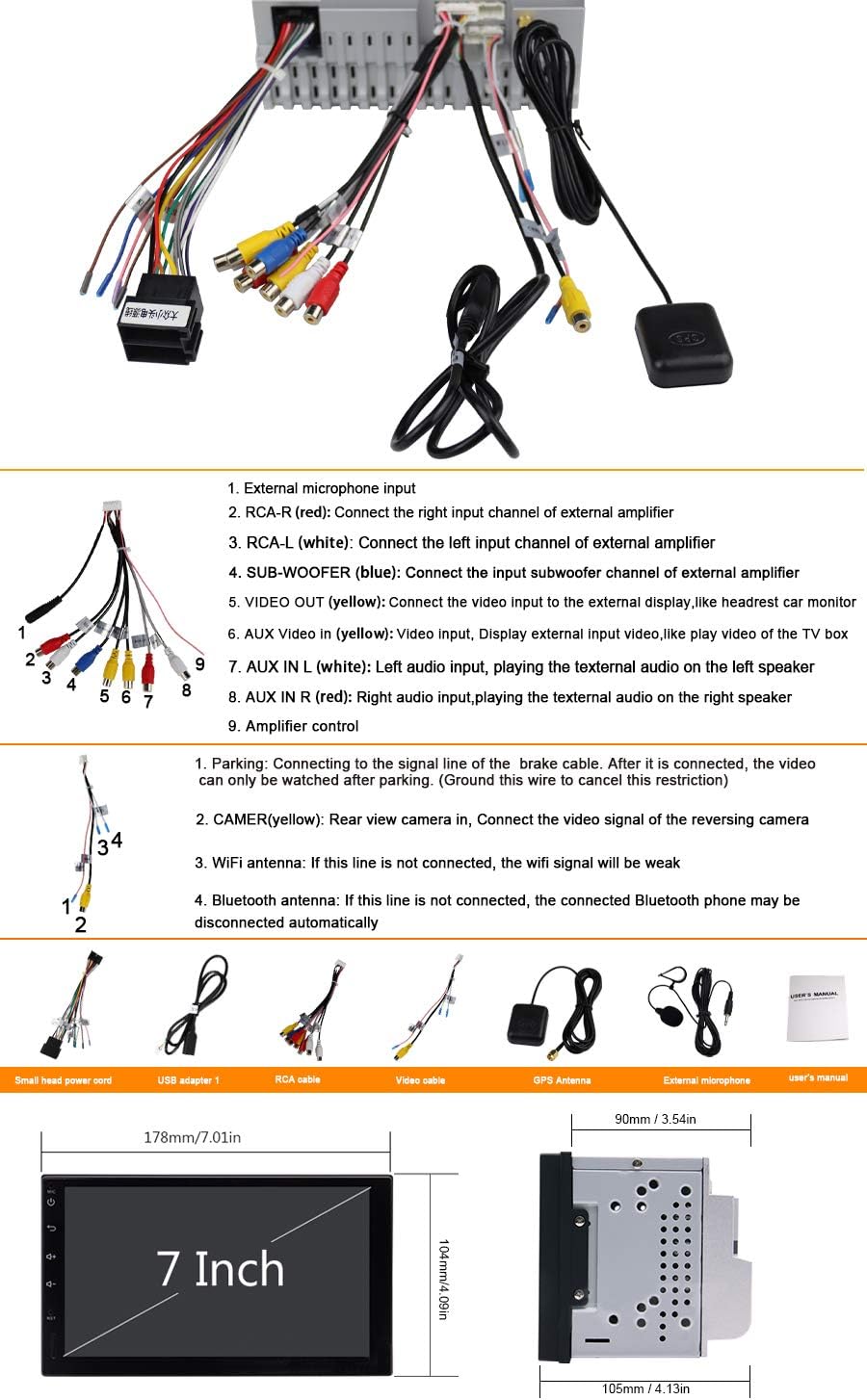
Figure 3.1: Illustration of the various cables and accessories included with the car stereo, along with a wiring diagram and product dimensions.
4. סעטאַפּ און ייַנמאָנטירונג
Installation of this car stereo requires technical knowledge. It is recommended to have it installed by a qualified professional. Incorrect installation may cause damage to the device or your vehicle.
4.1 זיכערקייַט פּריקאָשאַנז
- Disconnect the vehicle's battery negative terminal before starting installation.
- זיכער מאַכן אַז אַלע וויירינג איז ריכטיק פארבונדן צו פאַרמייַדן קורץ קרייזן אָדער שעדיקן.
- Do not install the unit where it obstructs the driver's view אדער שטערט די אפעראציע פון דעם אויטא.
- Refer to your vehicle's service manual for specific dashboard removal and wiring instructions.
4.2 וויירינג דיאַגראַמע איבערview
The following points describe the main connections for the car stereo. Refer to the detailed wiring diagram provided in Figure 3.1 for visual guidance.
- עקסטערנער מיקראָפאָן אַרייַנגאַנג: פֿאַרבינדט דעם עקסטערנעם מיקראָפֿאָן פֿאַר פֿאַרבעסערטע רוף קוואַליטעט.
- RCA-R (Red): Connect the right input channel of an external ampליפער.
- RCA-L (White): Connect the left input channel of an external ampליפער.
- SUB-WOOFER (Blue): Connect the input subwoofer channel of an external ampליפער.
- ווידעא ארויס (געל): Connect the video input to an external display, such as a headrest car monitor.
- AUX VIDEO IN (Yellow): Video input, display external input video.
- AUX IN L (White): Left audio input, playing the external audio on the left speaker.
- AUX IN R (Red): Right audio input, playing the external audio on the right speaker.
- Ampליפיער קאָנטראָל: For controlling external ampליפערז.
נאָך קאַנעקשאַנז:
- Parking Brake Wire: Connect to the signal line of the brake cable. The video playback function is restricted when the parking brake is not engaged for safety.
- Reverse Camera (CAMER): Connect the video signal of the reversing camera. The unit will automatically switch to the camera view ווען ריווערסינג.
- WiFi אַנטענע: Ensure this line is connected for optimal WiFi signal reception.
- בלועטאָאָטה אַנטענע: Ensure this line is connected. If disconnected, the Bluetooth phone may automatically disconnect.
4.3 גשמיות ינסטאַלירונג
- Carefully remove the existing car stereo or dashboard trim according to your vehicle's manual.
- Connect the power cable, speaker wires, and other necessary cables to the corresponding ports on the EinCar stereo.
- Attach the GPS antenna and external microphone, routing their cables appropriately.
- Secure the EinCar stereo into the dashboard using the provided installation brackets and screws.
- Reassemble the dashboard trim.
- Reconnect the vehicle's battery negative terminal.
- פּרובירט אַלע פֿונקציעס איידער איר ענדיקט די אינסטאַלאַציע.
5. אַפּערייטינג ינסטרוקטיאָנס
This section details the operation of the EinCar Double Din Car Stereo's various functions.
5.1 יקערדיק אָפּעראַציע
- מאַכט אויף / אַוועק: The unit typically powers on with the vehicle's ignition. A power button may also be present on the front panel.
- באַנד קאָנטראָל: אַדזשאַסטירן די באַנד מיט די קאָנטראָלן אויף דעם עקראַן אָדער די קאָנטראָלן אויף דעם סטירינג ראָד (אויב קאָנפיגורירט).
- ריר סקרין: Navigate the interface by tapping, swiping, and dragging on the 7-inch touch screen.
- באַשטעטיק קנעפּל: A small reset button (RST) is usually located on the front panel. Use a thin object (e.g., a paperclip) to press it if the system becomes unresponsive.
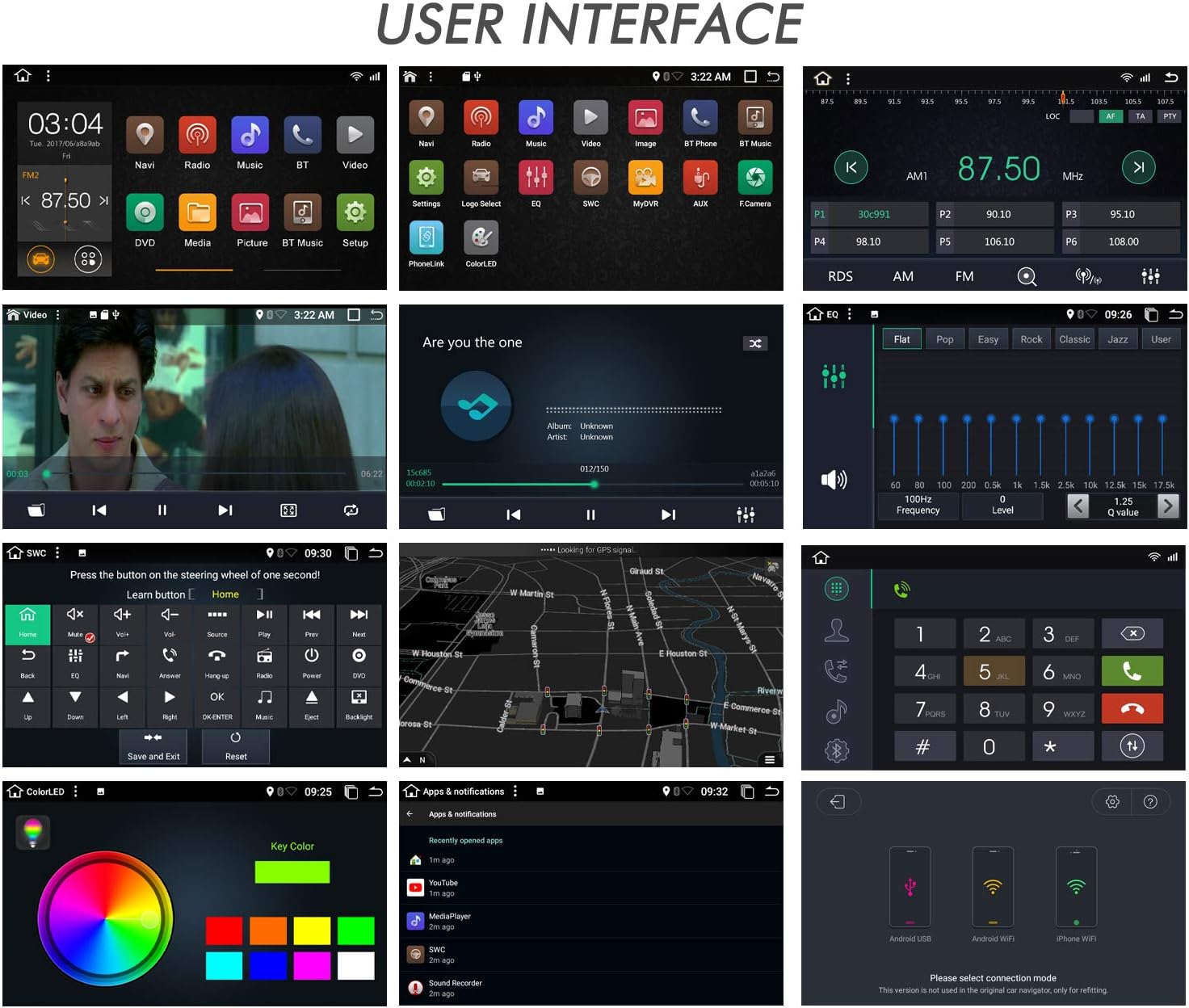
פיגורע 5.1: עקסamples of different user interface screens, including home screen, music player, equalizer, radio, phone dialer, and settings.
5.2 קאַרפּליי און אַנדרויד אויטאָ
The stereo supports wired CarPlay and Android Auto for seamless smartphone integration.
- Connect your compatible iPhone (for CarPlay) or Android phone (for Android Auto) to the stereo's USB port using a high-quality USB cable.
- The system will automatically detect the connection and prompt you to launch CarPlay or Android Auto.
- גיי די ינסטראַקשאַנז אויף דעם עקראַן צו פאַרענדיקן די סעטאַפּ.
- Once connected, you can access navigation, make calls, send messages, and play music directly from your phone's interface displayed on the stereo screen.
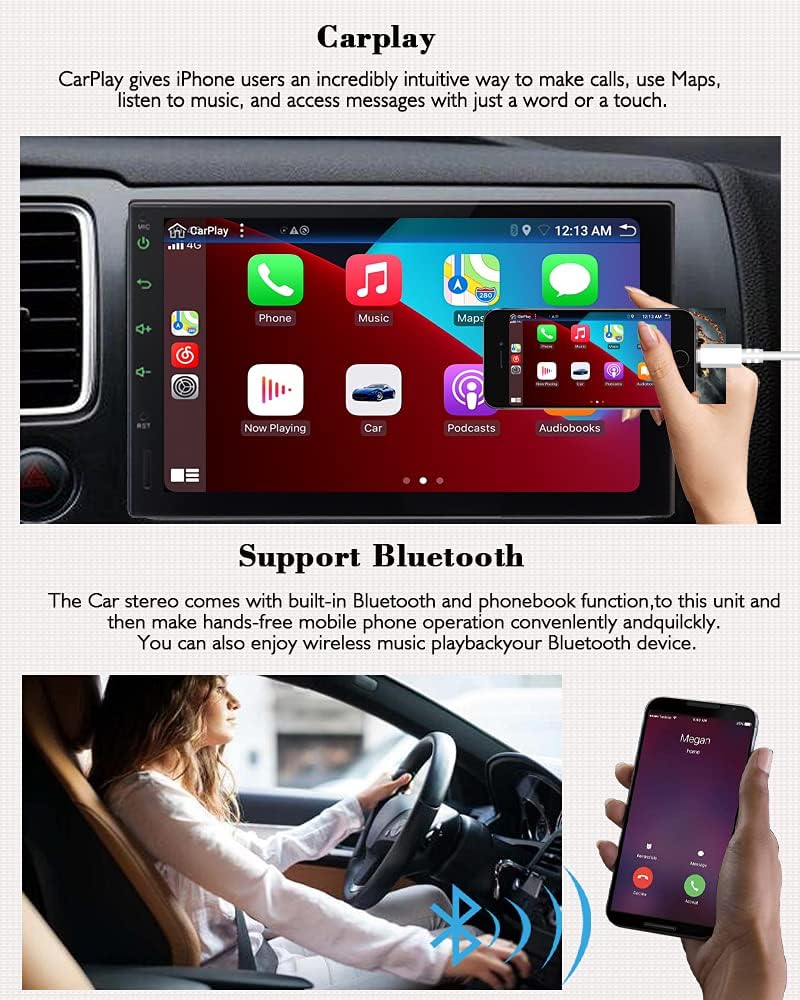
Figure 5.2: Demonstration of CarPlay interface on the stereo screen and a user interacting with a smartphone for Bluetooth functions.
5.3 בלועטוט פונקציאָנאַליטעט
Pair your smartphone with the stereo for hands-free calling and audio streaming.
- Go to the "Bluetooth" menu on the stereo.
- געבן בלועטאָאָטה אויף דיין סמאַרטפאָנע און זוכן פֿאַר בנימצא דעוויסעס.
- Select "EinCar" (or similar device name) from the list on your phone.
- באַשטעטיקן דעם פּערינג קאָד אויף ביידע דעוויסעס אויב געבעטן.
- אַמאָל פּערד, קענט איר מאַכן/באַקומען רופן, צוטריט צו דיין טעלעפאָן בוך, און סטרימען מוזיק וויירלעס.
5.4 FM/AM/RDS Radio
Access and tune into radio stations.
- Select the "Radio" icon from the main menu.
- Use the on-screen controls to perform automatic or semi-automatic station searches.
- ראַטעוועט אייערע באַליבסטע סטאַנציעס ווי פּרעסעטס פֿאַר שנעלן צוטריט.
- The RDS (Radio Data System) function displays station information where available.

Figure 5.3: Display of the radio tuning interface and the graphic equalizer for audio adjustments.
5.5 גפּס נאַוויגאַציע
Utilize the built-in GPS for navigation.
- Select the "Navi" or "GPS" icon from the main menu.
- The system comes with pre-installed offline maps.
- You can also connect to Wi-Fi and use online navigation applications like Google Maps.
- Enter your destination, and the system will provide voice-guided directions.

Figure 5.4: Details of the Android 10.0 operating system and a visual representation of the GPS function with location pins on a world map.
5.6 שפּיגל לינק פונקציע
Mirror your smartphone screen onto the stereo display.
- Select the "Mirror Link" or "PhoneLink" icon.
- Follow the on-screen instructions to connect your Android or iOS device. This typically involves connecting via USB or Wi-Fi and installing a specific app on your phone.
- Once connected, your phone's screen will be mirrored on the stereo, allowing you to control your phone's apps from the stereo's touch screen.
5.7 Reverse Camera Input
When a reverse camera is connected and properly installed, the stereo will automatically display the camera feed when the vehicle is shifted into reverse gear.
פיגורע 5.5: עקסample of the reverse camera display on the stereo screen, showing parking guidelines.
5.8 מולטימעדיאַ ווידערשפּיל
שפּילן אַודיאָ און ווידעאָ fileס פון פאַרשידן קוואלן.
- וסב: Insert a USB drive into the designated USB port. The system will detect the media and allow you to browse and play files.
- AUX אין: Connect external audio devices using the AUX-in ports.
- שטיצט פֿאָרמאַטירונגען: The unit supports multi-format audio and video recording and playback.
5.9 סיסטעם סעטטינגס
Access the settings menu to customize various aspects of the stereo.
- ווייַז סעטטינגס: Adjust brightness, wallpaper, and screen timeout.
- אַודיאָ סעטטינגס: Customize equalizer presets, balance, and fader.
- אַלגעמיינע סעטטינגס: Set language, date, time, and other system preferences.
- סטירינג ראָד קאָנטראָל: Configure the stereo to work with your vehicle's steering wheel controls.
6. וישאַלט
Proper maintenance ensures the longevity and optimal performance of your EinCar Double Din Car Stereo.
- רייניקונג די פאַרשטעלן: ניצט אַ ווייכן, לינט-פֿרייע שטאָף צו פֿאָרזיכטיק ווישן דעם ריר-עקראַן. פֿאַר שווערע פֿלעקן, אַ ביסל ווישןampen the cloth with water or a screen cleaner designed for electronics. Avoid harsh chemicals or abrasive materials.
- אַלגעמיינע רייניקונג: Keep the unit's exterior clean by wiping it with a dry, soft cloth.
- ווייכווארג דערהייַנטיקונגען: Periodically check for software updates from the manufacturer's website or through the device's settings (if available) to ensure optimal performance and access to new features.
- ויסמיידן עקסטרעם טעמפּעראַטורעס: שטעלט נישט אויס דעם אַפּאַראַט צו עקסטרעמע טעמפּעראַטורן, דירעקטע זונשייַן פֿאַר לאַנגע פּעריאָדן, אָדער הויכע פֿײַכטקייט.
- קאַבלע קאַנעקשאַנז: זיכער מאַכן אַז אַלע קאַבלען זענען זיכער פֿאַרבונדן. לויזע פֿאַרבינדונגען קענען פֿירן צו פּראָבלעמען וואָס גייען אָן.
7. טראָובלעשאָאָטינג
די סעקציע גיט לייזונגען צו געוויינטלעכע פראבלעמען וואָס איר קענט באַגעגענען. אויב די פּראָבלעם בלייבט, קאָנטאַקטירט קונה שטיצע.
| פּראָבלעם | מעגלעך סיבה | לייזונג |
|---|---|---|
| קיין מאַכט/איינהייט צינדט זיך נישט אָן. |
|
|
| קיין געזונט. |
|
|
| בלועטוט קאנעקט נישט. |
|
|
| דזשי-פי-עס סיגנאַל שוואַך אָדער נישט פּינקטלעך. |
|
|
| טאָוטש סקרין רעאַגירט נישט. |
|
|
8. ספּעסאַפאַקיישאַנז
| שטריך | דעטאַל |
|---|---|
| סאָרט | איינקאַר |
| מאָדעל | FBA.AG7024LWC.2+32-NZQ |
| אָפּערייטינג סיסטעם | אַנדרויד 10.0 |
| קפּו | Allwinner T3 1.5GHz Cortex A7 Quad Core |
| באַראַן | 2 גיגאבייט |
| ROM (Flash Storage) | 32 גיגאבייט |
| פאַרשטעלן גרייס | 7 אינטשעס (17.8 סענטימעטער) |
| ווייַז טיפּ | לקד טאָוטשסקרעען |
| ווייַז האַכלאָטע | 1024 X 600 |
| עפעם פרעקווענסי קייט | 87.5-108MHz (0.1MHz US) |
| AM פרעקווענסי ראַנגע | 522-1620KHz (10KHz US) |
| אַפּערייטינג וואָלtage | 10.8V-14.4V |
| רעזולטאַט וואָסtage | 45 וואטס |
| קאַנעקטיוויטי | Bluetooth, Wi-Fi, USB, AUX-in, GPS |
| ספּעציעלע פֿעיִקייטן | CarPlay, Android Auto, Mirror Link, GPS Navigation, Rear Camera Input, Steering Wheel Control, Built-in Microphone, EQ |
| פּראָדוקט דימענשאַנז | 17.8 X 10.4 X 10.5 סענטימעטער |
| פּונקט וואָג | 1.37 קג |
9. וואָראַנטי און שטיצן
For warranty information and technical support, please refer to the documentation provided with your purchase or contact EinCar customer service directly. Keep your purchase receipt as proof of purchase.
For further assistance, please visit the official EinCar webזייטל אדער קאנטאקט זייערע שטיצע קאנאלן.