
FIDECO US-PL319
FIDECO USB 3.0 to SATA or IDE Adapter Instruction Manual
Model: US-PL319
1. הקדמה
This manual provides comprehensive instructions for the FIDECO USB 3.0 to SATA or IDE Adapter, Model US-PL319. This device is designed to connect various types of hard disk drives (HDDs) and solid-state drives (SSDs), including 2.5-inch and 3.5-inch SATA drives, and 2.5-inch and 3.5-inch IDE drives, to your computer via a USB 3.0 interface. It also supports optical drives such as DVD-ROM, CD-ROM, CD-RW, DVD-RW, and DVD+RW. Please read this manual carefully before use to ensure proper operation and to maximize the product's functionality.
2. פּראָדוקט איבערview
2.1 פּעקל אינהאַלט
- FIDECO USB 3.0 to SATA/IDE Adapter
- וסב 3.0 דאַטאַ קאַבלע
- 12 וו מאַכט אַדאַפּטער
- IDE 4-Pin Power Cable
2.2 Adapter Features
- וניווערסאַל קאַמפּאַטאַבילאַטי: Supports 2.5"/3.5" SATA HDD/SSD, 2.5"/3.5" IDE HDD, and various optical drives.
- הויך-גיכקייַט דאַטן אַריבערפירן: USB 3.0 interface provides data transfer speeds up to 5Gbps, backward compatible with USB 2.0.
- גרויס קאַפּאַציטעט שטיצע: Compatible with hard drives up to 24TB.
- סיימאַלטייניאַס קאַנעקשאַנז: Connect up to three drives concurrently (one 2.5" IDE, one 3.5" IDE, one 2.5"/3.5" SATA).
- צאַפּן און שפּיל: Driver-free installation for most operating systems.
- ברייטע סיסטעם שטיצע: Compatible with Windows 10/8.1/8/7/Vista/XP, Mac OS 9/10, Linux, etc.

Figure 1: FIDECO USB 3.0 to SATA or IDE Adapter and included cables.

פיגורע 2: דעטאַילעד view of the adapter's ports, including SATA, 3.5 IDE, 2.5 IDE, USB 3.0, DC 12V power input, and ON/OFF switch.
3. סעטאַפּ אינסטרוקציעס
Follow these steps to connect your hard drive or optical drive to your computer using the FIDECO adapter.
3.1 Connecting a SATA Drive (2.5" or 3.5" HDD/SSD)
- Insert Your HDD or SSD: Connect the SATA data and power connectors from the adapter to your 2.5-inch or 3.5-inch SATA hard drive or SSD. Ensure a firm connection.
- פאַרבינדן די מאַכט צושטעלן: For 3.5-inch SATA drives and all IDE drives, connect the included 12V power adapter to the DC 12V port on the FIDECO adapter, then plug it into a wall outlet. For 2.5-inch SATA drives, external power is usually not required, but can be used if needed.
- Connect to Your PC: Plug the USB 3.0 data cable into the USB 3.0 port on the FIDECO adapter and the other end into an available USB port on your computer. For optimal performance, use a USB 3.0 port on your computer.
- קער אויף די מאַכט סוויטש: If using external power, switch the ON/OFF button on the adapter to the 'ON' position. The indicator lights on the adapter will illuminate.

Figure 3: Easy connection steps for the FIDECO adapter.
3.2 Connecting an IDE Drive (2.5" or 3.5" HDD/Optical Drive)
- Set IDE Jumper Settings: Before connecting, ensure your IDE drive's jumpers are correctly set to 'Master' or 'Single' mode. Incorrect jumper settings can prevent the drive from being recognized. Refer to your IDE drive's documentation for specific jumper configurations.
- Connect IDE Drive: For 3.5-inch IDE drives, connect the 40-pin IDE connector from the adapter to the drive. For 2.5-inch IDE drives, use the smaller 44-pin IDE connector. Ensure the connection is secure and correctly oriented.
- Connect IDE Power: Use the included IDE 4-pin power cable. Connect one end to the IDE 4-pin power port on the FIDECO adapter and the other end to the IDE power input on your drive.
- Connect 12V Power Adapter: Plug the 12V power adapter into the DC 12V port on the FIDECO adapter and into a wall outlet.
- Connect to Your PC: Plug the USB 3.0 data cable into the USB 3.0 port on the FIDECO adapter and the other end into an available USB port on your computer.
- קער אויף די מאַכט סוויטש: Switch the ON/OFF button on the adapter to the 'ON' position.
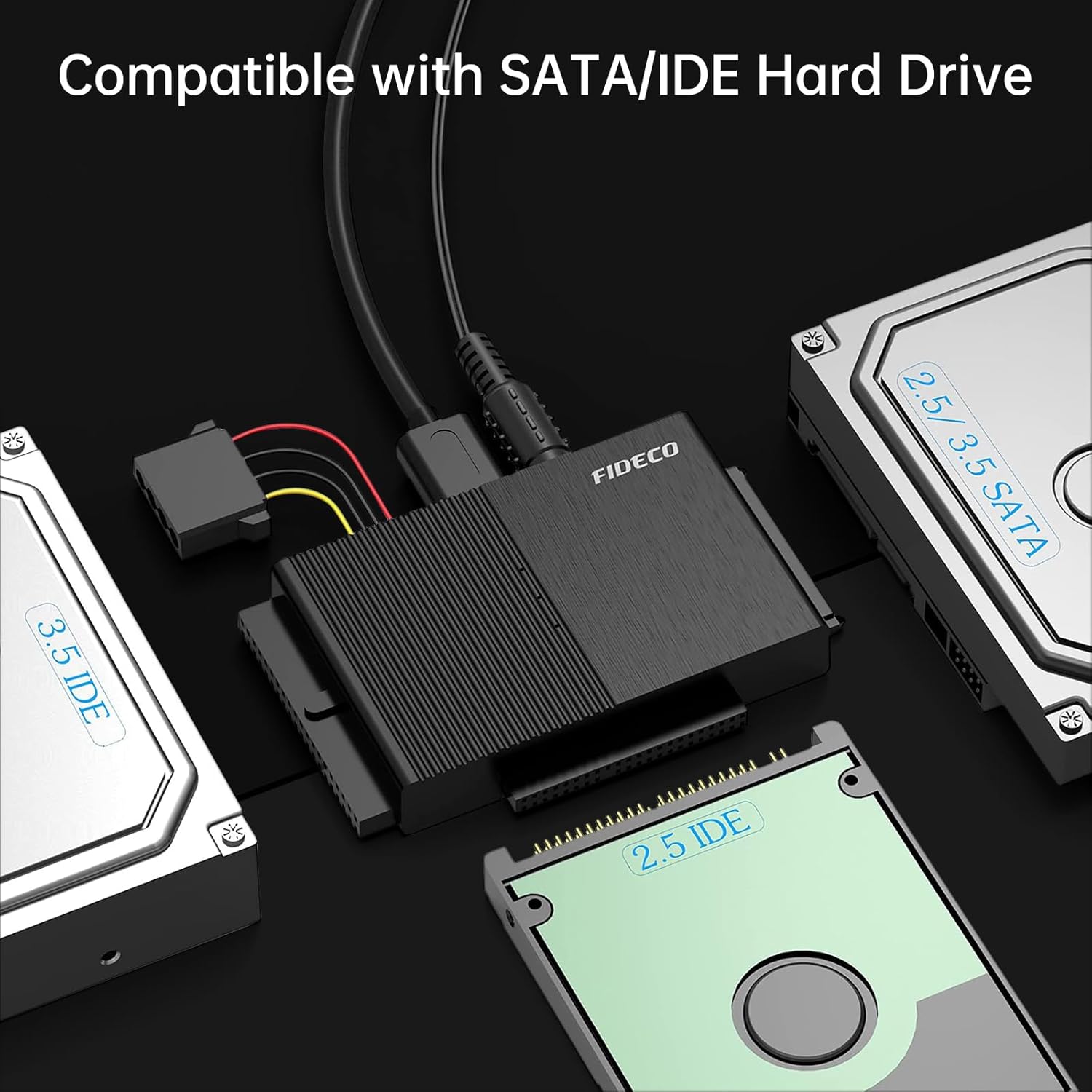
Figure 4: The FIDECO adapter supports various SATA and IDE hard drive types.
4. אַפּערייטינג ינסטרוקטיאָנס
4.1 Initializing New Drives
For new HDDs or SSDs, the drive needs to be initialized and formatted by your computer's operating system before it can be recognized and used. This process typically involves using Disk Management in Windows or Disk Utility in macOS.
4.2 דאַטאַ אַריבערפירן
Once connected and recognized, your drive will appear as an external storage device. You can then drag and drop files, perform backups, or access data as you would with any other external drive. The USB 3.0 interface supports data transfer speeds up to 5Gbps, enabling efficient data management.
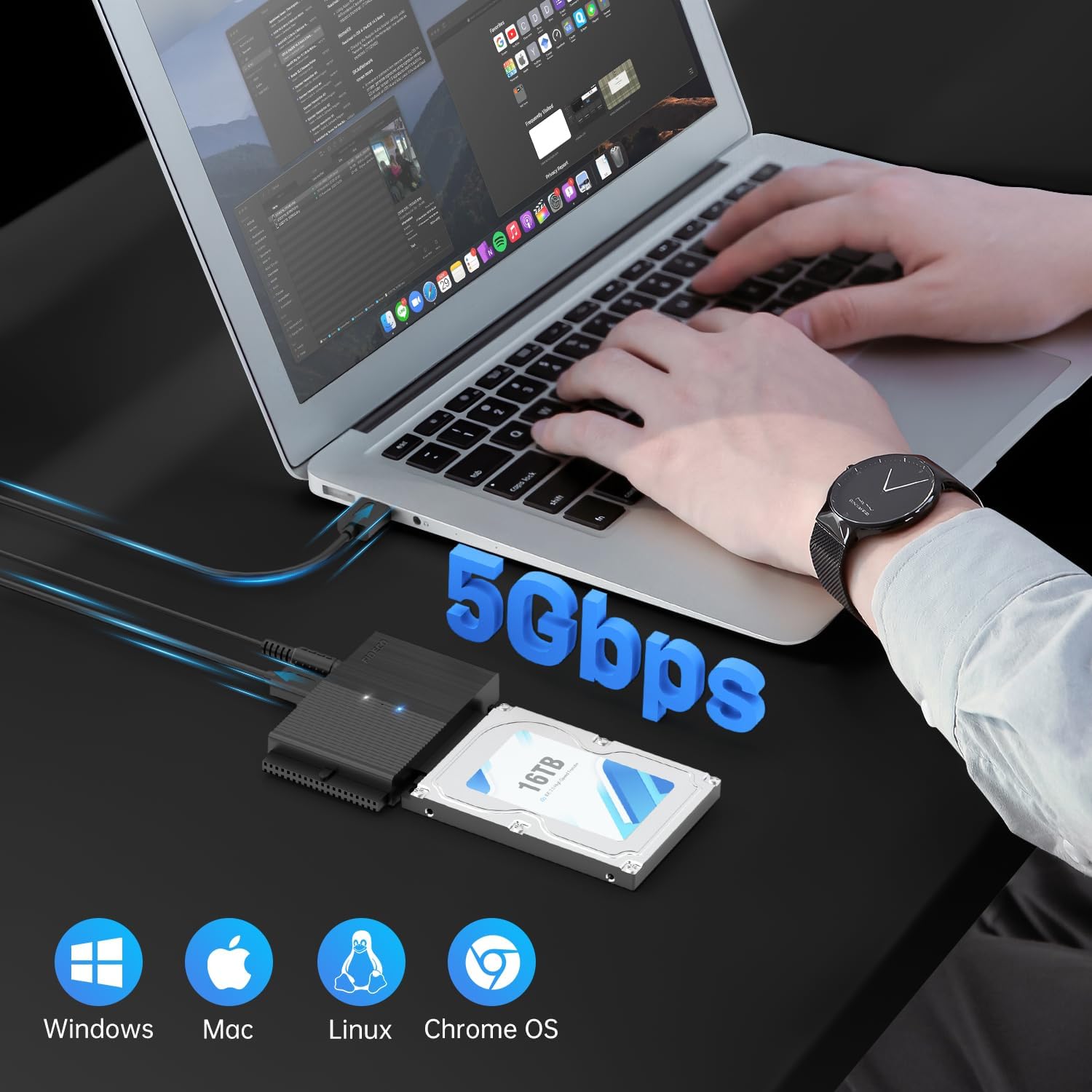
Figure 5: High-speed data transfer with the FIDECO adapter.
4.3 סיסטעם קאָמפּאַטאַביליטי
The FIDECO adapter is universally compatible with various operating systems, including Windows 10/8.1/8/7/Vista/XP, Mac OS 9/10, and Linux. No additional drivers are typically required for installation.
5. וישאַלט
- האַלט דעם אַדאַפּטער ריין און פֿרײַ פֿון שטויב. ניצט אַ ווייכן, טרוקענעם שטאָף פֿאַר רייניקונג.
- ויסמיידן יקספּאָוזינג די מיטל צו עקסטרעם טעמפּעראַטורעס, הומידיטי אָדער דירעקט זונשייַן.
- Do not attempt to disassemble or repair the adapter yourself. Contact support if issues arise.
- Store the adapter and cables in a safe place when not in use to prevent damage.
6. טראָובלעשאָאָטינג
6.1 דרייוו נישט דעטעקטירט
- טשעק קאַנעקשאַנז: Ensure all cables (data and power) are securely connected to both the adapter and the drive, and to the computer and wall outlet.
- מאַכט צושטעלן: Verify that the 12V power adapter is correctly connected and the ON/OFF switch on the FIDECO adapter is in the 'ON' position. 3.5-inch drives and all IDE drives require external power.
- New Drive Initialization: If it's a new HDD or SSD, it must be initialized and formatted through your operating system's disk management utility before it can be recognized.
- IDE Jumper Settings: For IDE drives, confirm that the jumpers are set to 'Master' or 'Single' mode. Incorrect jumper settings are a common cause of detection issues.
- פּרוּווט אן אנדער וסב פּאָרט: Connect the adapter to a different USB port on your computer.
- Test with Another Drive: If possible, test the adapter with a known working drive to isolate the issue.
6.2 לאַנגזאַמע טראַנספער גיכקייטן
- וסב 3.0 פּאָרט: Ensure the adapter is connected to a USB 3.0 port on your computer. Connecting to a USB 2.0 port will limit speeds to 480Mbps.
- Drive Condition: The speed of the connected drive itself can affect transfer rates. Older or slower drives will naturally have lower performance.
- סיסטעם רעסורסן: High CPU usage or other background processes on your computer can impact transfer speeds.
7. ספּעסאַפאַקיישאַנז
| שטריך | דעטאַל |
|---|---|
| מאָדעל נומער | יו. עס.-PL319 |
| צובינד | וסב 3.0 (צוריק קאַמפּאַטאַבאַל מיט וסב 2.0) |
| שטיצט דרייווז | 2.5"/3.5" SATA HDD/SSD, 2.5"/3.5" IDE HDD, CD-ROM, CD-RW, DVD-ROM, DVD-RW, DVD+RW |
| מאַקסימום קאַפּאַציטעט | אַרויף צו 24 טב |
| דאַטאַ טראַנספער ספּיד | אַרויף צו 5 גבפּס (וסב 3.0) |
| אַפּערייטינג סיסטעם קאַמפּאַטאַבילאַטי | Windows 10/8.1/8/7/Vista/XP, Mac OS 9/10, Linux |
| מאַכט אַרייַנשרייַב | DC 12V (via included power adapter) |
| קאָליר | שוואַרץ |
| פּונקט וואָג | 8.8 אונסעס |
| פּעקל דימענשאַנז | 5.67 X 3.66 X 2.52 אינטשעס |
8. וואָראַנטי און שטיצן
FIDECO products are designed for reliability and performance. For technical support, firmware updates, or any questions regarding your FIDECO USB 3.0 to SATA or IDE Adapter, please contact our customer support team.
בליצפּאָסט: support@fideco.cn
Please provide your model number (US-PL319) and a detailed description of your issue when contacting support for faster assistance.
Ask a question about this manual
Ask about setup, troubleshooting, compatibility, parts, safety, or missing instructions. Manuals+ will review the question and use this page’s manual context to help answer it.