
הקדמה
This manual provides essential instructions for setting up, operating, maintaining, and troubleshooting your Surfans K7 Kids Tablet. Please read this guide thoroughly to ensure proper use and to maximize the tablet's features for a safe and engaging experience for children.
פּראָדוקט איבערview
שליסל פֿעיִקייטן
- אַנדרויד 10.0 אָפּערייטינג סיסטעם: Provides a secure and fast user experience.
- 7-inch IPS FHD Display: Features a 1920 x 1200 resolution eye-care touchscreen with a 178-degree wide viewינג ווינקל.
- Quad-core Processor: Ensures smooth performance for apps and games.
- 2GB RAM, 32GB ROM: Sufficient memory for multitasking and storage, expandable via MicroSD card.
- צוויי קאַמעראַס: Equipped with 2MP front and 5MP rear cameras for photos and video calls.
- קאַנעקטיוויטי: Includes Wi-Fi and Bluetooth for wireless connections.
- Pre-installed iWAWA App: Offers updated educational content including games, videos, e-books, drawing, puzzles, and creative arts.
- גוגל פּליי סטאָר צוטריט: Allows downloading additional applications like YouTube Kids, Netflix, and Hulu.
- Parental Control Mode: Enables parents to manage content, set time limits, and customize child profiles.
- Durable Kid-Proof Case: Comes with a colorful, soft, and high-quality silicone case with an integrated 360-degree adjustable stand, suitable for children aged 2 to 10 years.

Image: The Surfans K7 Kids Tablet showcasing its GMS Certified Android 10.0 operating system and access to various applications via Google Play Store.

Image: The Surfans K7 Kids Tablet in use, illustrating its key features including quad-core processor, Android 10.0, 2GB RAM, 32GB ROM, WiFi, and Parent Mode.
טאַבלעט קאַמפּאָונאַנץ
מאַכט זיך באַקאַנט מיט די פיזישע קאָמפּאָנענטן פון אייער טאַבלעט:
- מאַכט קנעפּל: Typically located on the side, used to turn the tablet on/off or put it to sleep/wake it up.
- באַנד קנעפּלעך: אַדזשאַסטירן דעם אַודיאָ אַרויסגאַנג לעוועל.
- וסב- C פּאָרט: פֿאַר אָפּלאָדן דעם טאַבלעט און פֿאַרבינדן צו אַ קאָמפּיוטער פֿאַר דאַטן טראַנספֿער.
- 3.5 מם אַודיאָ דזשאַק: פֿאַר פֿאַרבינדן כעדפֿאָונז אָדער עקסטערנע רעדנערס.
- מיקראָסד קאָרט שפּעלטל: Allows for memory expansion using a compatible MicroSD card.
- פראָנט אַפּאַראַט: Used for video calls and taking selfies.
- דערציען אַפּאַראַט: פֿאַר כאַפּן בילדער און ווידעאָס.
- רעדנער: Provides audio output for media and notifications.
סעטאַפּ
1. טשאַרדזשינג די טאַבלעט
Before first use, fully charge the tablet. Connect the provided USB cable to the tablet's USB-C port and the other end to the power adapter. Plug the adapter into a wall outlet. The battery indicator on the screen will show the charging status.
2. פּאָווערינג אויף / אויסגעלאשן
- צו מאַכט אויף: Press and hold the Power Button until the screen lights up and the Surfans logo appears.
- צו מאַכט אַוועק: Press and hold the Power Button until a menu appears on the screen. Select "Power off" and confirm.
- צו שלאפן/אויפוואכן: Briefly press the Power Button to put the tablet to sleep or wake it up.
3. ערשט סעטאַפּ
ביים ערשטן מאָל אנצינדן, פאָלגט די אינסטרוקציעס אויפן עקראַן צו קאָנפיגורירן די גרונטלעכע סעטטינגס:
- אויסקלייַבן דיין בילכער שפּראַך.
- Connect to a Wi-Fi network (see next step).
- Set up your Google account or create a new one. This is necessary for downloading apps from the Google Play Store.
- Review און אָננעמען די תּנאים און באַדינגונגען.
4. קאַנעקטינג צו ווי-פי
To connect your tablet to the internet:
- גיין צו סעטטינגס.
- דריקט אויף נעץ און אינטערנעט.
- אויסקלייַבן ווי-פי און קער עס אויף.
- The tablet will scan for available networks. Select your desired network from the list.
- Enter the Wi-Fi password if prompted, then tap פאַרבינדן.
אַפּערייטינג ינסטראַקשאַנז
1. יקערדיק נאַוויגאַציע
The Surfans K7 tablet uses a touchscreen for interaction:
- צאַפּן: רירט דעם עקראַן איין מאָל צו אויסקלײַבן אַן אייטעם, עפֿענען אַן אַפּ, אָדער דריקן אַ קנעפּל.
- לאַקכענען: שלעפּט אייער פינגער אַריבער דעם עקראַן צו סקראָלן דורך בלעטער, רשימות, אָדער וועקסלען צווישן היים סקרינז.
- קניפּ-צו-זומען: לייגט צוויי פינגער אויפן עקראַן און באַוועגט זיי באַזונדער אָדער צוזאַמען צו זומען אַרײַן אָדער אַרויס.
- נאָטיפיקאַציעס און שנעלע סעטטינגס: סווייפּ אַראָפּ פֿון דער שפּיץ פֿונעם עקראַן צו צוטריטן נאָטיפיקאַציעס און שנעלע סעטטינגס קנעפּלעך (Wi-Fi, בלועטוט, אאַז"וו).
2. Downloading Apps from Google Play Store
With a Google account set up, you can download a wide variety of applications:
- צאַפּן אויף שפּיל סטאָר איקאָן אויף אייער היים־עקראַן אָדער אַפּ־שוך.
- Browse or search for apps, games, movies, and books.
- Select an item and tap ינסטאַלירן צו אָפּלאָדירן און ינסטאַלירן עס.
3. Using Pre-installed iWAWA App
The iWAWA app provides a safe and engaging environment for children:
- געפינען און צאַפּן די iWAWA בילדל.
- Explore the various categories such as games, videos, e-books, and creative activities.
- Content within iWAWA is curated to be age-appropriate and educational.
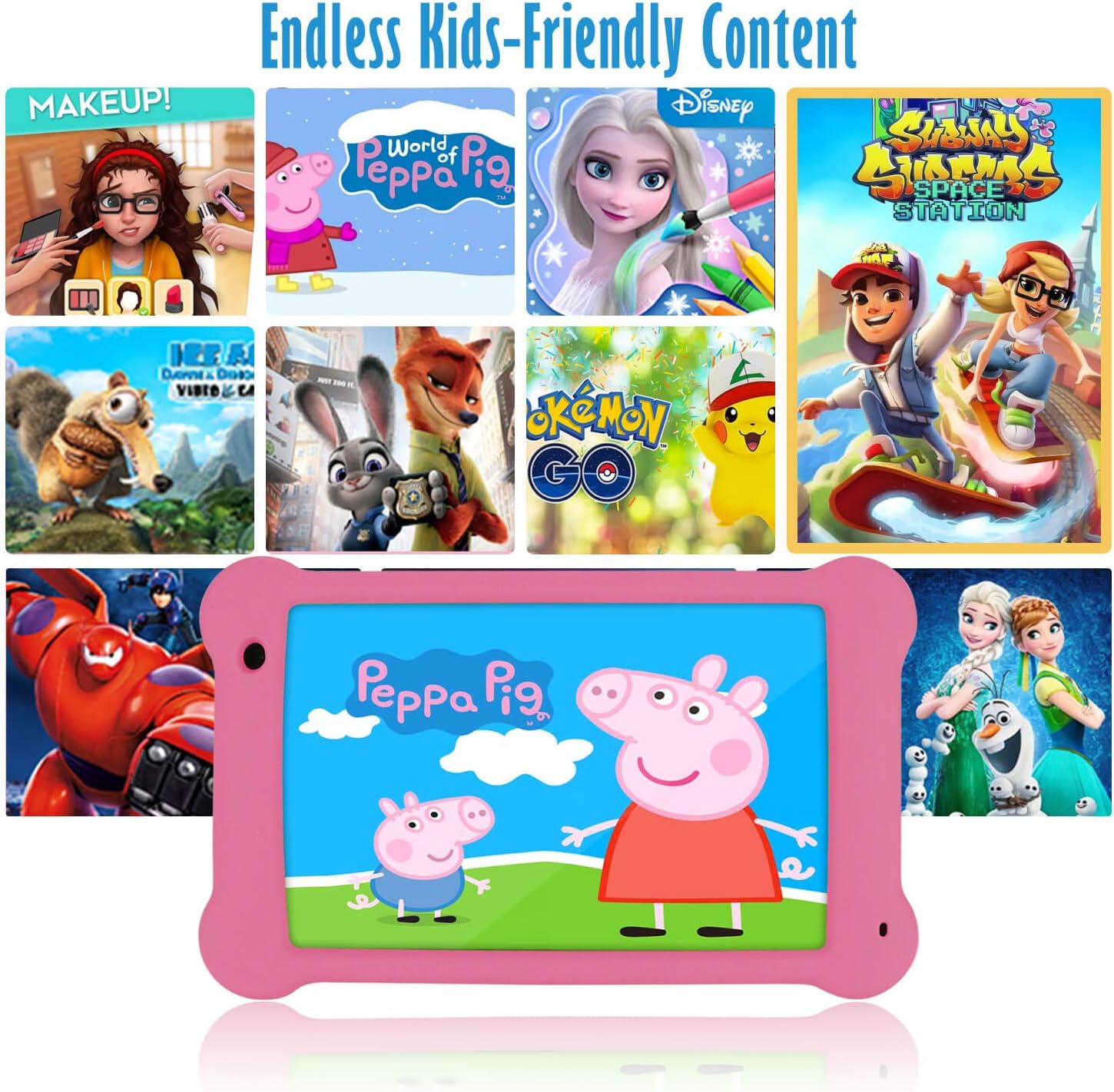
Image: The Surfans K7 Kids Tablet showcasing a variety of popular kid-friendly content, accessible through pre-installed apps and Google Play Store.
פּאַרענטאַל קאָנטראָל מאָדע
The Surfans K7 tablet includes a dedicated Parental Control Mode to manage your child's usage and ensure a safe digital environment.
1. Accessing Parental Mode
To access and configure parental controls:
- געפֿינען און עפענען די פאָטער מאָדע or iWAWA Parent אַפּלאַקיישאַן אויף די טאַבלעט.
- You will be prompted to set up a password or PIN for secure access. Remember this password.
2. Setting Time Limits
Manage how long your child can use the tablet:
- Configure daily usage limits for the tablet.
- Set specific time blocks during which the tablet can or cannot be used (e.g., bedtime restrictions).
3. Content Filtering
Ensure your child accesses only appropriate content:
- Select and approve specific applications, websites, and media content that your child is allowed to access.
- Block inappropriate content categories or specific webזייטלעך.
4. Managing Child Profiles
Create personalized experiences for each child:
- שאַפֿן יחיד פּראָfiles for multiple children.
- Customize settings, content access, and time limits for each profile based on age and preferences.

Image: A parent and child using the Surfans K7 Kids Tablet, demonstrating the ease of setting up and managing parental controls for time limits, child lock, and content filtering.
וישאַלט
1. רייניקן די טאַבלעט
To keep your tablet clean and functional:
- Use a soft, lint-free cloth (e.g., microfiber cloth) to gently wipe the screen and tablet body.
- פֿאַר שווערע פֿלעקן, אַ ביסל דampen the cloth with water. Avoid using harsh chemicals, abrasive cleaners, or excessive moisture, as these can damage the screen or internal components.
- זיכער מאַכן אַז די טאַבלעט איז אויסגעלאָשן און נישט אַרויסגעטראָגן פֿון דער פּלאַטע איידער איר רייניקט עס.
2. באַטערי קער
Proper battery care extends the tablet's lifespan:
- Avoid fully discharging the tablet frequently. Charge the tablet when the battery level is low (e.g., below 20%).
- Do not expose the tablet to extreme temperatures (hot or cold), as this can degrade battery performance.
- ניצט נאָר דעם צוגעשטעלטן טשאַרדזשער אָדער אַ סערטיפיצירטן קאָמפּאַטיבלע טשאַרדזשער.
3. ווייכווארג דערהייַנטיקונגען
Keep your tablet's software up-to-date for optimal performance and security:
- Periodically check for system updates by going to סעטטינגס > סיסטעם > סיסטעם דערהייַנטיקונג.
- Ensure your tablet is connected to Wi-Fi and has sufficient battery charge before starting an update.
4. Protective Case Care
The included kid-proof silicone case offers protection:
- ריין די פאַל מיט אַדamp cloth if it gets dirty.
- Ensure the case is properly fitted around the tablet to provide maximum protection against drops and bumps.

בילד: א דעטאַלירטע view of the Surfans K7 Kids Tablet's durable kid-proof case, highlighting its soft silicone material and anti-drop corner design for enhanced protection.
טראָובלעשאָאָטינג
This section addresses common issues you might encounter with your Surfans K7 Kids Tablet.
Tablet Does Not Turn On
- קאָנטראָלירן די באַטאַרייע: Ensure the tablet is charged. Connect it to the charger for at least 30 minutes, then try powering it on again.
- קראַפט ריסטאַרט: Press and hold the Power Button for about 10-15 seconds until the tablet restarts.
Screen is Black but Audio is Playing
This can sometimes occur:
- Briefly press the Power Button to put the screen to sleep, then press it again to wake it up.
- If the issue persists, perform a force restart by pressing and holding the Power Button for 10-15 seconds.
Wi-Fi קאַנעקשאַן ישוז
- געבן Wi-Fi: גיין צו סעטטינגס > נעץ און אינטערנעט > Wi-Fi and ensure Wi-Fi is turned on.
- ריסטאַרט ראָוטער: ריסטאַרט דיין Wi-Fi ראַוטער און מאָדעם.
- פארגעסן נעץ: Go to Wi-Fi settings, tap on your network, and select "Forget network." Then, reconnect to the network and re-enter the password.
- סיגנאַל שטאַרקייט: If the signal is weak, move closer to your Wi-Fi router.
Apps Are Slow or Crashing
- נאָענט אַניוזד אַפּפּס: Swipe up from the bottom of the screen (or tap the square navigation button) to view recent apps, then swipe them away to close.
- Restart Tablet: A simple restart can often resolve performance issues.
- ויסמעקן אַפּ קאַש: גיין צו סעטטינגס > אַפּפּס > [אַפּ נאָמען] > סטאָרידזש און קאַש > ויסמעקן קאַש.
Tablet is Unresponsive
If the tablet freezes and does not respond to touch:
- Perform a force restart by pressing and holding the Power Button for approximately 10-15 seconds until the device powers off and restarts.
פאַבריק ריסעט (לעצטע ריזאָרט)
If all other troubleshooting steps fail, a factory reset may be necessary. Warning: This will erase all data on the tablet, including apps, photos, and user settings. Back up any important data before proceeding.
- גיין צו סעטטינגס > סיסטעם > צוריקשטעלן אָפּציעס.
- צאַפּן מעקן אַלע דאַטן (פאַבריק באַשטעטיק).
- באַשטעטיקן אייער באַשלוס און נאָכפאָלגן די אינסטרוקציעס אויף דעם עקראַן.
ספּעסאַפאַקיישאַנז

Image: Visual comparison highlighting the superior clarity of the 1920x1200 FHD IPS display with a 178-degree wide viewing angle on the Surfans K7 Kids Tablet.
| שטריך | באַשרייַבונג |
|---|---|
| סאָרט | Surfans |
| מאָדעל נאָמען | K7 |
| אָפּערייטינג סיסטעם | אַנדרויד 10.0 |
| פאַרשטעלן גרייס | 7 אינטשעס |
| מאַקסימום סקרין האַכלאָטע | 1920 X 1200 בילדצעלן |
| פּראַסעסער סאָרט | ARM (Quad-core 1.6GHz) |
| אינסטאַלירטע ראַם זכּרון | 2 גיגאבייט |
| זכּרון סטאָרידזש קאַפּאַסיטי | 32 גיגאבייט |
| יקספּאַנדאַבאַל סטאָרידזש | מיקראָסד קאַרד שפּעלטל |
| Front Photo Sensor Resolution | 2 מפּ |
| מאַקס Webקאַם בילד רעסאָלוטיאָן | 5 מפּ |
| ווידעא רעקאָרדינג האַכלאָטע | FHD 1080 פּ |
| קאַנעקטיוויטי טעכנאָלאָגיע | בלועטוט, יו-עס-בי, וויי-פיי |
| ווירעלעסס קאַמפּאַטאַבילאַטי | 802.11אַ/ב/ג/ען |
| ייַזנוואַרג קאַנעקטיוויטי | 3.5 mm Audio Jack, USB-C Port |
| באַטערי טיפּ | ליטהיום פּאָלימער |
| באַטאַרייע קאַפּאַציטעט | 3000 מאַה |
| דורכשניטלעך באַטאַרייע לעבן | 8 שעה |
| פּונקט וואָג | 450 גראַמז |
| קאָליר | ראָזעווע |
| עלטער ראַנגע באַשרייַבונג | Baby, Children (2-10 years) |
וואָראַנטי און שטיצן
The Surfans K7 Kids Tablet comes with a standard manufacturer's warranty. For specific warranty terms, conditions, and duration, please refer to the warranty card included in the product packaging or contact Surfans customer support.
For technical assistance, troubleshooting beyond this manual, or further inquiries, please visit the official Surfans webזייטל אדער קאנטאקט זייער קאסטומער סערוויס דעפארטמענט דורך די קאנטאקט אינפארמאציע וואס איז צוגעשטעלט געווארן מיט אייער קויפן אדער אויף זייער webפּלאַץ.