
1. פּראָדוקט איבערview
The TODAAIR JS-P165 is a 1080P HD wireless indoor smart security camera designed for home surveillance. It features night vision, accurate motion detection, 135° viewing angle, and two-way audio communication. This camera connects via 2.4GHz Wi-Fi and supports local TF card storage as well as cloud storage options.

Image 1.1: TODAAIR JS-P165 Camera Features. This image illustrates the camera's key functionalities including 1080P HD resolution, 16.5ft/5m infrared night vision, cloud storage, motion detection, two-way audio, and support for up to 128GB TF cards. It also highlights the 135° wide-angle lens and the manual rotation capabilities of 180° vertically and 360° horizontally.
2. פּעקל אינהאַלט
ביטע טשעק די פּאַקעט פֿאַר די פאלגענדע זאכן:
- TODAAIR JS-P165 Smart Security Camera
- וסב מאַכט קאַבלע
- מאַכט אַדאַפּטער
- Mounting Accessories (screws, wall anchors)
- באַניצער מאַנואַל
3. פיזישע קאָמפּאָנענטן
Familiarize yourself with the camera's physical features and ports.
Video 3.1: TODAAIR Camera Physical Features. This video demonstrates the manual 360° horizontal rotation and 180° vertical adjustment of the camera. It also highlights the location of the USB power port, the reset button, and the SD card socket on the device.
- אַפּאַראַט לענס: כאַפּט 1080P HD ווידעא.
- ינפרערעד לעדס: Provides clear night vision up to 16.5ft (5m).
- מיקראָפאָן: For two-way audio communication and sound detection.
- רעדנער: For two-way audio communication and alerts.
- וסב פּאָרט: Connects the camera to the power adapter using the provided USB cable.
- באַשטעטיק קנעפּל: Used to reset the camera to factory settings. Typically located near the USB port.
- SD Card Socket: Supports up to 128GB TF (Micro SD) card for local video storage.
4. סעטאַפּ גייד
4.1 מאַכט אויף
- Connect the USB power cable to the camera's USB port.
- צאַפּן די אנדערע סוף פון די וסב קאַבלע אין די מאַכט אַדאַפּטער.
- Plug the power adapter into a wall outlet. The camera will power on and indicate its status with an LED light.
4.2 אַפּ דאַונלאָוד און חשבון רעגיסטראַציע
- Download the 'Smart Life' or 'Tuya Smart' app from the Apple App Store or Google Play Store.
- עפֿנט די אַפּ און רעגיסטרירט זיך פֿאַר אַ נײַעם אַקאַונט אָדער לאָגט זיך אײַן אויב איר האָט שוין אײנס.
4.3 Adding the Camera to the App
- Ensure your mobile device is connected to a 2.4GHz Wi-Fi network. (5GHz Wi-Fi is not supported).
- Open the app, tap '+' or 'Add Device'.
- Select 'Security & Video Surveillance' > 'Smart Camera (Wi-Fi)'.
- Follow the on-screen instructions to reset the camera (if necessary) and confirm the indicator light is blinking rapidly.
- אַרייַן דיין 2.4GHz Wi-Fi נעץ פּאַראָל.
- The app will generate a QR code. Hold your phone with the QR code approximately 6-8 inches (15-20 cm) in front of the camera lens until you hear a prompt.
- Once connected, the camera's LED indicator will turn solid blue, and the camera will appear in your app's device list.
4.4 מאָונטינג די אַפּאַראַט
די קאַמעראַ קען געשטעלט ווערן אויף אַ גלאַטער ייבערפלאַך אָדער מאָנטירט צו אַ וואַנט אָדער דאַך.

Image 4.1: Camera Dimensions and Mounting Options. This image displays the camera's dimensions (4.53 inches / 115mm height, 3.15 inches / 80mm width) and highlights the screw slots on the base for quick wall mounting.
- טאַבלעטאָפּ אָרט: Simply place the camera on any flat, stable surface.
- וואַנט/דעקע מאָונטינג: Use the provided mounting accessories. Mark the desired position, drill holes, insert wall anchors, and secure the camera base with screws. Adjust the camera's angle manually as needed.
5. אַפּערייטינג ינסטרוקטיאָנס
5.1 לעבן View און פּלייַבאַקק
Once connected, tap on the camera in the app to access the live video feed. You can view פאַקטיש-צייט פאָאָtage and access recorded videos from the timeline if an SD card is inserted or cloud storage is active.
5.2 צוויי-וועג אַודיאָ
The camera features a built-in microphone and speaker for two-way communication.
Image 5.1: Two-Way Audio Functionality. This image shows a scenario where a user can communicate through the camera using the two-way audio feature, allowing interaction with family members or pets remotely.
- אין דער לעבן view צובינד, צאַפּן דעם מיקראָפאָן ייקאַן צו רעדן דורך דער קאַמעראַ.
- Tap the speaker icon to listen to audio from the camera's environment.
5.3 באַוועגונג דעטעקציע און וואָרענונגען
The camera can detect motion and send real-time alerts to your phone.

Image 5.2: Motion Detection Alerts. This image demonstrates how the camera detects movement, such as a dog walking, and sends an immediate notification to the user's smartphone via the app.
- Navigate to the camera settings in the app.
- Enable 'Motion Detection' and adjust sensitivity levels as desired.
- You will receive push notifications on your phone when motion is detected.
5.4 נאַכט זעאונג
The camera automatically switches to infrared night vision in low-light conditions.
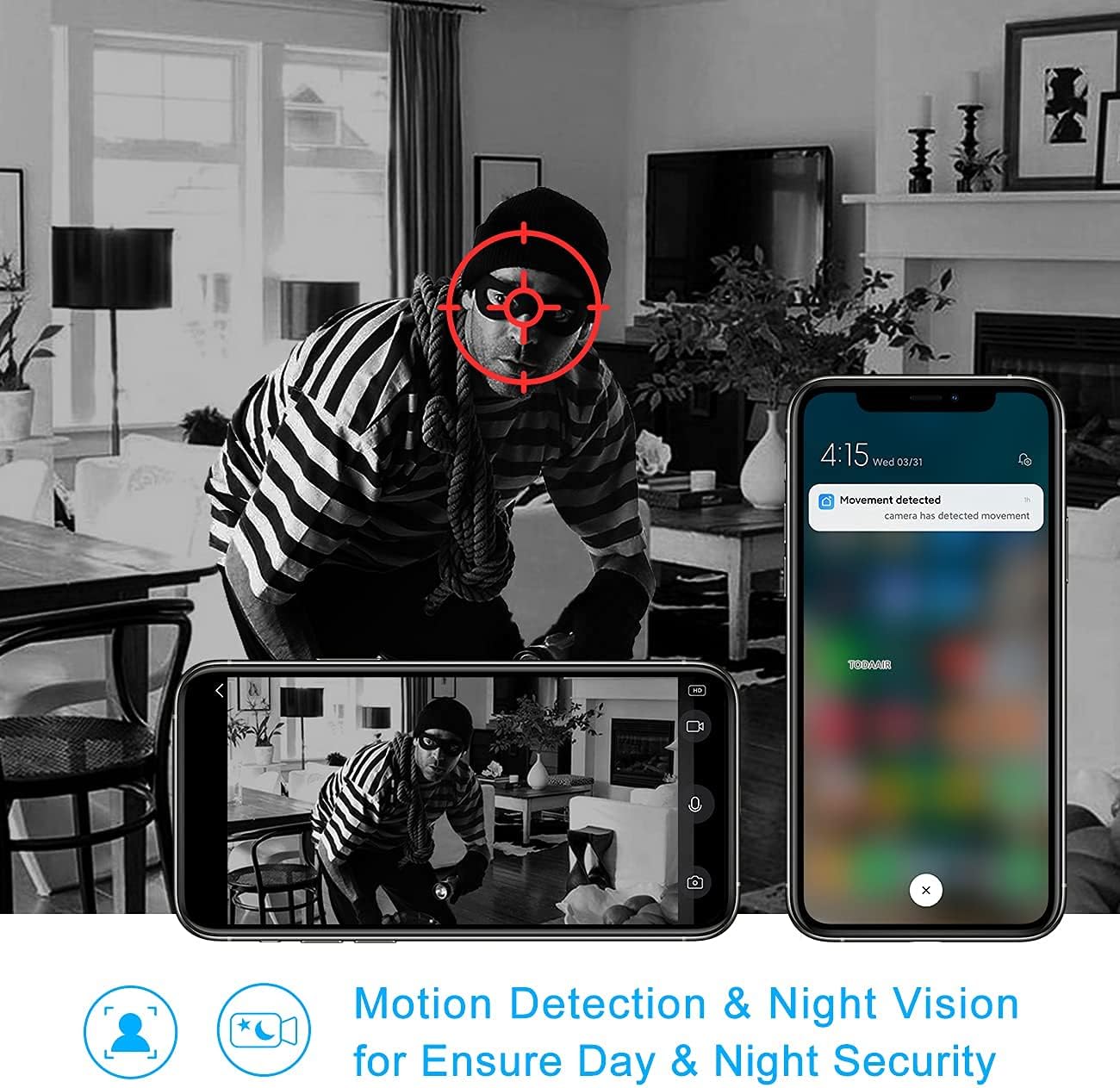
Image 5.3: Night Vision and Motion Detection. This image illustrates the camera's ability to provide clear black-and-white footage in low-light conditions using infrared night vision, alongside its motion detection capabilities for enhanced security.
5.5 רעקאָרדינג און סטאָרידזש
The camera supports both local storage via a TF card and optional cloud storage.

Image 5.4: Cloud and Local Storage Options. This diagram highlights the availability of USA server cloud storage (with data centers in Oregon and Virginia) and local storage via a maximum 128GB TF card, ensuring data privacy and flexible recording options.
- TF קאָרט סטאָרידזש: Insert a formatted TF card (up to 128GB) into the SD card socket. The camera will automatically begin recording based on your settings (e.g., continuous, motion-triggered).
- וואָלקן סטאָרידזש: Subscribe to the cloud storage service through the app for secure, off-site video backup.
6. וישאַלט
6.1 רייניקן די לינז
To ensure clear image quality, regularly clean the camera lens with a soft, dry cloth. Avoid using harsh chemicals or abrasive materials.
6.2 פירמוואַרע דערהייַנטיקונגען
Periodically check the app for available firmware updates. Keeping your camera's firmware up-to-date ensures optimal performance and security features. Follow the in-app instructions for any updates.
7. טראָובלעשאָאָטינג
- אַפּאַראַט אָפפלינע:
- Check if the camera is powered on and the power adapter is working.
- Ensure your Wi-Fi network is stable and the camera is within range.
- ריסטאַרט די קאַמעראַ דורך עס אַרויסצוציען און ווידער אַרײַנצושטעקן.
- If the issue persists, try resetting the camera and re-pairing it with the app.
- קענען ניט פאַרבינדן צו Wi-Fi:
- Confirm your Wi-Fi network is 2.4GHz. The camera does not support 5GHz networks.
- Ensure the Wi-Fi password entered in the app is correct.
- ריקט די קאַמעראַ נענטער צו אייער Wi-Fi ראַוטער.
- Reset the camera and try the pairing process again.
- Motion detection alerts not received:
- Check the motion detection settings in the app to ensure it's enabled and sensitivity is appropriate.
- Verify that app notifications are enabled in your phone's settings.
- Ensure the camera has a stable internet connection.
- SD קאַרטל רעקאָרדירט נישט:
- Ensure the TF card is inserted correctly and is not full.
- Format the TF card through the camera settings in the app.
- Check if recording settings (e.g., continuous recording, motion-triggered recording) are enabled in the app.
8. ספּעסאַפאַקיישאַנז
| מאָדעל נומער | JS-P165 |
| ווידעא קאַפּטורע רעסאָלוטיאָן | 1080 פּ, 720 פּ |
| קאַנעקטיוויטי טעכנאָלאָגיע | וויירלעס (Wi-Fi 2.4GHz) |
| Viewינג אַנגלע | 135° |
| נאַכט וויזשאַן ראַנגע | 16.5ft / 5m (IR LEDs) |
| סטאָרידזש אָפּציעס | TF קאַרטל (ביז 128 גיגאבייט), וואָלקן סטאָרידזש |
| אַודיאָ | Two-Way Audio (Built-in Microphone & Speaker) |
| באַוועגונג דעטעקשאַן | יא |
| קאַמפּאַטאַבאַל דעוויסעס | סמאַרטפאָנע, טאַבלעט |
| קאָנטראָללער טיפּ | אַמאַזאָן אַלעקסאַ (שטימע קאָנטראָל) |
| מאַונטינג טיפּ | וואנט בארג, טאַבלעטאָפּ |
| פּראָדוקט דימענשאַנז | 6 X 4 X 4 אינטשעס (15.24 X 10.16 X 10.16 סענטימעטער) |
| פּונקט וואָג | 11.2 אונסעס (317.5 גראַמז) |
| דרינענדיק / דרויסנדיק באַניץ | דרינענדיק |
9. וואָראַנטי און שטיצן
9.1 וואָראַנטי אינפֿאָרמאַציע
This product comes with a standard manufacturer's warranty. Please refer to the product packaging or contact TODAAIR customer service for specific warranty terms and conditions.
9.2 קונה שטיצן
If you encounter any issues or have questions regarding your TODAAIR JS-P165 camera, please contact our customer support team. We are committed to providing professional after-sale service within 24 hours.
קאָנטאַקט אינפֿאָרמאַציע:
- בליצפּאָסט: support@todaair.com (עקסample email, please replace with actual if available)
- Webפּלאַץ: TODAAIR Official Store on Amazon