
הקדמה
This manual provides comprehensive instructions for the Vivitar Podcast and Social Media Microphone MIC918. This high-quality condenser microphone is designed for clear audio capture for various applications, including podcasting, live streaming, gaming, voice-overs, and vocal recording. It features a simple plug-and-play USB connection, integrated volume control, and a stable tripod stand for optimal positioning.
זיכערקייַט אינפֿאָרמאַציע
- שטעלט נישט אויס דעם מיקראָפאָן צו וואַסער אָדער צו פיל פייכטקייט.
- פֿאַרמײַדן עקסטרעמע טעמפּעראַטורן אָדער דירעקטע זונשײַן.
- Do not attempt to disassemble or modify the microphone. This will void the warranty.
- האַלטן די מיקראָפאָן אַוועק פון שטאַרק מאַגנעטיק פעלדער.
- ניצן בלויז אַ ווייך, טרוקן שטאָף פֿאַר רייניקונג.
פּראָדוקט איבערview
פּעקל אינהאַלט
- Vivitar MIC918 Microphone Unit
- דרייַפוס שטייט
- Integrated USB Connection Cable
Microphone Components
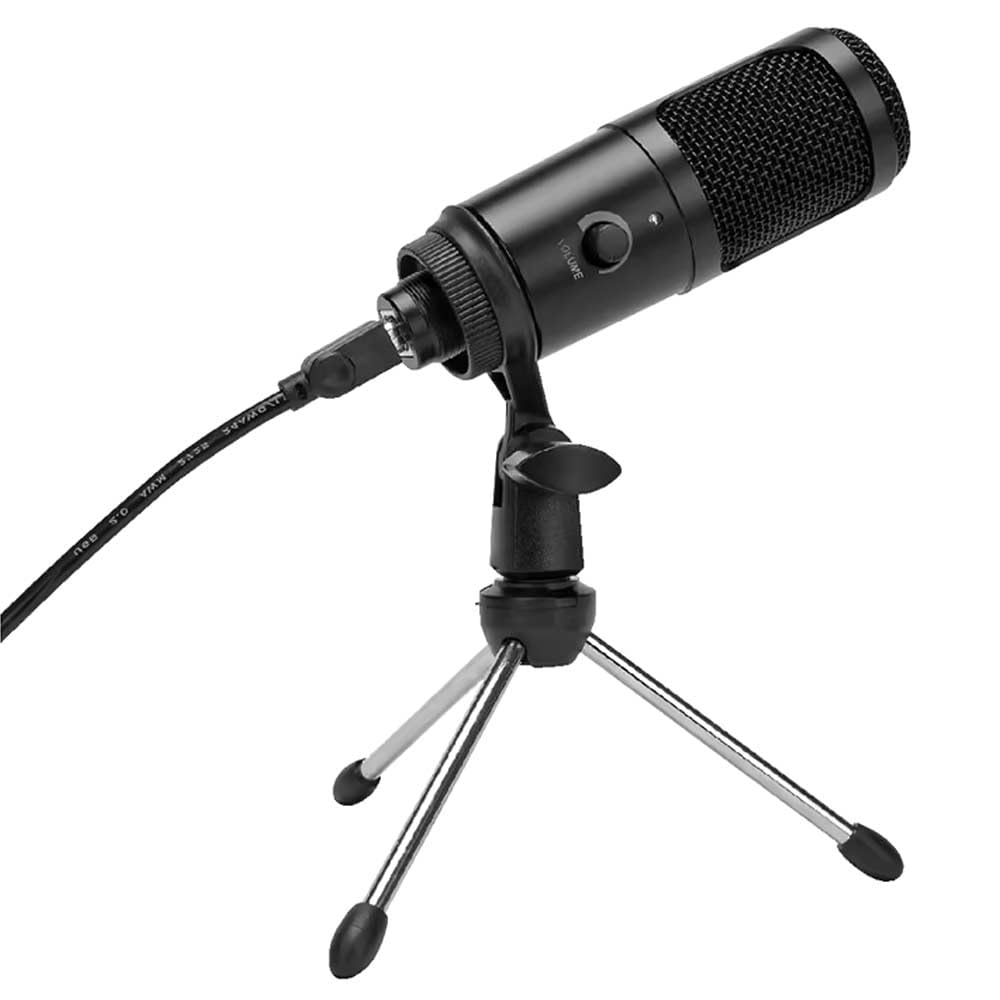
פיגורע 1: Vivitar MIC918 Microphone unit attached to its tripod stand, showing the integrated USB cable.

פיגורע 2: זייַט view of the Vivitar MIC918 Microphone, highlighting the volume control knob and the Vivitar brand logo.
The microphone unit features a durable metal construction. The front side includes a volume control knob for easy audio level adjustments. The microphone is designed with a unidirectional polar pattern to focus on sound directly in front of it, reducing background noise.
סעטאַפּ
קאַנעקטינג די מיקראָפאָן
- אַסעמבאַל די שטיין: If not already assembled, unfold the tripod stand and ensure it is stable on a flat surface. Securely attach the microphone unit to the stand's mounting point. The rotating shaft ring allows for angle adjustment.
- פאַרבינדן צו מיטל: Plug the integrated USB cable from the microphone into an available USB port on your computer, laptop, or compatible gaming console.
- צאַפּן און שפּיל: The Vivitar MIC918 is a plug-and-play device. Your operating system (Windows, macOS, etc.) should automatically detect and install the necessary drivers. No additional software installation is typically required.
- אויסקלייבן ווי איינגאַבע מיטל: After connecting, navigate to your device's sound settings or the audio settings within your recording/streaming software. Select the "Vivitar MIC918" or similar USB audio device as your primary input (microphone) device.
אַפּערייטינג
אַדזשאַסטינג באַנד
The microphone features a built-in volume control knob located on its side (refer to Figure 2). Rotate this knob clockwise to increase the microphone's input sensitivity (volume) and counter-clockwise to decrease it. Adjust this to achieve the desired recording level without distortion.
פּאַזישאַנינג די מיקראָפאָן
For optimal audio capture, position the microphone directly in front of the sound source (e.g., your mouth for speaking or singing). The tilting tripod stand allows you to adjust the microphone's angle to best suit your needs. Due to its unidirectional polar pattern, the microphone is most sensitive to sounds coming from the front and less sensitive to sounds from the sides or rear, helping to minimize ambient noise.
וישאַלט
- רייניקונג: Use a soft, dry, lint-free cloth to wipe the microphone's exterior. Do not use liquid cleaners, aerosols, or solvents.
- סטאָרידזש: When not in use, store the microphone in a clean, dry place, away from dust and extreme temperatures.
- האַנדלינג: באַהאַנדלט דעם מיקראָפאָן מיט פֿאָרזיכט. פֿאַרמײַדט עס צו לאָזן פֿאַלן אָדער אויסשטעלן עס צו שטאַרקע קלאַפּן.
טראָובלעשאָאָטינג
| פּראָבלעם | מעגלעך סיבה | לייזונג |
|---|---|---|
| קיין קלאַנג אַרויסגאַנג פֿון מיקראָפֿאָן. | מיקראָפאָן נישט ריכטיק פֿאַרבונדן. אומרעכט איינגאַבע מיטל אויסגעקליבן. מיקראָפאָן וואָלומען צו נידעריק. | Ensure USB cable is securely plugged into both the microphone and the device. Verify that "Vivitar MIC918" is selected as the input device in your system's sound settings or recording software. Increase the volume using the knob on the microphone and check system input levels. |
| Poor sound quality (e.g., muffled, too quiet, background noise). | Incorrect microphone positioning. High ambient noise. Input level too high or too low. | Position the microphone closer to the sound source and ensure it's facing directly towards it. רעקאָרדירן אין אַ שטילערער סביבה. Adjust the microphone's volume knob and system input levels to an optimal range, avoiding clipping or being too faint. |
| מיקראָפאָן נישט דערקענט דורך קאָמפּיוטער. | דעפעקטיווער USB פּאָרט אָדער קאַבל. סיסטעם דרייווער פראבלעם. | פּרוּווט קאַנעקטינג די מיקראָפאָן צו אַ אַנדערש וסב פּאָרט אויף דיין קאָמפּיוטער. Restart your computer. If the issue persists, check your operating system's device manager for any driver conflicts or updates. |
ספּעסאַפאַקיישאַנז
| שטריך | באַשרייַבונג |
|---|---|
| סאָרט | וויוויטאַר |
| מאָדעל נומער | מיקקסנומקס |
| קאַנעקטיוויטי | יו-עס-בי (שטעק און שפּיל) |
| מיקראָפאָן טיפּ | קאַנדענסער |
| פּאָליאַר מוסטער | ונידירעקטיאָנאַל |
| סיגנאַל-צו-נויז ראַטיאָ | 78 דב |
| אָפּצוימונג מאַטעריאַל | מעטאַל |
| פּונקט וואָג | 0.95 פונט (אומגעפער 0.43 ק"ג) |
| נומער דימענשאַנז (L X W X H) | 8.86 x 5.36 x 2.49 אינטשעס (אומגעפער 22.5 x 13.6 x 6.3 ס״מ) |
| מאַכט מקור | עלעקטריש מיט שנור (דורך USB) |
| קאַמפּאַטאַבאַל דעוויסעס | Computers, Laptops, Gaming Consoles |
וואָראַנטי אינפֿאָרמאַציע
The Vivitar Podcast and Social Media Microphone MIC918 comes with a 3-Year USA Warranty. For specific terms, conditions, and to register your product, please refer to the official Vivitar webזייטל אדער קאנטאקט זייער קאסטומער שטיצע גלייך. האלט אייער באווייז פון קויפן פאר גאראנטיע קליימס.
קונה שטיצן
For further assistance, technical support, or inquiries regarding your Vivitar MIC918 microphone, please visit the official Vivitar website or contact their customer service department. Contact information can typically be found on the Vivitar website under the 'Support' or 'Contact Us' sections.