
1. הקדמה
This manual provides essential information for the installation, operation, and maintenance of your ZOTAC Gaming GeForce RTX 3070 Twin Edge OC graphics card. This card is built on the NVIDIA Ampere architecture, featuring 2nd Gen Ray Tracing Cores, 3rd Gen Tensor Cores, and GDDR6 memory for high-fidelity gaming performance.
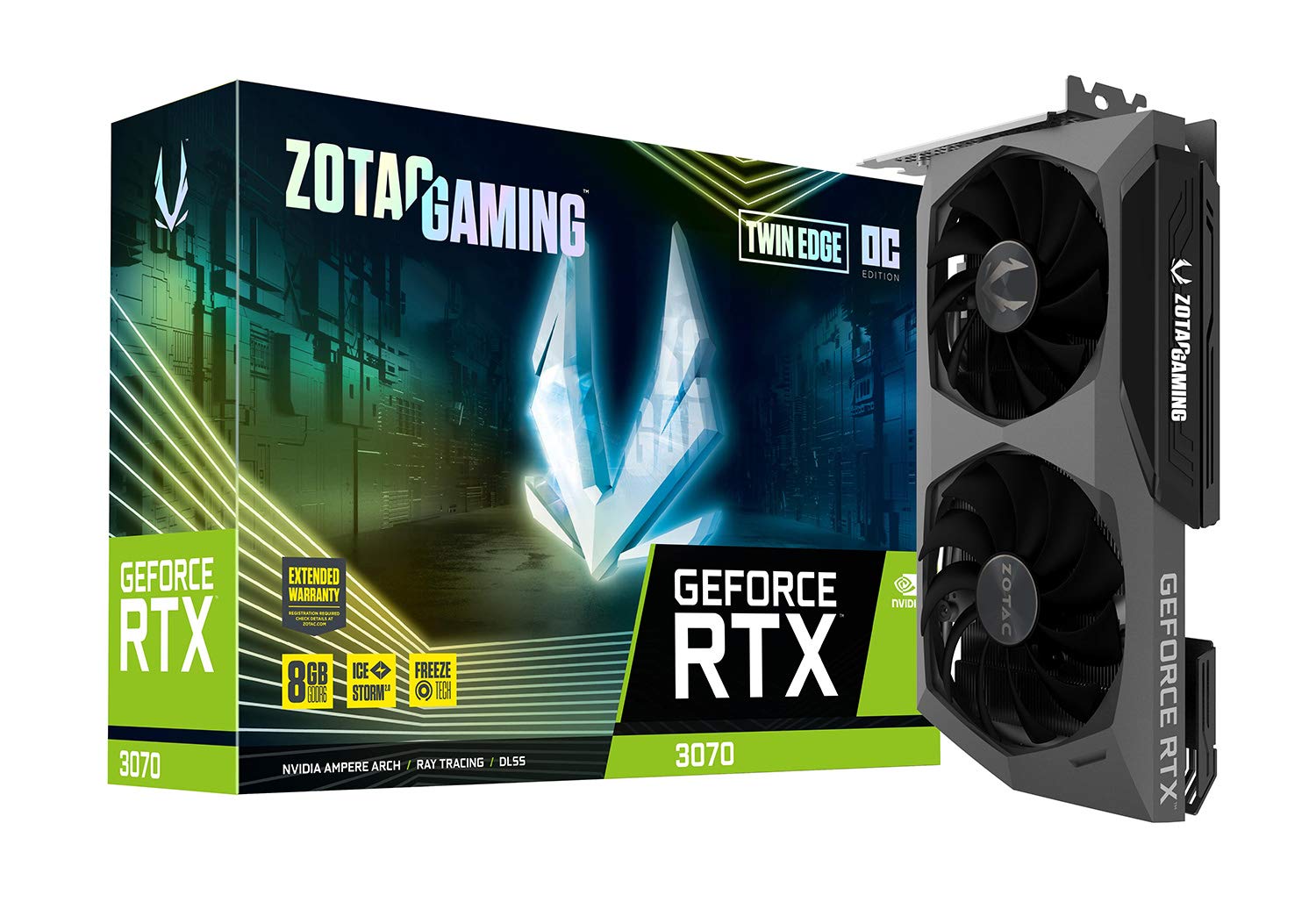
בילד: פראָנט view of the ZOTAC Gaming GeForce RTX 3070 Twin Edge OC graphics card.
2. וואָס איז אין דער קעסטל
באַשטעטיקט אַז אַלע די פאלגענדע זאכן זענען אַרייַנגערעכנט אין דיין פּראָדוקט פּעקל:
- ZOTAC GAMING GeForce RTX 3070 Twin Edge OC graphics card
- 2x Dual 6-pin to 8-pin adapter
- User Manual (Quick Installation Guide)

Image: Quick Installation Guide and two 6-pin to 8-pin power adapters included with the graphics card.
3. ספּעסאַפאַקיישאַנז
| שטריך | באַשרייַבונג |
|---|---|
| גראַפיקס קאָופּראַסעסער | NVIDIA GeForce RTX 3070 |
| סאָרט | ZOTAC |
| גראַפיקס ראַם גרייס | 8 גיגאבייט |
| וידאו רעזולטאַט צובינד | 3 x DisplayPort 1.4a, 1 x HDMI 2.1 |
| גראַפיקס באַראַן טיפּ | GDDR6 |
| קאַמפּאַטאַבאַל דעוויסעס | דעסקטאָפּ פּיסי |
| graphics קאָרט צובינד | PCI-Express 4.0 x16 |
| Boost Clock Speed | 1755 מהז |
| Maximum Digital Resolution | 7680 רענטגענ 4320 @ 60 הז |
| נומער דימענשאַנז (L X W) | 9.1"L x 5.6"W (231.9mm x 141.3mm) |
| מאָדעל נומער | ZT-A30700H-10P |
| פּונקט וואָג | 998 גראַמז |
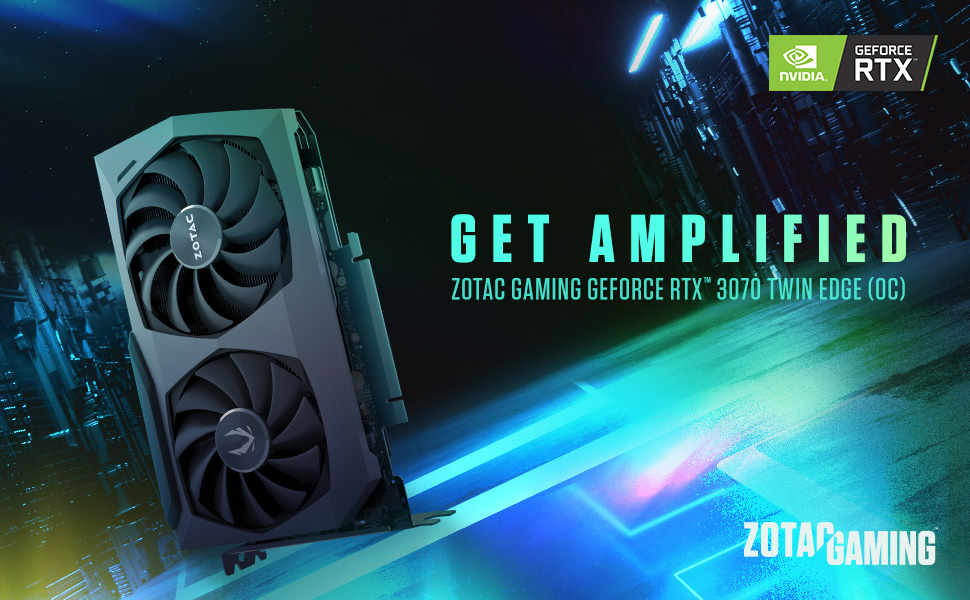
Image: Detailed dimensions and output port configuration (3x DisplayPort 1.4a, 1x HDMI 2.1) of the graphics card.
4. ינסטאַלירונג
- צוגרייטן אייער סיסטעם: מאַכט אויס דעם קאָמפּיוטער און אָפּשטעקן אַלע קייבלס. עפֿנט דעם קאָמפּיוטער קעסטל.
- געפינען PCIe סלאָט: Identify an available PCI Express 4.0 x16 slot on your motherboard. Remove any expansion slot covers if necessary.
- אַרײַנשטעלן גראַפיקס קאַרטל: פֿאָרזיכטיק גלייכט אויס די גראַפיקס קאַרטל מיטן PCIe סלאָט און דריקט פעסט אַראָפּ ביז עס איז זיכער אײַנגעזעצט. מאַכט זיכער אַז די ריטענשאַן קלעמערל פֿאַרשליסט זיך אין פּלאַץ.
- זיכערע קאַרטל: Fasten the graphics card to the computer case using the screw or latch mechanism provided by your case.
- פאַרבינדן מאַכט: This graphics card requires two 8-pin PCIe power connectors. Connect the power cables from your power supply unit (PSU) to the corresponding ports on the graphics card. Ensure your PSU can provide sufficient power (minimum 650W recommended). If your PSU only has 6-pin connectors, use the included 6-pin to 8-pin adapters.
- Close Case and Connect Cables: Close your computer case, reconnect all external cables (monitor, power, peripherals), and power on your system.

בילד: זייט view illustrating the location of the dual 8-pin PCIe power input on the graphics card.
5. אַפּערייטינג ינסטרוקטיאָנס
5.1 דרייווער ינסטאַלירונג
After physical installation, you must install the latest NVIDIA graphics drivers. Visit the official NVIDIA webפּלאַץ (www.nvidia.com/drivers) to download the appropriate drivers for your GeForce RTX 3070 card and operating system. Follow the on-screen instructions for installation.
5.2 ווייַז קאַנעקשאַן
Connect your monitor(s) to the graphics card using DisplayPort or HDMI cables. This card supports up to four displays simultaneously. Ensure you use Ultra High Speed HDMI cables for 8K/60FPS or 4K/120FPS resolutions.

Image: Rear panel of the graphics card with three DisplayPort and one HDMI output.
5.3 ZOTAC FireStorm Utility
The ZOTAC FireStorm Utility software allows you to monitor your graphics card's performance, adjust fan speeds, and customize LED lighting. Download the utility from the official ZOTAC webפּלאַץ (www.zotac.com/support).
6. Cooling Features
The ZOTAC Gaming GeForce RTX 3070 Twin Edge OC features the IceStorm 2.0 Advanced Cooling system for optimal thermal management.
- אייסטאָרם 2.0 אַוואַנסירטע קאָאָלינג: A refined cooling system designed for wider coverage, keeping the GPU cooler and maintaining performance. It includes a wide array aluminum heatsink with up to five copper heat pipes and 11-blade fans for increased airflow.
- FREEZE Fan Stop: This feature automatically stops the fans when the GPU is idle, providing quieter operation and reducing wear on the fan system.
- Active Fan Control: Users can adjust fan rotations independently using the ZOTAC GAMING FireStorm software, allowing for precise airflow control where and when it is needed.

בילד: עקספּלאָדירט view of the IceStorm 2.0 cooling system, highlighting the metal backplate, heatsink, and fan design.
Image: Representation of Active Fan Control, demonstrating independent fan speed adjustments.
7. וישאַלט
To ensure optimal performance and longevity of your graphics card, regular maintenance is recommended:
- באַזייַטיקונג פון שטויב: Periodically clean dust from the fans and heatsink using compressed air. Ensure the system is powered off before cleaning.
- לופט לויפן: Maintain good airflow within your computer case by ensuring proper cable management and clear ventilation paths.
- דרייווער דערהייַנטיקונגען: Keep your graphics drivers updated to the latest version from the NVIDIA website for performance improvements and bug fixes.
8. טראָובלעשאָאָטינג
אויב איר טרעפט פּראָבלעמען מיט אייער גראַפיקס קאַרטל, באַטראַכט די פאלגענדע געוויינטלעכע טראָובלעשווטינג טריט:
- קיין אַרויסווייַז רעזולטאַט:
- Ensure the monitor cables are securely connected to the graphics card.
- איבערצייגט אז די גראַפיקס קאַרטל איז גאָר אײַנגעזעצט אין די PCIe סלאָט.
- Check that all required PCIe power connectors are properly attached.
- פּרובירט מיט אַן אַנדערן דיספּליי קאַבל אָדער מאָניטאָר אויב מעגלעך.
- סיסטעם אינסטאביליטעט/קראכן:
- Ensure your Power Supply Unit (PSU) meets the minimum wattage requirement (650W recommended) and can deliver stable power through separate PCIe power cables, not just daisy-chained connectors from a single PSU output.
- דערהייַנטיקט אייערע גראַפיקס דרייווערס צו די לעצטע ווערסיע.
- Monitor GPU temperatures using the FireStorm Utility to check for overheating.
- שאָפער ישוז:
- Perform a clean installation of the graphics drivers. Uninstall existing drivers before installing new ones.
For further assistance, refer to the ZOTAC support page.
9. וואָראַנטי און שטיצן
Your ZOTAC Gaming GeForce RTX 3070 Twin Edge OC graphics card comes with a 2-יאָר פאַבריקאַנט ס וואָראַנטיביטע באַהאַלטן אייער קויפן באַווייַז פֿאַר וואָראַנטי קליימז.
For customer service, technical support, or general inquiries, please visit the dedicated ZOTAC support page:
נאָך פֿעיִקייטן
- White LED Logo Lighting: The card features a white LED illuminated ZOTAC GAMING logo, which can be customized via the FireStorm Utility.
- מעטאַל באַקפּלאַטע: A durable metal backplate provides structural protection for the PCB and enhances the overall aesthetic design of the card.

Image: The graphics card showcasing its white LED logo lighting.
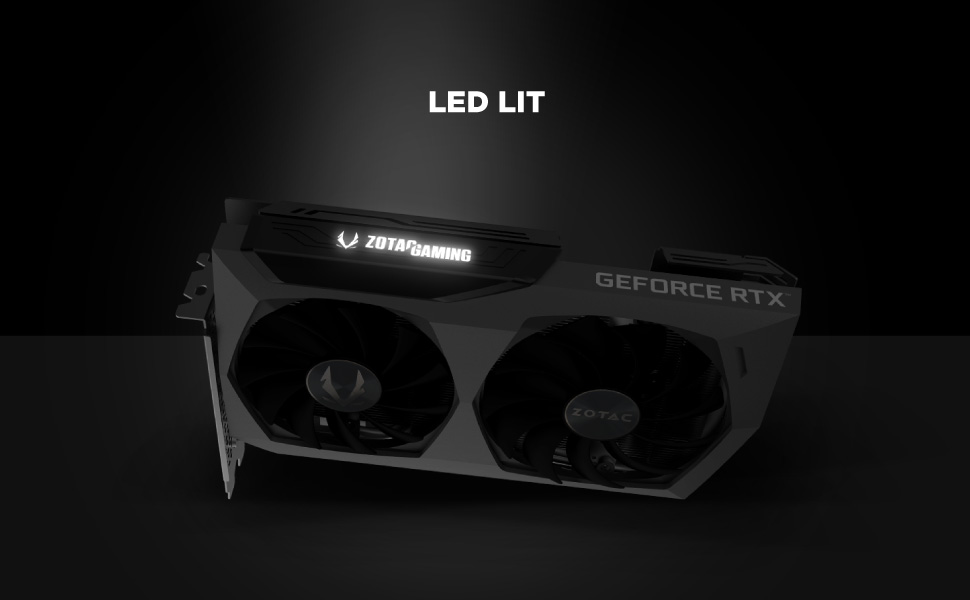
Image: The metal backplate component of the graphics card, providing protection and structural integrity.