
הקדמה
Thank you for choosing the iClever BK10 Bluetooth Wireless Keyboard. This manual provides detailed instructions on how to set up, operate, and maintain your keyboard to ensure optimal performance. Please read this manual carefully before use and retain it for future reference.
פּעקל אינהאַלט
- iClever BK10 Bluetooth Wireless Keyboard
- וסב טשאַרדזשינג קאַבלע
- באַניצער מאַנואַל
ספּעסאַפאַקיישאַנז
| סאָרט | iClever |
| מאָדעל נומער | BK10 |
| קאַנעקטיוויטי טעכנאָלאָגיע | בלועטאָאָטה |
| קאַמפּאַטאַבאַל דעוויסעס | Android 9+, ChromeOS (BT 4.0+), Windows 10/11, iPadOS 13.4+, macOS 10.15+ |
| קלאַוויאַטור אויסלייג | AZERTY |
| נומער פון קיז | 78 |
| באַשטימען טיפּ | שער סוויטש |
| מאַכט מקור | באַטאַרייע פּאַוערד |
| פּראָדוקט דימענשאַנז | 43 ל רענטגענ 14 וו רענטגענ 2.5 ה סענטימעטער |
| אינערלעכער מאַטעריאַל | אַקרילאָניטרילע בוטאַדיענע סטירענע, ומבאַפלעקט שטאָל |
סעטאַפּ
1. ערשטע אויפלאָדונג
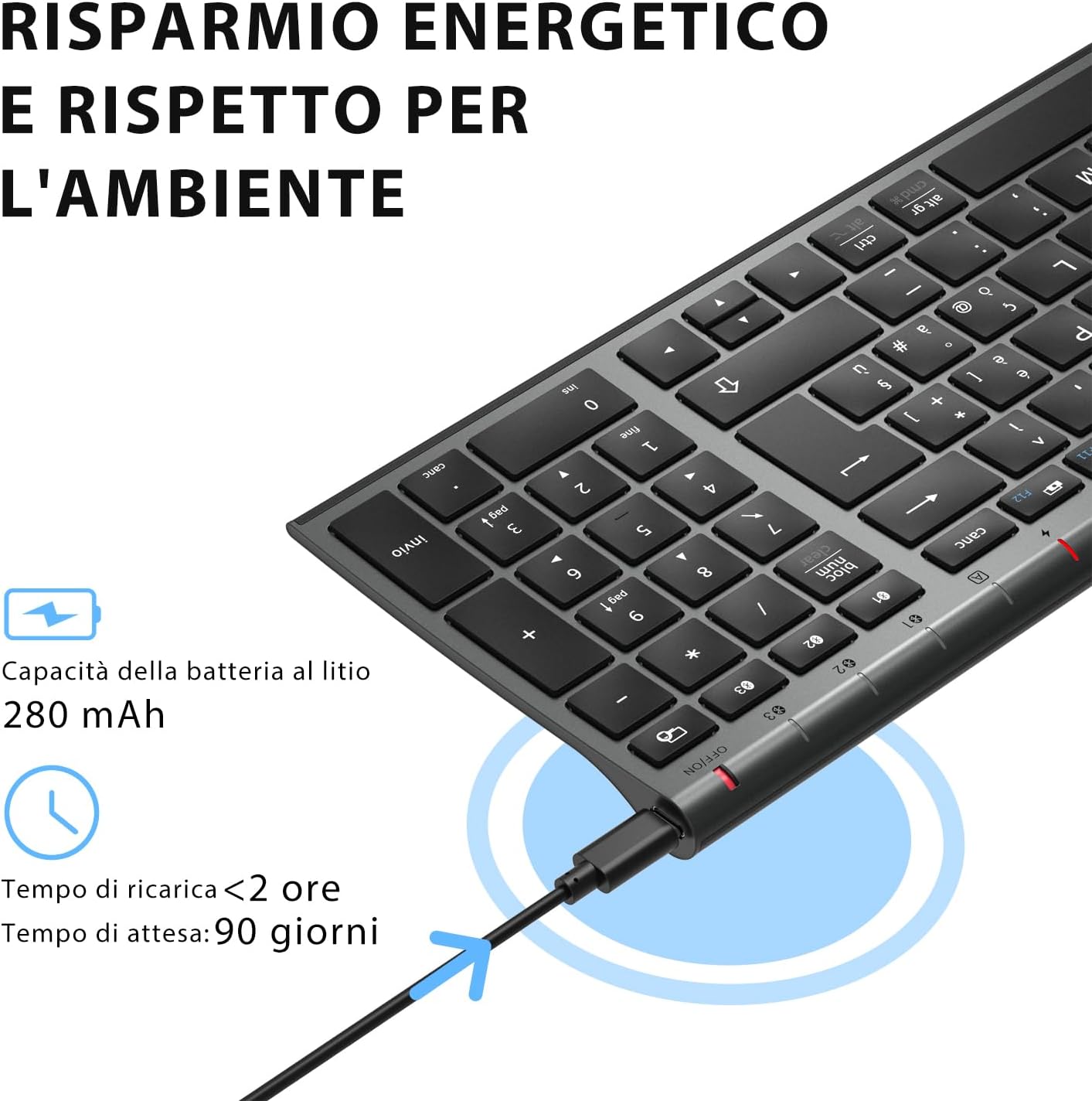
Before first use, fully charge the keyboard. Connect the provided USB charging cable to the keyboard's USB-C port and the other end to a USB power source (e.g., computer, wall adapter). The charging indicator light will show charging status and turn off when fully charged.

The iClever BK10 keyboard connected via USB-C for charging. This image details the 280 mAh lithium battery capacity, a charging time of less than 2 hours, and a standby time of 90 days.
2. מאַכט אויף / אויסגעלאשן
Locate the power switch on the keyboard. Slide the switch to the 'ON' position to power on the keyboard. Slide it to the 'OFF' position when not in use to conserve battery.
3. בלועטאָאָטה פּערינג
The iClever BK10 keyboard supports connection to up to three devices simultaneously.
- קער אויף די קלאַוויאַטור ניצן די מאַכט באַשטימען.
- דרוק די Fn קנעפּל גלײַכצײַטיק מיט איינעם פֿון די בלוטוט קאַנאַל קנעפּלעך (BT1, BT2, אָדער BT3) to select a channel.
- Press and hold the selected Bluetooth channel key (e.g., BT1) for 3-5 seconds until the indicator light for that channel starts blinking rapidly. This indicates the keyboard is in pairing mode.
- אויף אייער דעווייס (קאמפיוטער, טאַבלעט, סמאַרטפאָון), אַקטיווירט בלועטוט און זוכט פֿאַר פֿאַראַן דעווייסעס.
- Select "iClever BK10" (or similar name) from the list of found devices.
- Follow any on-screen prompts to complete the pairing process. The indicator light will stop blinking and remain solid for a few seconds, then turn off, indicating a successful connection.

The iClever BK10 keyboard demonstrating its ability to connect to an iPad, MacBook, and iPhone via three distinct Bluetooth channels. The image also illustrates key mapping for Windows/Android (Alt/Cmd) and iPad/Mac (Alt/Cmd) operating systems.
אַפּערייטינג די קלאַוויאַטור
1. Switching Between Paired Devices
צו בייטן צווישן אייערע פארבונדענע דעווייסעס, דריק פשוט די Fn קנעפּל צוזאַמען מיטן קאָרעספּאָנדירנדיקן בלוטוט קאַנאַל קנעפּל (BT1, BT2, אָדער BT3) that your device is paired to. The keyboard will automatically connect to the selected device.
2. Function Keys (Fn)
The keyboard features a row of function keys (F1-F12) that also serve as multimedia and shortcut keys. To use the secondary function of these keys, press and hold the Fn key while pressing the desired function key.
3. אַפּערייטינג סיסטעם קאָמפּאַטיביליטי
The iClever BK10 keyboard is designed to be compatible with various operating systems. Key functions may adapt slightly depending on the connected OS. For optimal performance, ensure your device's Bluetooth version is 4.0 or higher.

Close-up of the iClever BK10 keyboard with a hand typing, highlighting the low-profile keys and scissor switch mechanism designed for quiet and comfortable typing.
וישאַלט
1. רייניקונג
To clean your keyboard, power it off and disconnect it from any devices. Use a soft, lint-free cloth slightly dampened with water or a mild cleaning solution. Avoid using harsh chemicals, abrasives, or excessive moisture. Do not spray cleaners directly onto the keyboard.
2. באַטערי קער
To prolong the battery life of your keyboard:
- Charge the keyboard fully before its first use.
- פֿאַרמײַדט אָפֿט גאָר אויסצוליידיקן די באַטעריע.
- האַלט די קלאַוויאַטור אין אַ קיל, טרוקן אָרט ווען נישט אין באַנוץ פֿאַר לענגערע פּעריאָדן.
- Turn off the keyboard when transporting it or when not in use to prevent accidental key presses and battery drain.
טראָובלעשאָאָטינג
1. קלאַוויאַטור נישט פֿאַרבינדן/פֿאַרבינדט זיך נישט
- זייט זיכער אַז די קלאַוויאַטור איז אנגעצונדן און גאָר אויפגעלאָדן.
- מאַכן זיכער אַז בלועטאָאָטה איז ענייבאַלד אויף דיין מיטל.
- Ensure the keyboard is in pairing mode (indicator light blinking).
- פּרוּווט אָפּצופּאַרן און ווידער צופּאַרן די קלאַוויאַטור פֿון די בלועטוט סעטטינגס פֿון אייער דעווייס.
- ריסטאַרט ביידע די קלאַוויאַטור און דיין מיטל.
- Ensure your device's Bluetooth version is compatible (BT 4.0+ recommended).
2. קנעפּלעך רעאַגירן נישט
- Check if the keyboard is connected to the correct device.
- Ensure the battery is not low. Charge the keyboard if necessary.
- ריסטאַרט די קלאַוויאַטור און די פֿאַרבונדענע מיטל.
- רייניקט יעדן שמוץ פון אַרום די קנעפּלעך.
3. Connection Drops Frequently
- Ensure there are no strong interference sources (e.g., Wi-Fi routers, other Bluetooth devices) nearby.
- Keep the keyboard within the recommended operating range of your device.
- זיכער מאַכן אַז די קלאַוויאַטור איז גאָר אויפגעלאָדן.
וואָראַנטי און שטיצן
iClever products come with a standard warranty. For detailed warranty information, technical support, or customer service, please refer to the warranty card included with your product or visit the official iClever website. Please have your product model number (BK10) and purchase information ready when contacting support.
פּראָדוקט איבערview בילדער

א אויבן-אַראָפּ view of the iClever BK10 Bluetooth Wireless Keyboard, showcasing its full layout including the numeric keypad and function keys.
א זייט view of the iClever BK10 keyboard, illustrating its ultra-thin profile with a thickness ranging from 0.16 inches to 0.45 inches.

The iClever BK10 keyboard positioned on a desk in an office environment, alongside a computer monitor, laptop, tablet, and smartphone, illustrating its versatile use in various professional and personal setups.