
1. הקדמה
The i-tec USB-C Quattro Docking Station is designed to expand the connectivity of your USB-C enabled laptop or tablet, allowing for connection of up to four external displays, multiple USB peripherals, Gigabit Ethernet, and audio devices. It also provides up to 85W Power Delivery to charge your host device. This manual provides detailed instructions for setting up, operating, and maintaining your docking station.
2. פּעקל אינהאַלט
ביטע באַשטעטיקן אַז אַלע זאכן וואָס זענען אויסגערעכנט אונטן זענען פאַראַן אין אייער פּעקל:
- i-tec USB-C Quattro Docking Station
- מאַכט אַדאַפּטער
- מאַכט קאַבלע
- וסב-C צו וסב-C קאַבלע
- שנעל אָנהייב גייד

פיגורע 2.1: Package Contents. The image displays the docking station, its power adapter, a power cable, and a quick setup guide.
3. פּראָדוקט איבערview
Familiarize yourself with the ports and indicators on your i-tec USB-C Quattro Docking Station.
3.1 פראָנט פּאַנעל

פיגורע 3.1: Front Panel. This image shows the front of the docking station with a power button, microphone input jack, headphone output jack, one USB-C data port, and one USB 3.0 port.
- מאַכט קנעפּל: To power on/off the docking station.
- מיקראָפאָן דזשעק (3.5 מ״מ): פאַרבינדן אַ מיקראָפאָן.
- כעדפאָון דזשאַק (3.5 מם): פאַרבינדן כעדפאָונז אָדער ספּיקערז.
- USB-C דאַטאַ פּאָרט: פֿאַר פֿאַרבינדן USB-C פּעריפֿערישע דעוויסעס.
- וסב 3.0 פּאָרט: For connecting USB 3.0/2.0 peripherals.
3.2 דערציען פּאַנעל

פיגורע 3.2: Rear Panel. This image displays the rear of the docking station, featuring the DC 20V power input, USB-C PD host connection, two DisplayPort outputs, two HDMI outputs, a Gigabit Ethernet (LAN) port, and four additional USB 3.0 ports.
- DC 20V מאַכט אַרייַנשרייַב: פאַרבינדן די ינקלודעד מאַכט אַדאַפּטער.
- USB-C PD Host Port: Connect to your laptop/tablet for data, video, and power delivery.
- 2x דיספּלייפּאָרט: Connect external monitors via DisplayPort cables.
- 2x HDMI: Connect external monitors via HDMI cables.
- GLAN (RJ-45) Port: פאַרבינדן צו אַ ווייערד נעץ.
- 4x USB 3.0 פּאָרטן: Connect USB 3.0/2.0 peripherals.
4. סעטאַפּ אינסטרוקציעס
Follow these steps to set up your i-tec USB-C Quattro Docking Station:
- פאַרבינדן מאַכט: Connect the power adapter to the DC 20V input on the rear of the docking station, then plug the power cable into a wall outlet.
- פאַרבינדן צו האָסט מיטל: Use the provided USB-C to USB-C cable to connect the docking station's USB-C PD Host Port to your laptop's USB-C port. Ensure your laptop's USB-C port supports DisplayPort Alternate Mode and Power Delivery for full functionality.
- פֿאַרבינדן עקסטערנע דיספּלייז: Connect your monitors to the DisplayPort and/or HDMI ports on the rear of the docking station. You can connect up to four displays simultaneously.
- פאַרבינדן פּעריפעראַלס: Plug your USB devices (keyboard, mouse, external drives) into the available USB 3.0 or USB-C data ports. Connect an Ethernet cable to the GLAN port for wired network access. Connect headphones/speakers and a microphone to the respective audio jacks on the front panel.
- מאַכט אויף: Press the power button on the front of the docking station. Your operating system should automatically detect the connected devices.
- דרייווער ינסטאַלירונג (אויב נייטיק): For optimal performance or specific features, visit www.i-tec.cz/setup to download and install any required drivers for your operating system.
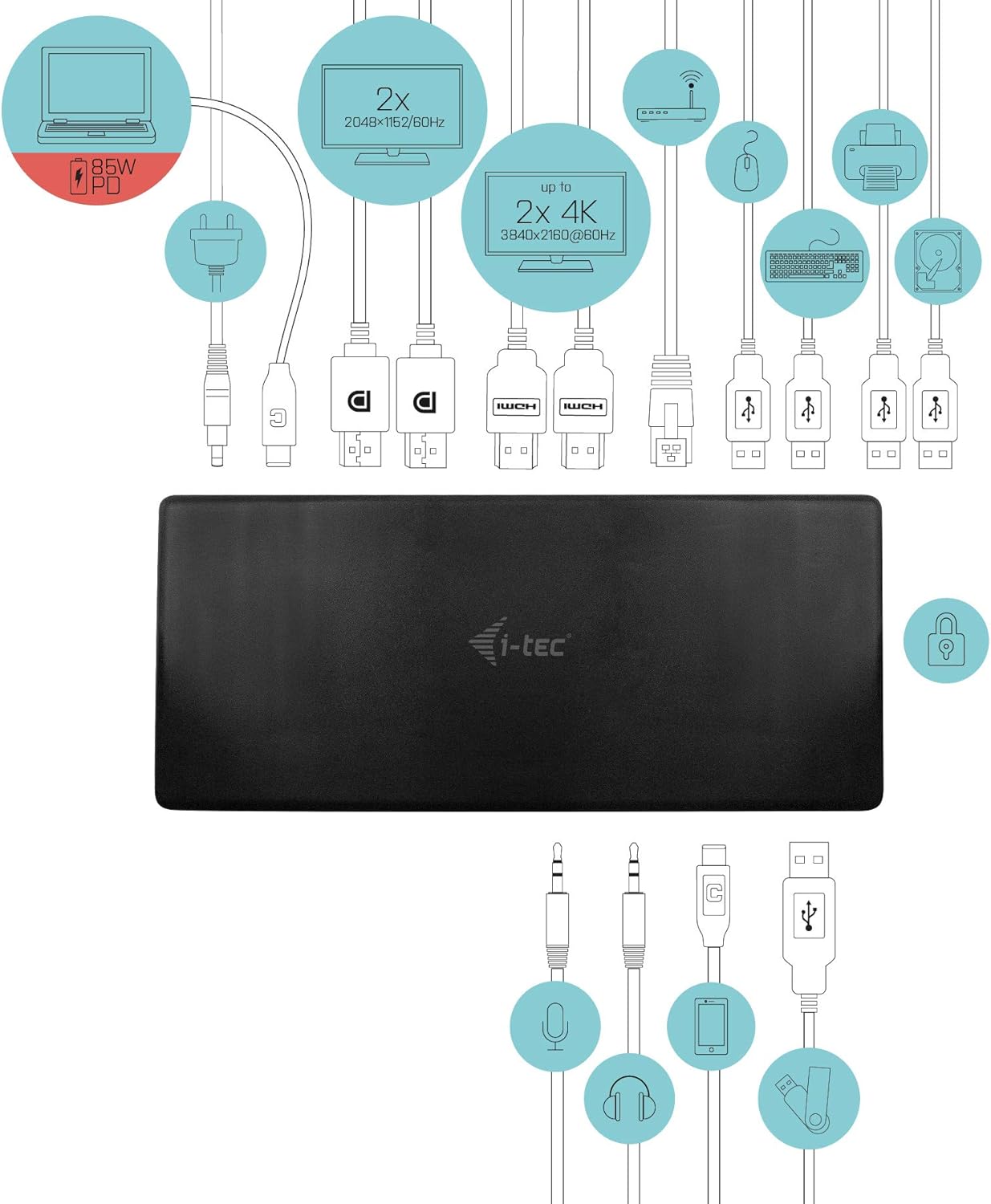
פיגורע 4.1: Connection Diagram. This diagram shows the various connections to the docking station, including power, host laptop, multiple monitors (DisplayPort and HDMI), Ethernet, and USB peripherals like a mouse, keyboard, and external storage.
5. אַפּערייטינג ינסטרוקטיאָנס
Once set up, your docking station provides enhanced functionality for your workspace.
5.1 מולטי-דיספּליי קאָנפיגוראַציע
The docking station supports up to four external displays. You can configure these displays in various modes (extended, mirrored) through your operating system's display settings.
- רעזאלוציעס: Supports up to 2x 2048x1152@60Hz and 2x 4K/60Hz, depending on your host device's capabilities and display connections.
- Windows: Right-click on the desktop, select 'Display settings' to arrange and configure your monitors.
- macOS: Go to 'System Preferences' > 'Displays' to adjust settings.

פיגורע 5.1: Four-Display Setup Example. This image illustrates a workstation with a laptop connected to the docking station, driving four external monitors simultaneously, showcasing a multi-tasking environment.
5.2 מאַכט עקספּרעס
The USB-C PD Host Port provides up to 85W of power to charge your connected laptop or tablet, eliminating the need for a separate power adapter for your host device.
5.3 וסב קאַנעקטיוויטי
Utilize the 5x USB 3.0 ports and 1x USB-C data port for connecting various peripherals such as external hard drives, USB flash drives, keyboards, mice, and printers. USB 3.0 ports offer high-speed data transfer.
5.4 גיגאבייט עטהערנעט
The GLAN RJ-45 port provides a stable and high-speed wired internet connection (10/100/1000 Mbps), which is often more reliable than Wi-Fi.
5.5 אַודיאָ פאַנגקשאַנאַליטי
Connect your headphones, speakers, or microphone to the 3.5mm audio jacks on the front panel for integrated audio input and output.

פיגורע 5.2: Productivity Setup. This image shows a professional desk environment where the docking station facilitates a multi-monitor setup for enhanced productivity, displaying various applications and data across four screens.
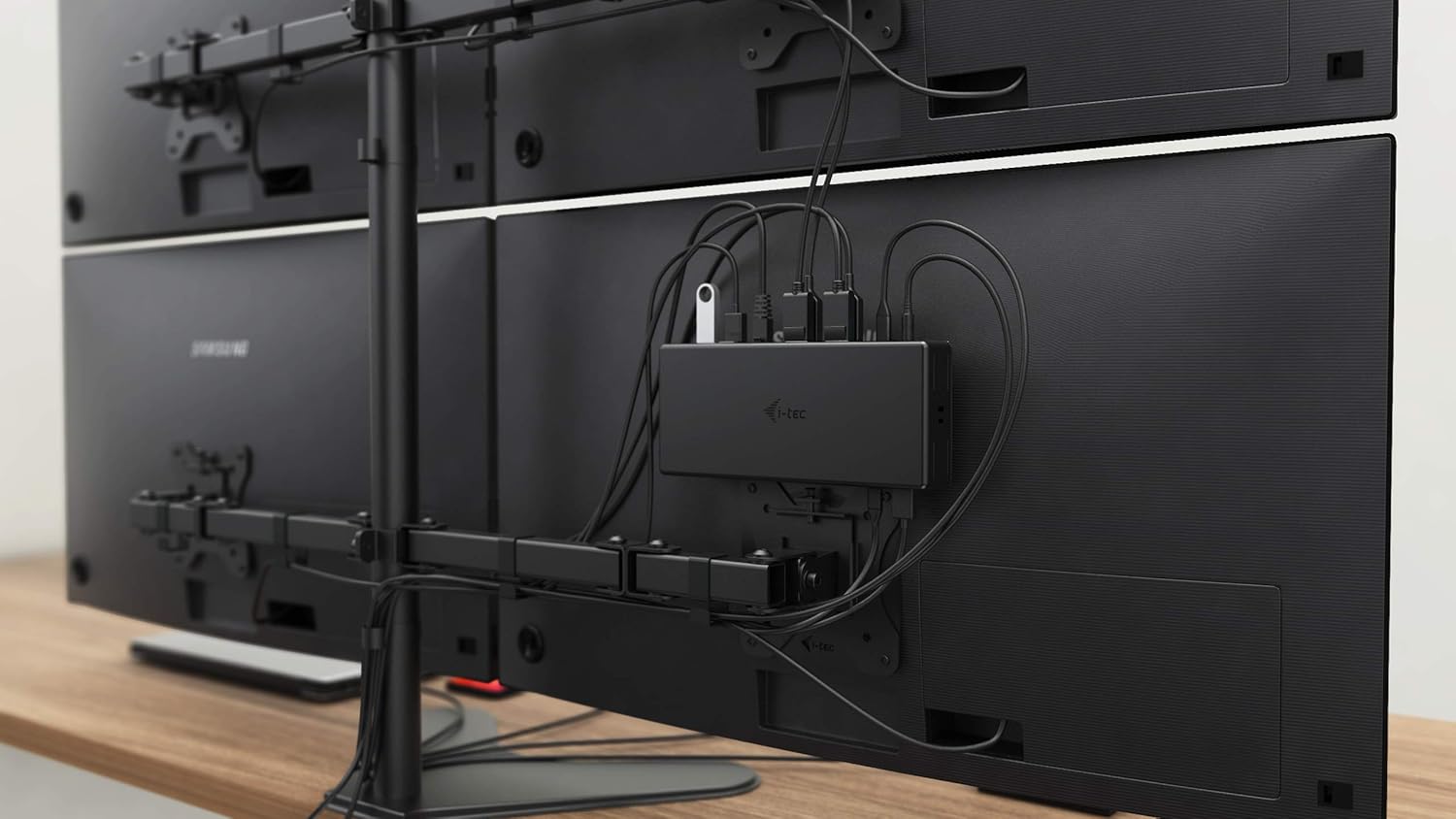
פיגורע 5.3: VESA Mounting. The docking station is shown mounted vertically on the back of a VESA-compatible monitor, demonstrating its space-saving installation capability and organized cable routing.

פיגורע 5.4: Connected Workstation. This image provides a close-up of the docking station on a desk, connected to a laptop via USB-C, and featuring various peripherals plugged into its front ports, including a USB drive and audio devices.
6. וישאַלט
כדי צו זיכער מאַכן די לאַנגלעבעניש און אָפּטימאַלע פאָרשטעלונג פון אייער דאָקינג סטאַנציע, פאָלגט די וישאַלט גיידליינז:
- רייניקונג: Use a soft, dry cloth to clean the exterior of the docking station. Do not use liquid cleaners or aerosols.
- ווענטילאַטיאָן: זיכער מאַכן אַז די דאָקינג סטאַנציע איז געשטעלט אין אַ גוט-ווענטילירטן אָרט צו פאַרמייַדן איבערהיצונג. פאַרשטאָפּט נישט קיין ווענטילאַציע עפענונגען.
- האַנדלינג: Avoid dropping or subjecting the docking station to strong impacts.
- סוויווע: האַלטן די מיטל אַוועק פון עקסטרעם טעמפּעראַטורעס, הומידיטי און דירעקט זונשייַן.
- קאַבלע פאַרוואַלטונג: Ensure cables are not excessively bent or strained to prevent damage to ports and cables.
7. טראָובלעשאָאָטינג
אויב איר טרעפט פּראָבלעמען מיט אייער דאָקינג סטאַנציע, זעט די פאלגענדע געוויינטלעכע פּראָבלעמען און לייזונגען:
7.1 קיין אַרויסווייַזונג רעזולטאַט
- טשעק קאַנעקשאַנז: Ensure all display cables (HDMI/DisplayPort) are securely connected to both the docking station and the monitors.
- האָסט פֿאַרבינדונג: Verify the USB-C cable from the docking station is firmly connected to your laptop's USB-C port.
- מאַכט: Confirm the docking station is powered on and receiving power from the adapter.
- לאַפּטאַפּ קאַמפּאַטאַבילאַטי: זייט זיכער אז אייער לעפטאפ'ס USB-C פּאָרט שטיצט DisplayPort Alternate Mode.
- דרייווערס: Install the latest drivers from www.i-tec.cz/setup.
- ווייַז סעטטינגס: Adjust your operating system's display settings to detect and extend/mirror displays.
7.2 USB Devices Not Working
- ריקאַנעקט: Disconnect and reconnect the USB device to a different port on the docking station.
- מאַכט: זיכער מאַכן אַז די דאָקינג סטאַנציע איז אנגעצינדן.
- האָסט פֿאַרבינדונג: Verify the USB-C connection to your laptop.
- מאַכט קאַנסאַמשאַן: If connecting high-power USB devices, ensure the docking station's power adapter is correctly connected and providing sufficient power.
7.3 No Network Connection (GLAN)
- קאַבלע טשעק: זיכער מאַכן אַז דער עטהערנעט קאַבל איז זיכער פארבונדן צו ביידע די דאָקינג סטאַנציע און דיין ראַוטער/מאָדעם.
- Router/Modem: איבערצייגט אז אייער ראַוטער/מאָדעם אַרבעט ריכטיק.
- דרייווערס: Ensure the latest network drivers are installed for the docking station.
7.4 Laptop Not Charging (Power Delivery)
- מאַכט אַדאַפּטער: Confirm the docking station's power adapter is correctly connected and functioning.
- USB-C קאַבלע: Ensure the USB-C cable connecting the dock to your laptop supports Power Delivery.
- לאַפּטאַפּ קאַמפּאַטאַבילאַטי: Verify your laptop's USB-C port supports Power Delivery input.
8. ספּעסאַפאַקיישאַנז
| שטריך | דעטאַל |
|---|---|
| מאָדעל נומער | C31QUATTRODOCKPDUK |
| סאָרט | איך-טעק |
| פּראָדוקט דימענשאַנז | 10 X 2 X 2.7 אינטשעס (25.4 X 5.08 X 6.86 סענטימעטער) |
| פּונקט וואָג | 10.2 אונסעס (0.29 קג) |
| ייַזנוואַרג צובינד | DisplayPort, Ethernet, HDMI, USB, USB 3.0, USB Type C |
| קאַמפּאַטאַבאַל דעוויסעס | Laptop, Monitor, Tablet with USB-C (DisplayPort Alt Mode & Power Delivery support recommended) |
| גאַנץ וסב פּאָרץ | 6 (5x USB 3.0, 1x USB-C Data) |
| גאַנץ הדמי פּאָרץ | 2 |
| גאַנץ DisplayPort | 2 |
| עטהערנעט | גיגאַביט עטהערנעט (RJ-45) |
| אַודיאָ דזשאַקס | 1x Microphone (3.5mm), 1x Headphone (3.5mm) |
| מאַכט עקספּרעס | Up to 85W to host device |
| קאָליר | שוואַרץ |
| אַפּערייטינג סיסטעמס | Windows 10, macOS, Android, Linux |
9. וואָראַנטי אינפֿאָרמאַציע
The i-tec USB-C Quattro Docking Station is covered by a manufacturer's warranty. Please refer to the warranty card included in your package or visit the official i-tec webזייטל פֿאַר דעטאַלירטע וואָראַנטי טערמינען און באַדינגונגען. האַלט דיין באַווייַז פון קויפן פֿאַר וואָראַנטי קליימז.
10. קונה שטיצן
For further assistance, technical support, or to download the latest drivers and firmware, please visit the official i-tec support webפּלאַץ:
You may also find helpful resources and FAQs on the product's dedicated setup page: www.i-tec.cz/setup