
WIMAXIT M1400CT
WIMAXIT 14" פּאָרטאַטיוו ריר מאָניטאָר באַניצער מאַנואַל
Model: M1400CT
הקדמה
This manual provides comprehensive instructions for the WIMAXIT 14" Portable Touch Monitor (Model M1400CT). Designed for versatility, this Full HD 1920x1080p display features a responsive touchscreen, VESA mount compatibility, and broad connectivity options including HDMI and USB-C, making it ideal for laptops, PCs, and game consoles. Please read this manual thoroughly to ensure proper setup, operation, and maintenance of your device.

Figure 1: WIMAXIT 14" Portable Touch Monitor with its protective cover stand.
סעטאַפּ
Follow these steps to set up your WIMAXIT portable monitor:
- אויספּאַקן: Carefully remove the monitor and all accessories from the packaging. Verify that all components are present: the monitor, USB-C to USB-C cable, Mini HDMI to HDMI cable, USB-A to USB-C cable, and power adapter.
- פּאַזישאַנינג: Place the monitor on a stable, flat surface. The included cover stand can be folded to support the monitor at various viewינג אַנגלעס.
- מאַכט קשר:
- For power, connect the monitor to a power source using the provided USB-C to USB-A cable and power adapter, or directly via a full-function USB-C port on your device.
- If using HDMI for video, an external 5V/3A or above power adapter is required for the monitor.
- קאַנעקטינג צו דיווייסאַז:
- USB-C Connection (Full-Function): If your device has a full-function USB-C port (supporting video, power, and data), connect it to either USB-C port on the monitor using a USB-C to USB-C cable. This single cable can provide display, touch, and power. Ensure the correct USB-C input source is selected on the monitor to activate touch functionality.
- HDMI קשר: Connect your device's HDMI output to the monitor's Mini HDMI input using the Mini HDMI to HDMI cable. For touch functionality with HDMI, you must also connect the monitor to your computer via a USB 3.0 A to USB-C cable or a USB-C to USB-C cable to transmit the touch signal.
- OTG פּאָרט: The OTG port can be used to connect peripherals like a wireless mouse or keyboard (adapter may be required).
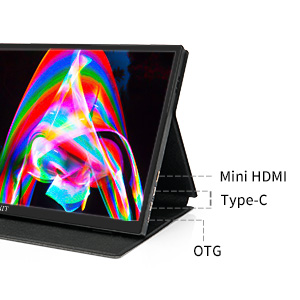
פיגורע 2: איבערview of monitor ports: Mini HDMI, USB Type-C, and OTG.

Figure 3: Connecting the portable monitor to a laptop for extended display and touch functionality.
אַפּערייטינג ינסטראַקשאַנז
This section details how to operate your WIMAXIT portable monitor.
מאַכט אויף / אַוועק
Press and hold the power button (usually located on the side) to turn the monitor on or off. The monitor will automatically detect the input signal.
אויף-סקרין ווייַז (אָסד) מעניו
The monitor features an intuitive OSD menu for adjusting settings. A multi-directional scroll button is typically used to navigate the menu:
- Press the scroll button to open the OSD menu.
- Use the scroll button (up/down) to navigate through menu options.
- Press the button again to select an option or enter a sub-menu.
- To exit a sub-menu or the main menu, use the designated back function or wait for the menu to time out.
ווייַז סעטטינגס
Adjust brightness, contrast, color temperature, and other display parameters via the OSD menu to optimize your viewing experience. The monitor supports 98% sRGB color gamut and a 1500:1 contrast ratio for professional-grade colors.

Figure 4: Visual comparison demonstrating the enhanced color reproduction with 98% sRGB.
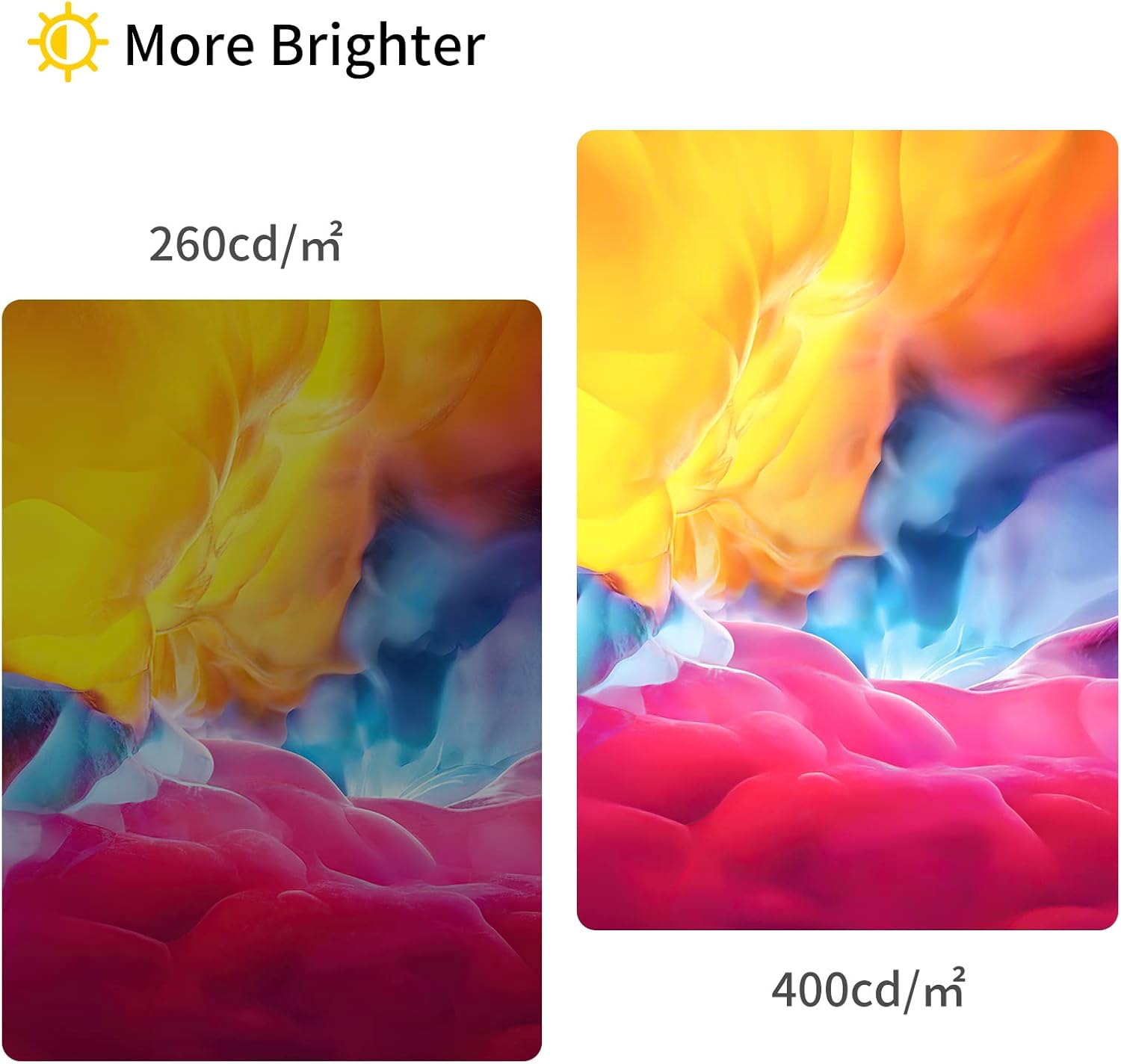
Figure 5: Illustration of brightness difference between 260 cd/m² and 400 cd/m².
טאָוטשסקרין פאַנגקשאַנאַליטי
The monitor supports single-finger and multi-finger touch for up to 10 simultaneous touch points. Ensure the touch signal cable (USB-C to USB-C or USB-A to USB-C) is properly connected to your device for touch functionality. Note that the touch function is compatible with Windows and Android OS, but not with macOS.

Figure 6: Demonstrating intuitive fingertip control on the portable monitor.
אָריענטירונג
The monitor supports both landscape and portrait modes. You may need to adjust your device's display settings to switch between orientations.
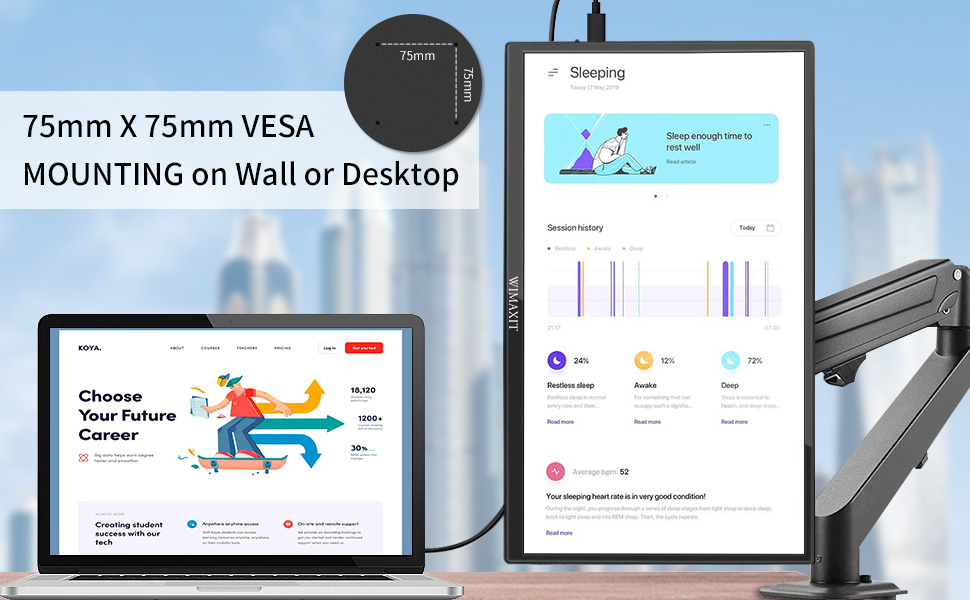
Figure 7: The monitor supports both landscape and portrait orientations, and features 75mm x 75mm VESA mounting points.
אַודיאָ
The monitor has built-in speakers. Audio output can be controlled via the OSD menu or your connected device. A 3.5mm audio jack is also available for external headphones or speakers.

Figure 8: The monitor features integrated speakers for audio output.
וישאַלט
To ensure the longevity and optimal performance of your WIMAXIT monitor, follow these maintenance guidelines:
- רייניקונג די פאַרשטעלן: Use a soft, lint-free cloth specifically designed for electronics. Gently wipe the screen to remove dust and fingerprints. For stubborn marks, lightly dampen the cloth with water or a screen-cleaning solution. Avoid using harsh chemicals, abrasive cleaners, or direct spraying onto the screen.
- רייניקונג פון די Casing: ווישט אויס דעם מאָניטאָר'ס קasinג מיט אַ ווייכן, טרוקענעם שטאָף.
- סטאָרידזש: When not in use, store the monitor in a cool, dry place, away from direct sunlight and extreme temperatures. Utilize the included protective cover to prevent scratches and dust accumulation.
- האַנדלינג: Always handle the monitor by its edges. Avoid applying excessive pressure to the screen.
טראָובלעשאָאָטינג
This section addresses common issues you might encounter with your WIMAXIT portable monitor.
| פּראָבלעם | מעגלעך סיבה | לייזונג |
|---|---|---|
| קיין אַרויסווייַזונג/קיין סיגנאַל |
|
|
| טאָוטשסקרעען טוט נישט אַרבעטן |
|
|
| Low brightness/Power shortage |
|
|
| Volume/Brightness control feels flimsy |
|
|
ספּעסאַפאַקיישאַנז
| שטריך | דעטאַל |
|---|---|
| פּראָדוקט דימענשאַנז | 0.35 X 12.63 X 7.51 אינטשעס |
| פּונקט וואָג | 1.46 פונט |
| מאָדעל נומער | M1400CT |
| פאַרשטעלן גרייס | 14 אינטשעס |
| האַכלאָטע | 1920 x 1080 (פול HD 1080p) |
| אַספּעקט פאַרהעלטעניש | 16:9 |
| בילד ברייטנאַס | 400 סי / מ² |
| באַשרייַבונג פון דער אויבערפלאַך פון דעם עקראַן | גלאָסי |
| Voltage | 5 וואלטס |
| גאַנץ וסב פּאָרץ | 1 (USB-C for data/power/display, plus OTG) |
| וועסאַ בארג | 75 מם X 75 מם |
| ריר פאַנגקשאַנאַליטי | 10-point multi-touch (Windows & Android OS compatible) |
וואָראַנטי און שטיצן
For detailed warranty information and technical support, please refer to the official WIMAXIT website or contact their customer service. A comprehensive User Manual in PDF format is also available for download:
Ask a question about this manual
Ask about setup, troubleshooting, compatibility, parts, safety, or missing instructions. Manuals+ will review the question and use this page’s manual context to help answer it.