
1. הקדמה
Thank you for choosing the Sharkoon CA300T ATX PC Case. This full tower case is designed for high-performance gaming systems, offering extensive compatibility, efficient cooling, and advanced cable management features. This manual provides essential information for the proper setup, operation, and maintenance of your new PC case.
2. זיכערקייַט אינפֿאָרמאַציע
- Always disconnect the power supply from the wall outlet before installing or removing any components inside the PC case.
- באַהאַנדלט קאָמפּאָנענטן מיט פֿאָרזיכט צו פֿאַרמייַדן שאָדן פֿון עלעקטראָסטאַטישער אָפּלאָד. באַטראַכט צו ניצן אַן אַנטיסטאַטישן האַנטגעלענק-רימען.
- האַלט קליינע טיילן און פּאַקאַדזשינג מאַטעריאַלן אַוועק פון קינדער.
- Avoid placing the PC case in direct sunlight, near heat sources, or in environments with high humidity.
- Do not attempt to modify the case structure, as this may void your warranty and cause damage.
3. פּעקל אינהאַלט
ביטע טשעקט די אינהאַלט פון די פּאַקעט צו זיכער מאַכן אַז אַלע זאכן זענען דאָרט:
- Sharkoon CA300T ATX פּיסי קאַסע
- Accessory box (screws, cable ties, standoffs, etc.)
- RGB lighting controller (if applicable)
- ינסטרוקטיאָן מאַנואַל (דעם דאָקומענט)
4. פּראָדוקט איבערview און פֿעיִקייטן
The Sharkoon CA300T is a premium full tower ATX PC case designed for enthusiasts. It features a modern design with robust construction, tempered glass panels, and advanced cooling options.
שליסל פֿעיִקייטן:
- Full Tower Design: Ample space for high-end components and custom liquid cooling solutions.
- טעמפּערד גלאז פּאַנאַלז: Side panels made of tempered glass for a clear view פון אינערלעכע קאמפאנענטן.
- RGB לייטינג: Integrated RGB lighting for customizable aesthetics.
- אָפּטימיזירטער לופטפלוס: Includes three 120mm fans and supports multiple radiators for superior cooling.
- Advanced Cable Management: Features an openable cable pocket/channel and ample routing options for a clean build.
- שטויב פילטערס: Three-layer top plate with a dust filter to maintain system cleanliness.
- ברייט קאַנעקטיוויטי: Front panel includes 2x USB 3.0 ports and additional USB ports.
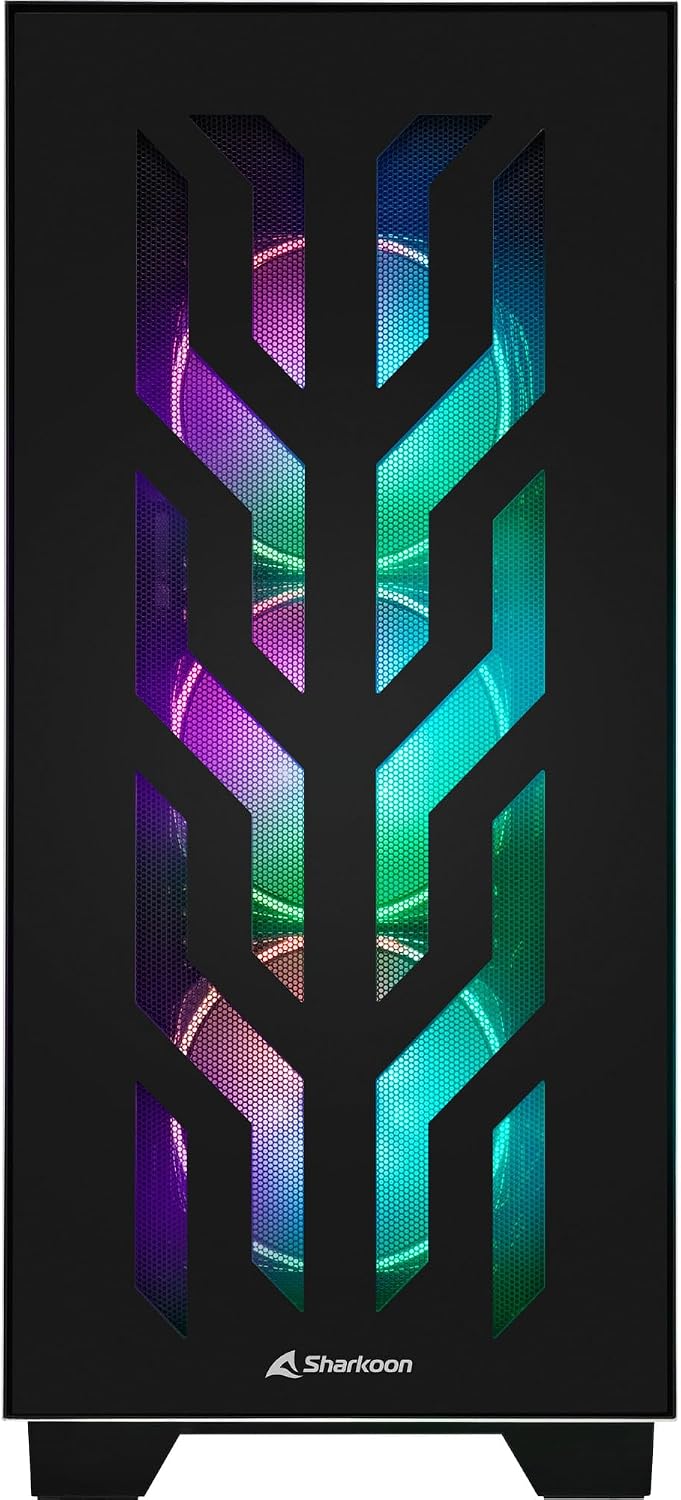
פיגורע 4.1: פראָנט view of the Sharkoon CA300T PC case, showcasing the illuminated RGB fans behind the mesh panel.
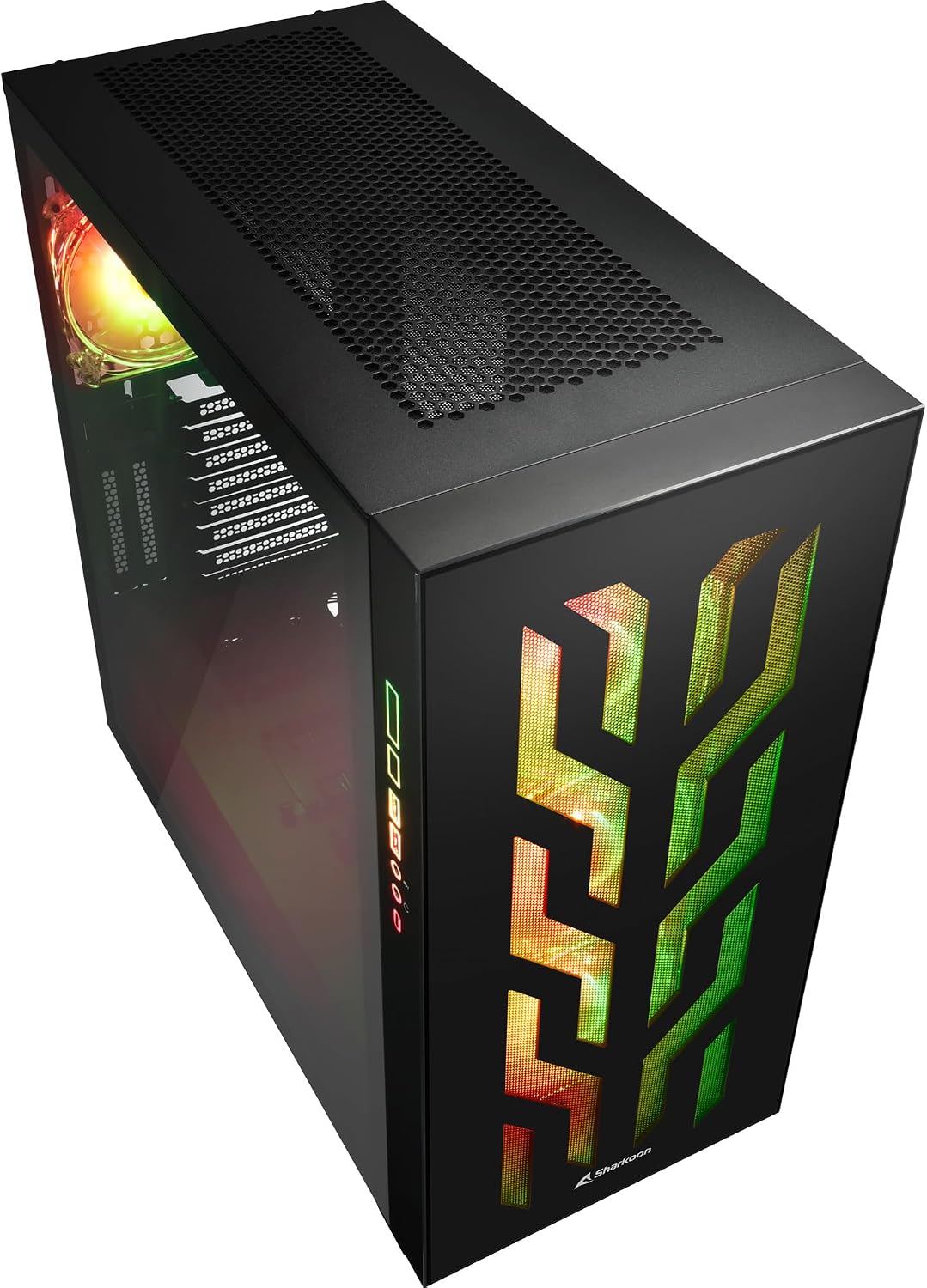
פיגור 4.2: ווינקלדיק view of the Sharkoon CA300T PC case, showing the tempered glass side panel and the vibrant RGB lighting from the interior.
5. סעטאַפּ
5.1 אַנפּאַקינג
- Carefully remove the PC case from its packaging.
- Inspect the case for any signs of damage during transit. Contact your retailer if any damage is found.
- Locate the accessory box inside the case, which contains screws and other installation hardware.
5.2 Removing Side Panels
The Sharkoon CA300T features tempered glass side panels for easy access to components.
- Locate the two screws on the rear of the case securing the side panel.
- סקרעוו די צוויי סקרוז.
- Gently pull the panel upwards and away from the case to remove it. Repeat for the other side if necessary.

פיגורע 5.1: ינלענדיש view of the Sharkoon CA300T PC case, showing the main compartment with the left tempered glass panel removed, ready for component installation.

פיגורע 5.2: ינלענדיש view of the Sharkoon CA300T PC case with the left side panel completely removed, exposing the motherboard tray and various mounting points.
5.3 מאָטהערבאָאַרד ינסטאַללאַטיאָן
- Install the necessary standoffs onto the motherboard tray according to your ATX motherboard's screw holes.
- Carefully place your ATX motherboard onto the standoffs, aligning the screw holes.
- באַפֿעסטיקן די מאַדערבאָרד מיט די צוגעשטעלטע שרויפֿן.
5.4 מאַכט סופּפּלי יוניט (פּסו) ינסטאַלירונג
The CA300T supports bottom-mounted power supplies.
- Slide the PSU into its designated compartment at the bottom rear of the case.
- באַפֿעסטיקן די PSU צום קעיס מיט שרויפֿן פֿון הינטן.
5.5 דרייוו אינסטאַלאַציע
The case provides internal bays for 3.5-inch and 2.5-inch drives.
- Locate the drive cages or mounting points for your 3.5-inch or 2.5-inch drives.
- Mount your drives using the appropriate screws or tool-less mechanisms.
5.6 גראַפיקס קאַרטל און יקספּאַנשאַן קאַרטל ינסטאַלירונג
The case offers multiple expansion slots and supports vertical GPU mounting.
- אַראָפּנעמען די נייטיקע יקספּאַנשאַן סלאָט דעקל פון די הינטערשטע טייל פון די קעסטל.
- שטעל אַרײַן אײַער גראַפיקס קאַרטל אָדער אַנדערע יקספּאַנשאַן קאַרדס אין די PCIe סלאָץ אויף אײַער מוטערבאָרד.
- Secure the cards with screws. For vertical GPU mounting, an additional riser cable (not included) is required.
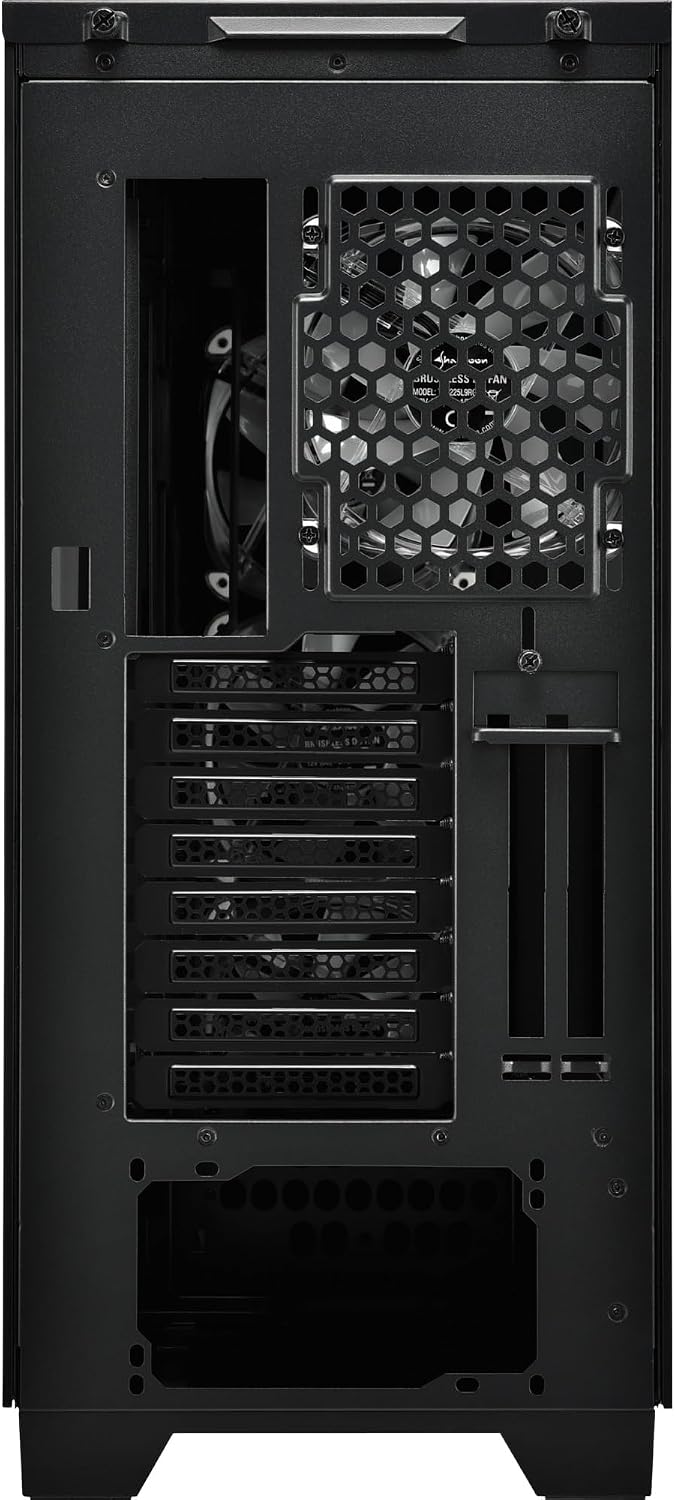
פיגורע 5.3: דערציען view of the Sharkoon CA300T PC case, illustrating the expansion slots, rear fan mount, and PSU opening.
5.7 קאַבלע מאַנאַגעמענט
Utilize the cable routing channels and tie-down points behind the motherboard tray to organize cables for improved airflow and aesthetics.

פיגור 5.4: הינטערשטע אינעווייניק view of the Sharkoon CA300T PC case, highlighting the dedicated cable management area behind the motherboard tray.
6. אָפּערייטינג
6.1 מאַכט אויף / אַוועק
After all components are installed and cables are connected, press the power button on the front panel to turn on your system. Press it again to turn off, or use your operating system's shutdown function.
6.2 RGB לייטינג קאָנטראָל
The integrated RGB lighting can be controlled via the dedicated RGB controller (if included) or through compatible motherboard software, depending on how the RGB components are connected. Refer to your motherboard manual for software control options.
7. וישאַלט
7.1 Cleaning Dust Filters
The Sharkoon CA300T features a three-layer top plate with a dust filter. Regularly clean all dust filters to maintain optimal airflow and cooling performance.
- Turn off and unplug your PC.
- Carefully remove the dust filters (e.g., from the top, front, and bottom).
- Clean the filters using compressed air or by gently washing them with water. Ensure they are completely dry before reinstallation.
7.2 אַלגעמיינע קער
- ווישט אָפּ די אויסערלעכע זייט פון דער קעסטל מיט אַ ווייכן, דamp שטאָף. ויסמיידן אַברייסיוו קלינערז.
- Ensure all cables are securely connected and not obstructing airflow.
8. טראָובלעשאָאָטינג
אויב איר טרעפט פּראָבלעמען מיט אייער פּיסי בויען, באַטראַכט די פאלגענדע געוויינטלעכע טראָובלעשווטינג טריט:
- קיין מאַכט: Ensure the power supply is properly connected to the wall outlet and the motherboard. Check all power cables (24-pin, CPU, GPU).
- פעןס דרייען זיך נישט: Verify that all fan headers are correctly connected to the motherboard or fan controller. Check BIOS settings for fan control.
- קיין ווייַז: Confirm that your monitor is connected to the graphics card (not the motherboard's integrated graphics, unless intended). Reseat the graphics card and RAM modules.
- RGB ארבעט נישט: Check RGB cable connections to the motherboard or controller. Ensure any necessary software is installed and configured.
- איבערהייצונג: Ensure all fans are spinning correctly and dust filters are clean. Verify proper thermal paste application on the CPU cooler.
For more complex issues, consult the manuals for your individual components (motherboard, GPU, PSU) or seek professional assistance.
9. ספּעסאַפאַקיישאַנז
| שטריך | באַשרייַבונג |
|---|---|
| סאָרט | שאַרקון |
| מאָדעל נאָמען | CA300T |
| טיפּ פון קאַסטן | גאַנץ טאַוער |
| מאָטהערבאָאַרד קאַמפּאַטאַבילאַטי | אַטקס |
| רעקאַמענדיד נוצן | גיימינג |
| קאָליר | שוואַרץ |
| מאַטעריאַל | מעטאַל |
| Power Supply Mount Type | דנאָ בארג |
| קאָאָלינג אופֿן | לופט |
| פאָכער גרייס | 120 מם |
| נומער פון פאַנס | 3 |
| Total Expansion Slots | 4 |
| Total USB 3.0 Ports | 2 |
| גאַנץ וסב פּאָרץ | 3 |
| ספּעציעלע פֿעיִקייטן | RGB Lighting, Openable Cable Pocket, Three-layer Top Plate with Dust Filter |
| HDD Bay Size | 3.5 אינטשעס |
| Number of Internal Bays | 4 |
| קאַמפּאַטאַבאַל דעוויסעס | ATX Motherboards, 3.5-inch Hard Drives |
| ליכט קאָליר | RGB |
| פּונקט וואָג | 14.7 קילאָגראַמס |
10. וואָראַנטי
The Sharkoon CA300T PC Case comes with a 2-יאָר פאַבריקאַנט ס וואָראַנטי. Please retain your proof of purchase for warranty claims. The warranty covers defects in materials and workmanship under normal use. It does not cover damage caused by misuse, accidents, unauthorized modifications, or improper installation.
11. שטיצן
For technical support, warranty inquiries, or further assistance, please visit the official Sharkoon website or contact their customer service department. You may find contact information and FAQs on their support pages.
באַאַמטער Webפּלאַץ: www.sharkoon.com