
הקדמה
This manual provides comprehensive instructions for the Lexmark MS431dw Monochrome Laser Printer. It covers setup, operation, maintenance, and troubleshooting to ensure optimal performance and longevity of your device. The Lexmark MS431dw is designed for efficient monochrome printing, offering speeds up to 40 pages per minute and automatic duplex printing.

בילד: פראָנט-רעכטס view of the Lexmark MS431dw Monochrome Laser Printer.
סעטאַפּ
1. אַנפּאַקינג די פּרינטער
נעמט פֿאָרזיכטיק אַרויס דעם דרוקער פֿון זײַן פּאַקאַדזשינג. מאַכט זיכער אַז אַלע פּאַקאַדזשינג מאַטעריאַלן, טעיפּס און פּראַטעקטיוו פֿילמען זענען אַוועקגענומען פֿון דער אויסערלעכער און אינעווייניקסטער זײַט פֿון דרוקער. האַלט די פּאַקאַדזשינג פֿאַר צוקונפֿטיקן טראַנספּאָרט אויב נייטיק.
2. Installing the Toner Cartridge
- עפענען די פראָנט דעקל פון די דרוקער.
- נעמט ארויס די נייע טאָנער קאַרטרידזש פון איר פּאַקאַדזשינג און שאָקלט עס לײַכט צו פֿאַרטיילן דעם טאָנער.
- אַרײַנשטעלן די טאָנער קאַרטרידזש אין דעם באַשטימטן שפּאַלט ביז עס קליקט אַרײַן אין פּלאַץ.
- נאָענט די פראָנט דעקל.
3. לאָודינג פּאַפּיר
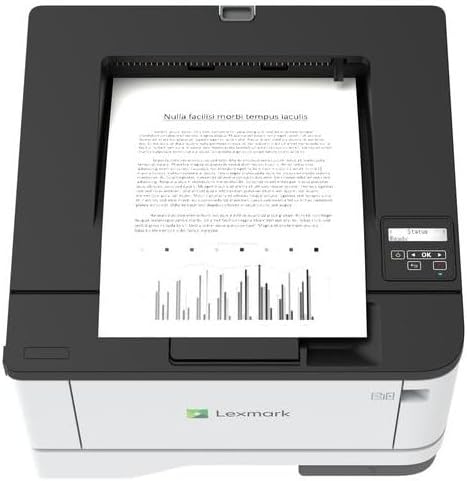
בילד: אויבן view of the Lexmark MS431dw with paper loaded in the input tray.
Open the paper tray and adjust the paper guides to fit the size of your paper. Load the paper stack into the tray, ensuring it is flat and below the maximum fill line. Close the paper tray. The printer supports various media types, including card stock.
4. קאַנעקטינג מאַכט
פֿאַרבינדט דעם עלעקטרישן שנור צום דרוקער'ס עלעקטרישן אַרײַנגאַנג און דערנאָך צו אַ געערדטער עלעקטרישער ווענטיל.
5. Connecting to a Network/Computer
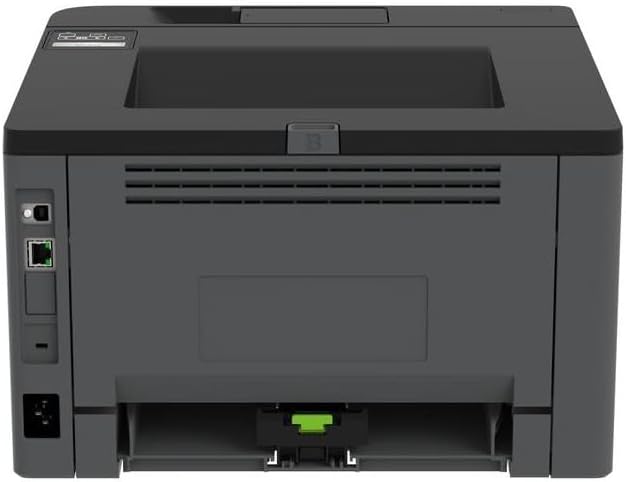
בילד: הינטערשטע view of the Lexmark MS431dw, highlighting the Ethernet and power connection ports.
The Lexmark MS431dw supports Ethernet connectivity. Connect an Ethernet cable from your network router or switch to the Ethernet port on the back of the printer. For direct connection to a computer, use a USB cable (not included) if available, or configure network printing.
6. דרייווער ינסטאַלירונג
Turn on the printer. Insert the driver CD (if provided) into your computer, or download the latest drivers from the official Lexmark support webזייטל. גיי נאך די אינסטרוקציעס אויפן עקראַן צו ענדיגן די דרייווער אינסטאַלאַציע.
אַפּערייטינג ינסטראַקשאַנז
1. קאָנטראָל פּאַנעל איבערview

בילד: אויבן view of the Lexmark MS431dw, showing the printer's control panel with display and buttons.
The control panel features a display screen and navigation buttons (Up, Down, OK, Back) to access printer settings, status, and functions. Refer to the on-screen menus for specific options.
2. גרונטלעכע דרוקעריי
- זיכער מאַכן אַז דער דרוקער איז אנגעצונדן און פארבונדן צו אייער קאָמפּיוטער אָדער נעץ.
- עפֿנט דאָס דאָקומענט וואָס איר ווילט דרוקן אויף אייער קאָמפּיוטער.
- אויסקלייַבן דרוקן פֿון דער אַפּליקאַציע'ס מעניו (למשל, File > דרוקן).
- Choose the Lexmark MS431dw from the list of available printers.
- Adjust print settings as desired (e.g., number of copies, paper size).
- דריקט דרוקן.
3. Automatic Duplex Printing
The MS431dw supports automatic two-sided (duplex) printing. To enable this feature:
- In the print dialog box on your computer, navigate to the printer properties or preferences.
- Look for an option related to "Two-sided printing" or "Duplex printing."
- אויסקלייבן די געוואונטשענע דופּלעקס אָפּציע (למשל, לאַנג-זייַט ביינדינג, קורץ-זייַט ביינדינג).
- באַשטעטיקן אייער אויסוואל און גיי ווייטער מיטן דרוקן.
וישאַלט
1. אויסטוישן די טאָנער קאַרטרידזש
When the toner level is low, the printer's display will indicate a warning. To replace the cartridge:
- פאַרזיכערן אַז די דרוקער איז פּאַוערד אויף.
- עפענען די פראָנט דעקל.
- Remove the old toner cartridge by pulling it out.
- Unpack a new Lexmark-compatible toner cartridge and gently shake it.
- אַרײַנשטעלן די נײַע קאַרטרידזש ביז זי פֿאַרשליסט זיך אין פּלאַץ.
- נאָענט די פראָנט דעקל.
2. רייניקונג די פּרינטער
רעגולערע רייניקונג העלפט אויפהאלטן די דרוק קוואַליטעט און פארלענגערט די לעבן פון די דרוקער.
- עקסטעריע: ווישן די יקסטיריער סערפאַסיז מיט אַ ווייך, דamp, א לינט-פֿרײַער שטאָף. ניצט נישט קיין שרײַבנדיקע רייניגער אָדער סאָלווענטן.
- ינלענדיש: Periodically open the front cover and gently remove any dust or paper debris from accessible areas using a dry, lint-free cloth. Avoid touching the fuser unit.
טראָובלעשאָאָטינג
This section addresses common issues you might encounter. For more detailed troubleshooting, refer to the Lexmark support webפּלאַץ.
1. פּאַפּיר־שטאָפּונגען
- If a paper jam occurs, the printer display will show an error message indicating the location of the jam.
- Carefully open the indicated covers or trays.
- Gently pull the jammed paper in the direction of the paper path. Avoid tearing the paper.
- Close all covers and trays. The printer should resume printing.
2. שלעכטע דרוק קוואַליטעט
- פארבלאסענע דרוקן: די טאָנער קאַרטרידזש איז מעגלעך נידעריק. פֿאַרבייט עס אויב נייטיק.
- שטריכן אדער פלעקן: Clean the printer's interior as described in the Maintenance section. Ensure the toner cartridge is properly seated.
- ליידיק בלעטער: Verify the toner cartridge is installed correctly and has toner. Check printer drivers and print settings.
3. קאָנעקטיוויטי פּראָבלעמען
- Printer Not Found: Ensure the Ethernet cable is securely connected to both the printer and the network. Verify network settings on the printer and computer.
- אָפפלינע סטאַטוס: Check the printer's power and network connection. Restart both the printer and your computer.
ספּעסאַפאַקיישאַנז
| שטריך | דעטאַל |
|---|---|
| מאָדעל נומער | 29S0110 |
| דרוק טעכנאָלאָגיע | לייזער |
| דרוקער רעזולטאַט | מאָנאָטשראָמע |
| מאַקסימום דרוק גיכקייט (מאָנאָכראָם) | ביז 40 בלעטער פּער מינוט (ppm) |
| קאַנעקטיוויטי טעכנאָלאָגיע | עטהערנעט |
| ספּעציעלע שטריך | Auto-Duplex (Automatic Two-sided Printing) |
| מאַקסימום אַרייַנשרייַב בלאַט קאַפּאַסיטי | 900 שיץ |
| Print Media Support | Card stock, Plain paper |
| פּונקט וואָג | 9300 גראַם (אומגעפער 20.5 פונט) |
| וואָסtage | 570 וואטס |
| UPC | 734646695558 |
באַמערקונג: די ספּעסאַפאַקיישאַנז קענען זיין געביטן אָן באַמערקן.
וואָראַנטי און שטיצן
וואָראַנטי אינפֿאָרמאַציע
Your Lexmark MS431dw printer is covered by a standard manufacturer's warranty. For specific terms, conditions, and duration of your warranty, please refer to the documentation included with your product or visit the official Lexmark webזייטל. האַלט דיין קויפן באַווייַז פֿאַר וואָראַנטי קליימז.
קונה שטיצן
For technical assistance, driver downloads, or further support, please visit the official Lexmark support portal.
Visit the Lexmark Store for Support