
1. פּראָדוקט איבערview
The Victrix Gambit Gaming Headset offers both wireless and wired connectivity for versatile use with Xbox One, Xbox Series X|S, and PC. Designed for competitive gaming, it features Dolby Atmos surround sound, 50mm HD speaker drivers, and a bi-directional noise-canceling microphone.

Image 1.1: The Victrix Gambit Gaming Headset, showcasing its sleek black design and over-ear cups.

Image 1.2: The Victrix Gambit headset highlighting its dual wireless and wired modes for home and tournament play.
2. סעטאַפּ אינסטרוקציעס
2.1 פּעקל אינהאַלט
- וויקטריקס גאַמביט גיימינג כעדסעט
- ווירעלעסס וסב דאָנגלע
- 3.5 מ״מ אַודיאָ קאַבל מיט אין-ליניע קאָנטראָלס
- וסב טשאַרדזשינג קאַבלע
- באַניצער מאַנואַל (דעם דאָקומענט)
2.2 אויפלאָדן דעם כעדסעט
Before initial use, fully charge the headset. Connect the USB charging cable to the headset's charging port and to a powered USB port (e.g., console, PC, or USB wall adapter). The LED indicator will show charging status.
2.3 Wireless Connection (Xbox/PC)
- Insert the wireless USB dongle into an available USB port on your Xbox console or PC.
- Power on the headset by pressing and holding the Power button until the LED indicator illuminates.
- The headset and dongle should automatically pair. A solid LED on both indicates a successful connection.
- If pairing does not occur automatically, press the pairing button on the USB dongle, then press and hold the Power/Pairing button on the headset until the LED flashes rapidly, then becomes solid.
2.4 Wired Connection (3.5mm)
For wired use or tournament play, connect the supplied 3.5mm audio cable from the headset's 3.5mm port to your controller or device's audio jack. The headset will automatically switch to wired mode.
3. אפערירן די כעדסעט
3.1 מאַכט אויף / אַוועק
- מאַכט אויף: Press and hold the Power button on the headset until the LED illuminates.
- מאַכט אַוועק: Press and hold the Power button until the LED turns off.
3.2 Volume and Audio Controls
The headset features on-ear controls for convenient audio adjustments.

Image 3.1: Close-up of the headset's right earcup, showing the power button, mode switch, and game/chat balance dial.
- בעל באַנד: Use the volume dial on the earcup to adjust the overall audio level.
- שפּיל/טשאַט באַלאַנס: Use the dedicated dial to balance game audio and chat volume.
- מאָדע באַשטימען: Toggle between different audio modes or profiles if available (refer to specific software for customization).
3.3 מיקראָפאָן באַניץ
The bi-directional noise-canceling microphone ensures clear communication.

Image 3.2: The flexible boom microphone of the Victrix Gambit headset, designed for clear voice capture.
- Flip-to-Mute: Flip the microphone boom arm upwards to mute the microphone. Flip it down to unmute.
- מיקראָפאָן מאָניטאָרינג: The headset may offer a three-stage mic monitor. Adjust this feature through the headset's companion software on PC or console settings to hear your own voice feedback.
3.4 Dolby Atmos Integration
The headset includes integrated Dolby Atmos for immersive surround sound. A lifetime subscription is included. Ensure Dolby Atmos is enabled in your console or PC audio settings for the best experience.
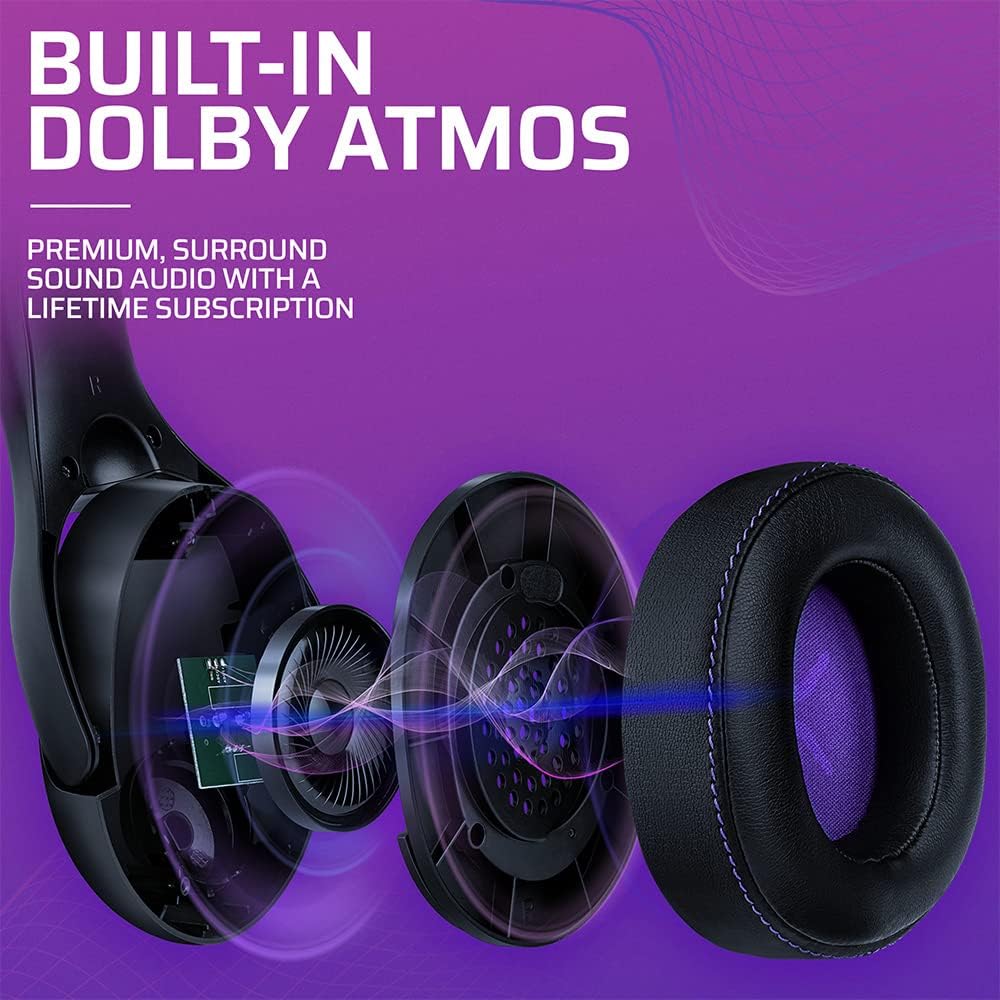
בילד 3.3: אן עקספלאדירטע view of the Victrix Gambit earcup, illustrating the 50mm speaker drivers and the audio waves representing Dolby Atmos sound.
4. וישאַלט
4.1 רייניקונג
- Use a soft, dry cloth to clean the headset's surfaces.
- פֿאַר די אויערקעפּלעך, ווישט אָפּ מיט אַ אַדamp cloth and mild soap solution if necessary, then dry thoroughly. Avoid excessive moisture.
- דו זאלסט נישט נוצן האַרב קעמיקאַלז אָדער אַברייסיוו קלינערז.
4.2 סטאָרידזש
האַלט די כעדסעט אין אַ קיל, טרוקן אָרט אַוועק פון דירעקט זונשייַן און עקסטרעמע טעמפּעראַטורן. ויסמיידן צו שטעלן שווערע זאַכן אויף די כעדסעט צו פאַרמייַדן שעדיקן.
4.3 באַטערי קער
כדי צו פארלענגערן די לעבן פון די באַטעריע, זאָלט איר נישט אָפט אויסלאָדן דעם כעדסעט. לאָדט דעם כעדסעט רעגולער אויף, אפילו אויב עס ווערט נישט גענוצט פאר לענגערע צייטן.
5. טראָובלעשאָאָטינג
5.1 קיין אַודיאָ
- Ensure the headset is powered on and properly paired (for wireless) or connected (for wired).
- Check the volume levels on the headset, your console/PC, and the game/application.
- באַשטעטיקט אַז די ריכטיקע אַודיאָ אַרויסגאַנג מיטל איז אויסגעקליבן אין אייערע סיסטעם סעטטינגס.
- For wireless, try re-pairing the headset with the USB dongle.
5.2 מיקראָפאָן אַרבעט נישט
- זייט זיכער אז דער מיקראָפאָן איז אַראָפּגעקערט (נישט שטום).
- Check microphone input settings on your console/PC and in-game chat settings.
- Verify that the correct microphone input device is selected in your system settings.
- פּרובירט דעם מיקראָפאָן מיט אַן אַנדער אַפּליקאַציע אָדער מיטל אויב מעגלעך.
5.3 קאָנעקטיוויטי פּראָבלעמען
- ווירעלעסס: Ensure the USB dongle is securely plugged in. Try a different USB port. Move closer to the dongle to rule out range issues.
- ווייערד: Ensure the 3.5mm cable is fully inserted into both the headset and the device. Try a different 3.5mm cable if available.
5.4 כעדסעט לאָדט זיך נישט אויף
- Ensure the USB charging cable is securely connected to both the headset and a powered USB port.
- פרובירט אן אנדערן USB פארט אדער טשאַרדזשינג קאַבל.
- באַשטעטיקן אַז די מאַכט מקור איז אַקטיוו.
6. ספּעסאַפאַקיישאַנז
| מאָדעל נומער | 049-003-נאַ |
| קאַנעקטיוויטי | Wireless (USB Dongle, up to 12.19 meters range), Wired (3.5mm audio cable) |
| רעדנער דריווערס | 50מם הד |
| אַודיאָ טעכנאָלאָגיע | Dolby Atmos (lifetime subscription included) |
| מיקראָפאָן | Bi-directional, Noise-Canceling, Flip-to-Mute |
| באַטערי | 1 ליטיום-יאָן (אַרייַנגערעכנט) |
| דימענסיעס (L X W X H) | 1 X 260.4 X 215.9 סענטימעטער |
| וואָג | 610 גראַמז |
| קאַמפּאַטאַבילאַטי | Microsoft Xbox One, Xbox Series X|S, PC |
7. וואָראַנטי אינפֿאָרמאַציע
פֿאַר דעטאַלירטע וואָראַנטי אינפֿאָרמאַציע, ביטע זען די אָפֿיציעלע PDP website or the warranty card included with your product packaging. Warranty terms and conditions may vary by region.
8. קונה שטיצן
If you encounter any issues or have questions not covered in this manual, please contact PDP customer support. Visit the official PDP website for support contact details, FAQs, and additional resources.