
Bmax X15
Bmax X15 Laptop User Manual
מאָדעל: קס 15
הקדמה
This manual provides comprehensive instructions for the setup, operation, and maintenance of your Bmax X15 laptop. Please read this manual carefully before using your device to ensure proper functionality and longevity.
פּראָדוקט איבערview
פראָנט View

The Bmax X15 features a vibrant 15.6-inch Full HD display, providing clear and crisp visuals for all your computing needs.
קלאַוויאַטור און טאָוטשפּאַד

Equipped with a full-sized keyboard including a numeric keypad and a large 4.7-inch multi-touch touchpad for comfortable and efficient input.
זייַט פּראָfile און פּאָרטן

The slim design incorporates essential ports including two USB 3.0 ports, a Micro HDMI output, a DC power input, and a headphone jack for versatile connectivity.
דערציען View

The Bmax X15 features a durable metal back cover, enhancing both its aesthetic appeal and structural integrity.
סעטאַפּ
ערשט מאַכט-אויף
- טשאַרדזשינג די באַטאַרייע: Before first use, connect the included power adapter to the laptop's DC port and a power outlet. Allow the battery to charge fully. The charging indicator light will typically change color or turn off when fully charged.
- מאַכט אויף: Open the laptop lid and press the power button, usually located on the top right of the keyboard area.
- Windows סעטאַפּ: Follow the on-screen prompts to complete the Windows 10 Pro setup. This includes selecting your language, region, connecting to a Wi-Fi network, and creating a user account.
קאַנעקטינג פּעריפעראַלס
- USB דעוויסעס: Connect USB mice, keyboards, or external drives to the USB 3.0 ports on the sides of the laptop.
- פונדרויסנדיק ווייַז: Use a Micro HDMI cable to connect the laptop to an external monitor or TV. Ensure the external display is set to the correct input source.
- אַודיאָ דעוויסעס: שטעקט אריין כעדפאָונז אדער עקסטערנע רעדנער אין די 3.5 מם אַודיאָ דזשעק.
- מיקראָ-SD קאַרטל: Insert a Micro-SD card into the designated slot for additional storage.
אַפּערייטינג ינסטראַקשאַנז
קלאַוויאַטור און טאָוטשפּאַד באַניץ
The Bmax X15 features a responsive keyboard and a large touchpad. The touchpad supports multi-touch gestures for enhanced navigation. Refer to Windows settings for customizing touchpad gestures.
ווייַז סעטטינגס
The 15.6-inch Full HD IPS display offers excellent clarity. You can adjust display settings such as brightness, resolution, and scaling through Windows Display Settings.
סטאָרידזש יקספּאַנשאַן
Expandable M.2 SSD Slot
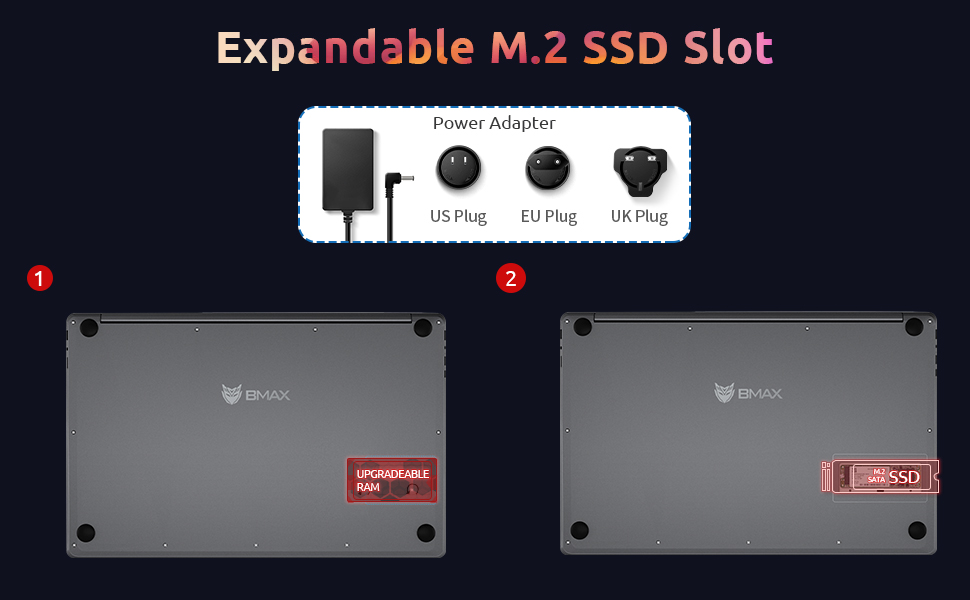
The Bmax X15 comes with a 256GB SSD and supports further storage expansion via an M.2 SATA SSD slot. This allows for significant upgrades to your storage capacity.
וישאַלט
רייניקונג
- פאַרשטעלן: ניצן אַ ווייך, לינט-פֿרייַ שטאָף אַ ביסל דampגעוואשן מיט וואַסער אָדער אַ פאַרשטעלן רייניגער. שפּריצט נישט פליסיקייט גלייך אויף דעם פאַרשטעלן.
- קלאַוויאַטור און שאַסי: ניצט אַ ווייכע, טרוקענע שטאָף. פֿאַר שווערע שמוץ, אַ ביסל טרוקןamp מען קען ניצן אַ שטאָף, און זיכער מאַכן אַז קיין פליסיקייט גייט נישט אַרײַן אין די עפענונגען.
- פּאָרץ: ניצט קאמפרעסט לופט צו פארזיכטיק רייניגן שטויב פון די פארטן.
באַטערי קער
- פֿאַרמײַדט אָפֿט פֿולשטענדיק אויסצולאָדן די באַטעריע.
- Store the laptop in a cool, dry place if not used for extended periods, with the battery charged to about 50%.
- Use only the original Bmax power adapter.
ווייכווארג דערהייַנטיקונגען
Regularly check for and install Windows updates to ensure system stability, security, and optimal performance. Go to סעטטינגס > דערהייַנטיקונג און זיכערהייט > ווינדאָוז דערהייַנטיקונג.
טראָובלעשאָאָטינג
| פּראָבלעם | מעגלעך סיבה | לייזונג |
|---|---|---|
| דער לאַפּטאָפּ גייט נישט אָן. | Low battery; Power adapter issue; Hardware fault. | Ensure power adapter is securely connected and outlet is working. Allow battery to charge for at least 30 minutes before attempting to power on again. |
| דער עקראַן איז ליידיק אָדער פליקערט. | Incorrect display settings; Driver issue; Hardware fault. | דרוק Fn + F1 (or relevant display toggle key) to cycle through display modes. Update graphics drivers. Restart the laptop. |
| Wi-Fi פֿאַרבינדונג פּראָבלעמען. | Wi-Fi adapter off; Router issue; Driver issue. | Ensure Wi-Fi is enabled in Windows settings. Restart your router. Update network drivers. |
| לאַנגזאַמע פאָרשטעלונג. | Too many programs running; Low storage space; Malware. | Close unnecessary applications. Free up disk space. Run a virus scan. Consider upgrading SSD or RAM if consistently slow. |
ספּעסאַפאַקיישאַנז
| שטריך | דעטאַל |
|---|---|
| מאָדעל | Bmax X15 |
| פּראַסעסער | Intel Celeron N4120 Quad Core (up to 2.6 GHz) |
| באַראַן | 8 גיגאבייט דדר4 |
| סטאָרידזש | 256 GB SSD (Expandable via M.2 SATA SSD slot) |
| ווייַז | 15.6-inch Full HD (1920x1080) IPS |
| גראַפיקס | אינטעל UHD גראַפיקס 600 (אינטעגרירט) |
| אָפּערייטינג סיסטעם | Windows 10 Pro (Supports Linux OS) |
| ווירעלעסס קאַנעקטיוויטי | 802.11ac Wi-Fi, בלועטוט |
| פּאָרץ | 2x USB 3.0, 1x Micro HDMI, 1x DC Power, 1x 3.5mm Headphone Jack, 1x Micro-SD Card Reader |
| Webקאַם | 0.3 מפּ |
| באַטערי לעבן | ביז 5 שעה (טיפּישע באַניץ) |
| דימענשאַנז (LxWxH) | 14.8 X 9.6 X 0.8 אינטשעס |
| וואָג | 4.4 פונט |
וואָראַנטי און שטיצן
Bmax offers a worry-free 30-day return policy and a 12-month warranty for the X15 laptop. For technical support or warranty claims, please refer to the contact information provided with your product packaging or visit the official Bmax support webפּלאַץ.
Customer service is available 7 days a week, 24 hours a day.
פֿאַר מער אינפֿאָרמאַציע, קענט איר באַזוכן די Bmax Store on Amazon.
Ask a question about this manual
Ask about setup, troubleshooting, compatibility, parts, safety, or missing instructions. Manuals+ will review the question and use this page’s manual context to help answer it.