
1. הקדמה
This manual provides essential information for setting up, operating, maintaining, and troubleshooting your AVITA Essential NE14A2INC433-MB laptop. Please read this manual thoroughly before using your device to ensure proper functionality and longevity.
2. פּראָדוקט איבערview
The AVITA Essential NE14A2INC433-MB is a thin and light 14-inch laptop designed for everyday use. It features an aluminum body and a unique cloth design on the palm rest.

Figure 2.1: AVITA Essential Laptop (Matt Black) with screen and keyboard visible.
2.1 ווייַז פֿעיִקייטן
The laptop is equipped with a 14-inch Full HD (1920x1080) anti-glare IPS display. The ultra-narrow bezels provide an immersive viewינג דערפאַרונג.

Figure 2.2: Close-up of the AVITA Essential display, showcasing the FHD IPS Anti-Glare Panel and 4mm Narrow Bezels.
2.2 פּאָרטן און קאָנעקטיוויטי
The AVITA Essential laptop offers various ports for connectivity, including two USB 3.0 Type A ports, one full-size HDMI port, and a Micro SD card reader.
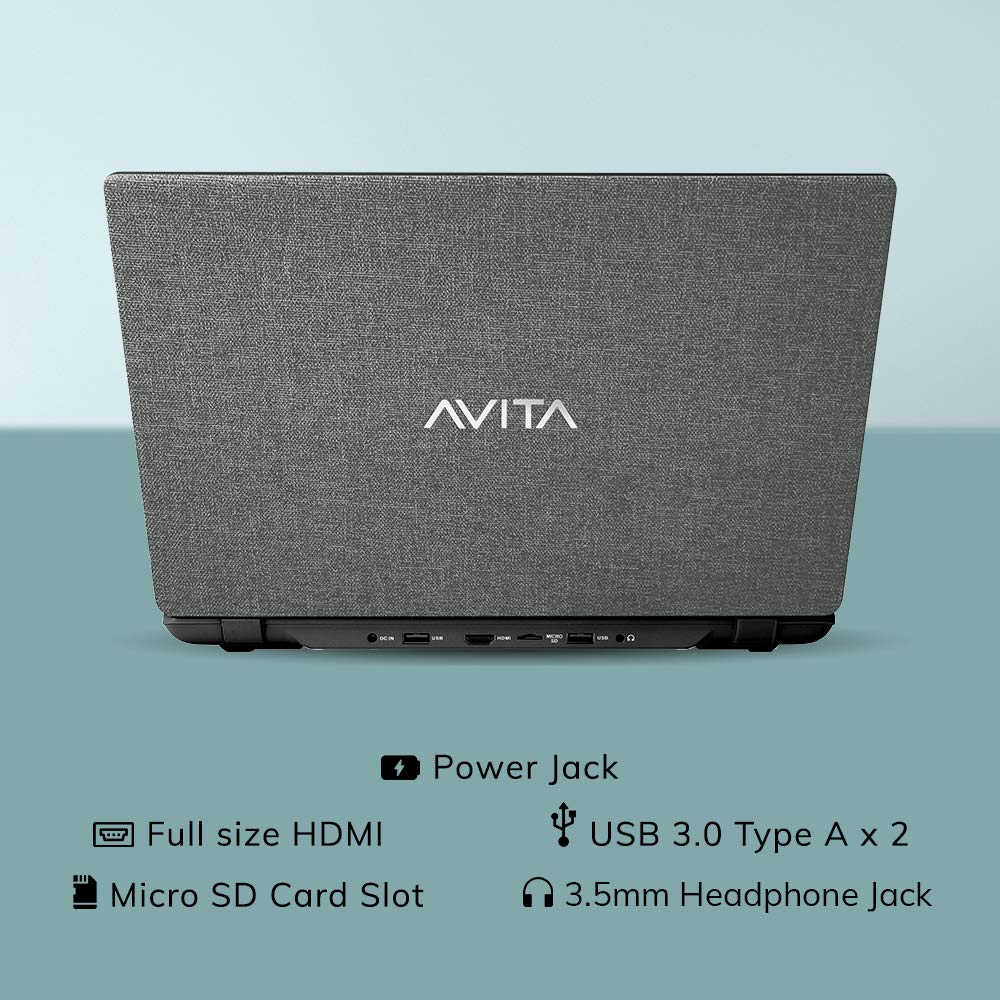
פיגורע 2.3: דערציען view of the laptop detailing the available ports for external devices and power.
2.3 Keyboard and Webקאַם
The laptop features a full-size island-style keyboard for comfortable typing and an integrated webקאַם פֿאַר ווידעא קאַנפראַנסאַז.

פיגור 2.4: פון אויבן אַראָפּ view of the laptop's island-style keyboard and integrated webקאַם.
2.4 פּלאַן
The AVITA Essential boasts a unique cloth design, contributing to its aesthetic appeal.

Figure 2.5: The laptop in a closed position, highlighting its distinctive cloth design.
3. סעטאַפּ
- ונבאָקסינג: Carefully remove the laptop and all accessories from the packaging. Ensure all items listed in the "What's in the Box" section are present.
- ערשט אָפּצאָל: Connect the AC adapter to the laptop's power jack and then to a power outlet. Allow the laptop to charge for at least 30 minutes before the first use, or until the battery indicator shows a sufficient charge.
- מאַכט אויף: Open the laptop lid and press the power button. The laptop will begin the initial boot process.
- ווינדאָוס 10 היים אין S מאָדע סעטאַפּ: Follow the on-screen instructions to complete the Windows 10 Home in S Mode setup. This includes selecting your region, language, connecting to a Wi-Fi network, and creating a user account.
- ווייכווארג דערהייַנטיקונגען: After initial setup, connect to the internet and allow Windows to download and install any available updates. This ensures optimal performance and security.
4. אַפּערייטינג ינסטרוקטיאָנס
4.1 ווינדאָוס 10 היים אין S מאָדע
Your AVITA Essential laptop comes with Windows 10 Home in S Mode, which is designed for security and performance. In S Mode, you can only install apps from the Microsoft Store and must use Microsoft Edge for safe browsing. You can switch out of S Mode to regular Windows 10 Home at any time, but you cannot switch back.
The laptop is eligible for a free upgrade to Windows 11 when available. The upgrade rollout plan is scheduled to begin late in 2021 and continue into 2022, with specific timing varying by device.
4.2 פאָרשטעלונג און סטאָרידזש
Powered by an Intel Celeron N4000 processor and 4GB DDR4 RAM, combined with a 128GB SSD, the laptop offers responsive performance for daily tasks. The Solid State Drive (SSD) ensures faster boot times and quicker application loading compared to traditional hard disk drives.
Video 4.1: This video highlights key features of the AVITA Essential laptop, including its FHD IPS display, narrow bezels, island-style keyboard, integrated webcam, and fast SSD storage. It demonstrates the laptop's sleek design and quick performance for everyday computing tasks.
Video 4.2: This video illustrates the benefits of a modern PC with Windows 10 and an SSD, emphasizing thin and light design, faster startups, improved efficiency, longer battery life, and enhanced durability and security due to fewer moving parts.
5. וישאַלט
- רייניקונג: ניצט אַ ווייכע, לינט-פֿרייע שטאָף צו רייניקן דעם עקראַן און די אויסערלעכע זייט. פֿאַר שווערע פֿלעקן, ווישט אַ ביסלampווישט דעם שטאָף מיט וואַסער אָדער אַ פאַרשטעלן-זיכער רייניגער. פֿאַרמייַדט שטרענגע כעמיקאַלן.
- באַטערי זאָרגן: To maximize battery life, avoid fully discharging the battery frequently. It is recommended to keep the battery charged between 20% and 80%. Store the laptop in a cool, dry place when not in use for extended periods.
- ווייכווארג דערהייַנטיקונגען: קאָנטראָלירט און אינסטאַלירט רעגולער די אָפּערייטינג סיסטעם און דרייווער דערהייַנטיקונגען צו ענשור אָפּטימאַלע פאָרשטעלונג און זיכערהייט.
- סטאָרידזש פאַרוואַלטונג: פּיריאַדיקלי שייַעךview און אויסמעקן אומנייטיקע files to free up storage space on the 128GB SSD. Consider using external storage or cloud services for large files.
- ווענטילאַטיאָן: Ensure the laptop's vents are not obstructed to prevent overheating. Use the laptop on a hard, flat surface rather than soft furnishings.
6. טראָובלעשאָאָטינג
6.1 פּראָסט ישוז און סאַלושאַנז
- לאַפּטאָפּ גייט נישט אָן:
- זיכער מאַכן אַז דער AC אַדאַפּטער איז זיכער פארבונדן צו ביידע דעם לאַפּטאַפּ און אַ אַרבעטנדיקן עלעקטרישן ווענטיל.
- באַשטעטיקן אַז די עלעקטרישע ווענטיל אַרבעט דורך אַרײַנשטעקן אַן אַנדער דעוויס.
- If the battery is completely drained, allow it to charge for some time before attempting to power on.
- פּאַמעלעך פאָרשטעלונג:
- שליסט אומנייטיקע אַפּליקאַציעס וואָס לויפן אין הינטערגרונט.
- קוקט נאָך און אינסטאַלירט אַלע וואַרטנדיקע ווינדאָוז דערהייַנטיקונגען.
- זיכער מאַכן אַז עס איז גענוג פריי פּלאַץ אויף דער SSD.
- לויפט א סיסטעם סקען פאר מאלוועיר אדער ווירוסן.
- Wi-Fi קאַנעקטיוויטי ישוז:
- ריסטאַרט דיין Wi-Fi ראַוטער און דעם לאַפּטאַפּ.
- קוק אויב Wi-Fi איז ענייבאַלד אין די ווינדאָוז סעטטינגס.
- Update Wi-Fi drivers from the AVITA support webפּלאַץ.
- Windows 10 S Mode App Restrictions:
- Remember that in S Mode, only apps from the Microsoft Store can be installed.
- If you need to install apps from other sources, you must switch out of S Mode. This is a one-way process.
7. ספּעסאַפאַקיישאַנז
| שטריך | דעטאַל |
|---|---|
| סאָרט | AVITA |
| מאָדעל נאָמען | יקערדיק |
| מאָדעל נומער | NE14A2INC433-MB |
| פאַרשטעלן גרייס | 14 אינטשעס (35 סענטימעטער) |
| ווייַז האַכלאָטע | 1920 רענטגענ 1080 (פול הד) |
| ווייַז טיפּ | FHD Anti-Glare IPS LED |
| פּראַסעסער | Intel Celeron N4000 (1.10 GHz base, 2.60 GHz Max) |
| באַראַן זכּרון | 4 גיגאבייט דדר4 |
| סטאָרידזש | 128 גיגאבייט ססד |
| אָפּערייטינג סיסטעם | Windows 10 היים אין S מאָדע |
| גראַפיקס | Intel Integrated UHD Graphics 600 |
| באַטערי לעבן | Up to 6 Hours (as per MobileMark) |
| וואָג | 1.37 קג |
| פּאָרץ | 2x USB 3.0 Type A, 1x Full Size HDMI, Micro SD Card Reader |
| ווירעלעסס קאַנעקטיוויטי | 802.11 b/g/n/ac Wi-Fi, Bluetooth 4.0 |
| Webקאַם | Integrated Front Camera |
8. וואָראַנטי און שטיצן
8.1 וואָראַנטי אינפֿאָרמאַציע
Your AVITA Essential laptop comes with an 18+6 months onsite domestic warranty from AVITA. This warranty covers manufacturing defects and does not cover physical damage. For detailed terms and conditions, please refer to the warranty section provided with your product or visit the official AVITA support webפּלאַץ.
8.2 וואָס איז אין דער קעסטל
ווען איר אַנבאָקסינג, איר זאָל געפֿינען די פאלגענדע זאכן:
- AVITA Essential Laptop
- אַק אַדאַפּטער
- באַניצער גייד
- מאַניואַלז