
1. הקדמה
The PNI House IP516 is a 16-channel Network Video Recorder (NVR) designed for advanced surveillance systems, supporting up to 5MP IP cameras and H.265 video compression. This NVR allows for local and remote monitoring, recording, and management of your security cameras. It is compatible with ONVIF protocol cameras, offering flexibility in camera selection. This manual provides essential information for the proper installation, operation, and maintenance of your PNI House IP516 NVR.
2. פּעקל אינהאַלט
ביטע באַשטעטיקן אַז אַלע זאכן וואָס זענען ליסטעד אונטן זענען אַרייַנגערעכנט אין דיין פּעקל. אויב עפּעס פעלנדיק אָדער צעבראָכן, קאָנטאַקט דיין הענדלער.
- PNI House IP516 NVR Unit
- וסב מאַוס
- מאַכט אַדאַפּטער
- באַניצער מאַנואַל (דעם דאָקומענט)
- CD with Software
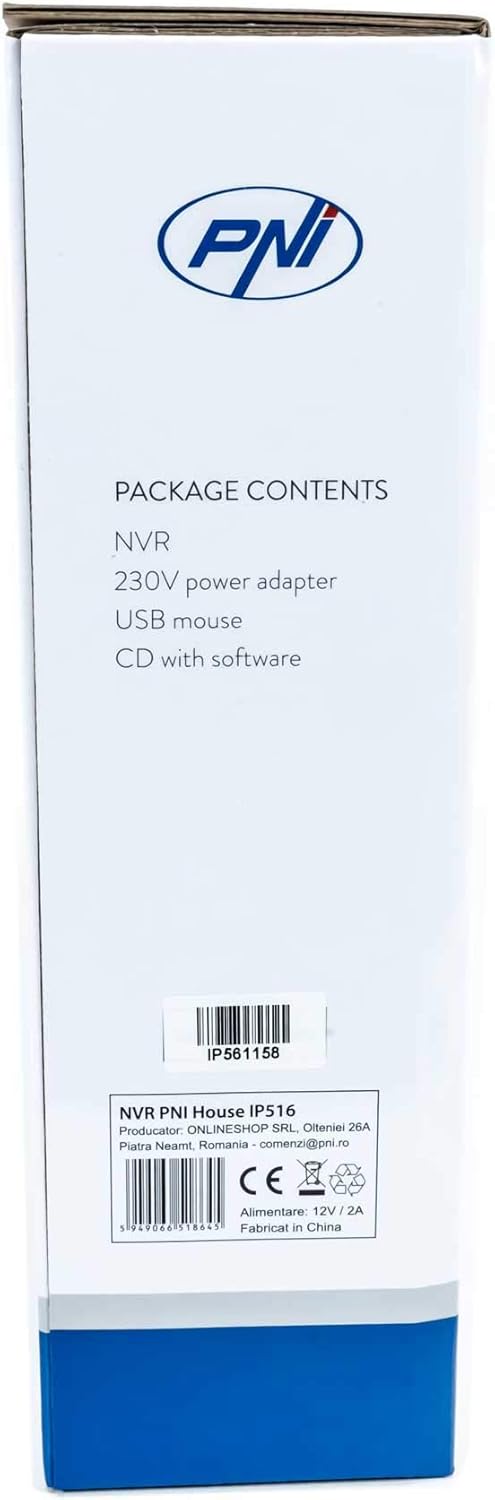
Image: Side of the NVR box detailing the package contents.

Image: The PNI House IP516 NVR unit, power adapter, and USB mouse included in the package.
3. פּראָדוקט איבערview
3.1 פראָנט פּאַנעל
The front panel of the NVR features indicator lights for system status.
- PWR (מאַכט): Indicates the NVR is powered on.
- רעקארדירונג (רעקארדירונג): Flashes when recording is active.
- NET (Network): ינדיקייץ נעץ טעטיקייט.

בילד: פראָנט view of the PNI House IP516 NVR, showing the power, record, and network indicator lights.
3.2 דערציען פּאַנעל
The rear panel provides all necessary connection ports for the NVR.
- VGA פּאָרט: קאַנעקץ צו אַ ווגאַ מאָניטאָר.
- הדמי פּאָרט: קאַנעקט זיך צו אַן HDMI מאָניטאָר אָדער טעלעוויזיע פֿאַר הויך-דעפֿיניציע ווידעאָ אַרויסגאַנג.
- LAN Port (RJ45 10/100 Mbps): פֿאַרבינדט זיך צו אייער נעץ ראַוטער אָדער סוויטש.
- USB פּאָרטן (x2): For connecting the USB mouse, external storage, or for system upgrades.
- DC 12V מאַכט אַרייַנשרייַב: קאַנעקט זיך צו די אַרייַנגערעכנטע מאַכט אַדאַפּטער.

בילד: הינטערשטע view of the PNI House IP516 NVR, displaying VGA, HDMI, LAN, USB, and DC 12V power input ports.
4. סעטאַפּ
4.1 האַרט דרייוו אינסטאַלאַציע (אפציאָנעל)
The NVR supports a hard drive up to 8 TB for video storage. It is recommended to use dedicated CCTV hard drives for optimal reliability and endurance.
- ונסקרעוו און אַראָפּנעמען די שפּיץ דעקן פון די NVR.
- פֿאַרבינדט די SATA דאַטן און מאַכט קייבאַלז פֿון די NVR צום האַרד דרייוו.
- באַפֿעסטיקן דעם האַרט דרייוו צום NVR שאַסי מיט די צוגעשטעלטע שרויפֿן.
- צוריקשטעלן די אויבערשטע דעקל און זיכערן עס מיט שרויפן.
4.2 ערשטע פֿאַרבינדונגען
- Connect a monitor to the NVR's VGA or HDMI port.
- פֿאַרבינדט די USB מויז צו איינעם פֿון די NVR'ס USB פּאָרטן.
- פֿאַרבינדט אַן עטהערנעט קאַבל פֿון די NVR'ס LAN פּאָרט צו אייער נעץ ראַוטער אָדער סוויטש.
- פֿאַרבינדט דעם מאַכט אַדאַפּטער צום NVR'ס DC 12V אַרייַנגאַנג און דערנאָך שטעק עס אַרײַן אין אַ מאַכט אַוטלעט. דער NVR וועט זיך אויטאָמאַטיש אָנצינדן.
4.3 First Boot and Basic Configuration
Upon the first boot, the NVR will guide you through an initial setup wizard. Follow the on-screen prompts to:
- Set up a strong password for the administrator account.
- קאַנפיגיער דאַטע און צייט סעטטינגס.
- Format the installed hard drive (if applicable).
- Perform network settings (DHCP is usually enabled by default).
- זוכן פֿאַר and add IP cameras to the NVR. The NVR supports up to 16 cameras at 2560x1920px (5MP) and is compatible with ONVIF protocol cameras.
5. אפערירן די NVR
5.1 לאקאלע אָפּעראַציע
Use the connected mouse to navigate the NVR's graphical user interface (GUI) on the monitor. Right-click to access the main menu, which includes options for live view, playback, recording settings, system configuration, and more.
5.2 רימאָוט אַקסעס
The PNI House IP516 NVR can be accessed remotely for live viewing, playback, and configuration.
- Mobile Application (XMEye): Download the XMEye app from the Android Play Store or Apple App Store. Register an account, add your NVR by scanning its QR code or entering its serial number, and then you can view your cameras from anywhere with an internet connection.
- PC Software (General CMS): Install the General CMS software from the included CD or download it from the PNI support website. This software allows for comprehensive management of your NVR and cameras from a Windows PC.
5.3 רעקאָרדינג פאַרוואַלטונג
די NVR שטיצט פארשידענע רעקאָרדינג מאָדעס:
- קעסיידערדיק רעקאָרדינג: רעקאָרדס 24/7.
- סקעדזשולד רעקאָרדינג: רעקאָרדס בעת ספּעציפֿישע צייט פּעריאָדן.
- רעקאָרדינג פון באַוועגונג דעטעקטיאָן: רעקאָרדירט נאָר ווען באַוועגונג ווערט דעטעקטירט דורך די קאַמעראַס.
Configure these settings in the NVR's menu under 'Record' or 'Storage' settings.
5.4 באַוועגונג דעטעקציע און וואָרענונגען
When motion is detected, the system can trigger various alerts:
- Mobile Notifications: Text notifications sent via the XMEye mobile application.
- בליצפּאָסט אַלערץ: An email sent to a predefined address.
- FTP אַרויפֿלאָד: The recording saved to an FTP server.
These alert settings can be configured in the NVR's 'Alarm' or 'Event' menu.
6. וישאַלט
6.1 האַרט דרייוו פאַרוואַלטונג
Regularly check the status of your hard drive in the NVR's storage settings. If the hard drive becomes full, the NVR will typically overwrite the oldest recordings (loop recording). You may need to format the hard drive periodically if you encounter issues or wish to clear all data.
6.2 סיסטעם דערהייַנטיקונגען
Periodically check the PNI support website for firmware updates. Firmware updates can improve performance, add new features, or fix bugs. Follow the instructions provided with the firmware update carefully to avoid damaging the device.
6.3 רייניקונג
Ensure the NVR unit is kept clean and free from dust. Use a soft, dry cloth to wipe the exterior. Do not use liquid cleaners or aerosols directly on the unit.
7. טראָובלעשאָאָטינג
| פּראָבלעם | מעגלעך סיבה | לייזונג |
|---|---|---|
| NVR does not power on | No power supply; faulty power adapter | Check power connection; test power adapter; try a different outlet. |
| קיין ווידעא ארויסגאַנג אויף מאָניטאָר | Loose cable; incorrect input selected on monitor | Ensure VGA/HDMI cable is securely connected; select correct input on monitor. |
| קען נישט צוטריטן צו NVR פון ווייטנס | Network issue; incorrect app settings; NVR not connected to internet | Verify NVR network connection; check router settings; ensure correct NVR ID/serial in app. |
| קאַמעראַס ווייַזן נישט | Camera not powered; network issue; incorrect camera IP/protocol | Check camera power and network cables; ensure cameras are ONVIF compatible; verify camera IP addresses. |
| ניט רעקאָרדינג | Hard drive not installed/formatted; recording schedule not set; motion detection not configured | Install and format HDD; configure recording schedule; set up motion detection zones and sensitivity. |
8. ספּעסאַפאַקיישאַנז
| שטריך | דעטאַל |
|---|---|
| מאָדעל נומער | IP516 |
| טשאַנאַלז | 16 |
| מאַקס האַכלאָטע | 5MP (2560 x 1920px) |
| ווידעא קאַמפּרעשאַן | ה.265 |
| קאַמפּאַטאַבאַל דעוויסעס | IP Cameras, Smartphone |
| קאַנעקטיוויטי טעכנאָלאָגיע | HDMI, USB, VGA, RJ45 Ethernet |
| קאָמוניקאַציע צובינד | RJ45 10/100 מבפּס |
| מאַקסימום סטאָרידזש קאַפּאַציטעט | 8 TB (HDD) |
| וסב פּאָרץ | 2 |
| מאַכט קאַנסאַמשאַן | 10 וואטס |
| מאַנופאַקטורער טייל נומער | PNI-1920P |
9. וואָראַנטי
The PNI House IP516 NVR comes with a standard manufacturer's warranty. Please refer to the warranty card included in your package or visit the official PNI website for detailed terms and conditions regarding warranty coverage, duration, and service procedures. Keep your proof of purchase for warranty claims.
10. שטיצן
For technical support, troubleshooting assistance, or further inquiries regarding your PNI House IP516 NVR, please visit the official PNI website or contact their customer service department. You can find contact information and additional resources on the PNI brand store page: PNI Brand Store.