
1. הקדמה
This manual provides essential instructions for the safe and efficient operation of your CAIWEI Android TV Projector 4K, Model 900DAB-05F. Please read this manual thoroughly before using the projector and retain it for future reference. This projector features Android 9.0 OS, native 1080P resolution with 4K support, dual-band WiFi, Bluetooth connectivity, and advanced keystone correction.
2. פּעקל אינהאַלט
באַשטעטיקן אַז אַלע זאכן זענען פאַראַן אין פּעקל:
- CAIWEI Android TV Projector
- רימאָוט קאָנטראָל (באַטעריז ניט אַרייַנגערעכנט)
- מאַכט קאַבלע
- HDMI קאַבלע
- אב קאַבלע
- באַניצער מאַנואַל
3. זיכערקייַט אינסטרוקציעס
- Do not block the ventilation openings of the projector. Ensure adequate airflow to prevent overheating.
- פֿאַרמײַדן דירעקטע אויסשטעלונג צו די פּראָיעקטאָר לינז ליכט.
- שטעלט נישט דעם פּראָיעקטאָר אויף נישט-סטאַבילע ייבערפלאַכן.
- האַלט דעם פּראָיעקטאָר ווײַט פֿון וואַסער אָדער אַנדערע פֿליסיקייטן.
- ניצט נאָר דעם מאַכט אַדאַפּטער וואָס ווערט צוגעשטעלט מיטן פּראָיעקטאָר.
- נעמט ארויס דעם פּראָיעקטאָר בעת בליץ-שטורעמס אדער ווען מען ניצט אים נישט פאר לאַנגע פּעריאָדן.
4. פּראָדוקט איבערview
Familiarize yourself with the main components and ports of your CAIWEI projector.
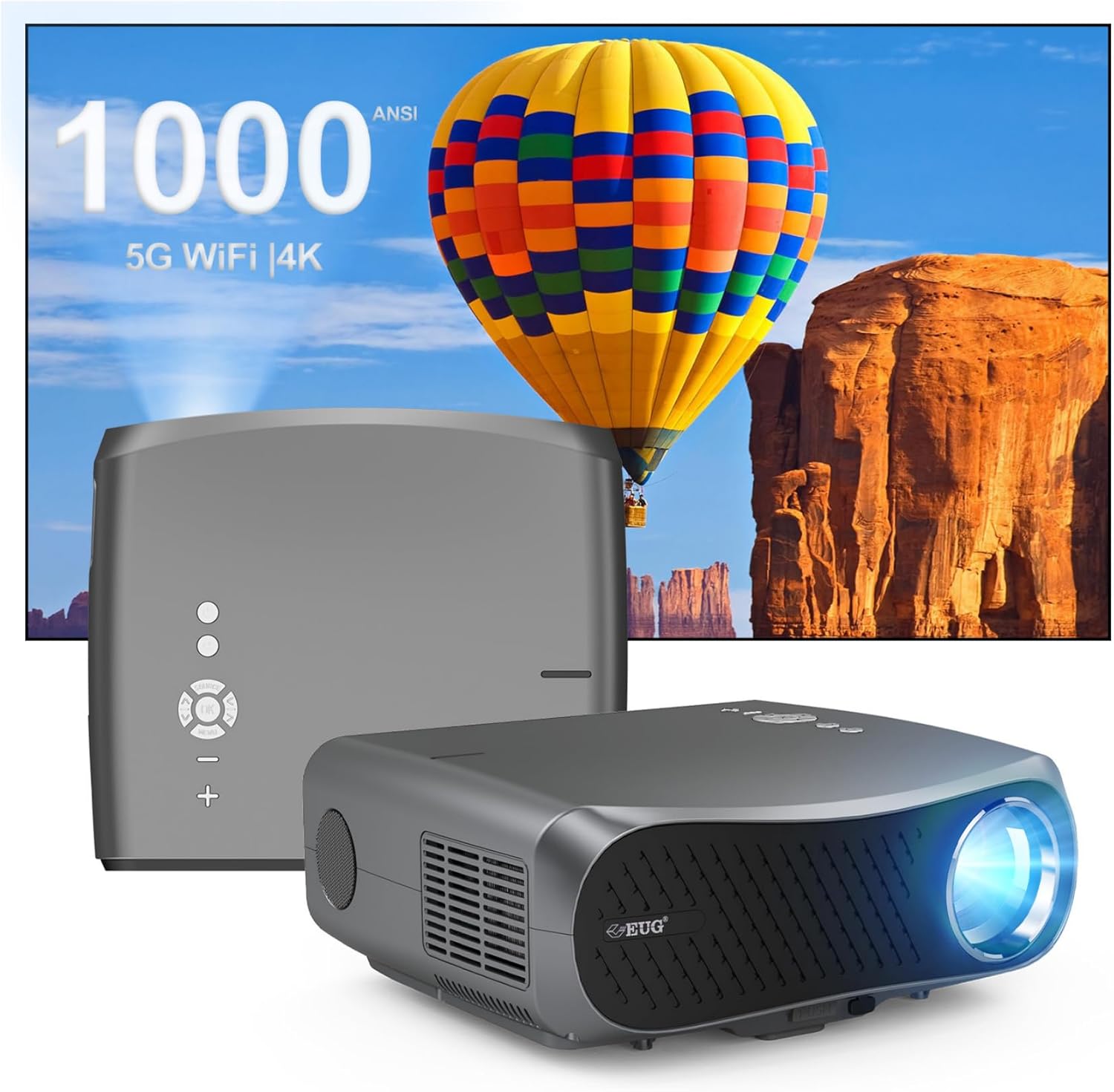
בילד 1: פאָרנט און הינטן view of the CAIWEI Android TV Projector, highlighting its compact design and control panel.
The projector features a lens at the front, control buttons on the top, and various input/output ports on the rear and sides, including HDMI, USB, VGA, and AV ports for versatile connectivity.
5. סעטאַפּ
5.1 פּלייסמאַנט
Position the projector on a flat, stable surface or mount it to a ceiling or tripod. Ensure the lens is perpendicular to the projection surface for optimal image geometry. The projector supports various installation methods including front, rear, ceiling front, and ceiling rear projection.

Image 2: Illustration of flexible projector placement options, including ceiling mount, tripod table, and desktop setup, for various viewינג ינווייראַנמאַנץ.
5.2 מאַכט קאַנעקשאַן
פֿאַרבינדט דעם מאַכט קאַבל צום פּראָיעקטאָר'ס מאַכט אַרייַנגאַנג און דערנאָך צו אַ מאַכט ווענטיל.
5.3 ערשט מאַכט אויף
Press the power button on the projector or the remote control to turn on the device. The projector will boot into the Android TV interface.
5.4 פאָקוס און קיסטאָון אַדזשאַסטמענט
Adjust the focus ring on the projector lens until the image is clear. Use the digital keystone correction feature to correct trapezoidal distortion if the projector is not perfectly aligned with the screen. The projector supports D ±50° keystone correction and 40% digital zoom.

Image 3: Visual representation of the projector's screen adjustment capabilities, including Auto Keystone, Digital Zoom (100%-60%), and Electronic 4D/4P Keystone Correction for optimal image display.
6. אַפּערייטינג ינסטרוקטיאָנס
6.1 אַנדרויד 9.0 אָפּערירן סיסטעם נאַוויגאַציע
Use the remote control to navigate the Android 9.0 operating system. The home screen provides access to pre-installed applications and settings. You can download additional applications from the integrated app store.

Image 4: The projector's interface powered by Android TV 9.0, showcasing a wide array of streaming and entertainment applications available.
6.2 ווי-פי קאַנעקשאַן
צו פאַרבינדן צו אַ וויירליס נעץ:
- גיין צו סעטטינגס אויף די היים פאַרשטעלן.
- אויסקלייַבן נעץ & אינטערנעט.
- קער אויף ווי-פי און אויסקלייבן אייער געוואונטשענע נעץ פון דער ליסטע.
- אַרייַן די פּאַראָל אויב געבעטן און פאַרבינדן.
The projector supports dual-band 5G WiFi for faster and more stable connections.
6.3 בלועטאָאָטה קאַנעקשאַן
To connect Bluetooth devices (e.g., speakers, headphones):
- גיין צו סעטטינגס.
- אויסקלייַבן קאָננעקטעד דעוויסעס or בלועטאָאָטה.
- קער אויף בלועטאָאָטה און זוכן פֿאַר בנימצא דעוויסעס.
- אויסקלייבן אייער דעווייס פון דער ליסטע צו פארבינדן.
6.4 קאַנעקטינג פונדרויסנדיק דעוויסעס
דער פּראָיעקטאָר אָפפערט קייפל אינפוט אָפּציעס:
- הדמי: Connect Blu-ray players, game consoles, laptops, etc.
- וסב: שפּיל מעדיע files directly from USB drives.
- ווגאַ: פֿאַרבינדט עלטערע קאָמפּיוטערס.
- פון: Connect legacy video devices.
Select the appropriate input source from the projector's menu.
6.5 סקרין שפּיגלונג/קאַסטינג
Utilize the 5G WiFi connectivity to mirror content from your smartphone or laptop to the projector screen. Refer to your device's casting instructions for specific steps.

Image 5: The projector demonstrating connectivity with a smartphone via 5G WiFi for screen mirroring and a Bluetooth speaker for enhanced audio, illustrating its versatile wireless capabilities.
7. וישאַלט
- רייניקונג די לענס: ניצט אַ ווייכע, לינט-פֿרייע שטאָף ספּעציעל דיזיינד פֿאַר אָפּטישע לענסעס. ניצט נישט קיין שרײַבנדיקע רייניגער.
- רייניקונג פון די Casing: ווישט אָפּ די אויסערלעכע זייט פֿונעם פּראָיעקטאָר מיט אַ ווייכן, טרוקענעם שטאָף.
- ווענטילאַטיאָן: Regularly check that the ventilation openings are clear of dust and debris. Use compressed air if necessary.
- סטאָרידזש: When not in use, store the projector in a cool, dry place, protected from dust and extreme temperatures.
8. טראָובלעשאָאָטינג
אויב איר טרעפט פּראָבלעמען מיט אייער פּראָיעקטאָר, זעט די פאלגענדע געוויינטלעכע פּראָבלעמען און לייזונגען:
- קיין מאַכט:
• Ensure the power cable is securely connected to both the projector and the power outlet.
• Check if the power outlet is functional. - קיין בילד/סיגנאַל:
• Verify that the correct input source is selected on the projector.
• Check the HDMI/VGA/AV cable connections to the external device and the projector.
• Ensure the external device is powered on and outputting a signal. - בילד איז פארשוואומען:
• Adjust the focus ring on the projector lens.
• Ensure the projection surface is flat and the projector is at an appropriate distance. - בילד איז פארדרייט (טראפעז פאָרעם):
• Use the digital keystone correction feature in the projector settings to adjust the image geometry. - אָוווערכיטינג און אָטאַמאַטיק שאַטדאַון:
• Ensure the projector's ventilation openings are not blocked. Provide ample space around the projector for airflow.
• Operate the projector in a well-ventilated room with a suitable ambient temperature. - Wi-Fi/בלוטוט קאנעקטיוויטי פראבלעמען:
• Ensure the Wi-Fi network is active and within range. Re-enter the password if necessary.
• For Bluetooth, ensure the device is in pairing mode and within range.
• Restart the projector and the external device. - קיין קול:
• Check the volume settings on both the projector and the connected source device.
• If using external speakers, ensure they are properly connected and powered on.
• If connecting via HDMI, ensure the source device is sending audio. - HDMI ARC/HDCP Compatibility:
• Note that this projector may not fully support HDMI ARC (Audio Return Channel) or certain HDCP (High-bandwidth Digital Content Protection) versions (e.g., HDCP 2.2) with some receivers. If connecting via a receiver, try connecting devices directly to the projector or using alternative audio output methods.
9. ספּעסאַפאַקיישאַנז
| שטריך | דעטאַל |
|---|---|
| סאָרט | CAIWEI |
| מאָדעל נומער | 900DAB-05F |
| אָפּערייטינג סיסטעם | אַנדרויד 9.0 אַס |
| ווייַז האַכלאָטע | Native 1920 x 1080 (Supports 4K decoding) |
| קאַנעקטיוויטי טעכנאָלאָגיע | Bluetooth, Dual-Band WiFi (2.4G/5G), HDMI, USB, VGA, AV, Audio Out |
| ספּעציעלע פֿעיִקייטן | Built-In Speaker, Digital Keystone Correction (D ±50°), 40% Digital Zoom |
| פּראָדוקט דימענשאַנז | 12.4 X 9.33 X 5.31 אינטשעס |
| פּונקט וואָג | 9.98 פונט |
| קאָליר | שפּעלטל גריי |
| רעקאָממענדעד ניצט | Home Entertainment, Gaming, Presentations |
10. וואָראַנטי און שטיצן
Your CAIWEI projector comes with a standard manufacturer's warranty. Please refer to the warranty card included in your package for specific terms and conditions. For technical support, troubleshooting assistance, or warranty claims, please contact CAIWEI customer service through the contact information provided with your purchase or on the official CAIWEI webפּלאַץ.