
הקדמה
This manual provides detailed instructions for the installation, operation, and maintenance of your Gamemax G503X Elysium Gaming PC Case. Please read this manual thoroughly before beginning installation to ensure proper setup and safe use of your product. Keep this manual for future reference.
זיכערקייַט אינפֿאָרמאַציע
- Always disconnect the power supply from the wall outlet before installing or removing any components inside the PC case.
- באַהאַנדלט אַלע קאָמפּאָנענטן מיט פֿאָרזיכט צו פֿאַרמייַדן שאָדן פֿון סטאַטישע עלעקטריציטעט. באַטראַכט צו ניצן אַן אַנטיסטאַטישן האַנטגעלענק-רימען.
- Avoid placing the PC case in direct sunlight, near heat sources, or in areas with high humidity.
- זאָרגט פֿאַר געהעריקע ווענטילאַציע אַרום דעם קעסטל צו פֿאַרמייַדן איבערהיצונג.
- האַלטן קליין טיילן און מכשירים אַוועק פון קינדער.
- Do not attempt to modify the case or its components, as this may void your warranty and pose a safety risk.
פּעקל אינהאַלט
ביטע קאָנטראָלירט דעם אינהאַלט פֿון אייער פּאַקעט. אויב עס פֿעלן אָדער זענען געשעדיגט עפּעס, קאָנטאַקטירט אייער הענדלער.
- Gamemax G503X Elysium Mid Tower PC Case
- Pre-installed 120mm RGB Fans (quantity as specified on packaging, typically 3)
- Accessory kit (screws, standoffs, cable ties, etc.)
- באַניצער מאַנואַל (דעם דאָקומענט)
פֿעיִקייטן
- Mid Tower design
- Full transparent acrylic side window
- Support for ATX, Micro ATX, and Mini-ITX motherboards
- Front I/O: 1x USB 3.0, 2x USB 2.0, HD Audio (input/output)
- Integrated fan control (High/Off/Low)
- Ample space for cable management behind the motherboard tray
- Support for long graphics cards (up to 380mm)
- Multiple drive bays: 1x 5.25", 2x 3.5" HDD, 2x 2.5" SSD
- Pre-installed RGB fans for enhanced aesthetics and cooling
סעטאַפּ און ינסטאַלירונג
1. אַנפּאַקקינג די קאַסע
Carefully remove the case from its packaging. Inspect for any damage during shipping. Remove any protective films from the acrylic side panel.
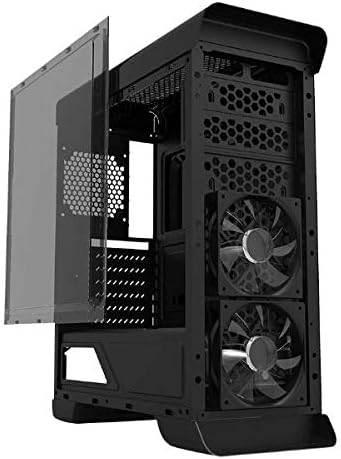
בילד: זייט view of the Gamemax G503X Elysium case with the transparent acrylic panel detached, showing the internal structure and front fans.
2. מאָטהערבאָאַרד ינסטאַללאַטיאָן
- לייג דעם קעסטל אויף זיין זייט.
- Install the necessary motherboard standoffs into the motherboard tray according to your motherboard's form factor (ATX, Micro ATX, Mini-ITX).
- לייגט פֿאָרזיכטיק אייער מאַדערבאָרד אויף די סטאַנדאָפס, און גלייכט אויס די שרויף לעכער.
- באַפֿעסטיקן די מאַדערבאָרד מיט די צוגעשטעלטע שרויפֿן.
3. דרייוו ינסטאַלירונג
3.1. 5.25" Drive (Optical Drive)
The case features one 5.25" drive bay. Remove the front panel cover, slide the drive into the bay, and secure it with screws or tool-less clips if available.
3.2. 3.5" HDD Drives
Install up to two 3.5" HDDs into the designated drive cages. These typically use trays or direct screw mounting. Ensure they are securely fastened.
3.3. 2.5" SSD Drives
Install up to two 2.5" SSDs onto the dedicated mounting points, usually located behind the motherboard tray or on the PSU shroud. Secure with screws.
4. סי-פּי-יו קולער אינסטאַלאַציע
Install your CPU cooler according to its manufacturer's instructions. Ensure the cooler's height does not exceed the maximum supported height of 158mm for this case.
5. גראַפיקס קאַרטל (GPU) ינסטאַלירונג
- Remove the necessary PCI slot covers from the rear of the case (up to 7 slots available).
- שטעל אַרײַן אײַער גראַפיקס קאַרטל אין דעם פּאַסיקן PCIe סלאָט אויף אײַער מוטערבאָרד.
- Secure the graphics card with screws. The case supports graphics cards up to 380mm in length.

בילד: הינטערשטע view of the Gamemax G503X Elysium case, highlighting the 7 PCI expansion slots and the rear fan mount.
6. Fan Installation and Configuration
The case comes with pre-installed RGB fans. Additional fan mounting options are available:
- פראָנט: Up to 3x 120mm fans (2 pre-installed, 1 optional)
- הינטן: 1x 120mm fan (optional, may be pre-installed)
- אויבן: Up to 2x 120mm fans (optional)
Connect all fan power cables to your motherboard or a fan controller. The case includes an integrated fan controller for speed adjustment.
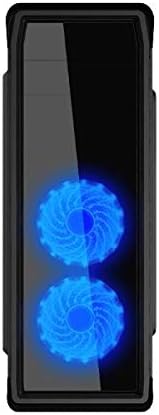
בילד: פראָנט view of the Gamemax G503X Elysium case, showcasing the two illuminated RGB fans visible through the front panel.
7. קאַבלע מאַנאַגעמענט
Utilize the space behind the motherboard tray and the provided cable tie points to route and secure cables. This improves airflow and aesthetics.
8. Connecting Front Panel I/O
Connect the following cables from the case's front panel to the corresponding headers on your motherboard:
- וסב 3.0 כעדער
- וסב 2.0 כעדערז
- HD Audio header (for headphone and microphone jacks)
- Power switch, Reset switch, Power LED, HDD LED headers
אפערירן דעם פאַל
מאַכט אויף
Once all components are installed and connected, close the side panel. Connect your monitor, keyboard, mouse, and power cable to the PC. Press the power button on the front panel to start your system.
פאָכער קאָנטראָל
The Gamemax G503X Elysium features an integrated fan controller on the top panel. Use this controller to adjust the speed of the connected case fans to High, Low, or Off, depending on your cooling needs and noise preference.
RGB לייטינג
The pre-installed fans feature RGB LEDs. The lighting effects are typically controlled via the motherboard's RGB software or a dedicated controller if included with the fans. Refer to your motherboard manual for RGB software instructions.
וישאַלט
רייניקונג
Regular cleaning helps maintain optimal performance and extends the lifespan of your components. Use a can of compressed air to remove dust from inside the case, especially from fans and heatsinks. Wipe exterior surfaces with a soft, damp שטאָף. ויסמיידן ניצן האַרב קעמיקאַלז אָדער אַברייסיוו מאַטעריאַלס.
Periodically check and clean any dust filters (if present) to ensure unrestricted airflow.
טראָובלעשאָאָטינג
- סיסטעם טוט זיך נישט אן: Ensure all power cables (motherboard, CPU, GPU, drives) are securely connected. Check that the power supply switch is in the 'ON' position. Verify front panel power switch connection to the motherboard.
- די פעןס דרייען זיך נישט: Check fan power connections to the motherboard or fan controller. Ensure the fan controller is set to 'High' or 'Low', not 'Off'.
- קיין אַרויסווייַזונג רעזולטאַט: Ensure your graphics card is properly seated and connected to the power supply. Verify that your monitor cable is connected to the graphics card, not the motherboard's integrated graphics port (unless using integrated graphics).
- Overheating issues: Ensure all case fans are spinning correctly and oriented for proper airflow (intake/exhaust). Check CPU cooler installation and thermal paste application. Ensure the case is not obstructed.
For further assistance, consult your motherboard and component manuals or contact Gamemax support.
ספּעסאַפאַקיישאַנז
| שטריך | באַשרייַבונג |
|---|---|
| טיפּ פון קאַסטן | מיד טאַוער |
| מאָדעל | G503X Elysium |
| קאָליר | שוואַרץ |
| זייַט פּאַנעל | Full Transparent Acrylic |
| מאָטהערבאָאַרד סופּפּאָרט | ATX, מיקראָ ATX, מיני-ITX |
| פאָר בייס | 1x 5.25", 2x 3.5" HDD, 2x 2.5" SSD |
| פּסי יקספּאַנשאַן סלאָץ | 7 |
| פראָנט איך / אָ פּאָרץ | 1x USB 3.0, 2x USB 2.0, HD Audio (Input/Output) |
| פאָכער קאָנטראָל | Integrated (High/Off/Low) |
| פאַר-אינסטאַלירן פאַנס | 3x 120mm RGB Fans (typically 2 front, 1 rear) |
| Optional Fan Support | Front: 3x 120mm; Rear: 1x 120mm; Top: 2x 120mm |
| מאַקסימום קפּו קולער הייך | 158 מם |
| מאַקסימום graphics קאָרט לענג | 380 מם |
| קאַבלע מאַנאַגעמענט ספעיס | Yes (behind motherboard tray) |
| מאַטעריאַל | Acrylic (side panel) |
| פּונקט וואָג | 5.75 קג |
וואָראַנטי און שטיצן
Gamemax products come with a limited warranty. Please refer to the warranty information provided with your purchase or visit the official Gamemax website for details on warranty terms and conditions. For technical support or inquiries, please contact your retailer or Gamemax customer service.