
1. הקדמה
Thank you for choosing the EINCAR 7-inch Android 10.0 Car Stereo. This advanced multimedia system is designed to enhance your driving experience with features like GPS navigation, Bluetooth connectivity, Wi-Fi, and smartphone mirroring. This manual provides detailed instructions for installation, operation, and maintenance to ensure optimal performance and longevity of your device.

Image 1.1: The EINCAR 7-inch Android 10.0 Car Stereo unit, displaying the Android 10 interface, along with included accessories like the rear camera, GPS antenna, and wiring harnesses.
2. זיכערקייַט אינפֿאָרמאַציע
Please read all safety instructions carefully before installation and operation. Failure to follow these guidelines may result in injury or damage to the device or vehicle.
- Do not operate the device or watch videos while driving. Distracted driving can lead to serious accidents.
- Ensure proper wiring and insulation to prevent short circuits and electrical hazards.
- באַראַטן זיך מיט אַ פאַכמאַן פֿאַר ינסטאַלירונג אויב איר זענט נישט זיכער וועגן קיין שריט.
- האַלטן די מיטל אַוועק פון וואַסער, נעץ און עקסטרעם טעמפּעראַטורעס.
- פרובירט נישט צו צענעמען אדער מאדיפיצירן דעם איינהייט. דאס וועט בטל מאכן די גאראנטיע.
3. פּאַקעט אינהאַלט און פּראָדוקט איבערview
3.1. פּעקל אינהאַלט
באַשטעטיקן אַז אַלע זאכן זענען פאַראַן אין פּעקל:

בילד 3.1: דעטאַלירט view of the car stereo's dimensions, along with a clear display of all included accessories and the back panel connections.
- 1 x EINCAR 7-inch Android Car Stereo Unit
- 1 x מאַכט קאַבלע
- 2 x AV Cables
- 1 רענטגענ גפּס אַנטענע
- 2 רענטגענ וסב קאַבלעס
- 2 x Install Brackets (with 4 x Screws)
- 1 רענטגענ דערציען View אַפּאַראַט
- 1 x User Manual (Built-in)
3.2. פּראָדוקט דימענסיעס
The unit features a standard double DIN size for compatibility with most vehicles. Refer to the image below for precise measurements:
| ויסמעסטונג | מעזשערמאַנט |
|---|---|
| ברייט | 178 מם (7.01 אינטשעס) |
| הייך | 100 מם (3.94 אינטשעס) |
| Depth (Main Unit) | 104 מם (4.09 אינטשעס) |
| Depth (Rear Section) | 45 מם (1.77 אינטשעס) |
3.3. Back Display Connections
The rear panel of the unit provides various ports for power, audio/video output, and external accessories.
- Power Cable Diagram connection point
- פוסע אָרט
- RCA Output Sockets
- GPS Antenna connection point
4. ינסטאַלירונג
Installation of the car stereo requires careful attention to wiring and mounting. A wire diagram is provided with the unit to assist you. If you are not confident with the installation process, it is highly recommended to seek professional assistance.
- מאָונטינג: Use the provided install brackets and screws to secure the unit in your vehicle's double DIN slot.
- מאַכט קשר: Connect the power cable according to the provided wiring diagram. Ensure correct positive, negative, and accessory wire connections.
- רעדנער קאַנעקשאַנז: Connect your vehicle's speaker wires to the corresponding outputs on the stereo's wiring harness.
- גפּס אַנטענע: מאָנטירט די דזשי-פּי-עס אַנטענע אין אַ אָרט מיט אַ קלאָרן view פון הימל, טיפּיש אויף די דאַשבאָרד אָדער אונטער די ווינטשויב.
- דערציען View אַפּאַראַט: ינסטאַלירן די דערציען view camera at the back of your vehicle and connect its video output to the dedicated input on the stereo. Ensure the reverse trigger wire is connected for automatic display when reversing.
- וסב קאַנעקשאַנז: Route the USB cables to an accessible location, such as the glove compartment or center console.
- טעסט: Before fully reassembling your dashboard, perform a quick test to ensure all functions (power, audio, touch screen, GPS, camera) are working correctly.
5. ערשט סעטאַפּ
After successful installation, power on the unit and follow these steps for initial configuration:
- שפּראַך סעלעקציע: Upon first boot, you may be prompted to select your preferred language. The unit supports multiple OSD languages including German, French, Russian, Portuguese, Spanish, and English.
- צייט און דאַטע: Set the correct time zone, date, and time. This can often be synchronized automatically via GPS or network time if connected to Wi-Fi.
- Wi-Fi קאַנעקשאַן:
- גיין צו סעטטינגס > נעץ & אינטערנעט > ווי-פי.
- אַקטיווירן Wi-Fi On.
- Select your desired Wi-Fi network from the list and enter the password.
- Once connected, you can browse the internet, download apps, and use online navigation.
- GPS סעטאַפּ: The unit comes with pre-installed navigation. Ensure the GPS antenna is properly connected and positioned for optimal signal reception. You can also download and use other online map applications via Wi-Fi.
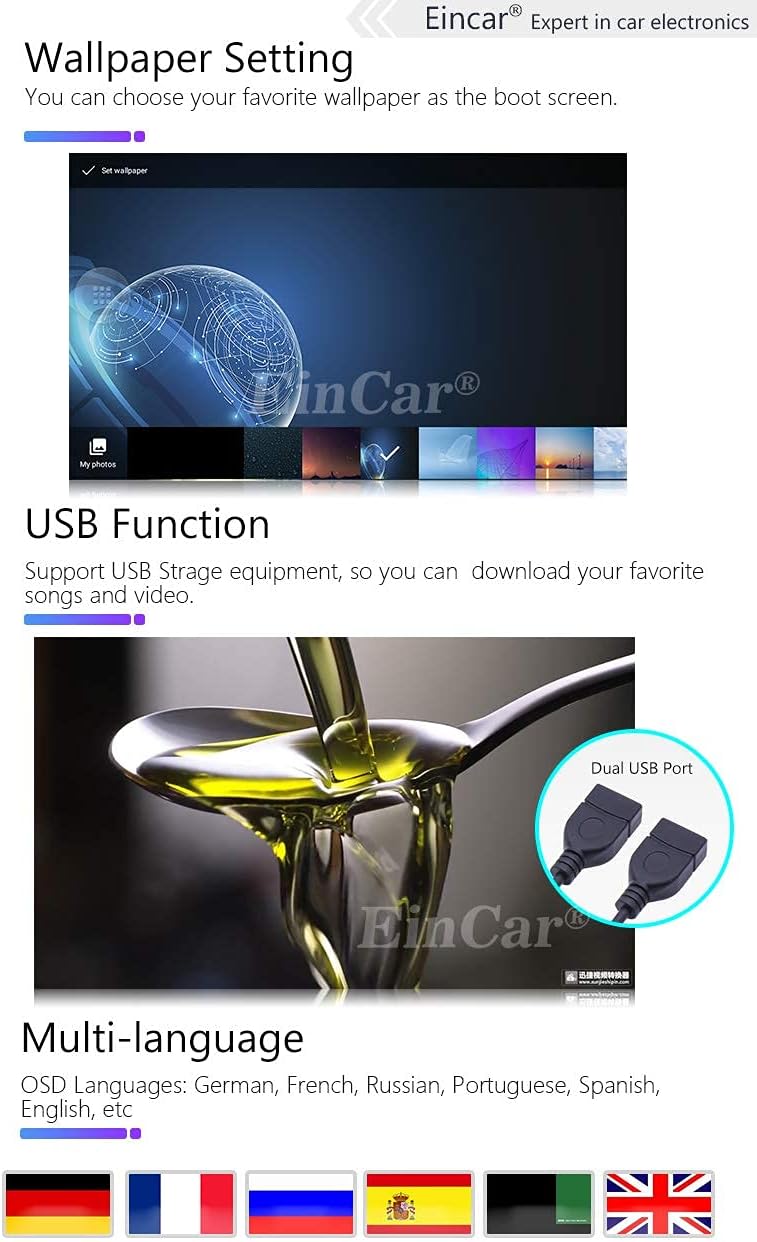
Image 5.1: Demonstrates the wallpaper setting feature, the dual USB port for storage, and the multi-language support of the system.
6. אַפּערייטינג ינסטרוקטיאָנס
6.1. הויפּט צובינד איבערview
The main interface provides quick access to key functions. Icons represent different applications or settings:

Image 6.1: Highlights the 7-inch capacitive HD touch screen with 1024*600 resolution and illustrates the main interface icons and their functions.
- Press to go to Google Map (or default navigation app).
- Press to go to Radio.
- Press to go to Music Play.
- Press to go to Bluetooth.
- Press to go to Video Play.
- Press to go to Settings.
6.2. בלועטאָאָטה פֿונקציע
דער איינגעבויטער בלועטוט מאָדול ערמעגליכט הענט-פריי רופן און אַודיאָ סטרימינג.
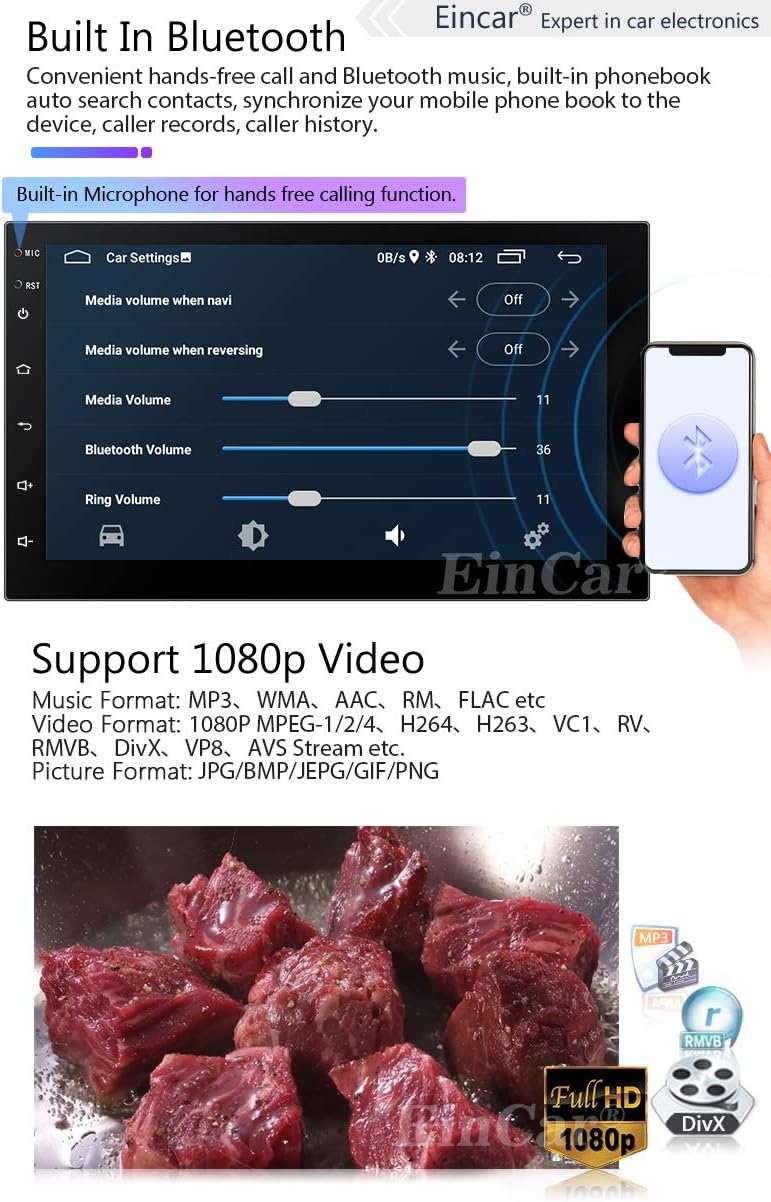
Image 6.2: Shows the Bluetooth interface for hands-free calling and confirms support for 1080p video playback with various media formats.
- פּאָרינג: Enable Bluetooth on your mobile phone and search for the device (usually named "EINCAR" or similar). Select it and confirm pairing.
- הענט-פריי רופן: Once paired, you can make and receive calls directly from the stereo. The built-in microphone ensures clear communication.
- טעלעפון בוך: Download your phone's contacts to the stereo for easy access.
- בלועטוט מוזיק (A2DP): Stream audio from your phone to the car stereo wirelessly.
6.3. Phone Link (Mirror Link)
Mirror Link allows you to display your smartphone's screen on the car stereo's display.

Image 6.3: Illustrates the Phone Link (Mirror Link) functionality for both Android and iPhone, along with Wi-Fi/3G/4G connectivity and access to Google Play.
- פֿאַר iPhone: Connect your iPhone to the stereo via Wi-Fi. The iPhone's display, including main menu, photos, videos, and online navigation, can be mirrored.
- פֿאַר אַנדרויד: Connect your Android phone using a USB charging cable to the stereo's USB port. The Android smartphone's display will be mirrored.
6.4. דזשי-פי-עס נאַוויגאַציע
The unit supports both pre-installed offline maps and online navigation applications.

Image 6.4: Displays the GPS navigation interface showing a route, and explains the steering wheel control function for convenient operation.
- אָפפליין מאַפּעס: Use the pre-loaded maps for navigation without an internet connection.
- אָנליין מאַפּעס: Connect to Wi-Fi (via hotspot from your phone or a dongle) to use online mapping services like Google Maps, Waze, etc., which provide real-time traffic updates.
6.5. מולטימעדיאַ ווידערשפּיל
The stereo supports various audio and video formats for playback from USB drives or internal storage.
- שטיצט ווידעא פֿאָרמאַטירונגען: 1080P MPEG-1/2/4, H264, H263, VC1, RV, RMVB, DivX, VP8, AVS Stream, etc.
- שטיצט מוזיק פֿאָרמאַטירונגען: MP3, WMA, AAC, RM, FLAC, etc.
- שטיצט בילד פֿאָרמאַטירונגען: JPG/BMP/JEPG/GIF/PNG.
- וסב פּלייַבאַקק: Insert a USB drive into one of the USB ports to access your media files.
6.6. שטיר-ראד קאנטראל
The unit supports resistance-based analog signal input steering wheel controls, allowing you to manage basic functions without taking your hands off the wheel.
- סעטאַפּ: Access the Steering Wheel Control settings in the system menu. Follow the on-screen instructions to map your vehicle's steering wheel buttons to the stereo's functions (e.g., volume up/down, track skip, answer call).
- פאַנגקשאַנז: Typically includes volume control, track/station change, mode switching, and call answer/end.
6.7. דערציען View אַפּאַראַט
The included rear view camera automatically displays the rear view on the screen when the vehicle is put into reverse gear, aiding in parking and maneuvering.
- Ensure the camera is properly installed and connected to the dedicated camera input and reverse trigger wire.
7. וישאַלט
- רייניקונג: Use a soft, dry cloth to clean the screen and unit. Do not use abrasive cleaners or solvents.
- ווייכווארג דערהייַנטיקונגען: קאָנטראָלירט פּעריִאָדיש דעם פאַבריקאַנט'ס website or contact support for available software updates to ensure optimal performance and access to new features.
- טעמפּעראַטור: פֿאַרמײַדט אויסשטעלן דעם אַפּאַראַט צו עקסטרעמע טעמפּעראַטורן, סײַ הייס און סײַ קאַלט, ווײַל דאָס קען אַפֿעקטירן זײַן פאָרשטעלונג און לעבנסדויער.
8. טראָובלעשאָאָטינג
If you encounter issues with your EINCAR car stereo, refer to the following common problems and solutions:
| פּראָבלעם | מעגלעך סיבה / לייזונג |
|---|---|
| קיין מאַכט | Check power cable connections, fuse, and vehicle's power supply. Ensure the ignition is on. |
| קיין געזונט | Check speaker wiring, volume level, and audio source selection. Ensure mute is not activated. |
| ריר סקרין ניט ריספּאַנסיוו | Restart the unit. If the problem persists, a factory reset might be needed (backup data first). |
| GPS Signal Lost / Inaccurate | זיכער מאַכן אַז די GPS אַנטענע איז ריכטיק פֿאַרבונדן און האָט אַ קלאָרע view פון הימל. גיי אריבער צו אן אפענעם ארט. |
| בלועטאָאָטה ניט קאַנעקטינג | Ensure Bluetooth is enabled on both devices. Delete previous pairings and try re-pairing. Restart both devices. |
| הינטערשטע קאַמעראַ ווײַזט זיך נישט | Check camera video input connection and reverse trigger wire connection. Ensure camera is powered. |
For further assistance, please refer to the official help page via the card delivered with the package or contact EINCAR customer support.
9. ספּעסאַפאַקיישאַנז
| שטריך | דעטאַל |
|---|---|
| אָפּערייטינג סיסטעם | אַנדרויד 10.0 |
| פאַרשטעלן גרייס | 7 אינטשעס |
| ווייַז טיפּ | Capacitive HD Touch Screen LCD |
| פאַרשטעלן האַכלאָטע | 1024 X 600 בילדצעלן |
| פּראַסעסער | קוואַד קאָר |
| באַראַן | 1 גיגאבייט |
| אינערלעכער סטאָרידזש | 16 גיגאבייט |
| קאַנעקטיוויטי | בלועטאָאָטה, ווי-פי, וסב |
| גפּס | Built-in GPS Module, supports online/offline maps |
| מענטש צובינד אַרייַנשרייַב | מיקראָפאָן, טאָוטשסקרין |
| קאַמפּאַטאַבאַל דעוויסעס | סמאַרטפאָנע |
| פאָרמיטל סערוויס טיפּ | מאַשין |
| דימענשאַנז (ב x ה) | 178mm x 100mm (Double Din Standard) |
10. וואָראַנטי און שטיצן
EINCAR is committed to providing high-quality products and customer satisfaction. While specific warranty details are not provided in this manual, please retain your purchase receipt as proof of purchase.
For any issues, questions, or technical support, please contact EINCAR customer service. You can find contact information on the official help page via the card delivered with your package. Our support team aims to respond within 24 hours.
For the latest information, software updates, and additional resources, please visit the official EINCAR webפּלאַץ.