
1. הקדמה
The eero 6 mesh WiFi system is designed to provide fast, reliable Wi-Fi 6 coverage throughout your home. This system supports internet plans up to 500 Mbps and can cover up to 3,000 sq. ft., connecting over 75 devices simultaneously. It features TrueMesh technology to optimize your network and includes a built-in Zigbee smart home hub.
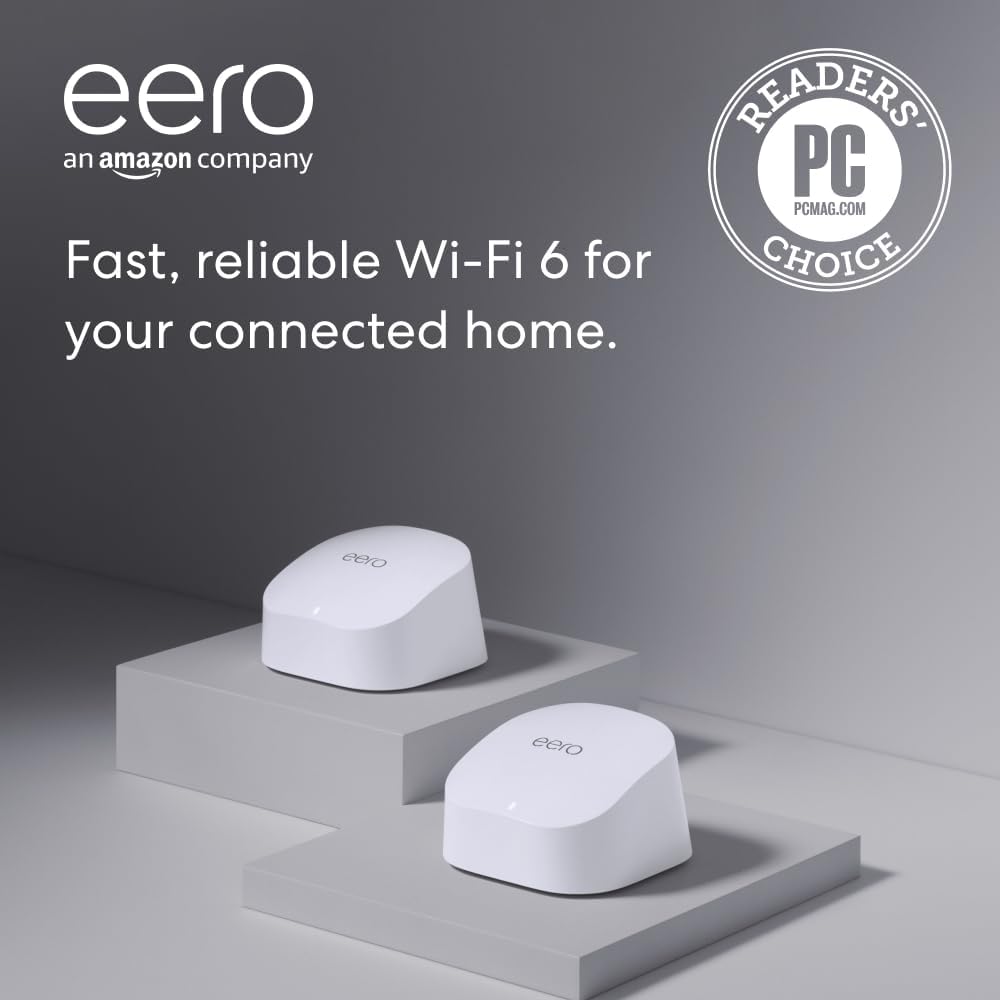
Image: The eero 6 mesh WiFi system, featuring two white units (one router, one extender).
2. וואָס איז אין דער קעסטל
- 1 x eero 6 Router
- 1 x eero 6 Extender
- 2 רענטגענ מאַכט אַדאַפּטערז
- 1 רענטגענ עטהערנעט קאַבלע
- שנעל אָנהייב גייד
3. סעטאַפּ גייד
3.1. צוגרייטונג
- Download the eero app for iOS or Android from your device's app store.
- Ensure you have an active internet service (with a cable or DSL modem, if required).
3.2. Connect the eero 6 Router
- Unplug your existing modem and any connected routers.
- Connect one end of the provided Ethernet cable to an Ethernet port on your modem.
- Connect the other end of the Ethernet cable to either Ethernet port on your eero 6 Router.
- Plug the eero 6 Router into a power outlet using its power adapter.

בילד: הינטערשטע view of the eero 6 router, showing two Ethernet ports and a USB-C power port.
3.3. אַפּ-געפירטע סעטאַפּ
- Open the eero app on your smartphone.
- Follow the on-screen instructions to create an eero account or log in with your Amazon account.
- The app will guide you through detecting your eero 6 Router and setting up your new Wi-Fi network name and password.
Image: Screenshot of the eero app displaying network setup steps.
3.4. Place the eero 6 Extender
- Once your main eero 6 Router is set up, the app will prompt you to add your eero 6 Extender.
- Place the extender in a central location within your home, ideally halfway between your main eero 6 Router and areas with weak Wi-Fi signal.
- Plug the eero 6 Extender into a power outlet. The LED indicator will show its status during setup.
- Follow the app's instructions to add the extender to your network.
ווידעא: אן איבערview of the eero 6 mesh WiFi system, highlighting its features and ease of setup.
4. אַפּערייטינג ינסטרוקטיאָנס
4.1. Network Management with the eero App
The eero app provides comprehensive tools for managing your network:
- סטאַטוס ינדיקאַטאָר: View the overall status of your network.
- קאָננעקטעד דעוויסעס: See a list of all devices connected to your network.
- ספּיד טעסט: Run speed tests to check your internet performance.
- באַנדברייט באַניץ: Monitor which devices are using the most bandwidth.
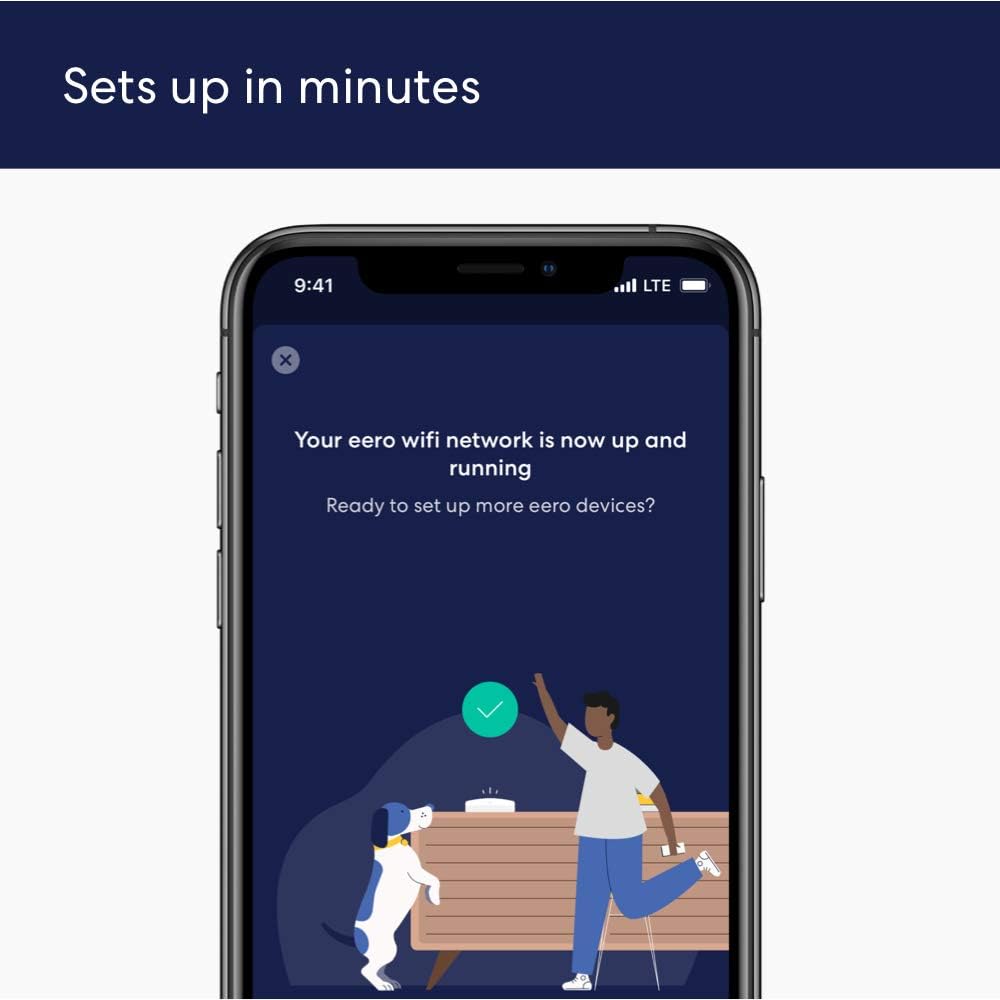
Image: Screenshot of the eero app displaying network activity, including download/upload speeds and connected devices.
4.2. גאַסט נעטוואָרק
Easily create a separate guest network for visitors. You can assign a unique name and password, generate a QR code for quick connection, and receive notifications when new clients connect.
4.3. פּאַרענטאַל קאָנטראָלס
Basic parental controls allow you to block specific websites or schedule internet access times for certain devices.
4.4. Smart Home Hub
The eero 6 doubles as a Zigbee smart home hub, allowing you to connect and control compatible devices on your network using Alexa.
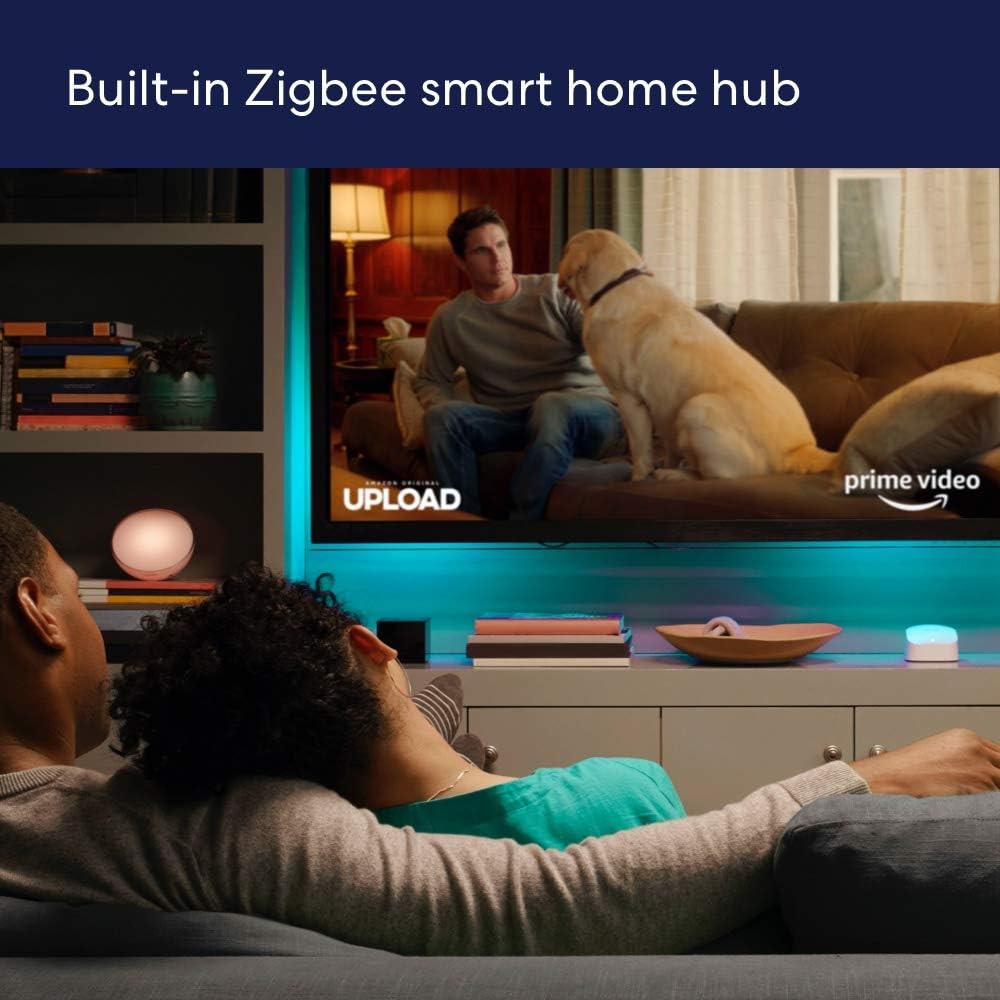
Image: An eero 6 unit placed in a living room setting, demonstrating its role as a smart home hub.
5. ספּעסאַפאַקיישאַנז
| שטריך | דעטאַל |
|---|---|
| מאָדעל | eero 6 |
| ווי-פי קאַווערידזש | ביז 3,000 קוואַדראַט פֿוס (2-פּאַק) |
| שטיצט ספּידז | אַרויף צו 500 Mbps |
| Wi-Fi קאַנעקטיוויטי | Wi-Fi 6 dual-band concurrent 2:2 (802.11ax), compatible with older Wi-Fi standards |
| ווייערד קאַנעקטיוויטי | Two auto-sensing gigabit Ethernet ports |
| Speed rating | AX1800 |
| קלוגע היים קאָנעקטיוויטי | Works with Alexa, Amazon Frustration Free Setup, 802.15.4 radio (Zigbee, Thread), Bluetooth Low Energy 5.0 |
| פּראַסעסער | 1.2 גהז קוואַד-האַרץ פּראַסעסער |
| זכּרון & סטאָרידזש | 512MB RAM, 4 GB flash storage |
| נעץ זיכערהייַט | WPA3 (eero Labs feature), WPA2, TLS v1.2+, VPN passthrough, IPv6, NAT, UPnP, port forwarding, DHCP, static IP, cloud connectivity |
| דימענשאַנז | 3.9 רענטגענ 3.8 אינטשעס רענטגענ 2.4 אינטשעס (99.4 מם רענטגענ 97 מם רענטגענ 61.4 מם) |
6. טראָובלעשאָאָטינג
- קיין אינטערנעט פֿאַרבינדונג: Check if your modem is working correctly. Ensure all Ethernet cables are securely connected.
- שוואַך סיגנאַל: Reposition your eero 6 Extender to a more central location. Avoid placing units near large metal objects or appliances that can cause interference.
- אפאראט קאנעקט זיך נישט: Restart the device you are trying to connect. Ensure your Wi-Fi password is correct.
- Restarting eero: If issues persist, unplug your eero units from power for 30 seconds, then plug them back in.
- פאַבריק באַשטעטיק: If all else fails, a factory reset can resolve many issues. Refer to the eero app for instructions on how to perform a factory reset.
7. וואָראַנטי און שטיצן
The eero 6 mesh WiFi system comes with a 1-יאָר לימיטעד וואָראַנטי. Free customer support is available 7 days a week. For assistance, you can contact eero support directly.
Automatic software updates are provided to keep your network safe and secure, ensuring you always have the latest features and security enhancements.