
הקדמה
The Mcbazel Route Air Wireless Audio Adapter is designed to provide wireless audio connectivity for your gaming consoles and PC. This compact adapter allows you to connect Bluetooth headphones to your Nintendo Switch, Switch Lite, PC, or PS4, enhancing your gaming experience with high-quality, low-latency audio. It supports simultaneous connection to two wireless audio devices.
סעטאַפּ אינסטרוקציעס
Follow these steps to set up your Mcbazel Route Air Wireless Audio Adapter:
- For Nintendo Switch Dock Usage: The L-shaped USB adapter is specifically for use with the official Nintendo Switch Dock. For the Switch console itself, only the wireless headphone adapter is needed.
- ערשט טשעק: Before connecting the wireless headphone adapter to the Switch console, ensure the volume adjustment bar on the console shows a speaker icon. This indicates that the console is ready for audio output.
- פאַרבינדן אַדאַפּטער: Connect the wireless headphone adapter to the USB-C port on your Nintendo Switch console.
- סימולטאַנעאָוס קשר: Each wireless adapter can connect to two wireless headphones simultaneously, allowing for shared audio experiences.
- קאַנאַל סעטאַפּ: Set up connections to Channel A and Channel B accordingly for multiple headphones.
- Initiate Pairing (Adapter): Press and hold the pairing button on the wireless adapter for approximately 4 seconds. The adapter's LED light will begin flashing, indicating it is in pairing mode.
- Initiate Pairing (Headphone): Now, press the pairing button on your Bluetooth headphone. The location of the pairing button may vary depending on the headphone brand.
- פֿאַרבינדונג געראָטן: Once the connection is successful, the LED light on the wireless adapter will stop flashing and remain solid.
- באַשטעטיקן קשר: After the connection is established, the volume adjustment bar on your Switch console will display a USB icon, confirming that audio is being routed through the adapter.

Image: The Mcbazel Route Air Wireless Audio Adapter connected to the USB-C port of a Nintendo Switch console.

Image: The L-shaped USB adapter component connected to a Nintendo Switch dock, with the main adapter unit shown separately.
Video: Official setup guide for the Gulikit Route Air Wireless Audio Adapter for Nintendo Switch, demonstrating connection and pairing steps.
אַפּערייטינג ינסטראַקשאַנז
Once paired, the adapter will automatically connect to your headphones when both devices are powered on and within range. The adapter provides low-latency audio for an immersive gaming experience.
- אַודיאָ רעזולטאַט: Audio will be routed wirelessly to your connected Bluetooth headphones.
- באַנד קאָנטראָל: Adjust volume directly on your connected headphones or through the console's system settings.
- Dual Headphone Mode: If two headphones are paired, audio will be transmitted to both simultaneously.
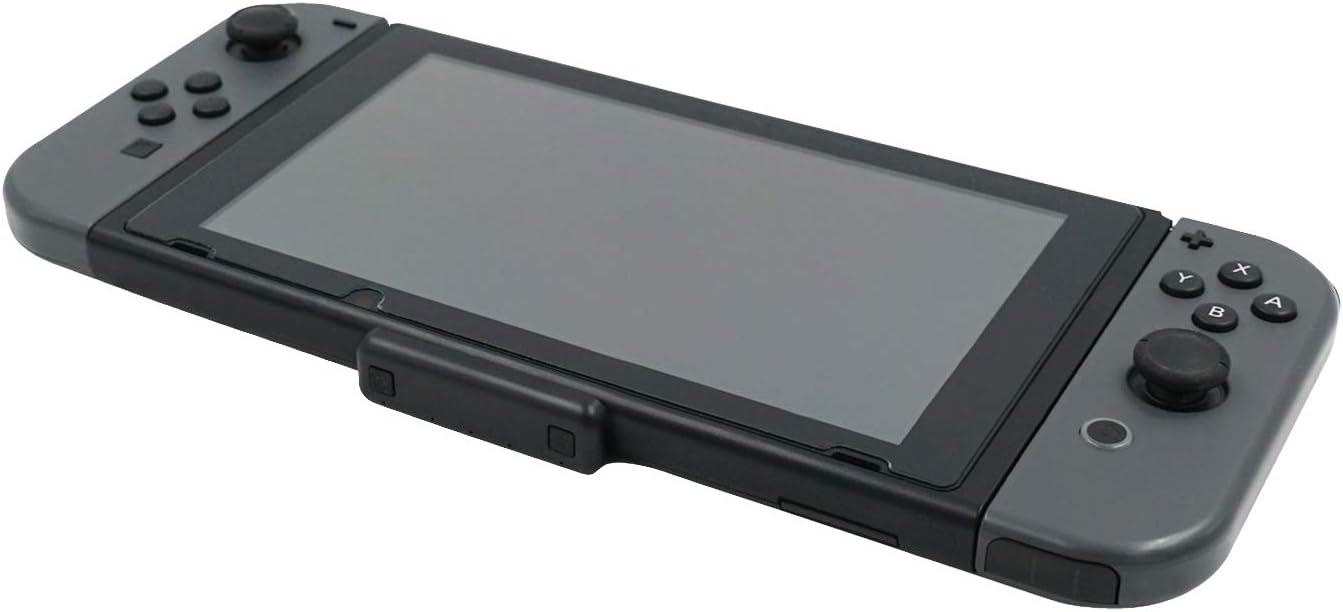
Image: An angled perspective of the Mcbazel Route Air Wireless Audio Adapter seamlessly integrated with a Nintendo Switch console.
וישאַלט
To ensure the longevity and optimal performance of your Mcbazel Route Air Wireless Audio Adapter, please follow these maintenance guidelines:
- רייניקונג: ניצט אַ ווייכע, טרוקענע שטאָף צו רייניקן דעם אַדאַפּטער. פֿאַרמייַדט ניצן פֿליסיקע רייניגער אָדער אַברייסיוו מאַטעריאַלן.
- סטאָרידזש: Store the adapter in a cool, dry place when not in use. Protect it from extreme temperatures and direct sunlight.
- האַנדלינג: באַהאַנדלט דעם אַדאַפּטער מיט פֿאָרזיכט. פֿאַרמײַדט עס צו לאָזן פֿאַלן אָדער אויסשטעלן עס צו שטאַרקע קלאַפּן.
- קאַנעקטיוויטי פּאָרץ: Keep the USB-C port and other connectors free from dust and debris.
טראָובלעשאָאָטינג
If you encounter issues with your adapter, refer to the following common solutions:
| פּראָבלעם | לייזונג |
|---|---|
| קיין אַודיאָ רעזולטאַט |
|
| כעדפאָונז נישט פּערינג |
|
| Intermittent Connection / Audio Drops |
|
| Incorrect Audio Icon on Switch |
|
ספּעסאַפאַקיישאַנז
- מאָדעל נומער: ns-010133
- פּראָדוקט דימענשאַנז: 1.18 X 3.15 X 3.15 אינטשעס
- נומער וואָג: 1.48 אונס (0.04 קילאָגראַמס)
- קאַנעקטער טיפּ: וסב טיפּ C
- קאַמפּאַטאַבאַל דעוויסעס: Nintendo Switch, Switch Lite, PC, PS4
- פאַבריקאַנט: מקבאזל
- ערשטער פאַראַנען דאַטע: 11 יאנואר 2020
וואָראַנטי און שטיצן
Mcbazel products are manufactured to high-quality standards. For specific warranty information, please refer to the documentation included with your purchase or contact Mcbazel customer support. Keep your proof of purchase for warranty claims.
For further assistance or technical support, please visit the official Mcbazel webפּלאַץ אָדער קאָנטאַקט זייער קונה סערוויס אָפּטיילונג.