
1. הקדמה
The Audiolab 6000N Play is a wireless audio streaming player designed to integrate high-resolution music streaming into your home audio system. It utilizes DTS Play-Fi technology, allowing for seamless streaming over your wireless network and supporting multi-room audio configurations. This device enables streaming from various sources, including smartphones, tablets, PCs, and Network Attached Storage (NAS) drives.
2. פּראָדוקט איבערview
2.1 שליסל פֿעיִקייטן
- Wireless audio streaming via DTS Play-Fi.
- High-resolution audio support up to 192kHz/24bit.
- Multi-room audio capability.
- Integrated Digital-to-Analog Converter (DAC).
- Compatibility with various streaming services and local network sources.
2.2 פראָנט פּאַנעל קאָנטראָלס
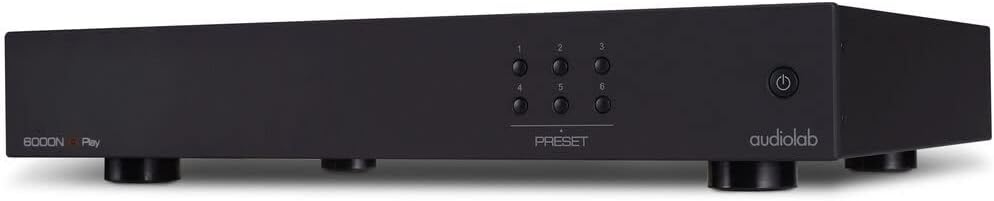
The front panel of the Audiolab 6000N Play features essential controls for basic operation.

פיגורע 1: פראָנט view of the Audiolab 6000N Play. This image displays the sleek black chassis with the "6000N Play" branding on the left, six preset buttons (1-6) in the center, and the power button on the right, along with the "audiolab" logo.
- מאַכט קנעפּל: Located on the right side, used to turn the unit on or off.
- פאָראויסגעשטעלטע קנעפּלעך (1-6): Allow for quick access to pre-saved radio stations or playlists.
2.3 דערציען פּאַנעל קאַנעקשאַנז
The rear panel provides all necessary input and output connections for integrating the 6000N Play into your audio system.
פיגורע 2: אַנגגאַלד view of the Audiolab 6000N Play, showing the front panel and a glimpse of the side. This perspective highlights the compact design and the arrangement of the preset and power buttons.
- Analog Outputs (RCA): פֿאַר פֿאַרבינדן זיך מיט אַ ampליפיער אָדער פאַר-ampליפער.
- Digital Outputs (Coaxial, Optical): For connecting to an external DAC or AV receiver.
- עטהערנעט פּאָרט: פֿאַר אַ דראָטיקער נעץ פֿאַרבינדונג.
- Wi-Fi אַנטענע קאַנעקטאָר: פֿאַר וויירלעס נעץ קאָנעקטיוויטי.
- מאַכט אַרייַנשרייַב: פֿאַר קאַנעקטינג די מאַכט קאַבלע.
3. סעטאַפּ
3.1 אַנפּאַקינג און פּלייסמאַנט
Carefully remove the 6000N Play from its packaging. Place the unit on a stable, level surface away from direct heat sources and excessive moisture. Ensure adequate ventilation around the unit.
3.2 Connecting to Your Audio System
- אַנאַלאָג קשר: Connect the RCA analog outputs of the 6000N Play to an available analog input on your ampליפיער אָדער פאַר-ampליפיער ניצן הויך-קוואַליטעט RCA קייבאַלז.
- דיגיטאַלע פֿאַרבינדונג (אָפּציאָנעל): If using an external DAC or AV receiver, connect the Coaxial or Optical digital output of the 6000N Play to the corresponding digital input on your external device.
3.3 נעטוואָרק קאַנעקשאַן
The 6000N Play requires a network connection for streaming.
- ווייערד קשר: Connect an Ethernet cable from your router or network switch to the Ethernet port on the rear panel of the 6000N Play.
- ווירעלעסס קשר: Attach the supplied Wi-Fi antenna to the connector on the rear panel. The wireless setup will be completed via the DTS Play-Fi app.
3.4 מאַכט קאַנעקשאַן
Connect the supplied power cable to the power input on the rear panel of the 6000N Play, then plug the other end into a suitable AC power outlet (100V—120V~50/60Hz).
4. אַפּערייטינג ינסטרוקטיאָנס
4.1 פּאַוערינג אויף / אַוועק
Press the power button on the front panel to turn the unit on or off. The unit will enter standby mode when powered off.
4.2 DTS Play-Fi App Installation
To control the 6000N Play and access streaming services, you must install the DTS Play-Fi app on your smartphone, tablet, or PC.
- Download the "DTS Play-Fi" app from your device's app store (Apple App Store, Google Play Store, Amazon Appstore, or Windows Store).
- Launch the app and follow the on-screen instructions to set up your Audiolab 6000N Play on your network. This includes connecting to Wi-Fi if you chose a wireless setup.
4.3 סטרימינג מוזיק
Once the 6000N Play is connected to your network and configured with the Play-Fi app:
- Open the DTS Play-Fi app.
- Select your desired music source (e.g., Amazon Music, Deezer, Spotify, or local media server).
- Choose the Audiolab 6000N Play as the playback device.
- Begin playback.
4.4 ניצן פאָרגעשטעלטע סעטטינגס
The six preset buttons on the front panel can be configured via the Play-Fi app to quickly access your favorite internet radio stations or playlists.
- In the DTS Play-Fi app, navigate to the desired content you wish to save as a preset.
- Look for an option to "Save as Preset" or similar within the app interface.
- Assign it to one of the six available preset numbers.
- Once saved, pressing the corresponding preset button on the 6000N Play's front panel will initiate playback of the saved content.
5. וישאַלט
5.1 רייניקונג
To clean the unit, disconnect it from the power supply. Use a soft, dry, lint-free cloth to wipe the surfaces. Avoid using abrasive cleaners, solvents, or chemical sprays, as these can damage the finish.
5.2 ווייכווארג דערהייַנטיקונגען
Periodically check the DTS Play-Fi app or the Audiolab website for firmware updates. Updates can improve performance, add new features, or resolve issues. Follow the instructions provided by the app or website for performing updates.
6. טראָובלעשאָאָטינג
If you encounter issues with your Audiolab 6000N Play, refer to the following common troubleshooting steps:
- קיין מאַכט:
- Ensure the power cable is securely connected to both the unit and the power outlet.
- באַשטעטיקן אַז די מאַכט ווענטיל איז פאַנגקשאַנאַל.
- קיין קול:
- Check all audio cable connections between the 6000N Play and your ampליפיער / ופנעמער.
- זיכער מאַכן אַז די ריכטיקע אַרייַנשרייַב איז אויסגעקליבן אויף דיין ampליפיער / ופנעמער.
- Verify the volume level on both the 6000N Play (via app) and your ampליפיער / ופנעמער.
- Confirm that music is actively playing in the DTS Play-Fi app.
- נעץ פֿאַרבינדונג פּראָבלעמען:
- For Wi-Fi, ensure the antenna is securely attached.
- Restart your router and the 6000N Play.
- זיכער מאַכן אַז אייער Wi-Fi נעץ איז אַקטיוו און אין דערגרייך.
- If using a wired connection, check the Ethernet cable.
- Re-run the network setup process in the DTS Play-Fi app.
- DTS Play-Fi App Problems:
- ענשור אַז די אַפּ איז דערהייַנטיקט צו די לעצטע ווערסיע.
- ריסטאַרט די אַפּ אָדער דיין מאָביל מיטל.
- אויב פראבלעמען בלייבן, פרובירט צו ריאינסטאלירן די אפליקאציע.
If these steps do not resolve the issue, please contact Audiolab customer support for further assistance.
7. ספּעסאַפאַקיישאַנז
| שטריך | באַשרייַבונג |
|---|---|
| Digital Output Level | 500 +/- 50 מוופּ |
| מאַקסימום האַכלאָטע | 192 כז / 24 ביט |
| גאַנץ האַרמאָניק דיסטאָרשאַן (THD) | <0.003% (1kHz @0dBFS BW=20-20kHz) |
| מאַכט רעקווירעמענץ | 100V—120V~50/60Hz |
| נעץ וואָג | 10.78 לבס (4.89 קג) |
| פּראָדוקט דימענשאַנז (ב רענטגענ ד x ה) | 17.8 X 12.52 X 2.62 אינטשעס (45.2 X 31.8 X 6.65 סענטימעטער) |
| קאַנעקטיוויטי טעכנאָלאָגיע | ווי-פי, עטהערנעט |
| שטיצט אינטערנעט באַדינונגס | Amazon Music, Deezer, Spotify (via DTS Play-Fi app) |
| קאַנעקטער טיפּ | RCA (Analog Out), Coaxial (Digital Out), Optical (Digital Out) |
8. וואָראַנטי און שטיצן
Audiolab products are designed and manufactured to the highest quality standards. For detailed warranty information, please refer to the warranty card included with your product or visit the official Audiolab website. For technical support, product registration, or service inquiries, please contact your local Audiolab dealer or distributor, or visit the Audiolab support page online.
אפיציעלע אודיאָלאַב Webפּלאַץ: www.audiolab.co.uk