
1. הקדמה
This manual provides detailed instructions for the installation, operation, and maintenance of your Dynavin N7-VT7 PRO Radio Navigation System. This system is designed as a direct replacement for the factory radio in VW Touareg models from 2003 to 2009, integrating seamlessly with your vehicle's existing systems.
שליסל פֿעיִקייטן אַרייַננעמען:
- 7-inch capacitive LCD touch screen display (1024 x 600 resolution)
- Integrated GPS navigation with maps for North America, Europe, or Australia
- בלועטאָאָטה פֿאַר הענט-פריי פאַך און אַודיאָ סטרימינג
- Apple CarPlay and Android Auto compatibility via USB
- USB and Micro SD card media playback
- AM/FM radio tuner
- Backup camera readiness
- Integration with vehicle's DSP processor (if equipped)
2. זיכערקייַט אינפֿאָרמאַציע
וויכטיקע לעגאַלע אָפּלייקענונג:
- Installation must be performed by a trained specialist.
- Ensure the vehicle is de-energized before beginning installation.
- In some cases, the vehicle battery may need to be disconnected. Consult your vehicle manufacturer's guidelines.
- Modifying vehicle electronics may affect manufacturer warranty.
Always prioritize safety during installation and operation. Avoid operating the system's complex functions while driving to prevent distractions.
3. סעטאַפּ און ייַנמאָנטירונג
The Dynavin N7-VT7 PRO is designed for plug-and-play installation, integrating with your vehicle's factory wiring and controls. Professional installation is highly recommended to ensure proper functionality and to avoid damage to the unit or vehicle.
3.1 פּעקל אינהאַלט
באַשטעטיקן אַז אַלע קאָמפּאָנענטן זענען פאַראַן אין דער פּאַקעט:
- Dynavin N7-VT7 PRO Head Unit
- גפּס אַנטענע
- וסב קאַבלע
- Wiring Harnesses (vehicle-specific)
- באַניצער מאַנואַל (דעם דאָקומענט)
- עקסטערנער מיקראָפאָן (אויב אַרייַנגערעכנט)
3.2 ינסטאַללאַטיאָן איבערview
The unit replaces the existing factory radio. Specific steps for removal of the old unit and installation of the new Dynavin system will vary slightly depending on your vehicle's trim. Refer to a qualified installer or vehicle-specific guides for detailed instructions.

פיגורע 3.1: The Dynavin N7-VT7 PRO unit seamlessly integrated into a Volkswagen Touareg dashboard, demonstrating its OEM-look design.
After physical installation, connect all wiring harnesses, the GPS antenna, and any external accessories like a backup camera or SiriusXM tuner (sold separately).
4. אַפּערייטינג ינסטרוקטיאָנס
The Dynavin N7-VT7 PRO features an intuitive touchscreen interface. Most functions are accessible via the main menu or dedicated physical buttons.
4.1 הויפּט צובינד איבערview
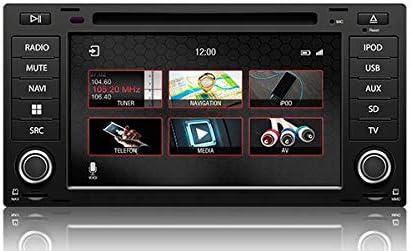
פיגורע 4.1: The main menu screen displaying various function icons such as Radio, Navigation, Telephone, Media, and AV input.
From the main screen, tap on the desired icon to access functions like Radio, Navigation, Bluetooth (Telefon), Media (USB/SD), and AV input.
4.2 ראַדיאָ אָפּעראַציע
Tap the "Radio" icon from the main menu or press the physical "RADIO" button. You can tune to AM/FM stations, save presets, and access features like RDS (Radio Data System) where available.

פיגורע 4.2: The radio interface showing station presets and current frequency. Users can navigate between stations using the on-screen arrows or physical controls.
For SiriusXM compatibility, an SXV300 Tuner (sold separately) is required. Once installed, access SiriusXM through the dedicated icon or source selection.

פיגורע 4.3: The SiriusXM interface displaying channel information and presets, allowing access to satellite radio content.
4.3 נאַוויגאַציע סיסטעם
Tap the "Navigation" icon to launch the integrated GPS navigation software. The system comes pre-loaded with maps for North America, Europe, or Australia, depending on your region.
- ציל איינטריט: Enter addresses, points of interest, or coordinates.
- רוטע אנווייזונגען: Follow turn-by-turn voice prompts and on-screen directions.
- מאַפּע View: באַשטימען צווישן 2D און 3D views, adjust zoom levels.
4.4 בלועטוט קאָנעקטיוויטי
פּאָר דיין סמאַרטפאָנע דורך בלועטאָאָטה פֿאַר הענט-פריי פאַך און אַודיאָ סטרימינג.
- Go to the "Telefon" (Bluetooth) menu.
- געבן בלועטאָאָטה אויף דיין סמאַרטפאָנע און זוכן פֿאַר בנימצא דעוויסעס.
- Select "Dynavin" from the list on your phone and confirm the pairing code.
- Once paired, you can make/receive calls and stream music.
4.5 עפּל קאַרפּליי און אַנדרויד אויטאָ
Connect your compatible smartphone via USB to use Apple CarPlay or Android Auto. This allows you to access select phone apps directly on the Dynavin display.

פיגורע 4.4: The Apple CarPlay interface displaying common applications like Phone, Music, Maps, and Messages, integrated with the Dynavin unit.
Ensure your phone's operating system is up to date for optimal performance with CarPlay or Android Auto.
4.6 Media Playback (USB/SD)
Insert a USB drive or Micro SD card into the designated ports. The system supports various audio and video formats. Tap the "Media" icon to browse and play content.
4.7 געזונט סעטטינגס
Access the sound settings to adjust audio output, equalizer, and balance/fader controls. The system integrates with your vehicle's DSP processor if equipped.

פיגורע 4.5: The sound settings interface, allowing users to adjust audio parameters such as balance, fader, and specific sound profiles within the vehicle cabin.
Additional sound options may include confirmation tones, PDC (Park Distance Control) and warning tones, and settings for factory ampליפערז.
4.8 סיסטעם סעטטינגס
The system settings menu allows you to configure various aspects of the unit, including:
- געגנט: Set the geographical region for radio and navigation.
- קאָליר: Adjust display color schemes.
- אַפּאַראַט: Configure backup camera settings.
- ברייטקייט: Manually adjust screen brightness.
- צייט זאָנע: שטעלן די ריכטיק צייט זאָנע.
- פאַרקערט: Configure reverse camera and PDC integration.

פיגורע 4.6: The system settings interface, showing options for region, display color, camera settings, brightness adjustment, time zone, and reverse camera configuration.
5. וישאַלט
5.1 רייניקונג די ווייַז
ניצט אַ ווייכע, לינט-פֿרייע שטאָף צו פֿאָרזיכטיק ווישן דעם טאָוטשסקרין. פֿאַר שווערע פֿלעקן, אַ ביסל ווישןampווישט דעם שטאָף מיט וואַסער אָדער אַ פאַרשטעלן-זיכער רייניגער. פֿאַרמייַדט אַברייסיוו מאַטעריאַלן אָדער שטרענגע כעמיקאַלן.
5.2 פירמוואַרע דערהייַנטיקונגען
Periodic firmware updates may be released to improve performance, add features, or address issues. Check the official Dynavin website or contact your distributor for information on available updates and instructions for installation.
6. טראָובלעשאָאָטינג
If you encounter issues with your Dynavin N7-VT7 PRO, refer to the following common solutions:
- קיין מאַכט: Check all wiring connections and vehicle fuses. Ensure the vehicle battery is properly connected.
- קיין קול: איבערקוקן די רעדנער קאנעקשאנס. קאנטראלירן די וואליום לעוועלס און די שטום סעטינגס. זיכער מאכן אז די ריכטיגע אודיא מקור איז אויסגעקליבן.
- דזשי-פי-עס סיגנאַל פארלוסט: זיכער מאַכן אַז די דזשי-פּי-עס אַנטענע איז ריכטיק אינסטאַלירט און האט אַ קלאָרע view פון הימל.
- בלועטאָאָטה פּערינג ישוז: Delete previous pairings from both the unit and your phone. Restart both devices and attempt pairing again.
- טאָוטשסקרין רעאַגירט נישט: Perform a soft reset (refer to specific instructions from Dynavin support if available).
- Apple CarPlay/Android Auto Not Connecting: Ensure your phone is compatible and its operating system is updated. Try a different USB cable.
For persistent issues, contact Dynavin customer support or your authorized dealer for assistance.
7. ספּעסאַפאַקיישאַנז
| שטריך | באַשרייַבונג |
|---|---|
| מאָדעל נומער | N7-VWTG-PRO |
| ווייַז גרייס | 7 אינטשעס |
| ווייַז האַכלאָטע | 1024 X 600 |
| ווייַז טיפּ | Capacitive LCD, Anti-glare Touchscreen |
| אָפּערייטינג סיסטעם | DynOS |
| קאַנעקטיוויטי | וסב, בלועטאָאָטה |
| מאַפּע טיפּ | North America, Europe, or Australia (region-specific) |
| פאָרמיטל סערוויס טיפּ | Car (VW Touareg 2003-2009) |
| פּעקל דימענשאַנז | 13 X 11 X 9 אינטשעס |
8. וואָראַנטי און שטיצן
For warranty information, please refer to the documentation provided with your purchase or contact your authorized Dynavin dealer. J&T Distributing is the official distributor of Dynavin in North America and can provide support for products purchased through their channels.
For technical assistance, troubleshooting, or inquiries regarding firmware updates, please visit the official Dynavin webפּלאַץ אָדער קאָנטאַקט זייער קונה שטיצן.