
הקדמה
The Nextbase 122 Dash Cam is a compact in-car digital video recorder designed to capture your journeys in 720p HD resolution. It features a 120° wide viewing angle, ensuring comprehensive road coverage. Key functionalities include Intelligent Parking Mode, G-Sensor motion detection, and a user-friendly Click&Go PRO powered car mount for easy installation and removal.
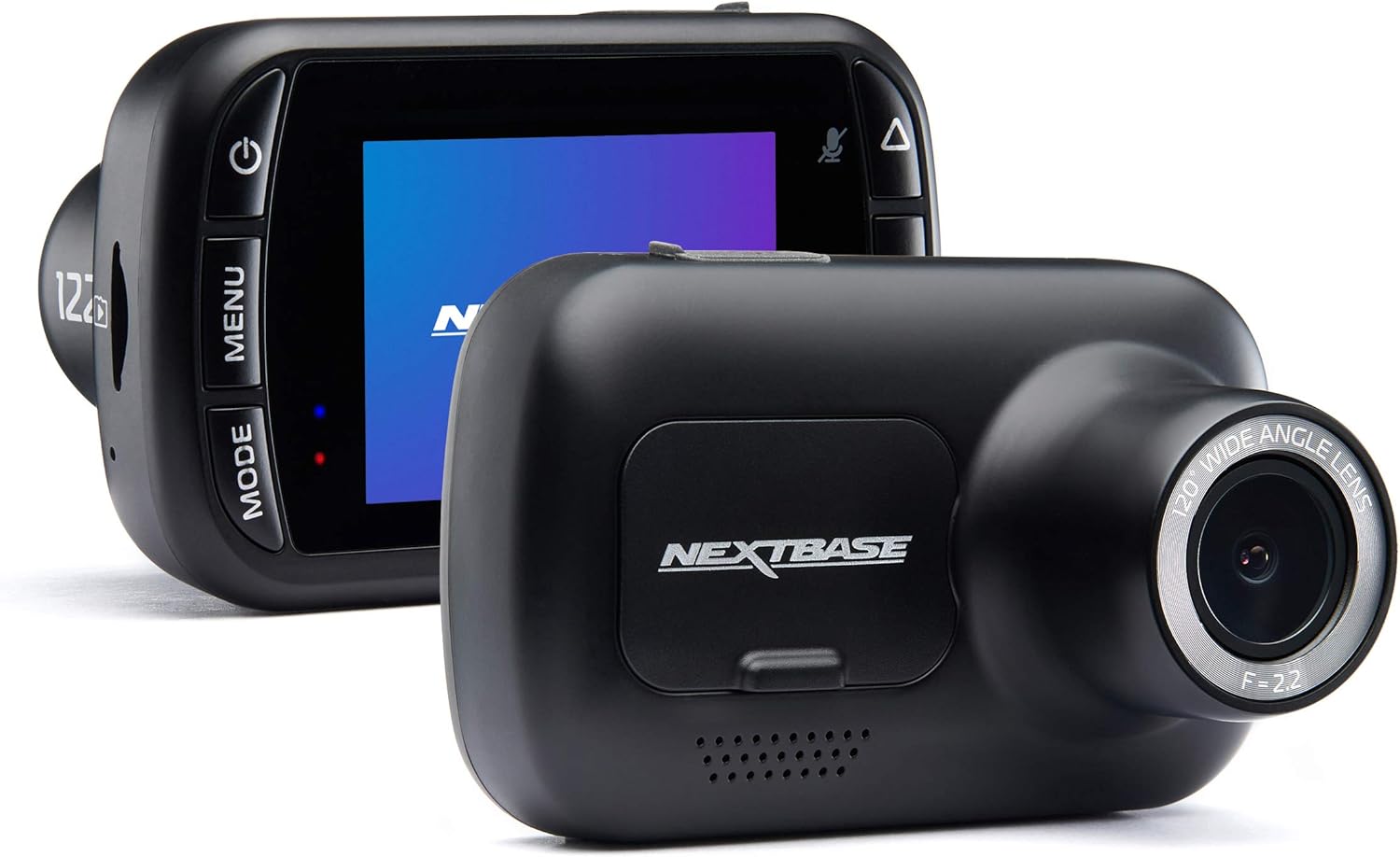
בילד: פאָרנט און הינטן view of the Nextbase 122 Dash Cam, showcasing its compact design and screen interface.
שליסל פֿעיִקייטן
- HD רעקאָרדינג: Captures video in 720p HD at 30 frames per second with a 6G lens.
- ברייט Viewאין ווינקל: 120° lens provides extensive road coverage.
- Click&Go PRO Mount: Wireless magnetic mount for simple installation and removal.
- ג-סענסאָר: Automatically detects impacts and safeguards footagע פו ן װער ן איבערגעשריבן .
- Intelligent Parking Mode: Records any physical movement or bump to the vehicle when parked.
- 2-inch High Resolution Screen: IPS screen for clear viewing of recordings and menu navigation.

Image: A graphic representation of the Nextbase 122's key features, including HD recording, Intelligent Parking Mode, 120° wide viewing angle, 2.5-inch HD IPS screen, Click&Go PRO mount, and G-Sensor.
סעטאַפּ גייד
1. אריינשטעלן די SD קארטל
Before first use, insert a compatible microSD card (not included) into the dash cam. It is recommended to use a Nextbase branded SD card or a high-endurance card from a reputable manufacturer. Format the SD card within the dash cam's settings menu upon initial insertion.
2. מאַונטינג די דאַש קאַם
- רייניקט דעם אויסגעקליבענעם אָרט אויף אייער ווינטשילד, טיפּיש הינטערן הינטןview mirror, to ensure a secure adhesion.
- Attach the Click&Go PRO mount to the windshield.
- Align the dash cam with the magnetic connectors on the mount and gently push until it clicks into place. The wireless connection through the mount simplifies power delivery.
- Connect the power cable from the mount to your vehicle's 12V power socket (cigarette lighter). Route the cable neatly to avoid obstructing your view.

Image: A hand demonstrating the attachment of the Nextbase 122 Dash Cam to its Click&Go PRO mount on a car's windshield, highlighting the ease of installation.
3. ערשטע איינשטראָם און סעטטינגס
Once powered, the dash cam will turn on automatically. Follow the on-screen prompts to set the date, time, and preferred language. Ensure the camera lens is clean and unobstructed for optimal recording quality.
אַפּערייטינג ינסטראַקשאַנז
אָטאַמאַטיק רעקאָרדינג
The Nextbase 122 Dash Cam begins recording automatically when power is supplied (e.g., when the vehicle's ignition is turned on). Recordings are saved in continuous loop segments, typically 1 or 3 minutes long, to the microSD card.
G-Sensor Protection
In the event of an impact or sudden braking, the integrated G-Sensor will automatically detect the event and protect the current recording file from being overwritten. These protected files ווערן געהיט אין א באזונדערער טעקע אויף דער SD קארטל.
ינטעליגענט פּאַרקינג מאָדע
When your vehicle is parked and the ignition is off, the Intelligent Parking Mode activates. If any physical movement or bump to the vehicle is detected, the dash cam will automatically power on and record for a short period, providing protection against incidents while unattended.

Image: A graphic illustrating the Intelligent Parking Mode feature, showing parked cars and icons for G-force detection, internal battery life, and no hardwire kit required.
Viewינג פוtage
FootagE קענען זיין viewed directly on the dash cam's 2-inch screen or by removing the microSD card and inserting it into a computer. The Nextbase MyNextbase Player software (available for PC/Mac) offers advanced viewing and editing capabilities, including G-force telemetry, precise location, and speed data.

בילד: א קאלאזש אויסשטעלונגasing the MyNextbase Suite, including the mobile app, PC/software interface, and online storage, along with icons for G-force telemetry, precise location, speed data, and editing features.
וישאַלט
סד קאָרט מאַנאַגעמענט
Regularly format your microSD card (at least once a month) to maintain optimal performance and prevent data corruption. Ensure you use a compatible, high-quality microSD card. Cards with capacities that are too large or of lower quality may not function correctly.
רייניקן די דאַש קאַם
Use a soft, dry cloth to clean the dash cam's lens and screen. Avoid using abrasive cleaners or solvents, which can damage the device. Keep the camera free from dust and debris.
Firmware דערהייַנטיקונגען
Periodically check the Nextbase website for firmware updates. Keeping your dash cam's firmware up-to-date ensures you have the latest features and performance enhancements.
טראָובלעשאָאָטינג
- Dash Cam not turning on/connecting:
- Ensure the power cable is securely connected to both the mount and the vehicle's 12V socket. Check if the vehicle's 12V socket is active. If issues persist, try a different power source or cable if available.
- Recording stops unexpectedly or screen freezes:
- This can often be resolved by formatting the microSD card within the dash cam's settings. Ensure you are using a high-quality, compatible microSD card. If the issue continues, try a different microSD card. A reset button may be located on the device; consult the physical manual for its location and use.
- Poor video quality or unreadable license plates:
- Ensure the lens is clean and free from smudges or dirt. Verify that the protective film has been removed from the lens. Check the dash cam's position on the windshield to ensure it has a clear, unobstructed view.
- Video is shaky:
- Ensure the dash cam is securely mounted and not vibrating against the windshield or mount. Check for any loose connections.
ספּעסאַפאַקיישאַנז
| מאָדעל נאָמען | 122 |
| נומער מאָדעל נומער | דוור 122 |
| פּראָדוקט דימענשאַנז | 3.4 X 1 X 1.1 אינטשעס |
| פּונקט וואָג | 3.5 אונסעס |
| ווידעא קאַפּטורע רעסאָלוטיאָן | 720 פּ הד @ 30 פפּס |
| פעלד פון View | 120° |
| ווייַז פֿעיִקייטן | 2-אינטש IPS סקרין |
| קאַנעקטיוויטי טעכנאָלאָגיע | Powerline (for mount) |
| ספּעציעלע פֿעיִקייטן | G-Sensor, Loop Recording, Parking Monitor, Small Hidden, Wireless (mount) |
| באַטעריז | 1 ליטהיום פּאָלימער באַטאַרייע פארלאנגט (אַרייַנגערעכנט) |
| מאַונטינג טיפּ | Windshield Mount (Click&Go PRO) |
וואָראַנטי און שטיצן
For detailed warranty information and customer support, please refer to the documentation included with your product or visit the official Nextbase website. The manufacturer provides support for product inquiries, technical assistance, and warranty claims.
אָנליין רעסורסן: For additional help, FAQs, and software downloads, please visit the Nextbase Store on Amazon or the official Nextbase support portal.