
Xprinter XP-360B
XP-360B Thermal Label Barcode Printer User Manual
Model: XP-360B | Brand: Xprinter
1. הקדמה
This manual provides comprehensive instructions for the setup, operation, and maintenance of your Xprinter XP-360B Thermal Label Barcode Printer. Please read this manual thoroughly before using the printer to ensure proper functionality and to prevent damage.
The XP-360B is a high-speed thermal label printer designed for various applications, including barcode printing, shipping labels, and receipt printing. It supports label widths from 20mm to 80mm and offers a maximum print speed of 200mm per second.

Figure 1.1: Xprinter XP-360B Thermal Label Barcode Printer. This image shows the printer from a front-right angle, with labels being fed out of the front slot.
2. זיכערקייַט אינפֿאָרמאַציע
To ensure safe operation and prolong the life of your printer, please observe the following safety precautions:
- שטעלט נישט אויס דעם דרוקער צו וואַסער אָדער צו פיל הומידיטי.
- פֿאַרמײַדט צו שטעלן דעם דרוקער אין דירעקטער זון אָדער לעבן היץ־קוואַלן.
- ניצט נאָר דעם מאַכט אַדאַפּטער וואָס ווערט צוגעשטעלט מיטן דרוקער.
- פּרוּווט נישט צו צענעמען אָדער פאַרריכטן דעם דרוקער אַליין. ווענדט זיך צו קוואַליפֿיצירטע סערוויס פּערסאָנעל.
- האַלטן די דרוקער אַוועק פון שטויב און דעבריס.
- זיכער מאַכן אַז דער דרוקער איז געשטעלט אויף אַ סטאַבילער, גלאַטער ייבערפלאַך.
- נעמט ארויס דעם דרוקער פון דער עלעקטרישער ווענטיל איידער איר רייניגט אים אדער ווען ער איז נישט אין באנוץ פאר לענגערע צייטן.
3. פּעקל אינהאַלט
באַשטעטיקן אַז אַלע זאכן זענען פאַראַן אין פּעקל:
- Xprinter XP-360B Thermal Label Barcode Printer
- מאַכט אַדאַפּטער
- וסב קאַבלע
- באַניצער מאַנואַל (דעם דאָקומענט)
- דרייווער סי-די (אדער לינק צו דאונלאודן דרייווערס)
4. פּראָדוקט איבערview
4.1. פראָנט View

פיגורע 4.1: פראָנט view of the XP-360B printer, showing the label output slot and control buttons.
- Label Output Slot: Where printed labels exit the printer.
- קאָנטראָל קנעפּלעך:
- מאַכט: מאַכט גראדן.
- טעות: Error indicator.
- פּויזע: פּויזירט אָדער ווידער הייבט אָן דרוקן.
- קאָרמען: Feeds a blank label.
4.2. זייַט View
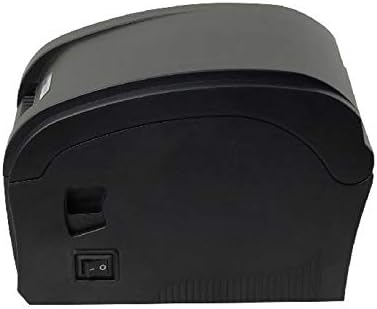
פיגורע 4.2: זייַט view of the XP-360B printer, highlighting the power switch.
- מאַכט סוויטש: טורנס די דרוקער אויף אָדער אַוועק.
4.3. אינערלעכער View (Cover Open)

פיגורע 4.3: אינערלעכער view of the XP-360B printer with the top cover open, showing the label roll compartment and print head assembly.
- Print Head Assembly: Contains the thermal print head.
- Label Roll Compartment: Area for loading the label roll.
- Adjustable Paper Guides: Guides to align the label roll.
5. סעטאַפּ
5.1. אַנפּאַקינג און פּלייסמאַנט
- נעמט פֿאָרזיכטיק אַרויס דעם דרוקער און אַלע אַקסעסאָריעס פֿון דער פּאַקאַדזשינג.
- שטעלט דעם דרוקער אויף א סטאַבילער, גלאַטער ייבערפלאַך מיט גענוג ווענטילאַציע.
- Ensure there is enough space around the printer for proper operation and maintenance.
5.2. פֿאַרבינדן דעם דרוקער
- פֿאַרבינדט דעם מאַכט אַדאַפּטער צום דרוקער'ס מאַכט אַרייַנגאַנג פּאָרט.
- צאַפּן די מאַכט אַדאַפּטער אין אַ פּאַסיק עלעקטריקאַל ווענטיל.
- פֿאַרבינדט איין עק פֿונעם USB קאַבל צום דרוקער'ס USB פּאָרט.
- פאַרבינדן די אנדערע סוף פון די וסב קאַבלע צו אַ בנימצא וסב פּאָרט אויף דיין קאָמפּיוטער.
5.3. לאָודינג לאַבעלס
- מאַכן זיכער אַז די דרוקער איז אויסגעדרייט אַוועק.
- עפענען די שפּיץ דעקל פון די דרוקער.
- Place the label roll into the label compartment, ensuring the labels feed from the bottom of the roll towards the front of the printer.
- Adjust the movable paper guides to fit the width of your label roll snugly, without being too tight.
- Pull a few labels out past the print head and through the label output slot.
- מאַכט פעסט צו דעם אויבערשטן דעקל ביז עס קליקט אַרײַן אין פּלאַץ.

Figure 5.1: Loading a roll of thermal labels into the XP-360B printer's internal compartment.
5.4. דרייווער ינסטאַלירונג
Before using the printer, you must install the appropriate drivers on your computer. Drivers are typically provided on a CD or can be downloaded from the manufacturer's official webפּלאַץ.
- Insert the driver CD into your computer's CD-ROM drive, or navigate to the official Xprinter support website to download the XP-360B drivers.
- גיי די ינסטראַקשאַנז אויף דעם עקראַן צו פאַרענדיקן די ינסטאַלירונג פון די שאָפער.
- After installation, it is recommended to restart your computer.
6. אַפּערייטינג ינסטרוקטיאָנס
6.1. פּאָווערינג אויף / אויסגעלאשן
- To turn on the printer, flip the power switch located on the side of the printer to the 'ON' position. The POWER indicator light will illuminate.
- To turn off the printer, flip the power switch to the 'OFF' position.
6.2. גרונטלעכע דרוקעריי
- פאַרזיכערן אַז די דרוקער איז קאָננעקטעד צו דיין קאָמפּיוטער און פּאַוערד אויף.
- Open the document or application from which you wish to print labels (e.g., label design software, shipping platform).
- Go to the print settings (File > דרוקן).
- Select "Xprinter XP-360B" as your printer.
- Adjust the paper size and orientation settings to match your labels (e.g., 4x6 inch, portrait/landscape).
- Click "Print". The printer will automatically detect the label gaps and print accordingly.
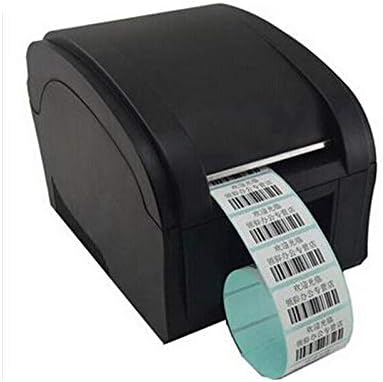
Figure 6.1: The XP-360B printer in operation, feeding out a continuous roll of printed labels.
6.3. Using Control Buttons
- FEED קנעפּל: Press this button once to feed a single blank label. This is useful for testing label alignment or advancing to the next label.
- PAUSE קנעפּל: Press this button to temporarily pause a print job. Press it again to resume printing.
7. וישאַלט
רעגולערע אויפהאלטונג גאראנטירט אפטימאלע פאָרשטעלונג און פארלענגערט די לעבנסדויער פון אייער דרוקער.
7.1. רייניקן דעם דרוק קאָפּ
The print head should be cleaned regularly, especially if print quality degrades or after printing a large volume of labels.
- אויסלעשן דעם דרוקער און ארויסנעמען דעם שטעקער פון עלעקטרישן ווענטיל.
- עפענען די שפּיץ דעקל פון די דרוקער.
- Wait a few minutes for the print head to cool down if the printer has been recently used.
- Gently wipe the thermal print head surface with an alcohol swab or a lint-free cloth lightly dampמיט יסאָפּראָפּיל אַלקאָהאָל.
- לאָזט דעם דרוק קאָפּ גאָר טרוקן ווערן איידער איר מאַכט צו דעם דעקל און צינדט אָן דעם דרוקער.
7.2. רייניקן די פּלאַטן וואַל
The platen roller helps feed the labels smoothly. Clean it if you notice feeding issues.
- Follow steps 1-3 from "Cleaning the Print Head".
- Rotate the platen roller manually and wipe its surface with an alcohol swab or a lint-free cloth lightly dampמיט יסאָפּראָפּיל אַלקאָהאָל.
- Allow it to dry completely before closing the cover.
8. טראָובלעשאָאָטינג
This section addresses common issues you might encounter with your XP-360B printer.
| פּראָבלעם | מעגלעך סיבה | לייזונג |
|---|---|---|
| דרוקער גייט נישט אן | Power cable loose; Power outlet faulty; Printer fault | Check power cable connection; Try a different outlet; Contact support if problem persists. |
| No printing / Printer offline | USB cable loose; Driver not installed; Printer offline in OS | Check USB connection; Install drivers; Check printer status in computer settings. |
| שלעכטע דרוק קוואַליטעט / אויסגעבלאַסטע דרוקן | Dirty print head; Low quality labels; Incorrect print density settings | Clean the print head (see Section 7.1); Use high-quality thermal labels; Adjust print density in driver settings. |
| עטיקעטן ווערן נישט ריכטיק צוגעפֿירט | Labels loaded incorrectly; Paper guides not adjusted; Dirty platen roller | Re-load labels correctly; Adjust paper guides; Clean platen roller (see Section 7.2). |
| ERROR light is on | Paper jam; Cover open; Print head overheating | Clear any paper jams; Ensure cover is closed properly; Turn off printer and let it cool down. |
9. ספּעסאַפאַקיישאַנז
| שטריך | באַשרייַבונג |
|---|---|
| מאָדעל | XP-360B |
| דרוק מעטאָד | דירעקט טערמאַל |
| צובינד | וסב |
| דרוק ספּיד | אַרויף צו 200 מם / סעקונדע |
| Max Paper Width | 80mm (adjustable from 20mm) |
| פּאַפּיר פיטער מאָדע | אָטאַמאַטיק |
| נעץ פּרינטינג | ווייערד |
| דופּלעקס פּרינטינג | ניין |
| דימענשאַנז | 25 X 22 X 21 סענטימעטער |
| וואָג | 2 קג |
10. וואָראַנטי און שטיצן
Xprinter products are designed for reliability and performance. For specific warranty terms and conditions, please refer to the warranty card included with your product or visit the official Xprinter webפּלאַץ.
If you encounter any issues that cannot be resolved using the troubleshooting guide, or if you require technical assistance, please contact Xprinter customer support through their official webזייטל אדער די קאָנטאַקט אינפֿאָרמאַציע וואָס איז צוגעשטעלט אין אייער פּראָדוקט דאָקומענטאַציע.
Please have your model number (XP-360B) and purchase information ready when contacting support.
Ask a question about this manual
Ask about setup, troubleshooting, compatibility, parts, safety, or missing instructions. Manuals+ will review the question and use this page’s manual context to help answer it.