
1. הקדמה
Thank you for choosing the HKC TG34C3U 34-inch Ultrawide Curved Gaming Monitor. This manual provides essential information for setting up, operating, and maintaining your monitor. Please read it thoroughly before use and retain it for future reference.
זיכערקייַט אינפֿאָרמאַציע
- זיכער מאַכן אַז דער מאָניטאָר איז געשטעלט אויף אַ סטאַביל, גלייכער ייבערפלאַך צו פאַרמייַדן אַקסאַדענטאַל פאלן.
- Use only the power adapter and cables provided with the monitor.
- שטעלט נישט אויס דעם מאָניטאָר צו רעגן, פייכטקייט, אדער עקסטרעמע טעמפּעראַטורן.
- ויסמיידן בלאַקינג ווענטאַליישאַן אָופּאַנינגז צו פאַרמייַדן אָוווערכיטינג.
- טרענט אָפּ דעם שטראָם־קאַבל פֿון דער אַוטלעט איידער איר רייניקט אָדער אויב דער מאָניטאָר וועט נישט ווערן גענוצט פֿאַר אַ לענגערע צייט.
2. פּעקל אינהאַלט
באַשטעטיקן אַז אַלע זאכן זענען פאַראַן אין דיין פּעקל:
- HKC TG34C3U Monitor
- Monitor Stand (Neck and Base)
- מאַכט אַדאַפּטער און קאַבלע
- HDMI קאַבלע
- דיספּלייפּאָרט (DP) קאַבל
- באַניצער מאַנואַל
3. סעטאַפּ און ייַנמאָנטירונג
מאָניטאָר אַסעמבלי
- נעמט פֿאָרזיכטיק אַרויס דעם מאָניטאָר און שטאַנד קאָמפּאָנענטן פֿון דער פּאַקאַדזשינג.
- באַפעסטיקט דעם שטאַנד האַלדז צום מאָניטאָר פּאַנעל. מאַכט זיכער אַז עס קליקט זיכער אין פּלאַץ.
- באַפעסטיקט די שטאַנד באַזע צום שטאַנד האַלדז מיט די צוגעשטעלטע שרויפן.
- שטעלט דעם צוזאַמענגעשטעלטן מאָניטאָר אויף אַ סטאַבילער, גלאַטער ייבערפלאַך.
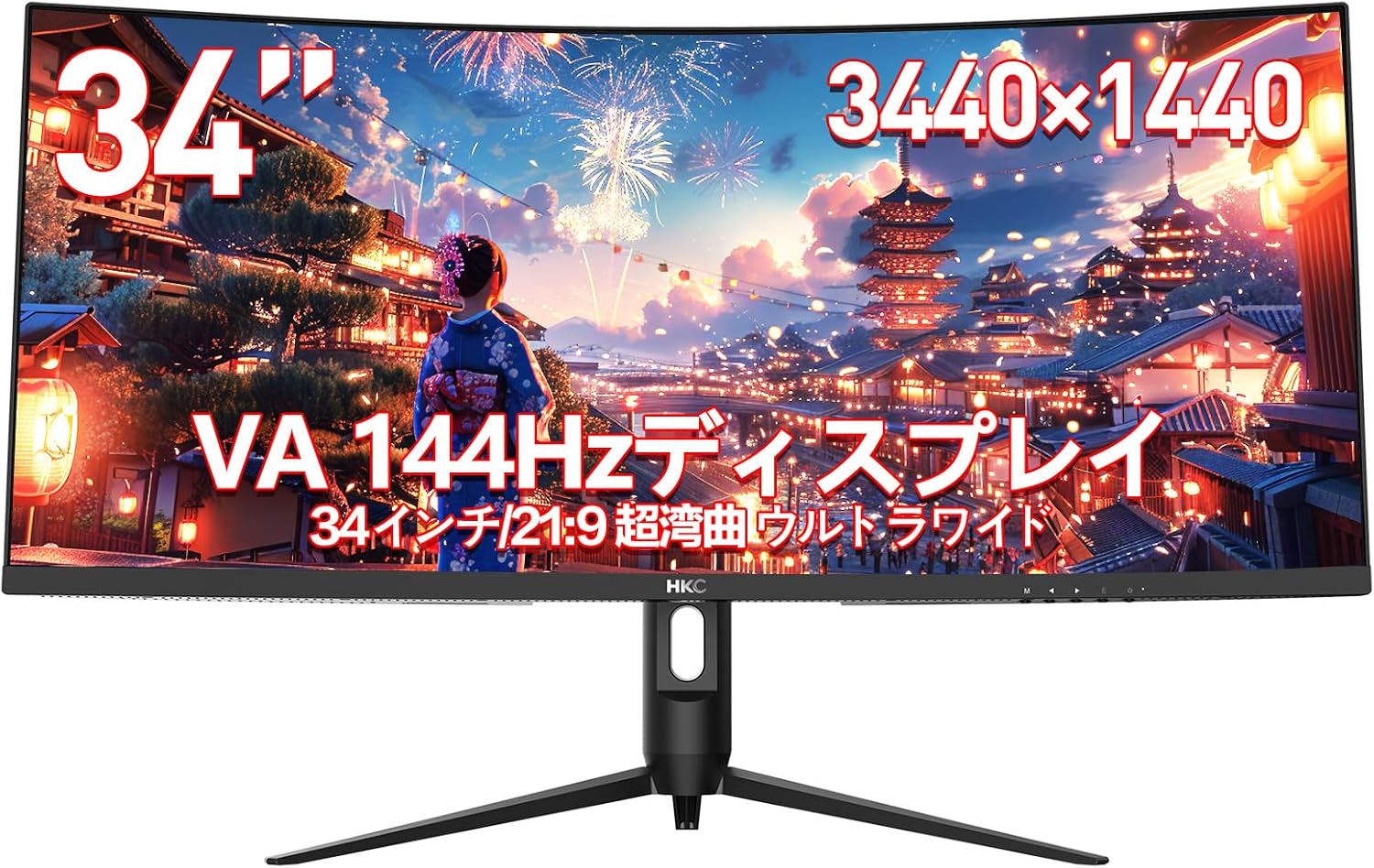
Image: The HKC TG34C3U monitor fully assembled on a desk, showcasing its ultrawide curved display.

בילד: הינטערשטע view of the monitor, illustrating the connection point for the stand neck.
קאַנעקטינג די מאָניטאָר
- פֿאַרבינדט דעם מאַכט אַדאַפּטער צום מאָניטאָר'ס מאַכט אַרייַנגאַנג, און דערנאָך שטעקט דעם מאַכט קאַבל אין אַ וואַנט אַוטלעט.
- פֿאַרבינדט איין עק פֿון דעם HDMI אָדער DisplayPort קאַבל צום קאָרעספּאָנדירנדיקן פּאָרט אויף אייער קאָמפּיוטער'ס גראַפיקס קאַרטל.
- Connect the other end of the HDMI or DisplayPort cable to the respective input port on the monitor.
- For cable management, route cables through the designated opening in the stand neck.

בילד: א דעטאַלירטע view of the monitor's input ports, including HDMI and DisplayPort connections.
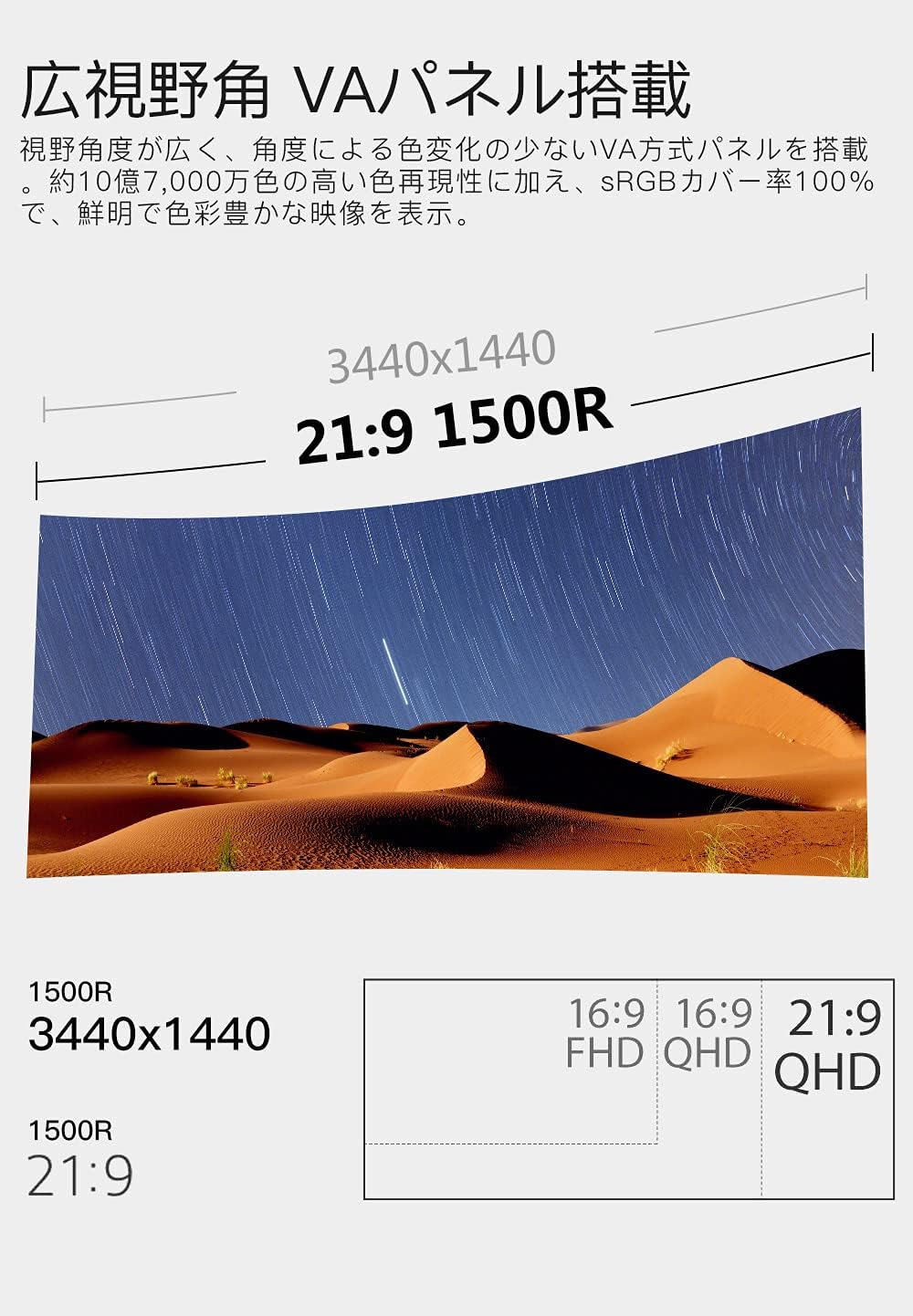
Image: The monitor with power and video cables properly connected and organized through the stand's cable management system.
Physical Adjustments
The monitor offers ergonomic adjustments for optimal viewטרייסט:
- הייך אַדזשאַסטמאַנט: Adjust the monitor's vertical position by gently pushing or pulling the monitor up or down.
- טילט אַדזשאַסטמאַנט: בייג דעם מאָניטאָר עקראַן פאָרויס אָדער צוריק צו געפֿינען דיין בילכערדיק viewינג ווינקל.
- סוויוואַל אַדזשאַסטמאַנט: דריי דעם מאָניטאָר לינקס אָדער רעכטס אויף זיין באַזע.
ווידעא: א קורצע הקדמהview demonstrating the monitor's adjustable stand, including height, tilt, and swivel functionalities.
4. אַפּערייטינג די מאָניטאָר
מאַכט אויף / אַוועק
Locate the power button, usually on the bottom right side or rear of the monitor. Press it to turn the monitor on or off.
אויף-סקרין ווייַז (אָסד) מעניו
The OSD menu allows you to adjust various monitor settings. Navigate the menu using the buttons or joystick located on the monitor's underside or rear.
געוויינטלעכע OSD מעניו אָפּציעס:
- בילד: אַדזשאַסטירן העלקייט, קאָנטראַסט, שאַרפֿקייט און גאַמאַ.
- קאָליר: Select color temperature (e.g., Warm, Cool, User), adjust RGB values.
- אַרייַנשרייַב: אויסקלייבן מאַנועל די אַרייַנגאַנג מקור (HDMI1, HDMI2, DisplayPort).
- ווייַז: Adjust aspect ratio, enable/disable FreeSync.
- OSD סעטטינגס: אַדזשאַסטירן OSD שפּראַך, טראַנספּאַרענץ און טיימאַוט.
- סיסטעם: Reset settings, view אינפֿאָרמאַציע.
הויפּט פֿעיִקייטן און סעטטינגס
- Ultrawide Display (21:9 Aspect Ratio): גיט אַן אויסברייטנדיקן viewing area, ideal for multitasking and immersive gaming.
- Curved Screen (1500R): The 1500R curvature matches the natural curve of the human eye, reducing eye strain and enhancing immersion.
- High Refresh Rate (144Hz): Delivers smoother motion and reduced input lag, particularly beneficial for fast-paced gaming.
- Fast Response Time (1ms): Minimizes motion blur and ghosting for clear, crisp visuals.
- AMD FreeSync טעכנאָלאָגיע: Synchronizes the monitor's refresh rate with your AMD graphics card's frame rate to eliminate screen tearing and stuttering. Enable this feature in the OSD menu and your graphics card settings.
- Picture-by-Picture (PBP) / Picture-in-Picture (PIP): Allows you to display content from multiple input sources simultaneously on the screen. Access these modes via the OSD menu.
- אויג קער פֿעיִקייטן: Includes Flicker-Free technology to reduce screen flickering and a Blue Light Reduction mode to minimize harmful blue light emissions, promoting comfortable viewינג בעת פארלענגערטע באַניץ.

בילד: דער מאָניטאָר ווייזטasing its multitasking capabilities with a split screen, displaying a spreadsheet on one side and a game on the other.

בילד: אַן עקסample of the monitor's PBP functionality, showing a gaming application alongside a video playback.
Video: A preview highlighting various features of the HKC TG34C3U monitor, including its design, connectivity, RGB lighting, and gaming performance.
5. וישאַלט
רייניקונג די מאָניטאָר
- שטענדיק אָפּשטויסן די מאָניטאָר איידער רייניקונג.
- ניצן אַ ווייך, לינט-פֿרייַ שטאָף אַ ביסל דampאָפּגעווישט מיט וואַסער אָדער אַ מילד, נישט-אַברייסיוו פאַרשטעלן רייניגער.
- שפריצט נישט רייניגער גלייך אויפן עקראַן.
- ווישט דעם עקראַן לײַכט צו באַזײַטיקן שטויב און פֿלעקן.
- רייניקן דעם מאָניטאָר casinג מיט אַ ווייכן, טרוקענעם שטאָף.
סטאָרידזש
If storing the monitor for an extended period, ensure it is powered off, unplugged, and stored in a cool, dry place away from direct sunlight and extreme temperatures. Use original packaging if available for protection.
6. טראָובלעשאָאָטינג
אויב איר טרעפט פּראָבלעמען מיט אייער מאָניטאָר, זעט די פאלגענדע געוויינטלעכע פּראָבלעמען און לייזונגען:
| פּראָבלעם | מעגלעך לייזונג |
|---|---|
| קיין מאַכט | Check if the power cable is securely connected to the monitor and the power outlet. Ensure the power outlet is functional. |
| קיין סיגנאַל | Verify that the video cable (HDMI/DP) is correctly connected to both the monitor and your computer. Select the correct input source via the OSD menu. Ensure your computer is powered on. |
| בילד פליקערינג אדער פארדרייונג | Check the video cable for damage. Try a different cable or input port. Ensure your graphics card drivers are up to date. Adjust refresh rate settings on your computer. |
| קאָלאָרס דערשייַנען פאַלש | Adjust color settings in the OSD menu (e.g., color temperature, RGB values). Try resetting picture settings to factory defaults. |
| OSD menu not responding | Ensure no buttons are stuck. Power cycle the monitor by unplugging it for a few minutes, then plugging it back in. |
7. ספּעסאַפאַקיישאַנז
| שטריך | באַשרייַבונג |
|---|---|
| סאָרט | HKC |
| מאָדעל | TG34C3U |
| פאַרשטעלן גרייס | 34 אינטשעס |
| אַספּעקט פאַרהעלטעניש | 21:9 |
| טאַפליע טיפּ | VA (R1500 Curved) |
| האַכלאָטע | 3440 X 1440 |
| דערפרישן קורס | 144 הז |
| ענטפער צייט | 1ms |
| ברייטנאַס | 250 סי / מ² |
| קאַנטראַסט פאַרהעלטעניש | 20,000,000:1 (ASCR off 3,000:1) |
| Viewינג אַנגלע | 178° (האָריזאָנטאַל/ווערטיקאַל) |
| ווידעא ינפּוץ | 2 x HDMI (1.2, 2.0), 1 x DisplayPort |
| מאַכט וואָלtage | 240 וואלטס (AC) |
| פּראָדוקט דימענשאַנז | 81.84 X 45.2 X 17.98 סענטימעטער |
| פּראָדוקט וואָג | 7.08 קג |
| ספּעציעלע פֿעיִקייטן | FreeSync, Flicker-Free, Blue Light Reduction, PBP/PIP |
8. וואָראַנטי און שטיצן
HKC monitors are manufactured to high-quality standards. For information regarding warranty coverage, terms, and conditions, please refer to the warranty card included in your product packaging or visit the official HKC webפּלאַץ.
For technical support or service inquiries, please contact HKC customer service through their official channels. You can find more information and support resources on the HKC Brand Store on Amazon.