
הקדמה
This manual provides detailed instructions for the installation, operation, and maintenance of your Anpviz 5MP IP PoE Turret Security Camera. This camera is designed for both indoor and outdoor surveillance, offering 5MP HD resolution, a 2.8mm wide-angle lens, and advanced features like human detection and night vision.

Figure 1: Anpviz 5MP IP PoE Turret Security Camera
פּעקל אינהאַלט
באַשטעטיקט אַז אַלע זאכן וואָס זענען אויסגערעכנט אונטן זענען אַרייַנגערעכנט אין אייער פּעקל:
- 1x Anpviz 5MP POE IP Camera
- 1x וואַסערפּרוף דעקל
- 1x באַניצער מאַנואַל
- שרויף פּאַקס
- 1x נאָך-פאַרקויף קאַרטל
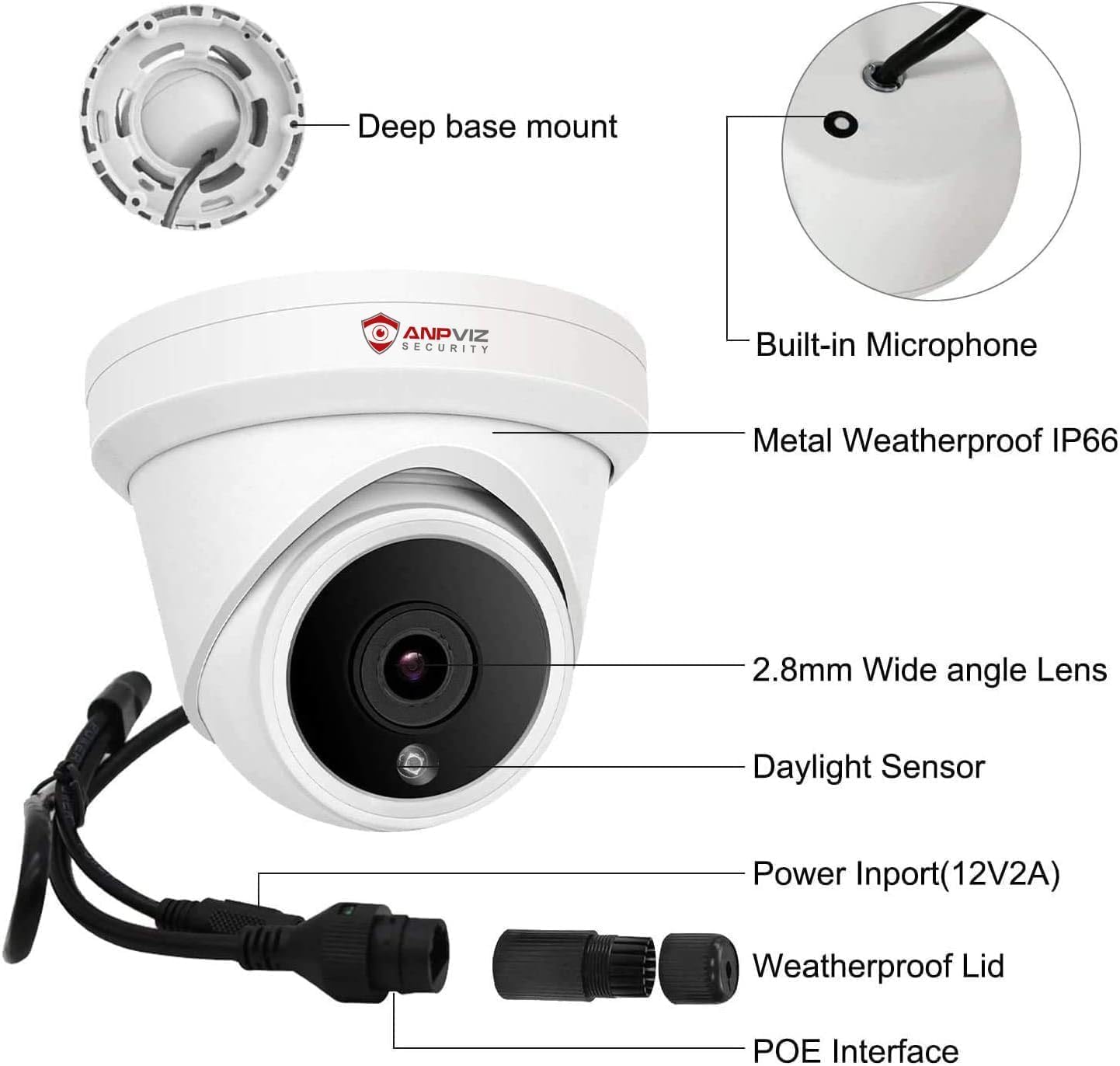
Figure 2: All components included in the Anpviz 5MP IP PoE Turret Security Camera package.
פֿאַר אַ וויזועלע גייד וועגן אַנבאָקסינג, ביטע זעט דאָס ווידעאָ אונטן:
Video 1: Anpviz 5MP IP PoE Camera Unboxing. This video demonstrates the contents of the camera package.
סעטאַפּ
1. גשמיות ייַנמאָנטירונג
The camera can be mounted on a ceiling or wall. Use the provided mounting template (if included) or the camera base to mark drill holes. Secure the camera using the supplied screws and wall plugs. Ensure the waterproof lid is correctly installed over the power connector if using Power over Ethernet (PoE) and not a separate power adapter.

Figure 3: The camera features an IP66 weatherproof rating, suitable for outdoor installation.
פֿאַר אַ וויזועלע אנווייזונג וועגן אינסטאַלאַציע, ביטע זען דעם ווידעא אונטן:
Video 2: Turret Camera Easy Installation. This video demonstrates the physical mounting process of the camera.
2. Network Connection (PoE)
Connect the camera to your network using a single Ethernet cable. This cable will transmit both video signals and power simultaneously, eliminating the need for a separate power adapter. Connect the other end of the Ethernet cable to a PoE NVR or a PoE switch.

Figure 4: Simplified connection diagram for the Anpviz 5MP IP PoE Turret Security Camera.
For a visual guide on connecting the camera to an NVR, please refer to the video below:
Video 3: How to connect camera and NVR. This video illustrates the steps to connect the camera to a Network Video Recorder.
3. ערשט קאָנפיגוראַטיאָן
After connecting the camera to your network, you will need to configure its IP address. Use the provided SearchTool software (available for Windows and Mac) to discover the camera on your network and modify its IP settings. The default username is 'admin' and the default password is '123456'. It is highly recommended to change the default password for security reasons.
For a visual guide on using the SearchTool for initial configuration, please refer to the video below:
Video 4: How to download and use SearchTools. This video guides you through finding and configuring the camera's IP address.
For a visual guide on camera website settings, please refer to the video below:
Video 5: Anpviz Camera Website Setting. This video demonstrates how to access and adjust camera settings via a web בלעטערער.
אַפּערייטינג
1. צוטריט צו דער קאַמעראַ
You can access your camera's live feed and settings through a web browser (Internet Explorer, Firefox, Google Chrome), a PC client (LMS), or the mobile app (VideoLink) available on the App Store and Google Play. This allows for remote access anytime, anywhere.
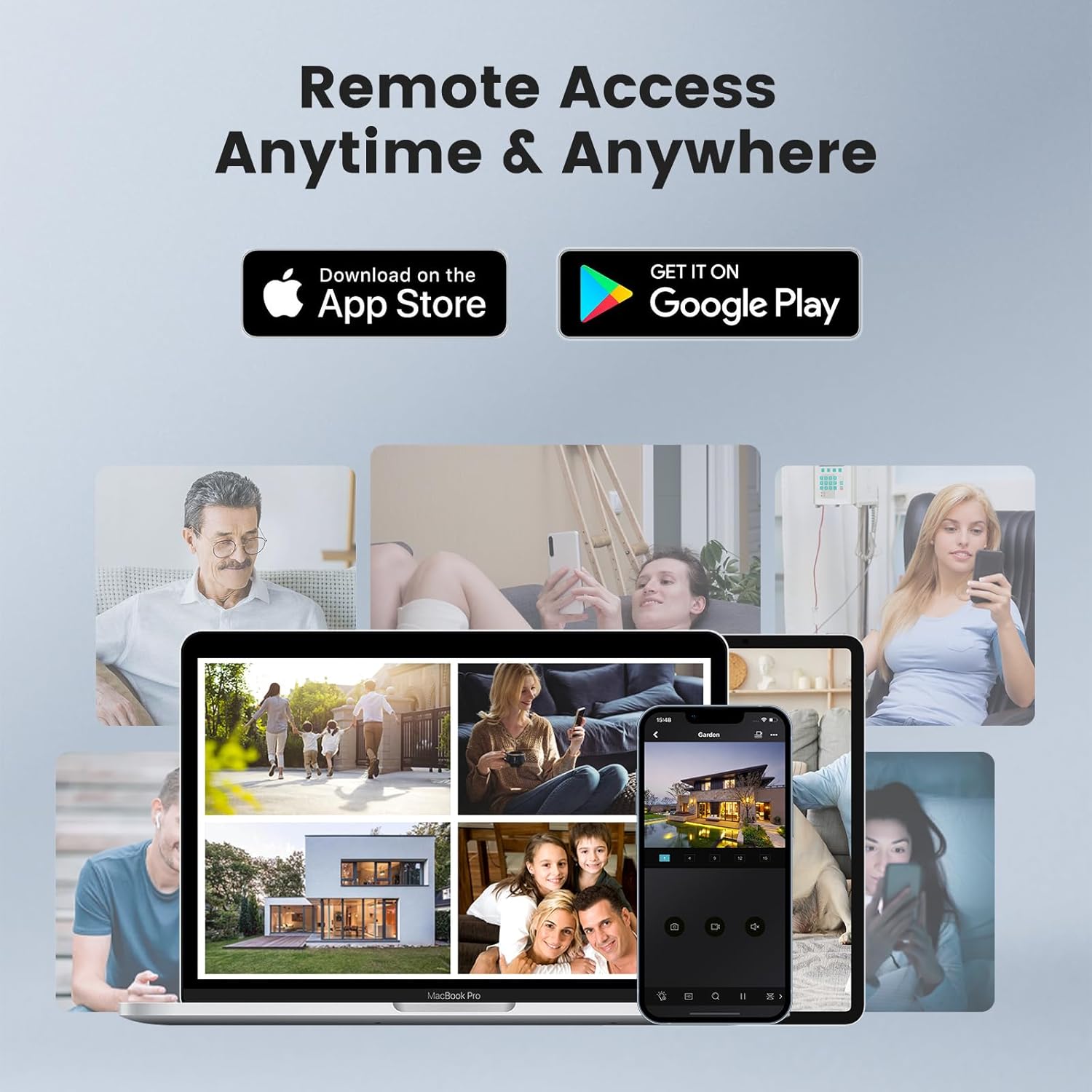
Figure 5: Remote access options via mobile app or PC client.
2. Video & Audio Settings
The camera supports 5MP HD video resolution (2592x1944) at 25 frames per second. It utilizes H.265/H.264 compression for efficient storage and bandwidth usage. The built-in microphone provides one-way audio recording, capturing clear voice and filtering environmental noise.

Figure 6: H.265 video compression offers improved efficiency.

Figure 7: The camera's one-way audio feature captures sound from the surveillance area.
3. Smart Human Detection
The camera is equipped with on-device human detection technology, allowing it to distinguish human figures from other moving objects. This feature triggers recording and sends motion alerts to your mobile phone via email, push notifications, or FTP, enhancing security by reducing false alarms.

Figure 8: Smart Human Detection provides accurate alerts for human presence.
וישאַלט
1. פירמוואַרע דערהייַנטיקונגען
טשעקט פּעריִאָדיש די Anpviz website for firmware updates to ensure optimal performance and access to the latest features. Firmware updates can typically be performed using the SearchTool software or through the camera's web צובינד.
2. רייניקונג פון די לינז
To maintain clear image quality, regularly clean the camera lens using a soft, lint-free cloth. Avoid abrasive materials or harsh chemicals that could scratch the lens.
3. קאָנטראָלירונג קאַנעקשאַנז
Ensure all cable connections, especially the Ethernet cable, are secure and free from damage. For outdoor installations, verify that the waterproof lid is properly sealed to prevent moisture ingress.
טראָובלעשאָאָטינג
- קיין ווידעא: Check the power supply and Ethernet cable connection. Ensure the camera's LED indicator is lit. Verify the IP address configuration using the SearchTool.
- נעץ קאָנעקטיוויטי פּראָבלעמען: Confirm your network settings (IP address, subnet mask, gateway). Ensure the camera is within the same network segment as your viewינג מיטל.
- באַוועגונג דעטעקציע נישט טריגערינג: Review the motion detection area settings and sensitivity in the camera's web interface or app. Ensure alerts are configured correctly.
- פּאַראָל באַשטעטיק: If you forget your password, refer to the user manual or contact Anpviz support for instructions on how to perform a factory reset.
ספּעסאַפאַקיישאַנז
| שטריך | באַשרייַבונג |
|---|---|
| מאָדעל נאָמען | טערט קאַמעראַ |
| ווידעא קאַפּטורע רעסאָלוטיאָן | 5 מפּ |
| Viewינג אַנגלע | 110.0 דיגריז |
| נאַכט וויזשאַן ראַנגע | 100 פֿיס |
| קאַנעקטיוויטי טעכנאָלאָגיע | עטהערנעט (PoE) |
| דרינענדיק / דרויסנדיק באַניץ | דרינענדיק, דרויסנדיק |
| וואַסער קעגנשטעל מדרגה | וואָטערפּרוף (IP66) |
| מאַטעריאַל | מעטאַל |
| נומער דימענשאַנז ל x וו x ה | 4 X 5 X 4 אינטשעס |
| פּונקט וואָג | 1.28 פונט |
וואָראַנטי און שטיצן
Anpviz provides a 1-year warranty and lifetime technical support for this product. For any questions or issues, please contact our professional tech staff. You can reach out to the Amazon Seller directly or email support@anpvizsecurity.com. Support is available Monday-Friday, 9:00 AM - 6:00 PM.