
1. פּראָדוקט איבערview
The CMTECK USB Conference Microphone (Model 7545900577) is a versatile desktop speakerphone designed for clear and efficient communication in various settings, including streaming, VoIP calls, Skype, interviews, and general chatting. It features 360° omnidirectional voice pickup and a built-in speaker, connecting to your computer via a single USB cable for plug-and-play convenience.
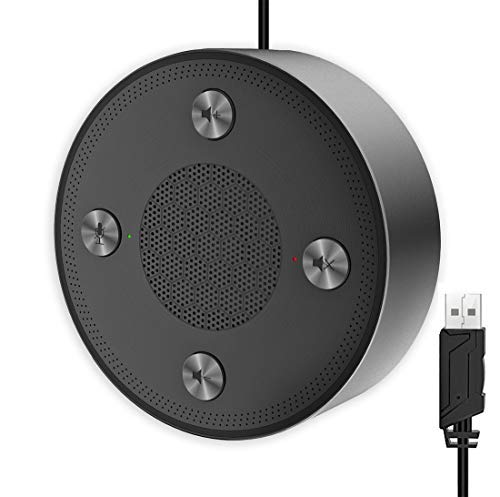
Figure 1: CMTECK USB Conference Microphone
2. שליסל פֿעיִקייטן
- העכער געזונט קוואַליטעט: Incorporates CCS3.0 Sound Card noise-canceling technology to effectively block noise and eliminate echo, ensuring crystal clear sound pickup.
- 360° Omnidirectional Voice Pickup: Equipped with 4 high-sensitivity microphones, allowing for 360° voice pickup within a 4-meter (13-foot) range.
- One-Button Mute Function: Features an all-in-one control panel with quick mute buttons for both the microphone and speaker, and volume adjustment.
- LED ינדיקאַטאָרס: Built-in LED lights indicate the working status (green for active, red for mute).
- פּלאַג און שפּיל קאָנעקטיוויטי: Connects to a computer via a USB cable without requiring driver installation. Compatible with Windows (7, 8, 10) and Mac OS. Note: Not compatible with Raspberry Pi/Android.
- אַנטי-סליפּ פּלאַן: Constructed with high-quality metal matte material for durability and resistance to abrasions and corrosion. Three anti-slip mats on the base provide stability.
- פּאָרטאַטיוו פּלאַן: Compact and lightweight for effortless portability.
3. סעטאַפּ גייד
- פאַרבינדן צו קאָמפּיוטער: Plug the USB cable from the CMTECK Conference Microphone into an available USB port on your Windows or Mac computer.
- אויטאָמאַטישע דרייווער אינסטאַלאַציע: The device is plug-and-play; your operating system should automatically detect and install the necessary drivers. No manual driver installation is required.
- באַשטעטיקן קשר: Once connected, the LED indicator on the device should light up, typically green, indicating it is powered on and ready for use.
- Select as Audio Device: In your computer's sound settings or your conferencing software (e.g., Skype, Zoom), select the "CMTECK USB Microphone" as your input (microphone) device and "CMTECK USB Speaker" as your output (speaker) device.
- אָפּטימאַל אָרט: For best 360° voice pickup during meetings, place the microphone in the center of your meeting area or table.
4. אַפּערייטינג ינסטרוקטיאָנס
The CMTECK USB Conference Microphone features intuitive controls located on its top surface.
- מיקראָפאָן שטום: Press the dedicated microphone mute button (often indicated by a microphone icon) to toggle the microphone on or off. The LED indicator will change to red when muted and green when active.
- רעדנער שטום: Press the dedicated speaker mute button (often indicated by a speaker icon) to toggle the speaker on or off. The LED indicator will change to red when muted and green when active.
- באַנד קאָנטראָל: Use the volume up (+) and volume down (-) buttons to adjust the speaker's output volume.
- קאָנפֿערענץ קאַללס: Ensure the microphone and speaker are unmuted and the volume is set to an audible level. The omnidirectional pickup will capture voices from all directions around the device.
5. וישאַלט
- רייניקונג: Use a soft, dry cloth to clean the exterior of the device. Avoid using liquid cleaners or abrasive materials, which may damage the finish or internal components.
- סטאָרידזש: ווען ניט אין נוצן, קראָם די מיקראָפאָן אין אַ קיל, טרוקן אָרט אַוועק פון דירעקט זונשייַן און עקסטרעם טעמפּעראַטורעס.
- קאַבלע זאָרגן: פֿאַרמײַדט צו בייגן אָדער דרייען דעם USB קאַבל צו פֿיל כּדי צו פֿאַרמײַדן אינערלעכע שאָדן.
6. טראָובלעשאָאָטינג
- קיין קלאַנג/מיקראָפאָן אַרבעט נישט:
- זיכער מאַכן אַז דער USB קאַבל איז זיכער פארבונדן צו ביידע דעם מיקראָפאָן און דיין קאָמפּיוטער.
- Check your computer's sound settings to confirm the CMTECK device is selected as the default input and output.
- Verify that the microphone and speaker are not muted using the device's control buttons or your software settings.
- פרובירט צו פאַרבינדן דעם מיטל צו אַן אַנדער USB פּאָרט אויף אייער קאָמפּיוטער.
- Poor Audio Quality (Speaker):
- While the speaker is optimized for vocals, it may not provide the best range for music or complex audio. Adjust volume levels and consider its primary use for voice.
- Ensure the device is placed on a stable, flat surface to prevent vibrations.
- Poor Audio Quality (Microphone):
- Ensure the microphone is placed centrally in the meeting area.
- Minimize background noise in the environment.
- Avoid placing the microphone too close to noisy computer fans or keyboards, as this can be picked up.
- LED ינדיקאַטאָרס ניט ארבעטן:
- Check the USB connection to ensure the device is receiving power.
- The LED indicators are small and may be difficult to see from certain angles. View them directly from above.
- ינקאַמפּאַטאַבילאַטי: The device is not compatible with Raspberry Pi or Android operating systems.
7. ספּעסאַפאַקיישאַנז
| שטריך | באַשרייַבונג |
|---|---|
| סאָרט | CMTECK |
| מאָדעל נאָמען | 7545900577 |
| קאַנעקטיוויטי טעכנאָלאָגיע | וסב |
| קאַנעקטער טיפּ | וסב |
| ספּעציעלע שטריך | שטום פֿונקציע |
| קאַמפּאַטאַבאַל דעוויסעס | Personal Computer, Speaker |
| קאָליר | שפּעלטל |
| אַרייַנגערעכנט קאַמפּאָונאַנץ | מיקראָפאָן אַפּאַראַט |
| פּאָליאַר מוסטער | אָמנידירעקטיאָנאַל |
| אַודיאָ סענסיטיוויטי | 10 דעציבעלן |
| פּונקט וואָג | 6.6 אונס |
| מיקראָפאָן פאָרם פאַקטאָר | גרענעץ |
| נומער דימענשאַנז (L X W X H) | 4.72 X 4.72 X 1.26 אינטשעס |
| מאַכט מקור | וסב מיקראָפאָן |
| מאַטעריאַל | מעטאַל |
| סיגנאַל-צו-נויז ראַטיאָ | 120 דב |
| ייַזנוואַרג פּלאַטפאָרמע | פּיסי, מעק |
8. וואָראַנטי און שטיצן
For specific warranty information and technical support, please refer to the documentation included with your product or contact CMTECK customer service directly. You may also visit the official CMTECK webזייטל פֿאַר די לעצטע שטיצע רעסורסן און קאָנטאַקט דעטאַילס.
CMTECK Official Store: Visit CMTECK Store on Amazon