
1. הקדמה
This manual provides essential information for setting up, operating, maintaining, and troubleshooting your Acer Predator Orion 3000 (PO3-600) desktop computer. Please read this guide thoroughly to ensure proper use and to maximize your system's performance and longevity.
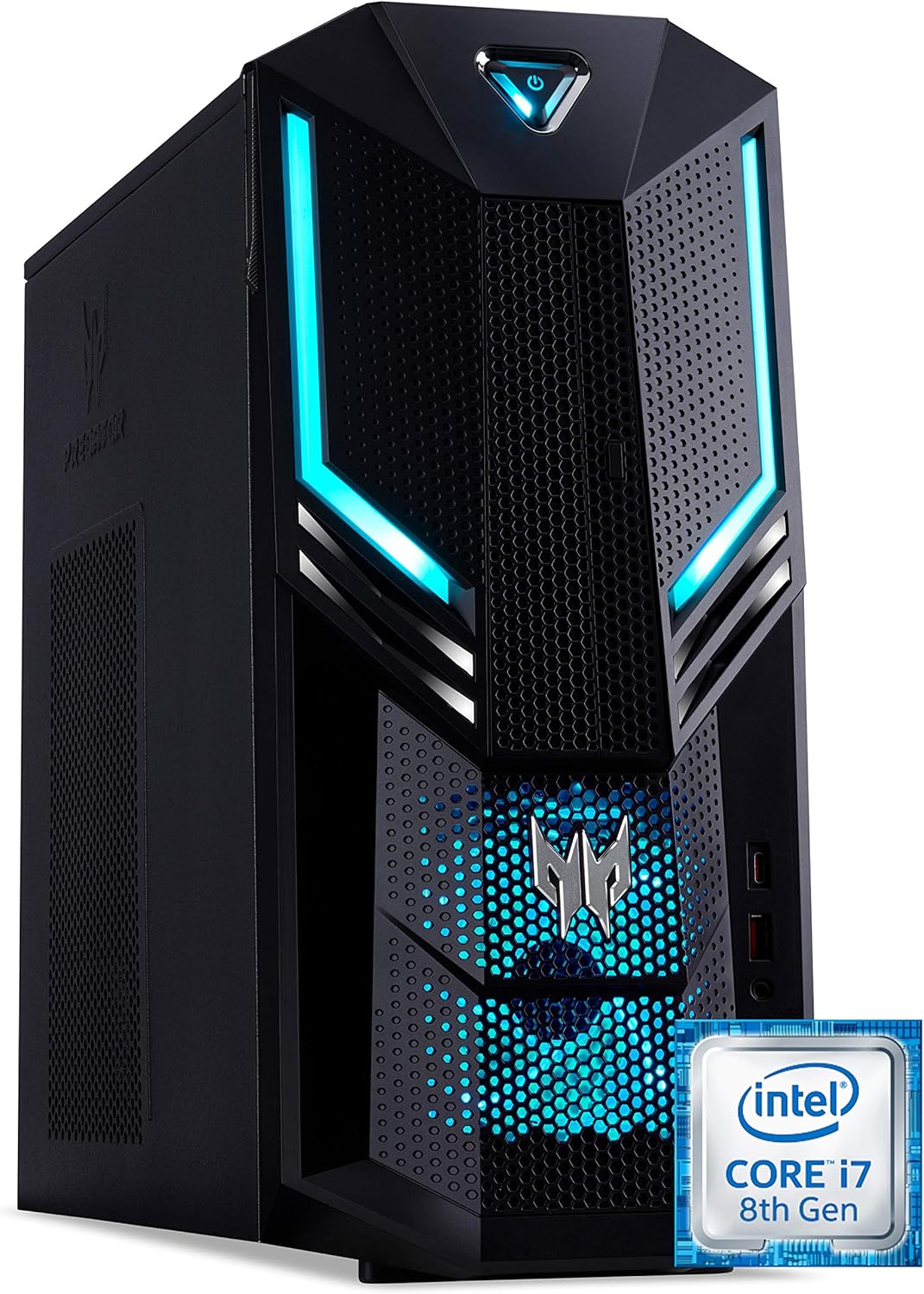
פיגורע 1.1: פראָנט-רעכט view of the Acer Predator Orion 3000 desktop computer, showcasing its black chassis with blue LED accents and angular design.
2. סעטאַפּ
2.1 אַנפּאַקינג
Carefully remove all components from the packaging. Verify that all items listed in the 'Included Components' section of this manual are present. Retain the packaging for future transport or service needs.
2.2 קאַנעקטינג פּעריפעראַלס
- מאָניטאָר: Connect your monitor to one of the available video output ports (HDMI, DVI, or DisplayPort) on the graphics card at the rear of the computer.
- קלאַוויאַטור און מויז: Connect the included Predator USB keyboard and mouse to any available USB ports. The system features both USB 2.0, USB 3.1, and USB 3.1 Type-C ports.
- נעץ: For a wired connection, connect an Ethernet cable from your router or modem to the LAN port on the rear of the computer. For wireless, ensure your Wi-Fi antenna (if external) is connected.
- אַודיאָ: Connect speakers or headphones to the audio output jacks. The system supports Sound BlasterX Pro Gaming Sound Engine for enhanced audio.
- מאַכט: Connect the power cable to the power supply unit (PSU) at the rear of the computer, then plug the other end into a grounded electrical outlet.
2.3 ערשט מאַכט-אויף
Press the power button located on the top front of the computer. The system will boot up, and the blue LED accents will illuminate. Follow the on-screen instructions to complete the Windows 10 Home operating system setup, including language, region, and user account creation.
3. אפערירן אייער קאמפיוטער
3.1 מאַכט מאַנאַגעמענט
- מאַכט אויף: דרוק די מאַכט קנעפּל אַמאָל.
- שאַט אַראָפּ: From Windows, click the Start button, then Power > Shut down.
- ריסטאַרט: From Windows, click the Start button, then Power > Restart.
- שלאָף: From Windows, click the Start button, then Power > Sleep.
3.2 ווינדאָוס 10 היים
Your Predator Orion 3000 comes pre-installed with Windows 10 Home. Familiarize yourself with the operating system's interface, settings, and features. Regular updates are recommended for security and performance.
3.3 גיימינג פֿעיִטשערס
The system is designed for gaming, featuring an Intel Core i7-8700 processor and NVIDIA GeForce GTX 1060 graphics. It is VR-ready, allowing for immersive virtual reality experiences. The integrated Sound BlasterX Pro Gaming Sound Engine provides high-quality audio for gaming and multimedia.

פיגורע 3.1: Acer Predator Orion 3000 desktop with gaming headphones, highlighting its gaming capabilities.
4. וישאַלט
4.1 רייניקונג
- עקסטעריע: ניצן אַ ווייך, דamp טוך צו רייניקן די אויסערליכע ייבערפלאַכן. פֿאַרמייַדן אַברייסיוו רייניגער.
- ווענץ: Regularly check and clean the air intake vents on the front and left side of the chassis to ensure proper airflow and prevent dust buildup. Use compressed air to gently clear dust.
- ינערלעך קאַמפּאָונאַנץ: For advanced cleaning of internal components, it is recommended to consult a professional or refer to detailed service guides.
4.2 ווייכווארג דערהייַנטיקונגען
Keep your operating system, drivers (especially graphics drivers), and applications updated to ensure optimal performance, security, and compatibility.

פיגורע 4.1: אינערלעכער view of the Acer Predator Orion 3000 desktop computer with the side panel removed, revealing the motherboard, CPU cooler, RAM slots, and storage drive bays. Regular cleaning of these areas is important for system health.
5. טראָובלעשאָאָטינג
This section addresses common issues you might encounter. For more complex problems, refer to Acer's official support resources.
5.1 קיין מאַכט
- זיכער מאַכן אַז דער מאַכט קאַבל איז זיכער פארבונדן צו ביידע דעם קאָמפּיוטער און די עלעקטרישע ווענטיל.
- באַשטעטיקן אַז די עלעקטרישע אַוטלעט אַרבעט דורך אַרײַנשטעקן אַן אַנדער אַפּאַראַט.
5.2 קיין ווייַז
- Check that the monitor is powered on and the video cable is securely connected to both the computer and the monitor.
- זיכער מאַכן אַז די ריכטיקע אַרייַנגאַנג מקור איז אויסגעקליבן אויף דיין מאָניטאָר.
5.3 System is Slow or Unresponsive
- שליסט אומנייטיקע אַפּליקאַציעס וואָס לויפן אין הינטערגרונט.
- קוק פֿאַר מאַלוואַרע אָדער ווירוסן מיט אַ רעספּעקטאַבלן אַנטיווירוס ווייכווארג.
- זיכער מאַכן אַז עס איז גענוג פריי פּלאַץ אויף אייער הויפּט דרייוו (SSD).
- ריסטאַרט די קאָמפּיוטער.
5.4 איבערגעטריבענע פען ראַש
- Ensure the computer's air vents are not obstructed and are free of dust.
- Verify the computer is in a well-ventilated area.
- Monitor CPU and GPU temperatures using system utilities. High temperatures can cause fans to run faster.
6. ספּעסאַפאַקיישאַנז
Below are the key technical specifications for the Acer Predator Orion 3000 (PO3-600) desktop computer.
| קאָמפּאָנענט | באַשרייַבונג |
|---|---|
| מאָדעל נאָמען | Acer Predator Orion 3000 (PO3-600) |
| אָפּערייטינג סיסטעם | Windows 10 היים |
| פּראַסעסער | Intel Core i7-8700 (6 Cores, 3.2 GHz base, up to 4.6 GHz burst) |
| גראַפיקס קאַרד | NVIDIA GeForce GTX 1060 (6 GB GDDR5 VRAM) |
| באַראַן | 16 GB DDR4 (Max 16 GB) |
| סטאָרידזש | 128 גיגאבייט ססד + 1 טב האַרד דרייוו |
| אָפּטיש דרייוו | DVD+R |
| קאַנעקטיוויטי | Ethernet RJ-45, Wi-Fi (802.11ac) |
| פראָנט פּאָרץ | 1x USB 3.1, 1x USB 3.1 Type-C, Audio Jacks |
| דערציען פּאָרץ | 2x USB 3.1, 4x USB 2.0, 1x HDMI, 1x DVI, 3x DisplayPort, 5x Audio Jacks, LAN |
| יקספּאַנשאַן סלאָץ | 1x PCIe x16, 1x PCIe x1, 2x M.2 (1x SSD, 1x Wi-Fi) |
| דימענשאַנז (H X W X D) | 35 X 16.3 X 34 סענטימעטער |
| וואָג | 6 קג |
| קאָאָלינג | Passive, via air intake |
| אַרייַנגערעכנטע פּעריפעראַלס | Predator USB Keyboard (blue), Predator USB Mouse (blue) |

פיגורע 6.1: Intel Core i7 8th Gen logo, indicating the processor type used in the system.
7. וואָראַנטי און שטיצן
7.1 פאַבריקאַנט'ס גאַראַנטיע
Your Acer Predator Orion 3000 (PO3-600) desktop computer is covered by a 2-יאָר פאַבריקאַנט ס וואָראַנטי. This warranty covers defects in materials and workmanship under normal use. Please refer to the warranty documentation included with your product for full terms and conditions. Your statutory warranty rights remain unaffected.
7.2 טעכניש שטיצן
For technical assistance, troubleshooting beyond this manual, or warranty claims, please contact Acer customer support. You can typically find contact information on the Acer official website or in the documentation provided with your computer.