
TOTU TT-HB001C
TOTU USB C Hub 9-in-1 Instruction Manual
Model: TT-HB001C
הקדמה
This manual provides detailed instructions for the setup, operation, maintenance, and troubleshooting of your TOTU 9-in-1 USB C Hub. Please read this manual thoroughly before using the product to ensure optimal performance and longevity.
פּראָדוקט פֿעיִקייטן
The TOTU 9-in-1 USB C Hub is designed to expand the connectivity of your USB-C enabled devices, offering a versatile solution for various peripherals.
- Multiport Connectivity: Includes 1 Ethernet/RJ-45 Port, 1 USB Type-C Female PD charging port, 1 HDMI port, 1 Card Reader for SD, 1 Card Reader for TF, 1 USB 2.0 Type-A port, and 2 USB 3.0 Type-A ports.
- Effortless Data Transfer: Connect smartphones, tablets, hard drives, or other USB peripherals via USB 3.0 Ports for high-speed data transfer (up to 5Gbps). The USB 2.0 port is ideal for low-rate devices like mice and keyboards.
- Dual Card Reading: Built-in SD/TF card reader allows simultaneous access to files from universal memory cards.
- Gigabit עטהערנעט: 1000Mbps Ethernet port ensures a stable and faster-wired network connection.
- מאַכט עקספּרעס (פּד): Supports PD charging at a maximum of 87W, allowing you to securely charge your connected MacBook or other Type-C laptops through the hub.
- 4K HDMI רעזולטאַט: Provides high-definition video output up to 4K resolution, perfect for connecting to external monitors, projectors, or HDTVs.
- סאָליד און פּאָרטאַטיוו: Lightweight and compact design makes it easy to carry for business travel and on-the-go use.

פיגורע 1: איבערview of the TOTU 9-in-1 USB C Hub and its various connectivity options.

פיגורע 2: דעטאַילעד view of the hub's ports, including USB-C charging, HDMI, TF/SD card readers, Ethernet, USB 2.0, and USB 3.0 ports.

Figure 3: Illustration of the hub providing fast charging and 5Gbps data transfer to connected devices.

Figure 4: The hub enabling 4K HD video output from a laptop to a larger display, such as a monitor, projector, or HDTV.

Figure 5: The hub's USB 3.0 and USB 2.0 ports supporting various high-speed and low-speed devices like thumb drives, keyboards, mice, and phones.

Figure 6: The hub providing instant and stable wired internet access up to 1 Gbps via its Ethernet port.

Figure 7: The non-slip, compact design of the hub, making it an ideal accessory for MacBook Pro and similar devices.
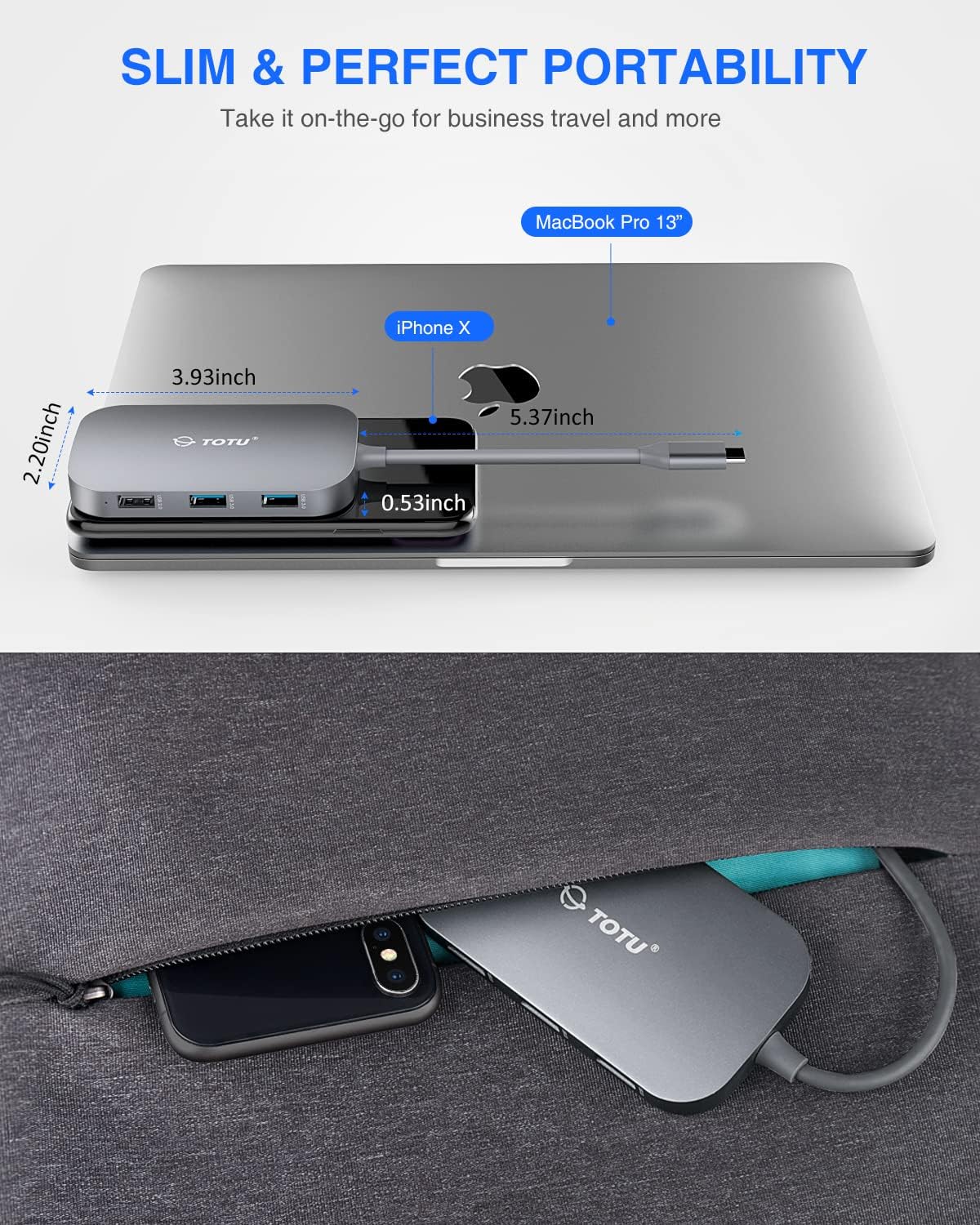
Figure 8: The slim and portable nature of the hub, demonstrating its ease of transport for business or travel.
פּעקל אינהאַלט
ביטע באַשטעטיקן אַז אַלע זאכן זענען פאַראַן אין דיין פּעקל:
- 1 x TOTU USB C Hub
- 1 x באַניצער מאַנואַל
סעטאַפּ
- קאָמפּאַטיביליטי טשעק: Ensure your device's USB-C port supports DisplayPort Alt Mode and Power Delivery. Refer to your device's specifications for compatibility.
- קאָננעקט די הוב: Plug the USB-C connector of the TOTU hub into the USB-C port on your laptop or compatible device.
- מאַכט קאַנעקשאַן (אַפּשאַנאַל): If your laptop requires charging or if you are connecting power-intensive peripherals, connect your laptop's original USB-C power adapter to the USB Type-C Female PD charging port on the hub.
- פאַרבינדן פּעריפעראַלס: Connect your desired peripherals (e.g., HDMI monitor, Ethernet cable, USB drives, SD/TF cards, keyboard, mouse) to the corresponding ports on the hub.
- דרייווער ינסטאַלירונג: The hub is generally plug-and-play. For certain operating systems (e.g., Windows) or specific functions (e.g., Ethernet, SD card reader), manual driver installation might be required if not automatically recognized. Refer to the troubleshooting section if issues arise.
אַפּערייטינג ינסטראַקשאַנז
Once the hub is connected, you can utilize its various ports:
- הדמי פּאָרט: Connect an HDMI cable from the hub to your external monitor, projector, or HDTV. Your device should automatically detect the external display. Adjust display settings (resolution, mirroring/extending) through your operating system's display preferences. Supports up to 4K resolution.
- עטערנעט פּאָרט (RJ-45): Connect an Ethernet cable from your router or modem to the RJ-45 port on the hub for a stable wired network connection. Ensure your device's network settings are configured for wired connection.
- יו-עס-בי 3.0 פּאָרטן (2x): Use these ports for high-speed data transfer with USB 3.0 compatible devices such as external hard drives, SSDs, or high-speed flash drives. They are also backward compatible with USB 2.0/1.1 devices.
- USB 2.0 Port (1x): Ideal for connecting low-bandwidth devices like keyboards, mice, or printers to avoid interference with high-speed USB 3.0 devices.
- USB Type-C PD Charging Port: This port is for power input only. Connect your laptop's USB-C power adapter here to charge your laptop while using the hub. It supports up to 87W power delivery. This port does not support data transfer.
- SD/TF קאַרטל לייענער: Insert your SD or TF (microSD) cards into the respective slots. Both card slots can be used simultaneously for data access. Your device will recognize them as removable storage.
וישאַלט
- רייניקונג: Use a soft, dry cloth to clean the hub. Avoid using liquid cleaners or aerosols.
- סטאָרידזש: האַלט דעם כאַב אין אַ קיל, טרוקן אָרט אַוועק פון דירעקט זונשייַן און עקסטרעמע טעמפּעראַטורן.
- האַנדלינג: Avoid dropping the hub or subjecting it to strong impacts. Do not attempt to disassemble or modify the device.
- פּאָרט קער: Ensure connectors are inserted gently and correctly into the ports to prevent damage.
טראָובלעשאָאָטינג
- קיין דיספּליי אַוטפּוט דורך HDMI:
- Ensure your device's USB-C port supports DisplayPort Alt Mode.
- Check the HDMI cable connection between the hub and the display.
- Verify the input source on your monitor is set to the correct HDMI port.
- פרובירט אן אנדערן HDMI קאבל אדער מאָניטאָר.
- ריסטאַרט דיין קאָמפּיוטער.
- עטערנעט קאַנעקשאַן פּראָבלעמען:
- זייט זיכער אז דער עטערנעט קאַבל איז זיכער פארבונדן צו ביידע דעם כאַב און אייער ראַוטער/מאָדעם.
- קאָנטראָלירט אייער קאָמפּיוטער'ס נעץ סעטטינגס צו זיכער מאַכן אַז די דראָטיקע פֿאַרבינדונג איז ענייבאַלד און קאָנפיגורירט ריכטיק.
- If using Windows, and the Ethernet port is not recognized, you may need to manually install a generic Broadcom NetXtreme driver.
- פּרוּווט אַן אַנדער עטערנעט קאַבל.
- USB דעוויסעס נישט דערקענט:
- Ensure the USB device is properly inserted into the hub's port.
- Try connecting the USB device to a different port on the hub or directly to your computer to rule out device issues.
- Some high-power USB devices may require external power if the hub's PD port is not connected to a power source.
- SD/TF Card Reader Not Working:
- זיכער מאַכן אַז די קאַרטל איז גאָר אַרײַנגעשטעלט אין דעם ריכטיקן שפּאַלט.
- פרובירט אן אנדערע SD/TF קארטל.
- On Windows, if the card reader is not recognized, try reinstalling the generic Microsoft driver and manually assigning a drive letter in Disk Management.
- טשאַרדזשינג פּראָבלעמען (PD פּאָרט):
- Ensure your laptop's original USB-C power adapter is connected to the hub's PD port.
- Verify that your laptop supports USB-C Power Delivery.
- Note that the HDMI output may briefly interrupt (2-3 seconds) if external USB-C power is removed from the hub. This is normal behavior.
ספּעסאַפאַקיישאַנז
| פּראָדוקט דימענשאַנז | 3.93 X 2.2 X 0.53 אינטשעס |
| פּונקט וואָג | 2.4 אונסעס |
| מאָדעל נומער | TT-HB001C |
| סאָרט | TOTU |
| קאָליר | גרוי |
| ייַזנוואַרג צובינד | Ethernet, HDMI, USB, USB 2.0, USB 3.0 |
| ספּעציעלע שטריך | פּאָרטאַטיוו |
| מאַכט עקספּרעס | אַרויף צו 87 וו |
| עטהערנעט ספּיד | 10/100/1000 מבפּס |
| HDMI האַכלאָטע | אַרויף צו 4K |
וואָראַנטי און שטיצן
For warranty information and technical support, please refer to the official TOTU webזייטל אדער קאנטאקט זייער קאסטומער סערוויס. האלט אייער קויף קוויטל פאר גאראנטיע טענות.
You can visit the TOTU Store for more information: TOTU Store on Amazon
Ask a question about this manual
Ask about setup, troubleshooting, compatibility, parts, safety, or missing instructions. Manuals+ will review the question and use this page’s manual context to help answer it.