
1. הקדמה
The Gembird EG-SST-01 is an external DVD±RW drive designed for convenient reading and writing of CD and DVD media. This device connects to your computer via a USB 2.0 interface, offering broad compatibility with various Windows operating systems. Its compact and lightweight design makes it an ideal portable solution for laptops and desktop computers without an integrated optical drive.
This manual provides essential information on setting up, operating, maintaining, and troubleshooting your Gembird EG-SST-01 drive to ensure optimal performance and longevity.
2. פּעקל אינהאַלט
ביטע באַשטעטיקן אַז אַלע זאכן זענען פאַראַן אין דעם פּעקל:
- Gembird EG-SST-01 External DVD±RW Drive (Black)
- וסב קאַנעקשאַן קאַבלע
- באַניצער מאַנואַל
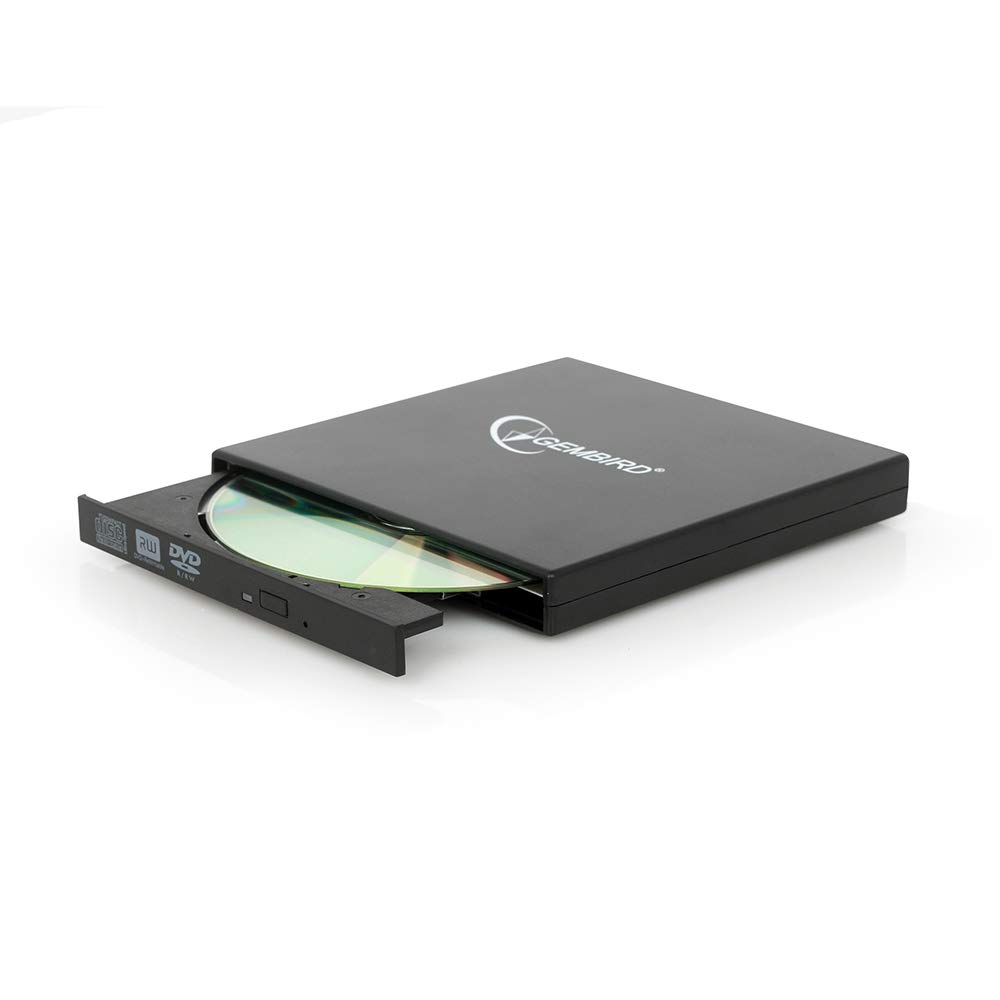
Image: The Gembird EG-SST-01 External DVD±RW Drive in black, shown with its USB connection cable. This image illustrates the compact design and the included accessories.
3. סעטאַפּ אינסטרוקציעס
- פאַרבינדן די דרייוו: Plug the USB cable into the Gembird EG-SST-01 drive and then connect the other end to an available USB 2.0 port on your computer. For optimal performance, use a direct USB port on your computer rather than a USB hub.
- סיסטעם דערקענונג: Your operating system (Windows 7, Windows 8, or Windows 10) should automatically detect and install the necessary drivers for the drive. No manual driver installation is typically required.
- באַשטעטיקן ינסטאַלירונג: Once connected, the drive should appear in 'This PC' or 'My Computer' as a new optical drive. If it does not appear, try connecting to a different USB port or restarting your computer.
4. אַפּערייטינג ינסטרוקטיאָנס
4.1. לאָדן אַ דיסק
- Gently press the eject button on the front of the drive to open the disc tray.
- Place the CD or DVD onto the tray with the label side facing up. Ensure the disc is seated correctly on the spindle.
- שטופּן דעם טאַץ צוריק אין דעם דרייוו ביז עס קליקט זיך צו.
4.2. Reading Discs
- After loading a disc, your computer's operating system may automatically prompt you to choose an action (e.g., play a movie, open files, install software).
- If no prompt appears, navigate to 'This PC' or 'My Computer', locate the optical drive icon, and double-click it to browse the disc's contents.
- The drive supports CD read speeds of up to 24x and DVD read speeds of up to 8x (DVD-ROM).
4.3. Writing Discs
- To write data to a blank CD-R/RW or DVD±R/RW/RAM disc, you will need compatible burning software (not included).
- Insert a blank, writable disc into the drive.
- Follow the instructions provided by your chosen burning software to select files, configure burning options, and start the writing process.
- The drive supports CD-R/RW write speeds of up to 24x and DVD±R/RW write speeds of up to 8x (5x for DVD-R DL, DVD+R DL, and DVD-RAM).
5. וישאַלט
- רייניקונג: Use a soft, dry, lint-free cloth to clean the exterior of the drive. Do not use liquid cleaners or solvents. Avoid opening the drive casing.
- דיסק באַהאַנדלונג: Always handle discs by their edges. Keep discs clean and free from scratches, dust, and fingerprints to ensure reliable reading and writing.
- סטאָרידזש: Store the drive in a cool, dry place away from direct sunlight, extreme temperatures, and high humidity when not in use.
- טראנספארטאציע: When transporting the drive, ensure no disc is inside the tray and the tray is fully closed.
6. טראָובלעשאָאָטינג
- דרייוו נישט דערקענט:
- זייט זיכער אז דער USB קאַבל איז זיכער פארבונדן סיי צום דרייוו און סיי צום קאָמפּיוטער.
- פרובירט צו קאנעקטן דעם דרייוו צו אן אנדערן USB פארט אויף אייער קאמפיוטער.
- ריסטאַרט דיין קאָמפּיוטער.
- Check Device Manager (Windows) to see if the drive is listed without errors.
- Disc Not Reading/Writing:
- Ensure the disc is clean and free from scratches or damage.
- Verify that the disc type (CD-R, DVD-RW, etc.) is compatible with the drive and the operation you are attempting.
- For writing, ensure you are using a blank, writable disc and appropriate burning software.
- פרובירט אן אנדער דיסק צו אויסשליסן א דעפעקטיווע דיסק.
- פּאַמעלעך פאָרשטעלונג:
- Ensure the drive is connected to a USB 2.0 port or higher for optimal data transfer speeds.
- שליסט צו אלע אומנייטיקע אפליקאציעס וואס לויפן אין הינטערגרונט און קענען פארנוצן סיסטעם רעסורסן.
7. ספּעסאַפאַקיישאַנז
| שטריך | באַשרייַבונג |
|---|---|
| מאָדעל נומער | EG-SST-01 |
| פּראָדוקט טיפּ | External DVD±RW Drive |
| צובינד | וסב 2.0 |
| Disc Loading Type | טאַץ |
| קאָליר | שוואַרץ |
| דימענסיעס (L X W X H) | 135 מם רענטגענ 130 מם רענטגענ 17 מם |
| וואָג | 290 ג |
| שטיצט אַפּערייטינג סיסטעמס | Windows 10, Windows 7, Windows 8 |
| CD Write Speed | 24x (CD-R, CD-RW) |
| DVD Write Speed | 8x (DVD+R, DVD-R, DVD+RW, DVD-RW), 5x (DVD-R DL, DVD+R DL, DVD-RAM) |
| CD Read Speed | 24x (CD, CD-R, CD-RW, CD-ROM) |
| DVD Read Speed | 8x (DVD+R, DVD-R, DVD-RW, DVD+RW, DVD-ROM), 6x (DVD-RAM), 4x (Video DVD) |
| Optical Disc Diameter | 80 מם, 120 מם |
| סערטיפיקאַטיאָנס | ISO 9002, CE, RoHS |
8. וואָראַנטי און שטיצן
The Gembird EG-SST-01 External DVD±RW Drive comes with a צוויי-יאָר וואָראַנטי against factory defects. This warranty covers manufacturing faults and material defects under normal use conditions.
For technical support, warranty claims, or further assistance, please contact your retailer or visit the official Gembird website for contact information. Please have your product model number (EG-SST-01) and proof of purchase ready when seeking support.