
הקדמה
Thank you for choosing the MeeTion K9310 Gaming Keyboard. This manual provides detailed instructions for setting up, operating, and maintaining your new keyboard. The K9310 is designed for an enhanced gaming experience with features such as multicolor backlighting, anti-ghosting, and dedicated shortcut keys.
פּעקל אינהאַלט
- MeeTion K9310 Gaming Keyboard
- באַניצער מאַנואַל (דעם דאָקומענט)
סעטאַפּ
Follow these steps to connect your MeeTion K9310 Gaming Keyboard to your computer:
- אַרויספּאַקן די קלאַוויאַטור פֿון איר פּאַקעט.
- געפֿינען אַן בנימצא וסב פּאָרט אויף דיין קאָמפּיוטער.
- שטעקט אריין דעם USB קאַנעקטאָר פֿון דער קלאַוויאַטור אין דעם USB פּאָרט.
- Your operating system (Windows XP/Vista/7/8/10) will automatically detect and install the necessary drivers. No additional software installation is typically required.
- The keyboard is ready for use once the drivers are installed.

בילד: אויבן view of the MeeTion K9310 Gaming Keyboard with its USB cable, ready for connection.
אַפּערייטינג ינסטראַקשאַנז
שליסל פֿעיִקייטן
- Multicolor Key Backlit: The keyboard features vibrant multicolor backlighting for enhanced visibility and aesthetic appeal, especially in low-light conditions.
- Comfortable and Soft Keys: Designed with membrane keys offering tactile feedback, providing a comfortable typing and gaming experience.
- 19 שליסלען אַנטי-גאָוסטינג: This feature ensures that up to 19 keys can be pressed simultaneously without any input loss, crucial for complex gaming commands.
- Win Lock Function with LED Indication: Prevents accidental presses of the Windows key during gameplay, which can interrupt your game. An LED indicator shows when this function is active.
- 12 FN Shortcut Buttons: Access various multimedia and system functions quickly using the Function (FN) key in combination with the F1-F12 keys.
באַקלייט קאָנטראָל
The K9310 keyboard features a multicolor backlight. Specific key combinations may be used to adjust brightness or switch lighting modes. Refer to the keyboard's markings for dedicated backlight control keys, often indicated by a sun or light bulb icon, or through FN key combinations.
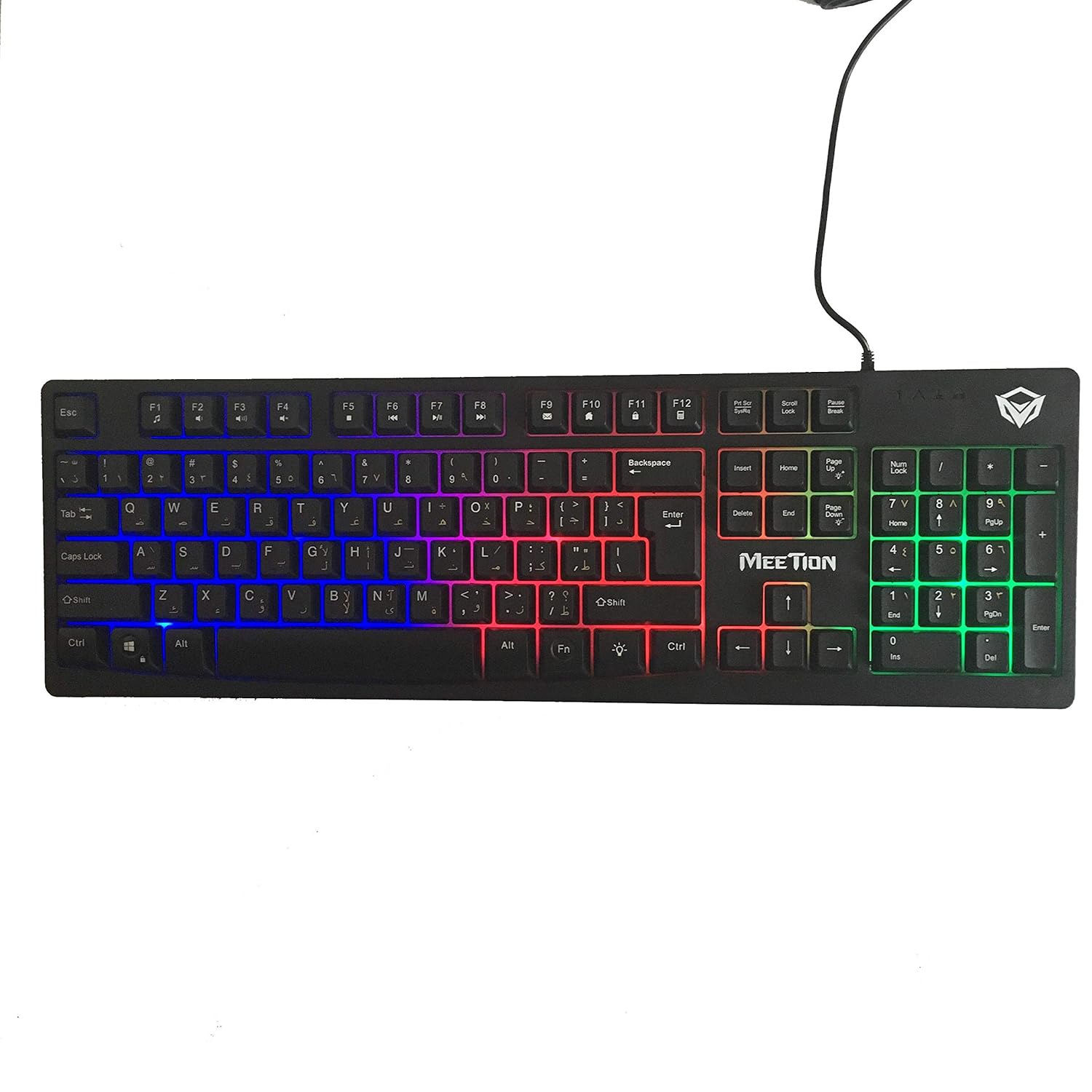
בילד: אויבן view of the MeeTion K9310 Gaming Keyboard with its multicolor backlighting illuminated.
FN Shortcut Functions
The keyboard includes 12 FN (Function) shortcut buttons. To activate these functions, press and hold the FN key, then press the desired F-key (F1-F12).
| שליסל קאָמבינאַציע | פֿונקציע |
|---|---|
| פן + פ1 | מעדיע פּלייַער |
| פן + פ2 | באַנד אַראָפּ |
| פן + פ3 | באַנד אַרויף |
| פן + פ4 | שטום |
| פן + פ5 | האַלטן |
| פן + פ6 | פֿריִערדיקע שפּירט |
| פן + פ7 | שפּיל / פּויזע |
| פן + פ8 | ווייַטער שפּור |
| פן + פ9 | בליצפּאָסט |
| פן + פ10 | Web בלעטערער |
| פן + פ11 | מיין קאָמפּיוטער |
| פן + פ12 | קאַלקולאַטאָר |
Win Lock Function
To activate or deactivate the Windows key lock function, press FN + Win Key. When active, the Windows key will be disabled, preventing accidental presses during gaming. An LED indicator on the keyboard will typically illuminate to show the Win Lock status.
וישאַלט
געהעריגע אויפהאלטונג גאראנטירט די לאנגעוויטי און אפטימאלע פאָרשטעלונג פון אייער קלאַוויאַטור.
- רייניקונג: Use a soft, dry cloth to wipe the surface of the keyboard. For deeper cleaning, a slightly damp מען קען ניצן אַ שטאָף מיט מילדן זייף, און זיכער מאַכן אַז קיין פליסיקייט גייט נישט אַרײַן אין די שליסל-סוויטשעס אָדער אינעווייניקסטע קאָמפּאָנענטן.
- באַזייַטיקונג פון שטויב: ניצט קאמפרעסט לופט צו באזייטיגן שטויב און שמוץ פון צווישן די קנעפלעך.
- ויסמיידן ליקווידס: Do not spill liquids on the keyboard. If a spill occurs, immediately disconnect the keyboard from the computer and allow it to dry completely before reconnecting.
- סטאָרידזש: האַלט די קלאַוויאַטור אין אַ קיל, טרוקן אָרט אַוועק פון דירעקט זונשייַן און עקסטרעמע טעמפּעראַטורן ווען נישט אין באַנוץ פֿאַר לענגערע פּעריאָדן.

בילד: אונטן view of the MeeTion K9310 Gaming Keyboard, showing the product label and rubber feet.
טראָובלעשאָאָטינג
If you encounter issues with your MeeTion K9310 Gaming Keyboard, refer to the following troubleshooting steps:
- קלאַוויאַטור ניט ריספּאַנדינג:
- זייט זיכער אַז דער USB קאַבל איז זיכער אַרייַנגעשטעקט אין אַ אַרבעטנדיקן USB פּאָרט אויף אייער קאָמפּיוטער.
- פרובירט אריינצושטעקן די קלאַוויאַטור אין אַן אַנדער USB פּאָרט.
- ריסטאַרט דיין קאָמפּיוטער.
- פּרובירט די קלאַוויאַטור אויף אַן אַנדער קאָמפּיוטער צו באַשטימען צי די פּראָבלעם איז מיטן קלאַוויאַטור אָדער מיטן קאָמפּיוטער.
- Keys Not Working (e.g., 'W' key):
- Check for any debris or foreign objects lodged under the affected key. Use compressed air to clear it.
- If only specific keys are not responding, and the keyboard is otherwise functional, it might indicate a hardware issue.
- באַקלייט אַרבעט נישט אָדער פליקערט:
- זיכער מאַכן אַז די קלאַוויאַטור איז ריכטיק פֿאַרבונדן.
- Check if the backlight brightness is set to minimum or turned off via FN key combinations.
- If the issue persists, it may indicate a hardware malfunction.
- Win Lock Function Not Working:
- Ensure you are using the correct key combination (FN + Win Key) to toggle the function.
- Check the LED indicator for Win Lock status.
ספּעסאַפאַקיישאַנז
| שטריך | דעטאַל |
|---|---|
| סאָרט | MEETION |
| מאָדעל | K9310 |
| קלאַוויאַטור טיפּ | גיימינג קיבאָרד |
| שליסל קאָנטאַקט | Membrane with tactile feedback |
| אויסלייג | Cyrillic alphabet layout (Windows Keys) |
| אַנטי-גהאָסטינג | 19 שליסלען |
| באַקלייט | מולטיקאָלאָר שליסל באַקלייט |
| Win Lock Function | יאָ, מיט געפירט אָנווייַז |
| FN Shortcut Buttons | 12 |
| Error-Free Running Time | More than 10 million strokes |
| אַס קאַמפּאַטאַבילאַטי | Windows XP/Vista/7/8/10 |
| דימענשאַנז | 17.5 × 5.5 x 1.5 inches (approximate) |
| וואָג | 1.2 פונט (אומגעפער) |
| קאַמפּאַטאַבאַל דעוויסעס | לאַפּטאָפּ (און דעסקטאָפּ פּיסי) |
וואָראַנטי און שטיצן
For warranty information or technical support, please refer to the documentation provided at the time of purchase or visit the official MEETION webזייטל. האַלט דיין קויפן באַווייַז פֿאַר קיין וואָראַנטי קליימז.