
1. פּראָדוקט איבערview
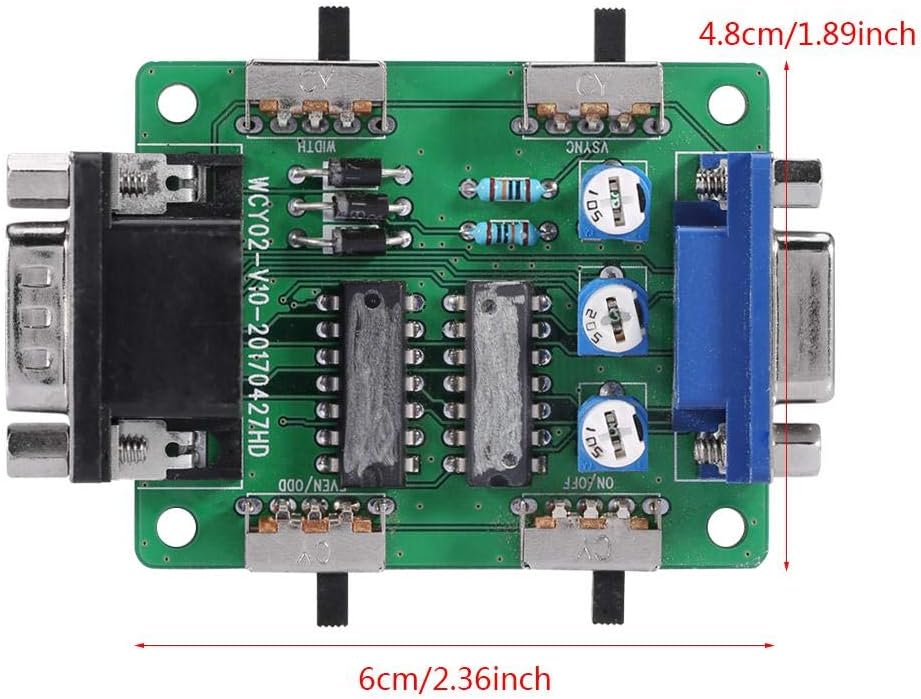
The Walfront Scanner Line Generator is a compact hardware device designed to simulate the classic scanline effect found on older CRT displays. This enhances the visual fidelity of retro games when played on modern LCD or LED monitors, providing a more authentic and nostalgic gaming experience. It is a general-purpose scan line video effect generator for VGA connections.

2. ספּעסאַפאַקיישאַנז
| שטריך | באַשרייַבונג |
|---|---|
| מאָדעל | VC005 |
| צובינד | VGA |
| מאַטעריאַל | מעטאַל, פּלאַסטיק |
| פּונקט וואָג | 0.704 אונסעס (בעערעך 20 ג) |
| דימענשאַנז | Approx. 6cm x 4.8cm (2.36 x 1.89 inches) |
| מאַכט מקור | Corded Electric (via VGA, no external power needed) |
| קאָנטראָללער טיפּ | Button Control (Switches and Potentiometers) |

3. סעטאַפּ גייד
3.1 קאַנעקטינג די מיטל
The Scanner Line Generator is designed for simple plug-and-play operation. No external power supply is required as it draws power directly from the VGA connection.
- Identify the VGA output from your retro gaming console, PC, or other video source.
- Connect the VGA cable from your video source to the "Vedio In" port on the Scanner Line Generator.
- Connect a VGA cable from the "Vedio Out" port on the Scanner Line Generator to your modern LCD monitor or TV.
- מאַכן זיכער אַז אַלע קאַנעקשאַנז זענען זיכער.

4. אַפּערייטינג ינסטרוקטיאָנס
4.1 Understanding the Controls
The device features several switches and potentiometers to fine-tune the scanline effect. Refer to the diagram and table below for a description of each control.

| Switch/Potentiometer | פֿונקציע |
|---|---|
| A (ON/OFF) | Master switch for the scan line effect. Toggles the effect on or off. |
| B (RGB) | Three potentiometers for debugging and adjusting red, green, and blue tricolor components. Use a small screwdriver to adjust. |
| C (ברייט) | Adjusts the width of the scan lines (double or single scan line effect). |
| D (VSYNC) | Resolution adapter switch. May be required to change resolution for optimal effect. |
| E (EVEN/ODD) | Toggles between odd or even scan line patterns. |
4.2 Adjusting Scanline Effects
Once connected, power on your video source and display. The scanline generator will automatically apply the effect. Use the switches and potentiometers to customize the appearance:
- באַשטימען באַשטימען A to enable or disable the scanline effect.
- Experiment with switch C (ברייט) to choose between a subtle or more pronounced scanline appearance.
- If the image appears distorted or incorrect, try adjusting switch D (VSYNC).
- באַשטימען E (EVEN/ODD) can alter the pattern of the scanlines, which might be useful for specific game types or preferences.
- די B (RGB) potentiometers are for advanced color calibration. Adjust these carefully with a small screwdriver if you notice color imbalances.

5. וישאַלט
The Walfront Scanner Line Generator requires minimal maintenance. To ensure longevity and optimal performance:
- האַלט דעם אַפּאַראַט אין אַ טרוקענער, שטויב-פֿרײַער סביבה.
- רייניקט די אויסערליכע זייט מיט א ווייכן, טרוקענעם טוך. פארמיידט ניצן פליסיקע רייניגער אדער שברייענדע מאטעריאלן.
- דו זאלסט נישט ויסשטעלן די מיטל צו עקסטרעם טעמפּעראַטורעס אָדער דירעקט זונשייַן.
- Handle the switches and ports gently to prevent damage.
6. טראָובלעשאָאָטינג
| פּראָבלעם | מעגלעך סיבה | לייזונג |
|---|---|---|
| No scanline effect / Device not working | Loose VGA connections; Switch A (ON/OFF) is off; Incompatible resolution; Finicky switches. | Ensure all VGA cables are securely connected. Toggle switch A to the ON position. Try adjusting switch D (VSYNC). Gently jiggle or firmly press the switches to ensure they engage properly. |
| Image distortion or incorrect colors | Incorrect RGB calibration; Resolution mismatch. | Adjust the B (RGB) potentiometers slightly with a small screwdriver. Try adjusting switch D (VSYNC). Ensure your display is set to a compatible resolution. |
| Scanlines appear too thick or too thin | WIDTH switch setting. | Toggle switch C (WIDTH) to change between double or single scanline effects. |
| Scanlines are not uniform or appear odd | EVEN/ODD switch setting. | Toggle switch E (EVEN/ODD) to alternate the scanline pattern. |
7. וואָראַנטי און שטיצן
7.1 וואָראַנטי אינפֿאָרמאַציע
For information regarding product warranty, please refer to the terms and conditions provided at the time of purchase or contact your retailer. Walfront is committed to providing quality products and customer satisfaction.
7.2 קונה שטיצן
If you encounter any issues not covered in this manual or require further assistance, please contact Walfront customer support through the platform where you purchased the product. You can also visit the official Walfront store on Amazon for more information and contact options: Walfront Amazon Store.