
הקדמה
This manual provides comprehensive instructions for the setup, operation, and maintenance of your NETUM NT-R3 Mini 1D CCD Bluetooth Barcode Scanner. Please read this guide thoroughly to ensure proper use and to maximize the performance of your device.
פּעקל אינהאַלט
ביים אויספּאַקן, ביטע באַשטעטיקן אַז אַלע זאכן וואָס זענען ליסטעד אונטן זענען פאַראַן און אין גוטן צושטאַנד:
- 1 x NETUM Mini Bluetooth Barcode Scanner (NT-R3)
- 1 x וסב טשאַרדזשינג קאַבלע
- 1 x שנעל אָנהייב גייד
- 1 x 2.4 GHz Adapter
פּראָדוקט איבערview
The NETUM NT-R3 is a compact and versatile 1D CCD barcode scanner designed for portability and ease of use. Its ring-style design allows for comfortable wear, enhancing productivity in various environments.

Image: The NETUM NT-R3 Mini Barcode Scanner, a small black electronic device with a screen and button, designed to be worn on a finger with an adjustable ring structure.
שליסל פֿעיִקייטן:
- Ring Design: Magnesium alloy casing and trigger for durability and ease of use.
- 180° ראָוטיישאַן: Unique rotatable design for scanning from various angles.
- CCD Scanning: Reads 1D barcodes directly from LCD screens of computers or mobile devices, including poorly printed or damaged barcodes.
- ווירעלעסס קאַנעקטיוויטי: Supports Bluetooth (SPP, HID) and 2.4 GHz wireless connections.
- ברייט קאַמפּאַטאַבילאַטי: Compatible with Windows XP/7/8/8.1/10, Google Android, iOS, and Mac OS X.
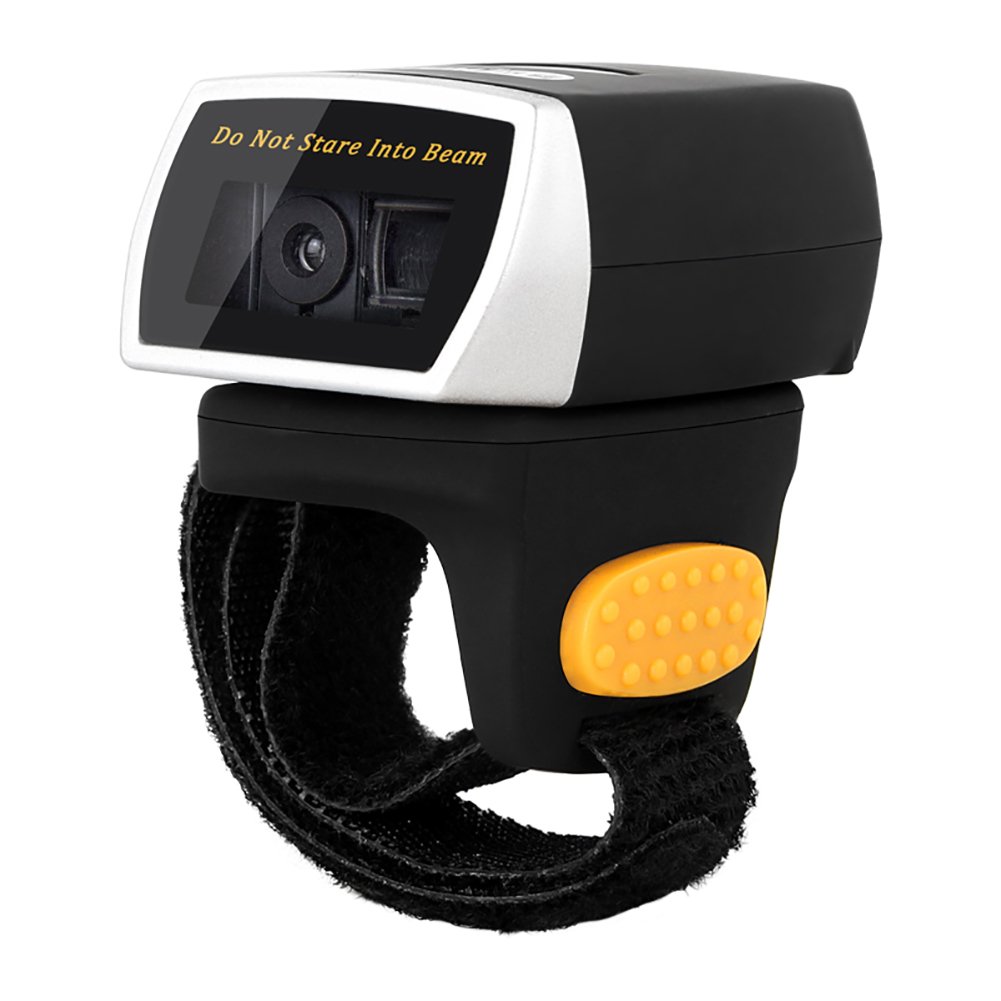
Image: The NETUM NT-R3 Mini Barcode Scanner demonstrating its 180-degree rotation design, allowing for flexible scanning angles.

Image: The NETUM NT-R3 Mini Barcode Scanner held in a hand, illustrating its compact dimensions (50mm x 44mm x 38mm) and light weight (50g), emphasizing its strong compatibility with various devices.
סעטאַפּ און קאַנעקטיוויטי
1. אויפלאָדן דעם סקאַנער
Before initial use, fully charge the scanner using the provided USB charging cable. Connect the small end of the USB cable to the scanner's charging port and the other end to a USB power source (e.g., computer, USB wall adapter). The charging indicator light will show the charging status.
2. פּאָווערינג אויף / אויסגעלאשן
To power on the scanner, press and hold the trigger button for a few seconds until you hear a beep and see the indicator light. To power off, press and hold the trigger button again until the indicator light turns off.
3. קאַנעקטיוויטי אָפּציעס
The NT-R3 scanner offers two primary connectivity methods:
Bluetooth Connection (HID Mode - Keyboard Emulation)
- זייט זיכער אז דער סקאַנער איז אנגעצינדן.
- Scan the "Bluetooth HID Mode" barcode (refer to the Quick Start Guide for specific barcodes).
- אויף אייער באַלעבאָס מיטל (סמאַרטפאָן, טאַבלעט, קאָמפּיוטער), אַקטיווירן בלועטוט און זוכן פֿאַר בנימצא דעוויסעס.
- Select "NETUM Barcode Scanner" or a similar name from the list of devices.
- The scanner will beep to confirm successful pairing.
In HID mode, scanned barcodes are input directly as keyboard entries into any active text field.
Bluetooth Connection (SPP Mode - Serial Port Profile)
SPP mode is typically used for applications that require direct data communication with the scanner. This mode requires specific software on the host device to interpret the data. Refer to your application's documentation for SPP setup.
- זייט זיכער אז דער סקאַנער איז אנגעצינדן.
- Scan the "Bluetooth SPP Mode" barcode (refer to the Quick Start Guide).
- Follow the instructions provided by your specific application for connecting to an SPP device.
2.4 גהז ווירעלעסס קאַנעקשאַן
- Plug the provided 2.4 GHz adapter into a USB port on your computer.
- זייט זיכער אז דער סקאַנער איז אנגעצינדן.
- Scan the "2.4G Wireless Mode" barcode (refer to the Quick Start Guide).
- The scanner will automatically connect to the adapter. A successful connection is indicated by a specific beep or light pattern (refer to the Quick Start Guide for details).
The 2.4 GHz connection offers a wireless range of up to 10 meters (30 feet).
אַפּערייטינג מאָדעס
The NETUM NT-R3 scanner supports two data upload modes:
1. אינסטאַנט אַפּלאָוד מאָדע
In this mode, scanned barcodes are immediately transmitted to your connected device. This is suitable for real-time data entry.
2. סטאָרידזש מאָדע
The scanner can store up to 2000 barcodes in its built-in flash memory. This mode is useful when working out of range of your host device. Barcodes can be uploaded later when a connection is established.
Image: A visual representation of the two upload modes. Instant Upload Mode shows barcodes being sent directly to a device. Storage Mode shows barcodes being stored internally and then uploaded later.
To switch between modes, scan the corresponding configuration barcodes found in the Quick Start Guide.
סקאַנינג באַרקאָדעס
צו יבערקוקן אַ באַרקאָדע:
- האַלט דעם סקאַנער מיטן סקאַנינג פֿענצטער קעגן דעם באַרקאָד.
- Press the trigger button. A red scanning line will appear.
- Align the red scanning line across the entire barcode.
- Once successfully scanned, the scanner will emit a beep, and the indicator light will flash.
The NT-R3 is capable of reading 1D barcodes from various surfaces, including:
- געדרוקט לאַבעלס
- LCD screens (computers, smartphones, tablets)
- Poorly printed or damaged barcodes
וישאַלט
באַטערי קער
- כדי צו פארלענגערן די לעבן פון די באַטעריע, זאָל מען נישט אָפט אויסלאָדן די באַטעריע גאָר.
- לאָדט דעם סקאַנער רעגולער אויף, אפילו אויב עס ווערט נישט גענוצט קעסיידער.
- האַלט דעם סקאַנער אין אַ קיל, טרוקן אָרט ווען עס איז נישט אין באַנוץ פֿאַר לענגערע פּעריאָדן.
רייניקונג
- Use a soft, dry, lint-free cloth to clean the scanner's exterior.
- פֿאַר די סקאַנינג פֿענצטער, ניצט אַ לינז רייניקונג שטאָף אָדער אַ ווייכע שטאָף לייכט געווישטampגעוואשן מיט וואַסער אָדער אַ מילד, נישט-אַברייזיוו רייניגער.
- Do not use harsh chemicals, solvents, or abrasive materials, as these can damage the device.
טראָובלעשאָאָטינג
| פּראָבלעם | מעגלעך סיבה | לייזונג |
|---|---|---|
| דער סקאַנער גייט נישט אָן. | נידעריק באַטאַרייע. | לאָדט אויף דעם סקאַנער פֿאַר מינדעסטנס 2 שעה. |
| דער סקאַנער פֿאַרבינדט זיך נישט דורך בלוטוט. | Incorrect mode selected; device not discoverable; out of range. | Ensure "Bluetooth HID Mode" or "SPP Mode" is scanned. Make sure Bluetooth is enabled on the host device and the scanner is within 10 meters. Try re-pairing. |
| Scanner does not connect via 2.4 GHz adapter. | Adapter not properly inserted; incorrect mode selected. | Ensure the 2.4 GHz adapter is securely plugged in. Scan the "2.4G Wireless Mode" barcode. |
| דער סקאַנער לייענט נישט קיין באַרקאָודז. | Barcode is unreadable; scanner not aligned; scanner in storage mode. | Ensure the barcode is clear and well-lit. Align the red line across the entire barcode. If in storage mode, switch to instant upload mode or upload stored data. |
| סקענירטע דאַטן דערשייַנען פאַלש. | Keyboard layout mismatch (for HID mode). | Scan the appropriate keyboard layout barcode (e.g., US, UK, French) from the Quick Start Guide. |
טעכניש ספּעסאַפאַקיישאַנז
| שטריך | דעטאַל |
|---|---|
| מאָדעל נומער | NT-R3 |
| סקאַנינג טעכנאָלאָגיע | 1D CCD |
| קאַנעקטיוויטי | Bluetooth (SPP, HID), 2.4 GHz Wireless, USB |
| קאַמפּאַטאַבאַל אַפּערייטינג סיסטעמס | Windows XP/7/8/8.1/10, Google Android, iOS, Mac OS X |
| סקאַן קורס | 260 סampליי פּער סעקונדע |
| סטאָרידזש קאַפּאַסיטי | ביז 2000 באַרקאָודז (אין סטאָרידזש מאָדע) |
| באַטערי טיפּ | 1 Lithium metal battery (included) |
| מאַכט מקור | באַטאַרייע פּאַוערד |
| אַפּערייטינג וואָלtage | 5 וואלטס |
| מאַקסימום סטאָרידזש טעמפּעראַטור | 45 דיגריז סעלסיוס |
| סערטיפיקאַטיאָנס | CE, ISO, RoHS |
| פאַבריקאַנט | Guangzhou Netum Electronic Technology Co.,Ltd. |
| לאַנד פון אָריגין | כינע |
וואָראַנטי און שטיצן
צוריקקומען פּאָליטיק
This product is eligible for a refund or replacement within 30 days of purchase, in accordance with the seller's return policy.
פאַבריקאַנט אינפֿאָרמאַציע
Manufacturer: Guangzhou Netum Electronic Technology Co.,Ltd.
For further assistance or technical support, please refer to the contact information provided in your Quick Start Guide or visit the official NETUM webפּלאַץ.
Note: Information regarding spare parts availability and guaranteed software updates is not available at this time.