
EinCar BR.AN60218GNN1
EinCar Android 10 Car Stereo User Manual
Model: BR.AN60218GNN1
Brand: EinCar
הקדמה
This manual provides detailed instructions for the installation, operation, and maintenance of your EinCar Android 10 Car Stereo. Please read this manual thoroughly before using the product to ensure proper functionality and safety. Keep this manual for future reference.
זיכערקייַט אינפֿאָרמאַציע
- ניצט נישט דעם אפאראט אויף א וועג וואס וועט אייך אפlenken פונעם דרייווינג. שטעלט שטענדיג אין פריאריטעט פאר וועג זיכערהייט.
- Ensure all wiring is correctly connected to prevent short circuits or damage. Consult a professional for installation if unsure.
- פֿאַרמײַדט אויסשטעלן דעם אַפּאַראַט צו עקסטרעמע טעמפּעראַטורן, דירעקטע זונשײַן פֿאַר פֿאַרלענגערטע פּעריאָדן, אָדער איבערגעטריבענע פֿײַכטקייט.
- פרובירט נישט צו צענעמען אדער מאדיפיצירן דעם איינהייט. דאס קען בטל מאכן די גאראנטיע און שאפן שאדן.
- Keep the volume at a level that allows you to hear external traffic sounds.
פּעקל אינהאַלט
באַשטעטיקן אַז אַלע זאכן זענען פאַראַן אין פּעקל:
- EinCar Android 10 Car Stereo Head Unit (10.1-inch display)
- גפּס אַנטענע
- מאַכט האַרנעסס
- וסב קאַבלעס
- RCA קאַבלעס
- עקסטערנער מיקראָפאָן (אויב אַרייַנגערעכנט)
- דערציען View Camera (with necessary cables)
- מאַונטינג קלאַמערן און שרויפן
- באַניצער מאַנואַל
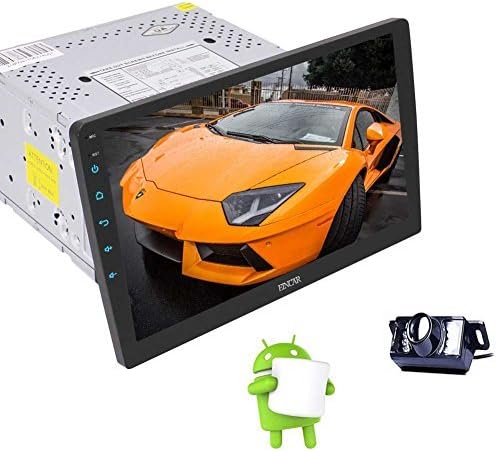
Image: The EinCar Android 10 Car Stereo head unit, featuring a 10.1-inch display, shown alongside a backup camera and the Android operating system logo, representing the main components of the product.
ינסטאַללאַטיאָן גייד
1. פאַר-ינסטאַלירונג טשעקס
- דיסקאָנעקט די נעגאַטיווע באַטאַרייע טערמינאַל פון די פאָרמיטל איידער איר אָנהייבן די ינסטאַלירונג.
- Ensure the mounting space in your dashboard is compatible with a double DIN unit.
- Test all functions of the unit before final installation.
2. וויירינג קאַנעקשאַנז
Connect the power harness, speaker wires, and other accessory wires according to your vehicle's wiring diagram and the stereo's labels. Common connections include:
- געל: 12V Constant Power
- רויט: 12V Accessory Power (Ignition Switched)
- שווארצע: ערד
- מאַראַנץ: Illumination/Dimmer
- בלוי: מאַכט אַנטענע/Ampלייפיער ווײַט־אײַנצושטעלן
- ברוין: שטיר-ראָד קאָנטראָל (SWC)
- Reverse Gear Wire: Connect to vehicle's reverse light signal for automatic camera display.
3. דזשי-פי-עס אַנטענע אינסטאַלאַציע
מאָנטירט די דזשי-פּי-עס אַנטענע אין אַ אָרט מיט אַ קלאָרן view of the sky, such as on the dashboard or under the windshield, away from metal obstructions.
4. דערציען View אַפּאַראַט ינסטאַלירונג
ינסטאַלירן די דערציען view camera at the back of your vehicle, ensuring it has a clear view. Connect its power to the reverse light circuit and the video signal to the dedicated camera input on the head unit.
5. Mounting the Head Unit
Secure the head unit into the dashboard using the provided mounting brackets and screws. Ensure the display is positioned correctly and can be adjusted if it features a rotating mechanism.
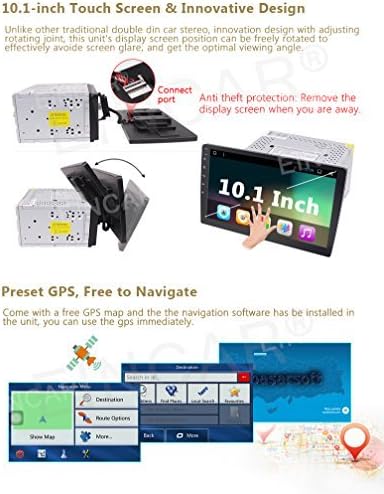
Image: The 10.1-inch display of the EinCar car stereo, demonstrating its rotating screen capability and the anti-theft feature where the display can be detached from the main unit.
ערשט סעטאַפּ און קאַנפיגיעריישאַן
1. ערשטער מאַכט אויף
After installation, reconnect the vehicle's battery. The unit should power on automatically or by pressing the power button. Follow any on-screen prompts for initial language and time zone settings.
2. נעץ פֿאַרבינדונג (Wi-Fi)
To access online features and download apps, connect the unit to a Wi-Fi hotspot (e.g., from your smartphone). Go to סעטטינגס> נעץ און אינטערנעט> ווי-פי, אויסקלייבן אייער נעץ, און אריינגעבן דאס פאסווארט.
3. GPS Configuration
Ensure the GPS antenna is properly connected. Open the pre-installed navigation application. The system will acquire satellite signals. You may need to download map data for offline use if not already pre-loaded.

Image: A visual representation of the EinCar car stereo's Android operating system interface, highlighting the quick settings menu accessible by swiping down from the top of the screen.
אַפּערייטינג ינסטראַקשאַנז
1. Basic Interface Navigation
The 10.1-inch touchscreen allows for intuitive control. Swipe, tap, and drag just like a smartphone. The home screen provides access to frequently used applications. Swipe down from the top of the screen to access quick settings and notifications.
2. דזשי-פי-עס נאַוויגאַציע
Tap the "Navigation" icon on the home screen to launch the GPS application. Enter your destination, and the system will provide turn-by-turn voice guidance and visual map directions. Ensure map data is up-to-date for optimal performance.
3. בלועטאָאָטה קאַנעקטיוויטי
צוזאמענשטעלן א דעווייס:
- גיין צו סעטטינגס> קאָננעקטעד דעוויסעס> פּאָר נייַ מיטל.
- געבן בלועטאָאָטה אויף דיין רירעוודיק מיטל און זוכן פֿאַר בנימצא דעוויסעס.
- Select "EinCar" or a similar name from the list on your phone.
- באַשטעטיקן דעם פּערינג קאָד אויף ביידע דעוויסעס.
4. עפעם / בין ראַדיאָ
Tap the "Radio" icon. Use the on-screen controls to scan for stations, save presets, and switch between FM and AM bands. Ensure the radio antenna is properly connected for clear reception.
5. Media Playback (USB/SD/Mirrorlink)
- USB/SD: Insert a USB drive or SD card into the designated port/slot. The system will automatically detect media fileניצט די "מוזיק" אדער "ווידעא" אפליקאציע צו בלעטערן און שפילן אינהאלט.
- שפּיגל לינק: Connect your smartphone via USB and follow the on-screen instructions to enable screen mirroring. This allows your phone's display to be shown on the car stereo screen.
6. דערציען View אַפּאַראַט
When the vehicle is shifted into reverse gear, the display will automatically switch to the rear view camera feed, providing a clear view פון די געגנט הינטער דיין פאָרמיטל.
7. Wi-Fi and App Installation
Once connected to Wi-Fi, you can access the Google Play Store to download and install various applications, including navigation apps, music streaming services, and more.
8. שטיר-ראד קאנטראל (SWC)
If your vehicle supports it and the SWC wires are connected, you can configure the steering wheel buttons to control functions like volume, track skipping, and mode switching. Access the SWC settings in the system menu to program the buttons.
וישאַלט
- רייניקונג די פאַרשטעלן: ניצט אַ ווייכע, לינט-פֿרייע שטאָף צו פֿאָרזיכטיק ווישן דעם טאָוטשסקרין. פֿאַר שווערע פֿלעקן, אַ ביסל ווישןampen the cloth with water or a screen cleaner designed for electronics. Avoid harsh chemicals.
- ווייכווארג דערהייַנטיקונגען: Periodically check for system software updates via the settings menu to ensure optimal performance and access to new features. A stable Wi-Fi connection is required for updates.
- אַלגעמיינע זאָרגן: האַלט דעם אַפּאַראַט פריי פון שטויב און שמוץ. פֿאַרמייַדט צו שטעלן שווערע זאַכן אויף דעם אַפּאַראַט אָדער עס אויסשטעלן צו דירעקטע קלאַפּן.
טראָובלעשאָאָטינג
| פּראָבלעם | מעגלעך סיבה | לייזונג |
|---|---|---|
| דער אַפּאַראַט טוט נישט מאַכט אויף. | Incorrect wiring (power/ground), blown fuse, vehicle battery disconnected. | Check power and ground connections. Inspect vehicle fuses. Ensure battery is connected. |
| קיין געזונט פון ספּיקערז. | Speaker wires incorrectly connected, volume too low, mute activated, ampליפיער אַרויסגעבן. | Verify speaker wiring. Increase volume. Check if mute is active. Ensure external ampדער לײַפייער (אויב גענוצט) איז באַטריבן. |
| גפּס סיגנאַל ניט געפֿונען. | GPS antenna not connected, antenna obstructed, unit in an area with poor satellite reception. | Ensure GPS antenna is securely connected and placed with a clear view פון הימל. גיי אריבער צו אן אפענעם ארט. |
| בלועטוט דעווייס קען נישט פארבינדן. | Bluetooth not enabled on unit or phone, device already paired, incorrect pairing code. | Ensure Bluetooth is active on both devices. Delete previous pairings and try again. Verify pairing code. |
| דערציען view camera not displaying. | Camera not powered, video cable loose, reverse trigger wire not connected. | Check camera power and video connections. Ensure the reverse trigger wire is correctly connected to the vehicle's reverse light signal. |
ספּעסאַפאַקיישאַנז
| שטריך | דעטאַל |
|---|---|
| אָפּערייטינג סיסטעם | אַנדרויד 10.0 |
| פּראַסעסער | קוואַד-קאָר |
| באַראַן | 2 גיגאבייט |
| אינערלעכער סטאָרידזש (ראַם) | 16 גיגאבייט |
| פאַרשטעלן גרייס | 10.1 אינטשעס |
| ווייַז טיפּ | LCD, Touchscreen |
| שאַסי גרייס | Double DIN (Note: Product title and description indicate Double DIN, while one spec entry states Single DIN. Double DIN is assumed based on primary product description.) |
| גפּס נאַוויגאַציע | Built-in, Satellite Map Type |
| בלועטאָאָטה | Yes (Hands-free calling, music streaming, OBD2, SWC support) |
| ווי-פי | Built-in module for hotspot connection |
| ראַדיאָ טונער | FM/AM ופנעמער |
| מידיאַ פּלייַבאַקק | USB, SD, Mirrorlink, AAC, FLAC, MP3, WMA |
| ווידעא רעזולטאַט | Support for headrest monitors |
| דערציען View אַפּאַראַט | Included, IP67 waterproof, night vision |
| פּונקט וואָג | 6.46 פונט |
| פּעקל דימענשאַנז | 12.95 X 9.76 X 9.29 אינטשעס |