
1. הקדמה
This manual provides essential information for the safe and efficient operation of your Vestel ST49U01 49-inch Full HD LED Digital Signage Flat Panel. Please read this manual thoroughly before using the product and retain it for future reference. This display is designed for professional digital signage applications, offering a vibrant Full HD resolution and versatile connectivity options.
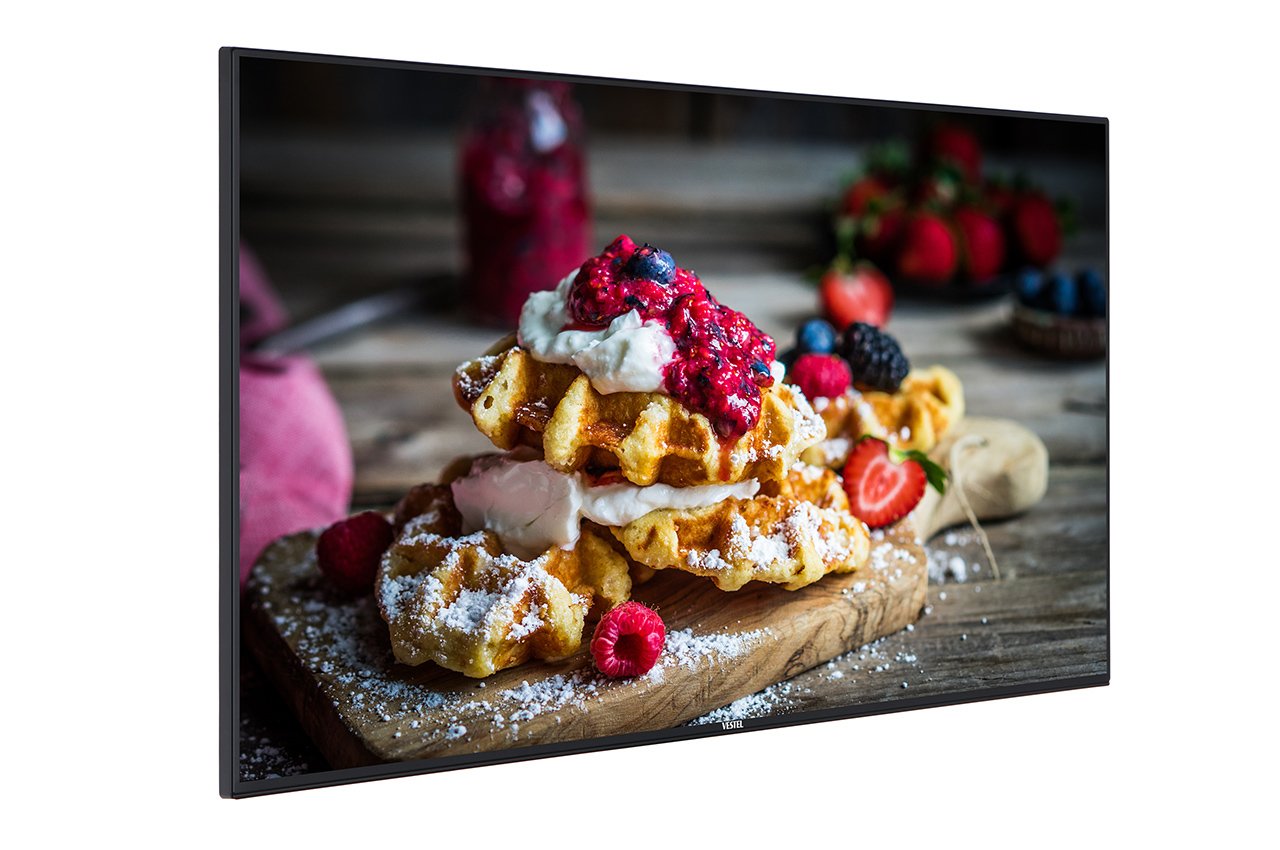
Figure 1: Vestel ST49U01 Digital Signage Flat Panel. This image shows the front view of the 49-inch display, highlighting its slim bezel and large screen area suitable for various digital signage content.
2. זיכערקייַט אינסטרוקציעס
כדי צו זיכער מאַכן זיכערע אָפּעראַציע און פאַרמייַדן שאָדן, זאָל מען אָבסערווירן די פאלגענדע זיכערהייט מיטלען:
- מאַכט מקור: פֿאַרבינדט דעם עקראַן נאָר צו אַ געערדטער עלעקטרישער אַוטלעט מיטן ריכטיקן וואָלומעןtagE ווי אנגעוויזן אויף די פּראָדוקט פירמע.
- ווענטילאַטיאָן: בלאָקירט נישט די ווענטילאַציע עפענונגען. זאָרגט פֿאַר גענוג פּלאַץ אַרום דעם עקראַן פֿאַר געהעריקן לופֿטפֿלוס כּדי צו פֿאַרמייַדן איבערהיצונג.
- פליסיק ויסשטעלן: Keep the display away from liquids. Do not expose it to rain or moisture.
- רייניקונג: Unplug the display before cleaning. Use a soft, dry cloth. Avoid liquid cleaners or aerosol sprays.
- מאָונטינג: Use appropriate mounting hardware and follow installation instructions carefully. Ensure the mounting surface can support the display's weight.
- סערוויס: דו זאלסט נישט פּרווון צו דינען דעם פּראָדוקט זיך. קאָנטאַקט אַלע קוואַלאַפייד סערוויס פּערסאַנעל.
- טעמפּעראַטור: Operate the display within the specified temperature range. Avoid extreme heat or cold.
3. פּעקל אינהאַלט
באַשטעטיקן אַז אַלע זאכן זענען פאַראַן אין פּעקל:
- Vestel ST49U01 Digital Signage Flat Panel
- מאַכט קאַבלע
- ווייַט קאָנטראָל מיט באַטעריז
- שנעל אָנהייב גייד
- וואָראַנטי קאַרד
- HDMI קאַבל (קען זיין אַנדערש לויט ראַיאָן)
באַמערקונג: If any items are missing or damaged, contact your retailer or Vestel customer support immediately.
4. סעטאַפּ
4.1 אַנפּאַקינג
- קערפאַלי אַראָפּנעמען די אַרויסווייַזן פון זייַן פּאַקקאַגינג.
- Place the display face down on a soft, clean surface to avoid scratching the screen.
4.2 מאָנטירן דעם דיספּלעי
The Vestel ST49U01 supports VESA mounting standards for wall mounts or stands. Refer to the specific instructions provided with your mounting kit.
- Ensure the mounting bracket is compatible with the display's VESA pattern (e.g., 400x400mm).
- Use screws of appropriate length and diameter to secure the bracket to the display.
- Mount the display securely to a sturdy wall or stand, ensuring it is level and stable.
4.3 קאַנעקטינג פּעריפעראַלס
Connect your input sources and network cables to the appropriate ports on the display's rear panel.
- הדמי: Connect an HDMI cable from your media player or computer to one of the display's HDMI ports. The display has 2 HDMI ports.
- עטהערנעט: For wired network connectivity, connect an Ethernet cable to the LAN port.
- וסב: For local content playback or firmware updates, insert a USB storage device into the USB port.
- מאַכט: פֿאַרבינדט דעם מאַכט קאַבל צום עקראַן'ס מאַכט אַרייַנגאַנג און דערנאָך צו אַ געערדטער עלעקטרישער ווענטיל.
4.4 ערשט מאַכט-אויף
- מאַכן זיכער אַז אַלע קאַנעקשאַנז זענען זיכער.
- דריק דעם מאַכט קנעפּל אויף דעם עקראַן אָדער די ווייַט קאָנטראָל.
- Follow the on-screen prompts for initial setup, including language selection, time zone, and network configuration.
5. אפערירן דעם דיספלעי
5.1 יקערדיק קאָנטראָלס
The display can be controlled using the physical buttons on the unit or the included remote control.
- מאַכט קנעפּל: טורנס אָדער דיסייבאַל די אַרויסווייַזן.
- אַרייַנגאַנג/מקור קנעפּל: Cycles through available input sources (HDMI1, HDMI2, USB, etc.).
- מעניו קנעפּל: גייט אריין אין דעם אויף-סקרין דיספּלעי (OSD) מעניו.
- נאַוויגאַציע קנעפּלעך: Used to navigate through OSD menu options.
- באַנד קנעפּלעך: Adjusts the audio volume (if speakers are connected or built-in).
5.2 אויף-סקרין ווייַז (אָסד) מעניו
The OSD menu allows you to configure various display settings:
- דרוק די מעניו button on the remote control or display.
- Use the navigation buttons to select categories such as בילד, געזונט, נעץ, סיסטעם, און Signage Settings.
- דרוק OK or the right navigation button to enter a sub-menu.
- Adjust settings using the navigation buttons and confirm with OK.
- דרוק אַרויסגאַנג or מעניו נאכאמאל צו פארמאכן די OSD.
5.3 Digital Signage Features
The ST49U01 is designed for digital signage. Key features include:
- Content Scheduling: Set schedules for content playback via the internal media player or connected external sources.
- נעץ פאַרוואַלטונג: Configure network settings (wired Ethernet or Wi-Fi) to manage content remotely.
- וסב פּלייַבאַקק: שפּיל מעדיע files גלייַך פֿון אַ וסב סטאָרידזש מיטל.
- Input Source Management: Automatically switch between input sources based on schedule or signal detection.
6. וישאַלט
6.1 רייניקונג די ווייַז
- Turn off the display and unplug the power cable.
- ווישט אָפּ דעם עקראַן מיט אַ ווייכן, לינט-פֿרײַעם שטאָף. פֿאַר שווערע פֿלעקן, ווישט אַ ביסלampen the cloth with water or a specialized screen cleaner (non-ammonia based).
- Wipe the frame and back panel with a dry, soft cloth.
- Do not spray cleaners directly onto the screen or into ventilation openings.
6.2 אַלגעמיינע קער
- פֿאַרמײַדט צו שטעלן שווערע זאַכן אויף דעם עקראַן.
- Do not expose the display to direct sunlight for extended periods.
- פאַרזיכערן געהעריק ווענאַליישאַן צו פאַרמייַדן היץ בויען.
7. טראָובלעשאָאָטינג
איידער איר קאָנטאַקטירט קונה שטיצע, פּרוּווט די פאלגענדע לייזונגען פֿאַר געוויינטלעכע פּראָבלעמען:
| פּראָבלעם | מעגלעך סיבה | לייזונג |
|---|---|---|
| קיין מאַכט | Power cable not connected; Power outlet faulty; Display off | Check power cable connection; Try a different outlet; Press the power button |
| קיין סיגנאַל | Incorrect input source selected; Input cable loose or faulty; Source device off | Select correct input source; Check/replace input cable; Ensure source device is on |
| Picture is distorted or unclear | Resolution mismatch; Cable quality; Source device issue | Adjust source device resolution to 1920x1080; Use a high-quality HDMI cable; Test with another source device |
| נעץ פֿאַרבינדונג פּראָבלעמען | Ethernet cable loose; Wi-Fi password incorrect; Router/modem issue | Check Ethernet cable; Re-enter Wi-Fi password; Restart router/modem |
If the problem persists after trying these solutions, contact Vestel customer support.
8. ספּעסאַפאַקיישאַנז
| שטריך | דעטאַל |
|---|---|
| סאָרט | וועסטעל |
| מאָדעל נומער | ST49U01 |
| פאַרשטעלן גרייס | 49 אינטשעס (124.5 סענטימעטער) |
| ווייַז טעכנאָלאָגיע | געפירט |
| האַכלאָטע | 1920 רענטגענ 1080 (פול הד) |
| מאַקסימום דיספּליי רעזאָלוציע | 1920 רענטגענ 1080 פּיקסעלס |
| אַספּעקט פאַרהעלטעניש | 16:9 |
| ענטפער צייט | 6 מיליסעקאַנדז |
| Viewינג אַנגלע | 170 דיגריז |
| קאַנעקטיוויטי טעכנאָלאָגיע | עטהערנעט |
| ייַזנוואַרג קאַנעקטיוויטי | USB, HDMI (2 ports) |
| פּונקט וואָג | 35.05 פונט (אומגעפער 15.9 ק"ג) |
| ASIN | B07489H8R5 |
| אינטערנאציאנאלער ארטיקל קאוד | 03700410340761 |
9. וואָראַנטי און שטיצן
For warranty information, please refer to the warranty card included in your product package or visit the official Vestel webזייטל. האַלט דיין קויפן באַווייַז פֿאַר וואָראַנטי קליימז.
For technical support, service, or replacement parts, please contact Vestel customer service through their official channels. Contact details can typically be found on the Vestel webוועבזייטל אדער אין אייער פּראָדוקט דאָקומענטאַציע.