
1. הקדמה
This manual provides essential information for the safe and efficient operation of your Xerox AltaLink C8030 Multifunction Printer. Please read these instructions carefully before using the device and retain them for future reference. This device integrates printing, scanning, copying, and faxing capabilities to support various office tasks.
2. זיכערקייַט אינפֿאָרמאַציע
Always follow basic safety precautions to reduce the risk of fire, electric shock, and injury. Ensure the device is connected to a grounded power outlet. Do not block ventilation openings. Keep the device away from water and excessive humidity. Refer to the safety labels on the product for specific warnings.
3. פּראָדוקט איבערview
The Xerox AltaLink C8030 is a color multifunction printer designed for high-volume office environments. It features a 10-inch touchscreen for intuitive navigation and control. Key capabilities include:
- Print Speed: Up to 30 pages per minute (ppm) for both color and monochrome.
- Copy Resolution: 600 x 600 DPI.
- Memory: 8 GB RAM, 1 GB RAM, 250 GB HDD.
- Connectivity: NFC, Wireless, USB.
- Paper Supply: Multiple trays including 2 x 520-sheet trays, a 2,000-sheet high-capacity tandem tray, and a 100-sheet bypass tray.
- Features: Single Pass DADF, Data Security, Job Accounting, PostScript Kit, Network Scanning, Server Fax, iFax, Standard Output Tray, Office Finisher LX.
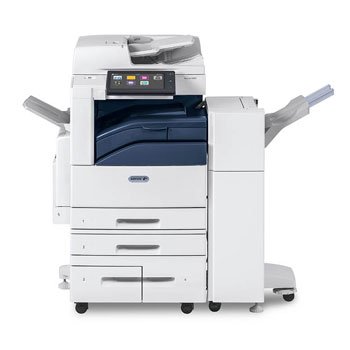
בילד: פראָנט view of the Xerox AltaLink C8030 multifunction printer, showing its various paper trays and the integrated touchscreen control panel.
4. סעטאַפּ
4.1 אַנפּאַקינג און פּלייסמאַנט
- קערפאַלי אַראָפּנעמען די דרוקער פון זייַן פּאַקקאַגינג.
- שטעלט דעם דרוקער אויף א סטאַבילער, גלייכער ייבערפלאַך מיט גענוג ווענטילאַציע.
- Ensure sufficient space around the printer for maintenance and paper loading.
4.2 מאַכט קאַנעקשאַן
- פֿאַרבינדט דעם עלעקטרישן שנור צום דרוקער און דערנאָך צו אַ געערדטער עלעקטרישער אַוטלעט.
- דרוק די מאַכט קנעפּל צו קער אויף די מיטל.
4.3 פּאַפּיר לאָודינג
- Open the desired paper tray (e.g., Tray 1, Tray 2, or Bypass Tray).
- סטרויערן די פּאַפּיר גוידעס צו פּאַסיק די פּאַפּיר גרייס.
- Load the paper stack, ensuring it does not exceed the maximum fill line.
- פאַרמאַכן די פּאַפּיר טאַץ סיקיורלי.
4.4 נעץ און USB פֿאַרבינדונג
- נעץ: Connect an Ethernet cable to the printer's network port and to your network router/switch. Configure network settings via the touchscreen if necessary.
- ווירעלעסס: Access the network settings on the touchscreen, select your Wi-Fi network, and enter the password.
- וסב: Connect a USB cable from your computer to the printer's USB port for direct connection.
5. אַפּערייטינג ינסטרוקטיאָנס
5.1 דרוקן
- From your computer or mobile device, open the document you wish to print.
- Select 'Print' from the application's menu.
- Choose the Xerox AltaLink C8030 as your printer.
- Adjust print settings (e.g., number of copies, color/monochrome, paper size) as needed.
- דריקט 'דרוק'.
5.2 סקאַנינג
- לייגט אייער דאקומענט מיטן פנים אראפ אויפן סקענער גלאז אדער מיטן פנים ארויף אין דעם אויטאמאטישן דאקומענט פידער (ADF).
- אויף דעם דרוקער'ס טאטשסקרין, אויסקלייבן די 'סקען' פונקציע.
- Choose your scan destination (e.g., email, network folder, USB drive).
- Configure scan settings (e.g., resolution, file format, color mode).
- Press 'Start' to begin scanning.
5.3 קאָפּירן
- לייגט אייער דאקומענט אויף דעם סקענער גלאז אדער אין דעם ADF.
- On the touchscreen, select the 'Copy' function.
- Enter the desired number of copies.
- Adjust copy settings (e.g., enlargement/reduction, 2-sided, color/monochrome).
- Press 'Start' to begin copying.
5.4 פאַקסן
- לייגט אייער דאקומענט אויף דעם סקענער גלאז אדער אין דעם ADF.
- On the touchscreen, select the 'Fax' function.
- אַרייַן די פאַקס נומער פון דעם באַקומער.
- Configure fax settings (e.g., resolution, delayed send).
- Press 'Start' to send the fax.
6. וישאַלט
6.1 אויסטוישן טאָנער קאַרטרידזשעס
- עפענען די פראָנט דעקל פון די דרוקער.
- אידענטיפיצירט די ליידיקע טאָנער קאַרטרידזש.
- Grasp the handle and pull the cartridge out.
- אויספּאַקן די נייע טאָנער קאַרטרידזש און שאָקלען עס לײַכט.
- Insert the new cartridge until it clicks into place.
- נאָענט די פראָנט דעקל.
6.2 רייניקן דעם סקאַנער גלאָז
- קער אַוועק די דרוקער און אָפּשטעקן די מאַכט שנור.
- עפענען די סקאַננער דעקל.
- ווישט אָפּ דעם סקאַנער גלאָז מיט אַ ווייכן, לינט-פֿרײַעם שטאָףampened with a mild glass cleaner.
- Ensure the glass is dry before closing the cover and restoring power.
7. טראָובלעשאָאָטינג
7.1 פּאַפּיר דזשאַמז
- Follow the on-screen instructions to locate and clear the paper jam.
- Open all accessible covers and trays to check for jammed paper.
- Gently pull the paper in the direction of the paper path.
7.2 דרוק קוואַליטעט פּראָבלעמען
- קאָנטראָלירט די טאָנער לעוועלס און פאַרבייט די קאַרטרידזשעס אויב זיי זענען נידעריק.
- פירט אויס א דרוק קאפ רייניקונג אדער קאליבראציע פון דעם דרוקער'ס אויפהאלטונג מעניו.
- Ensure you are using appropriate paper types for your print job.
7.3 קאָנעקטיוויטי פּראָבלעמען
- Verify all cables (Ethernet, USB) are securely connected.
- For wireless connections, check Wi-Fi signal strength and network settings.
- Restart the printer, router, and computer/device.
8. ספּעסאַפאַקיישאַנז
| שטריך | באַשרייַבונג |
|---|---|
| סאָרט | Xerox |
| מאָדעל נאָמען | AltaLink C8030 |
| דרוק טעכנאָלאָגיע | לייזער |
| דרוקער רעזולטאַט | קאָליר |
| מאַקסימום דרוק גיכקייט (מאָנאָכראָם) | 30 פּיפּיעם |
| מאַקסימום קאָפּי גיכקייט (שוואַרץ און ווייס) | 30 פּיפּיעם |
| קאַנעקטיוויטי טעכנאָלאָגיע | NFC, Wireless |
| פּונקט וואָג | 349 פונט |
| קאָנטראָל מעטאָד | ווייַט, ריר |
| קאַמפּאַטאַבאַל דעוויסעס | PC |
| GTIN / UPC | 095205880151 |
9. וואָראַנטי און שטיצן
For warranty information, please refer to the documentation included with your product or visit the official Xerox website. For technical support, driver downloads, or service requests, please contact Xerox customer support through their official channels. Keep your product's serial number and purchase date readily available when contacting support.
אָנליין רעסורסן: Xerox Official Webפּלאַץ