
1. הקדמה
This manual provides instructions for the installation, setup, and operation of your Yeelight YLDP06YL Smart LED Bulb. This E27 RGBW bulb offers 16 million colors, adjustable white light from 1700K to 6500K, and Wi-Fi connectivity for smart control.

Image: Two Yeelight Smart LED Bulbs, showcasinג זייער פּלאַן.
2. זיכערקייַט אינפֿאָרמאַציע
- זיכער מאַכן אַז די מאַכט איז אויסגעלאָשן איידער איר אינסטאַלירן אָדער אַראָפּנעמען די לאָמפּ.
- Do not use with standard dimmers; control dimming via the app or compatible smart home systems.
- די לאָמפּ איז דיזיינד בלויז פֿאַר אינעווייניק נוצן.
- פֿאַרמײַדן אויסצושטעלן די ציבעלע צו וואַסער אָדער הויכער פֿײַכטקייט.
- דו זאלסט נישט דיסאַסעמבאַל די ציבעלע.
3. פּעקל אינהאַלט
- 1 x Yeelight YLDP06YL Smart LED Bulb
4. ספּעסאַפאַקיישאַנז
| סאָרט | יעעליגהט |
| מאָדעל נומער | YLDP06YL |
| באַלב באַסע | E27 |
| ציבעלע פאָרעם | A19 |
| מאַכט קאַנסאַמשאַן | 9 וואטס |
| ינקאַנדעסאַנט עקוויוואַלענט | 60 וואטס |
| לייַכטיק פלאַקס | 600 לומענס |
| קאָליר טעמפּעראַטור | 1700K - 6500K |
| קאָליר ראַנגע | 16 מיליאָן RGB פארבן |
| Voltage | 220 וואלטס |
| לעבן | אַרויף צו 25,000 שעה |
| קאַנעקטיוויטי | ווי-פי |
| קאָנטראָל מעטאָד | Application, Remote Control |
| קאַמפּאַטאַבילאַטי | Amazon Alexa, Google Home, IFTTT |

בילד: הינטערשטע view of the Yeelight Smart LED Bulb showing printed specifications.

Image: Dimensions of the Yeelight Smart LED Bulb.
5. סעטאַפּ
5.1. ינסטאַלירונג
- זייט זיכער אז די מאַכט צו די ליכט פיקסטשער איז אויסגעלאָשן ביים סוויטש.
- Carefully screw the Yeelight Smart LED Bulb into a standard E27 light socket.
- צינד אן די שטראָם צום לאָמפּ. די לאָמפּ זאָל זיך אָנצינדן.

Image: Installing the Yeelight Smart LED Bulb into a socket.
5.2. אַפּ פּערינג
- Download the 'Yeelight' or 'Mi Home' app from your smartphone's app store (available on iOS and Android).
- עפֿנט די אַפּ און שאַפֿט אַן אַקאַונט אָדער לאָגט זיך איין.
- זיכער מאַכן אַז אייער סמאַרטפאָון איז פארבונדן צו אַ 2.4GHz Wi-Fi נעץ.
- אין דער אַפּ, צאַפּן די '+' בילדל צו לייגן צו אַ נייעם מיטל.
- Follow the on-screen instructions to discover and pair your Yeelight bulb. This typically involves cycling the bulb's power a few times until it starts flashing, indicating it's in pairing mode.
- Once paired, you can rename the bulb and assign it to a room.

Image: Steps for connecting the Yeelight bulb to your smartphone via the app.
6. אָפּעראַציע
6.1. קאָליר קאָנטראָל
Use the Yeelight or Mi Home app to select from 16 million available colors. Navigate to the color selection interface within the app to choose your desired hue.
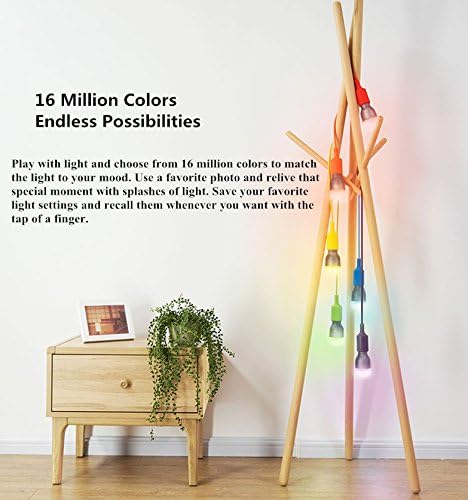
Image: App interface for color selection.

Image: Yeelight LED Bulb showcasing its wide color spectrum.
6.2. ברייטנאַס קאָנטראָל
Adjust the brightness of the bulb using the slider in the app. You can set the light intensity from 0% to 100%.
6.3. White Light Adjustment
The bulb supports adjustable white light temperatures from 1700K (warm white) to 6500K (cool white). Use the app to select the desired white light setting to match your environment or mood.

Image: Demonstrating adjustable warm and cool white light settings.
6.4. קלוגע היים אינטעגראַציע
The Yeelight YLDP06YL bulb is compatible with various smart home platforms, allowing for voice control and automation.
- אַמאַזאָן אַלעקסאַ: Link your Yeelight account in the Alexa app to control your bulb with voice commands like "Alexa, turn on the light."
- Google היים: Connect your Yeelight account to Google Home for voice control, e.g., "Hey Google, dim the living room light."
- IFTTT (אויב דאָס דעמאָלט יענס): Create custom automations and integrations with other smart devices and services.

Image: Yeelight bulb compatible with Google Home and Amazon Alexa.

Image: IFTTT integration for advanced automation.
7. וישאַלט
The Yeelight Smart LED Bulb requires minimal maintenance. To clean, ensure the power is off and the bulb is cool. Wipe gently with a soft, dry cloth. Do not use liquid cleaners or abrasive materials. There are no user-serviceable parts inside the bulb.
8. טראָובלעשאָאָטינג
- Bulb not connecting to Wi-Fi: Ensure your Wi-Fi network is 2.4GHz. Try moving the bulb closer to your Wi-Fi router. Power cycle the bulb (turn off and on 5 times) to reset it to pairing mode.
- באַלב רעאַגירט נישט אויף אַפּ באַפֿעלן: Check your internet connection and ensure the bulb is powered on. Verify that the bulb is still paired in the app.
- פליקער: Ensure the bulb is screwed in tightly. Avoid using the bulb with traditional dimmer switches.
- שטימע קאנטראל ארבעט נישט: Confirm that your Yeelight account is correctly linked to your Amazon Alexa or Google Home account. Check your internet connection.
9. וואָראַנטי און שטיצן
For warranty information and technical support, please refer to the documentation provided with your purchase or visit the official Yeelight webזייטל. האַלט דיין קויפן באַווייַז פֿאַר וואָראַנטי קליימז.