
1. הקדמה
This user manual provides detailed instructions for the safe and efficient operation of your Xerox VersaLink B405/DN Monochrome Multifunction Printer. It covers initial setup, daily use, routine maintenance, and troubleshooting common issues. Please read this manual thoroughly before using the device to ensure optimal performance and longevity.

פיגורע 1.1: פראָנט view of the Xerox VersaLink B405/DN Multifunction Printer.
2. זיכערקייַט אינפֿאָרמאַציע
היט די פאלגענדע זיכערהייט מיטלען צו פאַרמייַדן שאָדן און שעדיקן צו די דרוקער:
- שטענדיק פֿאַרבינדן דעם דרוקער צו אַ געערדטער עלעקטרישער אַוטלעט.
- דו זאלסט נישט פאַרשפּאַרן ווענטאַליישאַן אָופּאַנינגז.
- Keep the printer away from water or excessive humidity.
- ניצט נאָר ספּעציפֿישע מאַכט קאָרדס און אַקסעסאָריעס.
- Do not attempt to service the printer yourself; refer all servicing to qualified personnel.
3. פּעקל אינהאַלט
באַשטעטיקן אַז אַלע זאכן זענען פאַראַן אין פּעקל:
- Xerox VersaLink B405 Multifunction Printer
- Standard Capacity Toner Cartridge (5900 capacity)
- ווייכווארג און דאַקיומענטיישאַן קאָמפּאַקטדיסק
- ייַנמאָנטירונג פירער
- שנעל נוצן פירער
- מאַכט שנור
- פאַקס שנור
4. סעטאַפּ
4.1 אַנפּאַקינג און פּלייסמאַנט
Carefully remove the printer from its packaging. Place the printer on a stable, level surface with adequate ventilation. Ensure sufficient space around the device for operation and maintenance.
4.2 מאַכט קאַנעקשאַן
Connect the provided power cord to the printer's power inlet and then to a grounded electrical outlet.
4.3 נעטוואָרק קאַנעקשאַן
Connect an Ethernet cable from your network router or switch to the Ethernet port on the rear of the printer. This printer uses an Ethernet hardware interface for network connectivity.
4.4 ווייכווארג ינסטאַלירונג
Insert the software and documentation CD into your computer's CD-ROM drive. Follow the on-screen instructions to install the printer drivers and utility software. Alternatively, visit the official Xerox support webוועבזייטל צו דאונלאודן די לעצטע דרייווערס.
4.5 לאָודינג פּאַפּיר
Open the paper tray located at the front of the printer. Adjust the paper guides to fit the size of your paper. Load the paper stack, ensuring it does not exceed the maximum fill line. The printer supports various print media including plain paper, envelopes, and labels, with a maximum media size of 8.5 x 14 inches.

פיגורע 4.1: פראָנט view showing the paper trays for loading media.
4.6 טאָנער קאַרטרידזש אינסטאַלאַציע
If the toner cartridge is not pre-installed, open the front access panel of the printer. Carefully insert the standard capacity toner cartridge into its designated slot until it clicks into place. Close the access panel.
5. אַפּערייטינג ינסטרוקטיאָנס
The VersaLink B405/DN features an intuitive control panel for managing various functions.
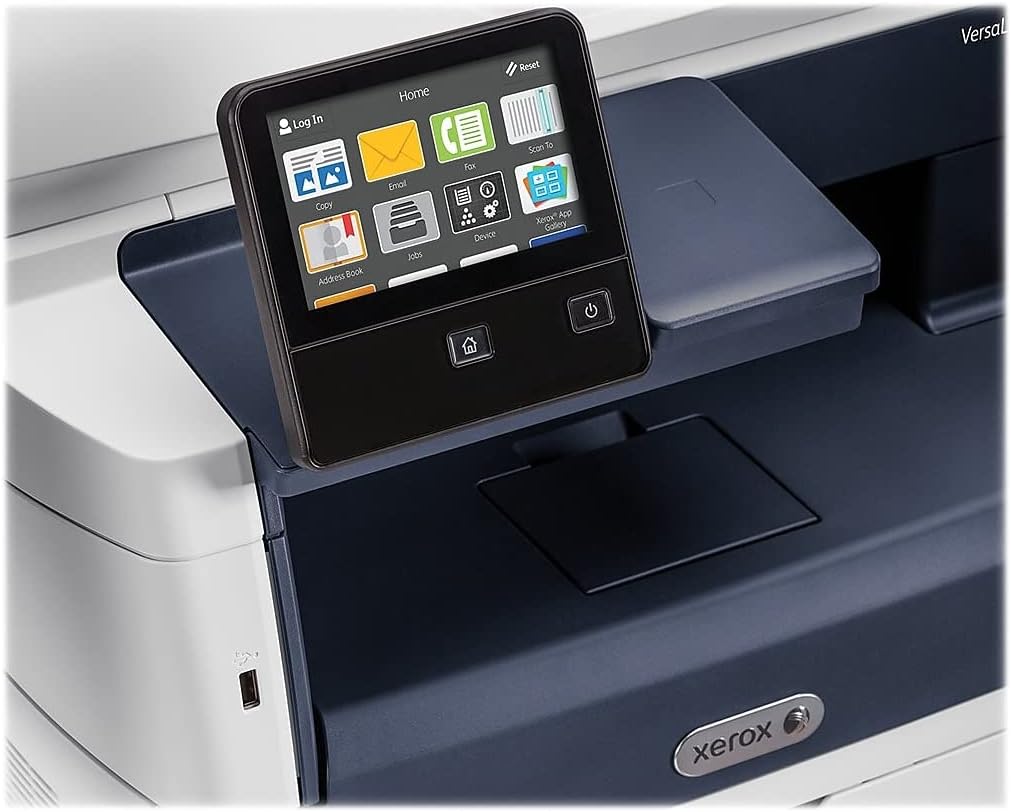
Figure 5.1: The touch-screen control panel for printer operation.
5.1 דרוקן
To print a document from your computer, select the Xerox VersaLink B405/DN from your printer list. Adjust print settings such as paper size, orientation, and duplex printing (automatic dual-sided printing is supported) as needed. Confirm the print job.
5.2 קאָפּירן
Place your document face-up in the Automatic Document Feeder (ADF) or face-down on the scanner glass. On the control panel, select the 'Copy' function. Adjust settings like number of copies, lightness/darkness, and two-sided copying. Press the 'Start' button to begin copying.

Figure 5.2: Paper loaded in the Automatic Document Feeder for copying or scanning multiple pages.
5.3 סקאַנינג
Place your document in the ADF or on the scanner glass. On the control panel, select the 'Scan' function. Choose your desired scan destination (e.g., Scan to Email, Scan to Network, Scan to USB). Configure scan settings such as resolution and file format. Press 'Start' to initiate the scan.

Figure 5.3: The scanner lid open, showing the flatbed for scanning single pages or delicate documents.
5.4 פאַקסן
Connect the provided fax cord to the printer's fax port and a telephone wall jack. Place your document in the ADF or on the scanner glass. On the control panel, select the 'Fax' function. Enter the recipient's fax number and press 'Start'.
6. וישאַלט
6.1 טאָנער אויסטויש
When the printer indicates low toner, order a replacement Xerox toner cartridge. Open the front access panel, remove the old cartridge by pulling it out, and insert the new cartridge until it locks into place. Close the panel.
6.2 רייניקונג
רעגולער רייניקט די אויסערליכע זייט פון דעם דרוקער מיט א ווייכן, דamp שטאָף. פֿאַר די סקאַנער גלאָז, ניצט אַ לינט-פֿרײַ שטאָף און אַ נישט-אַבראַוויזיוו גלאָז רייניגער. פֿאַרמײַדט צו שפּריצן רייניגער גלייך אויף די גלאָז.
6.3 אויסרייניקן פאפיר פארשטאפטע
If a paper jam occurs, the control panel will display instructions. Open the indicated access covers and carefully remove any jammed paper, pulling in the direction of the paper path. Ensure all paper fragments are removed before closing the covers.
7. טראָובלעשאָאָטינג
די סעקציע באהאנדלט אלגעמיינע פראבלעמען וואס איר קענט באגעגענען:
- דרוקער רעאגירט נישט: Check power connections, network cable, and ensure the printer is online. Restart both the printer and your computer.
- נעבעך דרוק קוואַליטעט: Check toner levels. Perform a print quality diagnostic from the printer's control panel or software. Clean the print heads if necessary (refer to the printer's internal menu).
- פּאַפּיר דזשאַמז: Follow the instructions on the control panel to locate and clear the jam. Ensure paper is loaded correctly and not creased or damaged.
- סקאַנינג ישוז: Verify network connectivity. Ensure the scanner glass and ADF are clean. Check scan settings on the control panel.
For more complex issues, consult the full documentation on the provided CD or the Xerox support webפּלאַץ.
8. ספּעסאַפאַקיישאַנז
| שטריך | באַשרייַבונג |
|---|---|
| פּראָדוקט דימענשאַנז | 19.5"ד רענטגענ 19.5"וו רענטגענ 21.7"ה |
| פּונקט וואָג | 48 פונט |
| מאַקסימום מעדיע גרייס | 8.5 X 14 אינטש |
| מאַקסימום אַרייַנשרייַב בלאַט קאַפּאַסיטי | 2350 שיץ |
| מאַקסימום שוואַרץ און ווייַס פּרינט האַכלאָטע | 1200 רענטגענ 1200 דפּי |
| מאַקס פּרינט ספּיד מאָנאָטשראָמע | 47 פּיפּיעם |
| מאַקסימום קאָפּי גיכקייַט (שוואַרץ און ווייַס) | 6.2 seconds (first copy out) |
| צוויי-סיידיד דרוקן | אָטאַמאַטיק |
| ייַזנוואַרג צובינד | עטהערנעט, וסב |
| זכּרון סטאָרידזש קאַפּאַסיטי | 2 גיגאבייט |
| פּראַסעסער גראף | 2 |
| דרוקער טינט טיפּ | טאָונער |
| סקאַננער טיפּ | Document (ADF and Flatbed) |
9. וואָראַנטי און שטיצן
The Xerox VersaLink B405/DN Monochrome Multifunction Printer comes with a standard one-year warranty. For warranty claims, technical support, or service inquiries, please contact Xerox customer support directly. Refer to the official Xerox website or the documentation included with your product for contact details and further support resources.