
1. הקדמה
The Ewent EW7014 USB 3.1 Gen-1 Dual Docking Station provides a convenient solution for connecting and accessing 2.5-inch and 3.5-inch SATA hard drives or Solid State Drives (SSDs). This device supports high-speed data transfer via USB 3.1 Gen-1 and features a standalone cloning function, allowing you to duplicate drives without a computer connection.
1.1. פּראָדוקט איבערview

Image 1.1: Ewent EW7014 Dual Docking Station with two hard drives.
1.2. פּעקל אינהאַלט
- Ewent EW7014 Dual Docking Station
- USB 3.1 Gen-1 Cable
- מאַכט אַדאַפּטער

Image 1.2: Contents of the Ewent EW7014 package.
2. שליסל פֿעיִקייטן
- צווייענדיקע בוכטע פּלאַן: Supports two 2.5-inch or 3.5-inch SATA I/II/III HDDs/SSDs simultaneously, up to 12.5 mm thickness.
- USB 3.1 Gen-1 Connectivity: Offers Super Speed data transfer rates up to 5 Gbps (backward compatible with USB 2.0).
- Standalone Cloning Function: Duplicate hard drives without requiring a computer connection.
- LED ינדיקאַטאָרס: Provides status LEDs for power, data activity, and cloning progress.
- צאַפּן און שפּיל: קיין דרייווער אינסטאַלאַציע איז נישט נויטיק פֿאַר רובֿ אָפּערירן סיסטעמען.

Image 2.1: Visual representation of the docking station's backup and cloning capabilities.
3. סעטאַפּ אינסטרוקציעס
3.1. פֿאַרבינדן די דאָקינג סטאַנציע
- Connect the provided power adapter to the 'Power' input port on the rear of the docking station. Plug the other end into a power outlet.
- Connect one end of the supplied USB 3.1 Gen-1 cable to the 'USB 3.1' port on the rear of the docking station.
- פאַרבינדן די אנדערע סוף פון די וסב קאַבלע צו אַ בנימצא וסב פּאָרט אויף דיין קאָמפּיוטער.
- Ensure the 'ON/OFF' switch on the rear of the docking station is in the 'OFF' position before inserting drives.
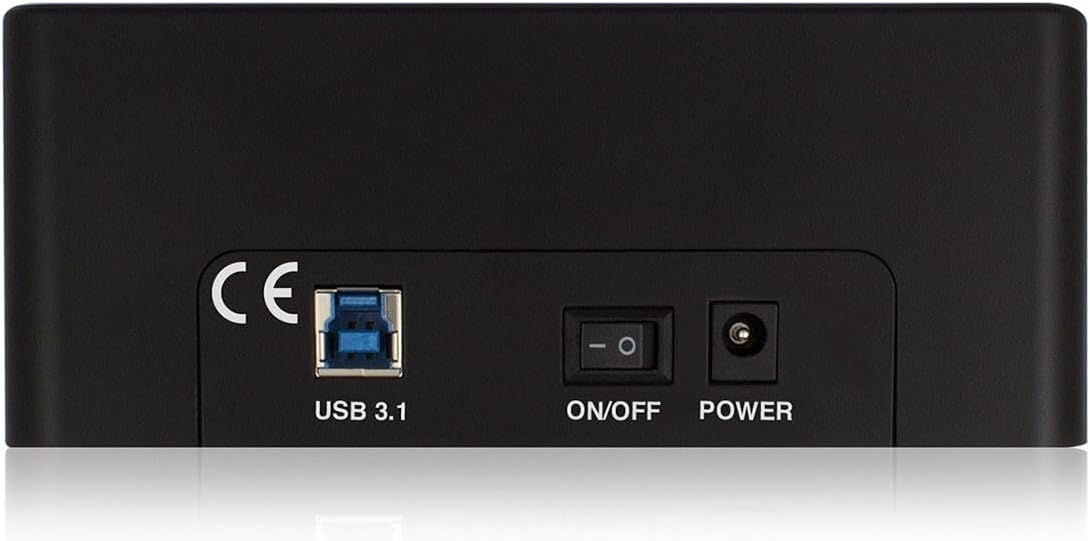
Image 3.1: Rear panel connections of the docking station.
3.2. Inserting Hard Drives / SSDs
- Gently slide your 2.5-inch or 3.5-inch SATA HDD/SSD into an available drive bay (HDD1 or HDD2) until it is firmly seated. Ensure the SATA connector on the drive aligns with the connector in the bay.
- If using 2.5-inch drives, ensure they are securely placed within the bay.
- Once drives are inserted, switch the 'ON/OFF' button to the 'ON' position. The power LED will illuminate.
4. אַפּערייטינג ינסטרוקטיאָנס
4.1. Data Transfer Mode (PC Connection)
When connected to a computer via USB, the docking station functions as an external drive enclosure. Inserted drives will appear as removable storage devices in your operating system.
- זייט זיכער אַז די דאָקינג סטאַנציע איז אנגעצינדן און פארבונדן צו אייער קאָמפּיוטער.
- Insert your SATA HDD/SSD into either drive bay.
- Your operating system should automatically detect the drive(s). You can then access, copy, or move fileס ווי איר וואָלט טאָן מיט קיין אנדערע פונדרויסנדיק סטאָרידזש מיטל.
- The data activity LEDs (HDD1, HDD2) will flash during read/write operations.
- Always safely eject the drives from your operating system before powering off the docking station or removing the drives.
4.2. Standalone Cloning Function
The cloning function allows you to duplicate the contents of a source drive to a target drive without a computer connection. The target drive must be equal to or larger in capacity than the source drive.

Image 4.1: Top panel with drive bays and LED indicators for cloning progress.
Warning: All data on the target drive will be erased during the cloning process. Ensure you have backed up any important data from the target drive before proceeding.
- Ensure the docking station is powered off and disconnected from your computer.
- אַרייַנלייגן די מקור דרייוו (the drive you want to copy FROM) into the HDD1 bay.
- אַרייַנלייגן די ציל פאָר (the drive you want to copy TO) into the HDD2 bay.
- Power on the docking station using the 'ON/OFF' switch.
- Press and hold the 'Clone' button (usually located near the drive bays) for approximately 3-5 seconds until the cloning progress LEDs (25%, 50%, 75%, 100%) begin to flash.
- Release the 'Clone' button. The cloning process will begin. The progress LEDs will illuminate sequentially to indicate the completion percentage.
- Once all progress LEDs are solid, the cloning process is complete.
- Power off the docking station and safely remove both drives.
5. טעכניש ספּעסאַפאַקיישאַנז
| מאָדעל נומער | עוו 7014 |
| שטיצט דרייווז | 2.5-אינטש / 3.5-אינטש SATA I/II/III האַרט דרייוו/SSD |
| Maximum Drive Thickness | 12.5 מם |
| צובינד | USB 3.1 Gen-1 (USB 3.0) |
| דאַטאַ אַריבערפירן קורס | Up to 5 Gbps (USB 3.1 Gen-1) |
| נומער פון בייס | 2 |
| קלאָונינג פֿונקציע | Standalone (PC-less) |
| דימענסיעס (L X W X H) | 5.87 X 2.4 X 4.61 אינטשעס (14.9 X 6.1 X 11.7 סענטימעטער) |
| וואָג | 1.41 פונט (0.64 קג) |
| מאַכט צושטעלן | פונדרויסנדיק אַק אַדאַפּטער |
| קאַמפּאַטאַבאַל אַפּערייטינג סיסטעמס | Windows, macOS, Linux (driver-free) |
6. טראָובלעשאָאָטינג
6.1. Drive Not Detected by Computer
- Ensure the docking station is powered on and the power adapter is securely connected.
- Verify the USB cable is firmly connected to both the docking station and your computer. Try a different USB port on your computer.
- Check if the hard drive/SSD is properly seated in the bay. Remove and re-insert it.
- If it's a new drive, it might need to be initialized, partitioned, and formatted in your operating system's Disk Management (Windows) or Disk Utility (macOS).
- Test with a different known-good hard drive/SSD to rule out a drive issue.
6.2. Cloning Process Does Not Start
- Ensure the docking station is disconnected from the computer before initiating cloning.
- Verify that the source drive is in HDD1 and the target drive is in HDD2.
- באַשטעטיקן אַז די ציל דרייוו ס קאַפּאַציטעט איז גלייך צו אָדער גרעסער ווי די מקור דרייוו ס קאַפּאַציטעט.
- Press and hold the 'Clone' button for the required duration (3-5 seconds) until the progress LEDs start flashing.
- Ensure both drives are properly inserted and detected by the docking station (power on, then check if drive LEDs briefly illuminate).
6.3. Slow Data Transfer Speeds
- Ensure you are connected to a USB 3.1 Gen-1 (USB 3.0) port on your computer. Connecting to a USB 2.0 port will result in slower speeds.
- Verify that your computer's USB 3.1 Gen-1 drivers are up to date.
- The actual transfer speed can be limited by the speed of the hard drive/SSD itself.
- פֿאַרמײַדן איבערצוגעבן אַ סך קליינע files simultaneously, as this can reduce overall transfer speed.
7. וישאַלט
- Keep the docking station clean by wiping it with a soft, dry cloth. Avoid using liquid cleaners or solvents.
- Ensure the device is kept in a dry environment, away from direct sunlight and extreme temperatures.
- Do not block the ventilation openings (if any) to prevent overheating.
- Handle hard drives and SSDs with care when inserting or removing them to prevent damage to the connectors.
8. וואָראַנטי און שטיצע אינפֿאָרמאַציע
For warranty information and technical support, please refer to the documentation provided with your purchase or visit the official Ewent webזייטל. האַלט דיין קויפן באַווייַז פֿאַר וואָראַנטי קליימז.
Ewent is committed to providing reliable products and customer assistance. If you encounter issues not covered in this manual, please contact Ewent customer support for further assistance.