
PIX-LINK WR01
PIX-LINK 300Mbps WiFi Repeater User Manual
מאָדעל: WR01
1. הקדמה
The PIX-LINK WR01 300Mbps WiFi Repeater is designed to extend the coverage and improve the signal strength of your existing Wi-Fi network. This device helps eliminate Wi-Fi dead zones, providing a more stable and faster wireless connection throughout your home or office. It supports both Repeater and AP (Access Point) modes, offering versatile connectivity options.

פיגורע 1: פראָנט view of the PIX-LINK WR01 WiFi Repeater.
2. פּראָדוקט איבערview
The PIX-LINK WR01 features a compact design with integrated antennas and multiple indicator LEDs for easy status monitoring. It also includes a USB port for charging, enhancing its utility as a travel companion.
2.1. קאָמפּאָנענטן און אינדיקאַטאָרן

פיגורע 2: דעטאַילעד view of the PIX-LINK WR01 components and indicators.
- Power LED: ווײַזט אָן צי דער אַפּאַראַט איז אָנגעשלאָסן.
- WPS LED: Illuminates during WPS connection attempts.
- LAN LED: ווײַזט אָן אַקטיוויטעט אויף די לאַן פּאָרט.
- רעפּעאַטער געפירט: Shows the status of the repeater function.
- 180° Rotation Antennas: Adjustable antennas for optimal signal reception.
- אָפּנעמבאַר פּלאָג: Allows for compact storage and travel.
- WAN צובינד: Port for connecting to a modem or router in AP mode.
- באַשטעטיק קנעפּל: געניצט צו צוריקשטעלן די פאַבריק פעליקייַט סעטטינגס.
- USB (5V/2A) Port: פֿאַר טשאַרדזשינג עקסטערנע דעוויסעס.
- WPS קנעפּל: For quick and secure connection setup with WPS-enabled routers.
- ווענץ: פֿאַר היץ דיסיפּיישאַן.
3. סעטאַפּ
The PIX-LINK WR01 is designed for easy installation. You can set it up using your smartphone, tablet, or laptop, or by utilizing the WPS function.
3.1. ערשטע פּלאַצירונג
For optimal performance, place the repeater in a location that is roughly halfway between your main router and the area where you need improved Wi-Fi coverage. Avoid placing it too close to either the router or the device you are trying to connect, as this can hinder its effectiveness.

Figure 3: Guide to optimal repeater placement for best signal extension.
3.2. פּאַוערינג אויף
Plug the PIX-LINK WR01 into a standard electrical outlet. The Power LED should illuminate, indicating the device is receiving power.

Figure 4: The PIX-LINK WR01 plugged into a power outlet.
3.3. קאַנעקשאַן מעטהאָדס
3.3.1. WPS (Wi-Fi Protected Setup) Method
- Ensure your main router supports WPS functionality.
- Press the WPS button on your PIX-LINK WR01. The WPS LED will start blinking.
- אינערהאלב צוויי מינוט, דריק דעם WPS קנעפל אויף אייער הויפט ראוטער.
- Wait for the WPS LED on the repeater to become solid, indicating a successful connection.
3.3.2 . Web Browser Method
- Connect your computer or mobile device to the repeater's Wi-Fi network (usually named "PIX-LINK_XXXX" or similar, without a password).
- עפענען א web בלעטערער און אַרייַן די פעליקייַט IP אַדרעס (למשל, 192.168.10.1) אין די אַדרעס באַר.
- Log in using the default username and password (refer to the included detailed user manual for specifics, often "admin" for both).
- Follow the on-screen wizard to select your desired operating mode (Repeater or AP) and configure network settings.
4. אַפּערייטינג מאָדעס
The PIX-LINK WR01 supports two primary operating modes:
4.1. רעפּעאַטער מאָדע
In Repeater Mode, the device extends the coverage of an existing Wi-Fi network. It receives the wireless signal from your main router and re-broadcasts it, effectively boosting the signal to areas with poor or no coverage. This mode is ideal for eliminating Wi-Fi dead zones in large homes or offices.
4.2. AP (Access Point) Mode
In AP Mode, the device transforms a wired network connection into a wireless one. You connect the repeater to your router or modem via an Ethernet cable (WAN port), and it then creates a new Wi-Fi network. This is useful for adding wireless capability to a wired-only network or creating a separate Wi-Fi network.

Figure 5: Setup diagram for AP Mode, showing wired connection to router.
5. נאָך פֿעיִקייטן
5.1. וסב טשאַרדזשינג פּאָרט
The PIX-LINK WR01 includes a 5V/2A USB port, allowing you to charge your mobile devices. This feature makes it a convenient travel accessory, serving as both a Wi-Fi extender and a portable charger.

Figure 6: The PIX-LINK WR01 functioning as a portable charger.
6. וישאַלט
To ensure the longevity and optimal performance of your PIX-LINK WR01, consider the following maintenance tips:
- האַלטן די מיטל אין אַ געזונט-ווענאַלייטיד געגנט צו פאַרמייַדן אָוווערכיטינג.
- ויסמיידן יקספּאָוזינג די מיטל צו עקסטרעם טעמפּעראַטורעס, הומידיטי אָדער דירעקט זונשייַן.
- Clean the exterior of the device with a soft, dry cloth. Do not use liquid cleaners or aerosols.
- Periodically check for firmware updates on the manufacturer's website to ensure the device has the latest features and security patches.
7. טראָובלעשאָאָטינג
This section addresses common issues you might encounter with your PIX-LINK WR01.
7.1. When to Reset
You may need to reset your device in the following situations:
- When changing between different operating modes (e.g., Repeater to AP).
- If you mistakenly enter the wrong password and fail to connect to the Internet.
- If you are unable to access the login page to change settings.
- When moving the device to a new location where the IP address conflicts with the previous network.
7.2. ווי צו באַשטעטיק
צו דורכפירן אַ פאַבריק באַשטעטיק:
- Ensure the Power LED is solid (device is powered on).
- Locate the Reset hole on the device.
- Using a thin object like a toothpick or paperclip, press and hold the Reset button for approximately 10 seconds until the WPS LED turns off.
- Release the button. The device will restart, and the LAN/WAN LED will illuminate once the reset is complete.
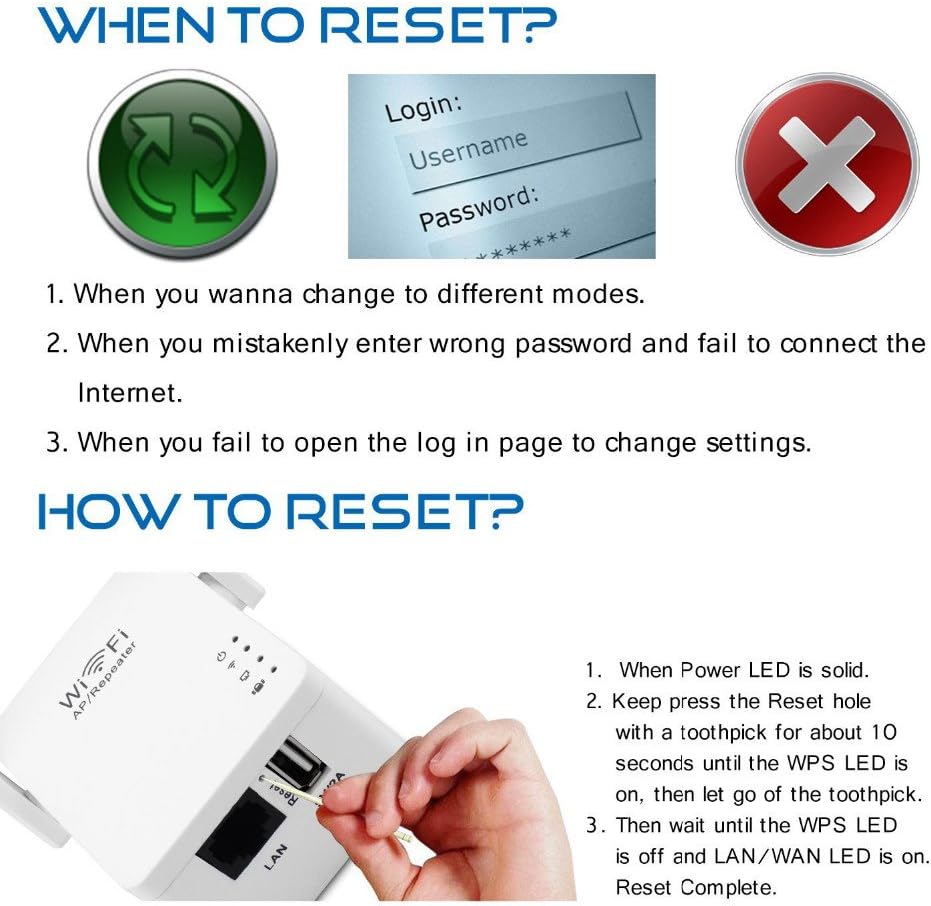
Figure 7: Visual guide for resetting the device.
7.3. Poor Signal or No Connection
- טשעק אָרט: Ensure the repeater is placed optimally between your router and the desired coverage area, not too close to either. Refer to Section 3.1.
- באַשטעטיקן ראַוטער קאַנעקשאַן: Confirm that your main router is functioning correctly and broadcasting a strong signal.
- איבערקאָנפֿיגורירן: If issues persist, try reconfiguring the repeater using the web browser method to ensure all settings are correct.
8. ספּעסאַפאַקיישאַנז
| שטריך | דעטאַל |
|---|---|
| סאָרט | PIX-LINK |
| מאָדעל | WR01 |
| דימענשאַנז | 7 X 5.5 X 4 סענטימעטער |
| וואָג | 100 ג |
| דאַטאַ אַריבערפירן קורס | 300 מעגאַביטן פּער סעקונדע |
| ווירעלעסס קאָמוניקאַציע סטאַנדאַרד | 802.11b, 802.11g, wireless_n |
| קאָליר | ווייַס |
| צובינד | LAN/WAN Port, USB (5V/2A) |
| מאַכט אַרייַנשרייַב | AC Charger (integrated plug) |
9. וואָראַנטי און שטיצן
All PIX-LINK products come with a 12-חודש וואָראַנטי. If you encounter any issues with your device during this period, please contact PIX-LINK customer support. Our dedicated support team is available to assist you with troubleshooting and technical inquiries, aiming to respond within 24 hours.
Please note that the Wi-Fi Repeater extends Wi-Fi coverage but does not increase the internet speed provided by your original router.
Ask a question about this manual
Ask about setup, troubleshooting, compatibility, parts, safety, or missing instructions. Manuals+ will review the question and use this page’s manual context to help answer it.