
1. הקדמה
This manual provides comprehensive instructions for the installation, operation, and maintenance of the HP Aruba 2930F 24G 4SFP+ Switch (Model JL253A). Please read this manual thoroughly before using the device to ensure proper setup and optimal performance. Retain this manual for future reference.
2. פּראָדוקט איבערview
The HP Aruba 2930F 24G 4SFP+ Switch is a high-performance network switch designed for enterprise edge deployments. It features 24 Gigabit Ethernet ports and 4 SFP+ ports for high-speed uplinks, providing reliable and secure connectivity.

פיגורע 2.1: פראָנט view of the HP Aruba 2930F 24G 4SFP+ Switch, showing 24 RJ45 Gigabit Ethernet ports, 4 SFP+ uplink ports, and LED indicators.

פיגור 2.2: ווינקלדיק view of the HP Aruba 2930F 24G 4SFP+ Switch, highlighting its compact design suitable for rack mounting.
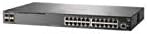
פיגורע 2.3: זייַט view of the HP Aruba 2930F 24G 4SFP+ Switch, showing ventilation slots for heat dissipation.
3. סעטאַפּ
3.1 אויספּאַקן און אינהאַלט וועריפיקאַציע
פֿאָרזיכטיק אויספּאַקן דעם סוויטש און באַשטעטיקן אַז אַלע קאָמפּאָנענטן זענען פֿאַראַן. די פּאַקעט זאָל אַנטהאַלטן:
- HP Aruba 2930F 24G 4SFP+ Switch (Model JL253A)
- מאַכט קאַבלע
- געשטעל-בארג ינווענטאַר
- קאַנסאָול קאַבלע
אויב עפּעס פֿעלט אָדער איז געשעדיגט, קאָנטאַקטירט גלייך אייער פֿאַרקויפֿער.
3.2 גשמיות ינסטאַלירונג
- געשטעל מאָונטינג: Use the provided rack-mount kit to secure the switch in a standard 19-inch equipment rack. Ensure adequate ventilation around the switch.
- מאַכט קשר: Connect the power cable to the switch's power input and then to a grounded AC power outlet.
- ערשטע נעץ פֿאַרבינדונג: Connect a computer to the switch's console port using the console cable for initial configuration, or connect to any RJ45 port for network access if DHCP is available.
Ensure all cables are securely connected and routed to prevent accidental disconnections.
4. אַפּערייטינג ינסטרוקטיאָנס
4.1 אײַנצושאַלטן און ערשטע שטיוול
Once the power cable is connected, the switch will automatically power on. Observe the LED indicators on the front panel. The Power LED should illuminate, indicating the device is receiving power. Other LEDs will indicate port status and activity.
4.2 Port Connectivity
- RJ45 Ports (10/100/1000BASE-T): Connect standard Ethernet cables (Cat5e or higher) to these ports for connecting network devices such as computers, servers, and other switches. These ports support auto-negotiation for speed and duplex settings.
- SFP+ Ports (10 Gigabit Ethernet): Use compatible SFP+ transceivers and fiber optic cables for high-speed uplinks to core switches or servers.
- PoE+ (Power over Ethernet Plus): If your model supports PoE+, these ports can provide power to compatible devices like IP phones, wireless access points, and security cameras, eliminating the need for separate power supplies.
4.3 געפירט ינדיקאַטאָרס
The front panel LEDs provide visual status of the switch and its ports:
- Power LED: ווײַזט אָן דעם סטאַטוס פֿון מאַכט (אָן/אויס).
- שולד LED: Indicates system errors or malfunctions.
- Port Link/Activity LEDs: Indicate link status (solid green for link) and network activity (flashing green). Different colors or patterns may indicate different speeds (e.g., amber for 100Mbps, green for 1Gbps). Refer to the device's specific LED guide for detailed interpretation.
5. וישאַלט
5.1 רייניקונג
רייניקט רעגולער די אויסערליכע זייט פון דעם סוויטש מיט א ווייכן, טרוקענעם טוך. ניצט נישט קיין פליסיקע אדער אייראזאל רייניגער. זיכערט אז די ווענטילאציע עפענונגען זענען פריי פון שטויב און פארשטאפונגען כדי צו האלטן געהעריגע לופט שטראם.
5.2 פירמוואַרע דערהייַנטיקונגען
Periodically check the Hewlett Packard (Aruba) support webזייטל פֿאַר פירמווער דערהייַנטיקונגען. האַלטן די פירמווער אַרויף-צו-דאַטע גאַראַנטירט אָפּטימאַלע פאָרשטעלונג, זיכערהייט און צוטריט צו נייַע פֿעיִקייטן. נאָכפאָלגן די אינסטרוקציעס וואָס זענען צוגעשטעלט מיטן פירמווער דערהייַנטיקונג פּעקל קערפֿול.
6. טראָובלעשאָאָטינג
This section addresses common issues you might encounter with your HP Aruba 2930F switch.
- קיין מאַכט:
- Verify the power cable is securely connected to both the switch and a working power outlet.
- קאָנטראָלירט די עלעקטרישע אַוטלעט מיט אַן אַנדער מיטל צו זיכער מאַכן אַז עס אַרבעט.
- קיין לינק אויף א פארט:
- זיכער מאַכן אַז דער עטהערנעט קאַבל איז ריכטיק פארבונדן ביי ביידע ענדס.
- פּרוּווט אַן אַנדער עטערנעט קאַבל.
- Test the connected device with another port or switch to isolate the issue.
- באַשטעטיקן אַז די פֿאַרבונדענע דעוויס איז אנגעצונדן און אַרבעט ריכטיק.
- Slow Network Connection:
- Check for excessive network traffic or bottlenecks.
- Ensure cables are Cat5e or higher for Gigabit speeds.
- Verify duplex settings on connected devices match the switch's auto-negotiated settings.
- Consider updating the switch firmware.
For more advanced troubleshooting or persistent issues, consult the official Hewlett Packard (Aruba) support documentation or contact technical support.
7. ספּעסאַפאַקיישאַנז
| שטריך | ווערט |
|---|---|
| סאָרט | HEWLETT PACKARD |
| מאָדעל נומער | JL253A |
| פּונקט וואָג | 2.4 קילאָגראַמס (5.28 פונט) |
| פּראָדוקט דימענשאַנז (LxWxH) | 17.42 X 7.88 X 1.73 אינטשעס |
| Voltage | 200 וואלטס |
| צובינד טיפּ | RJ45, SFP+, PoE+ |
| דאַטאַ אַריבערפירן קורס | 100 Megabits Per Second (per port, supports Gigabit on RJ45 and 10 Gigabit on SFP+) |
| באַראַן | 1024 מב |
| נומער פון פּאָרץ | 24 Gigabit Ethernet, 4 SFP+ (Total 28 logical ports) |
| אַרייַנגערעכנט קאַמפּאָונאַנץ | Power cable, rack-mount kit, console cable |
| קאָליר | שוואַרץ |
| קאַמפּאַטאַבאַל דעוויסעס | Desktop (general network devices) |
Note: Data Transfer Rate of "100 Megabits Per Second" may refer to a baseline or specific port type; the switch supports Gigabit Ethernet on RJ45 ports and 10 Gigabit Ethernet on SFP+ ports.
8. וואָראַנטי און שטיצן
This HP Aruba 2930F 24G 4SFP+ Switch is manufactured by HEWLETT PACKARD. For warranty information, please refer to the warranty card included with your product or visit the official Hewlett Packard Enterprise (Aruba) website. Technical support and additional resources can be found on their support portal.
פֿאַר הילף, ביטע באַזוכן: Aruba Networks Support