
1. הקדמה
This manual provides detailed instructions for the setup, operation, and maintenance of your ELECROW 7 Inch 1024x600 IPS Capacitive Touchscreen Monitor. This display is designed for broad compatibility with devices such as Raspberry Pi (5/4/3B+/3B/2B+), BB Black, Banana Pi, Jetson Nano, and Windows 11/10/8/7 systems.
שליסל פֿעיִקייטן:
- HD וויסואַל: 7-inch IPS screen with 1024x600 resolution and 170° wide viewing angle for consistent colors and clear viewing.
- Capacitive Touch: Supports up to 5-point touch functionality without requiring driver installation for most compatible systems.
- צאַפּן און שפּיל: Simple connectivity via HD (HDMI) and Micro USB ports for immediate use.
- ווערסאַטאַל אַפּלאַקיישאַן: Suitable for use as a Raspberry Pi display, mini PC monitor, gaming console screen, or a computer temperature monitor.
2. וואָס איז אין דער קעסטל
Please verify that all components are present before proceeding with installation.
- 7 Inch Capacitive Display x 1
- HD קאַבל x 1
- וסב קאַבלע רענטגענ 1
- Micro HD Adapter x 1
- Copper Screws Pack (4pcs) x 1
- DVD x 1 (Contains drivers and documentation)
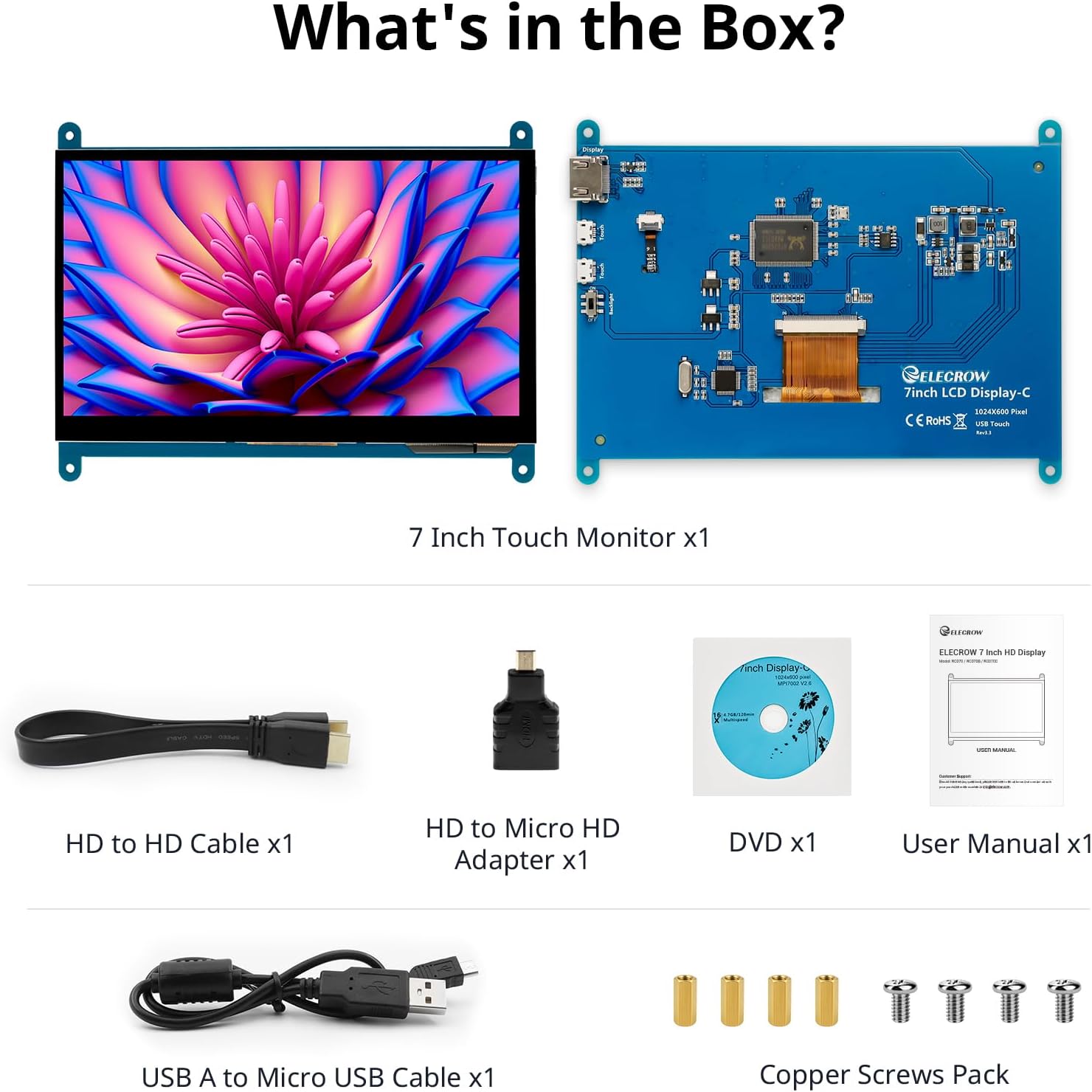
בילד: אַלע קאָמפּאָנענטן אַרייַנגערעכנט אין דער פּראָדוקט פּאַקאַדזשינג.
3. סעטאַפּ און קאַנעקשאַנז
Follow these steps to connect your ELECROW 7 Inch Touchscreen Monitor to your device.
3.1 ייַזנוואַרג איבערview

בילד: הינטערשטע view of the monitor highlighting the Standard HD Port, Micro USB Port for touch and power, and Backlight switch.
- Standard HD Port: For video data transfer.
- מיקראָ וסב פּאָרט: For touch functionality and power supply.
- באַקלייט סוויטש: To turn the display backlight on or off.
3.2 פֿאַרבינדן זיך צו ראַזבערי פּיי
To connect the monitor to a Raspberry Pi, you will need both the HD cable for video and the USB cable for touch and power.
- Connect one end of the HD cable to the Standard HD Port on the monitor and the other end to the HDMI port on your Raspberry Pi. Use the Micro HD adapter if necessary for your Raspberry Pi model.
- Connect the Micro USB cable to the Micro USB Port on the monitor. Connect the other end of the USB cable to a USB port on your Raspberry Pi for power and touch data.
- Ensure the backlight switch on the monitor is in the 'On' position.
- Power on your Raspberry Pi. The display should automatically detect and show the output.
For touch functionality with Raspberry Pi, power can be supplied via the Raspberry Pi's USB port. If using an external power source for the Raspberry Pi, ensure it is sufficient. For optimal performance, especially with older Raspberry Pi models, an external power supply for the monitor might be beneficial if the Pi cannot provide enough current.
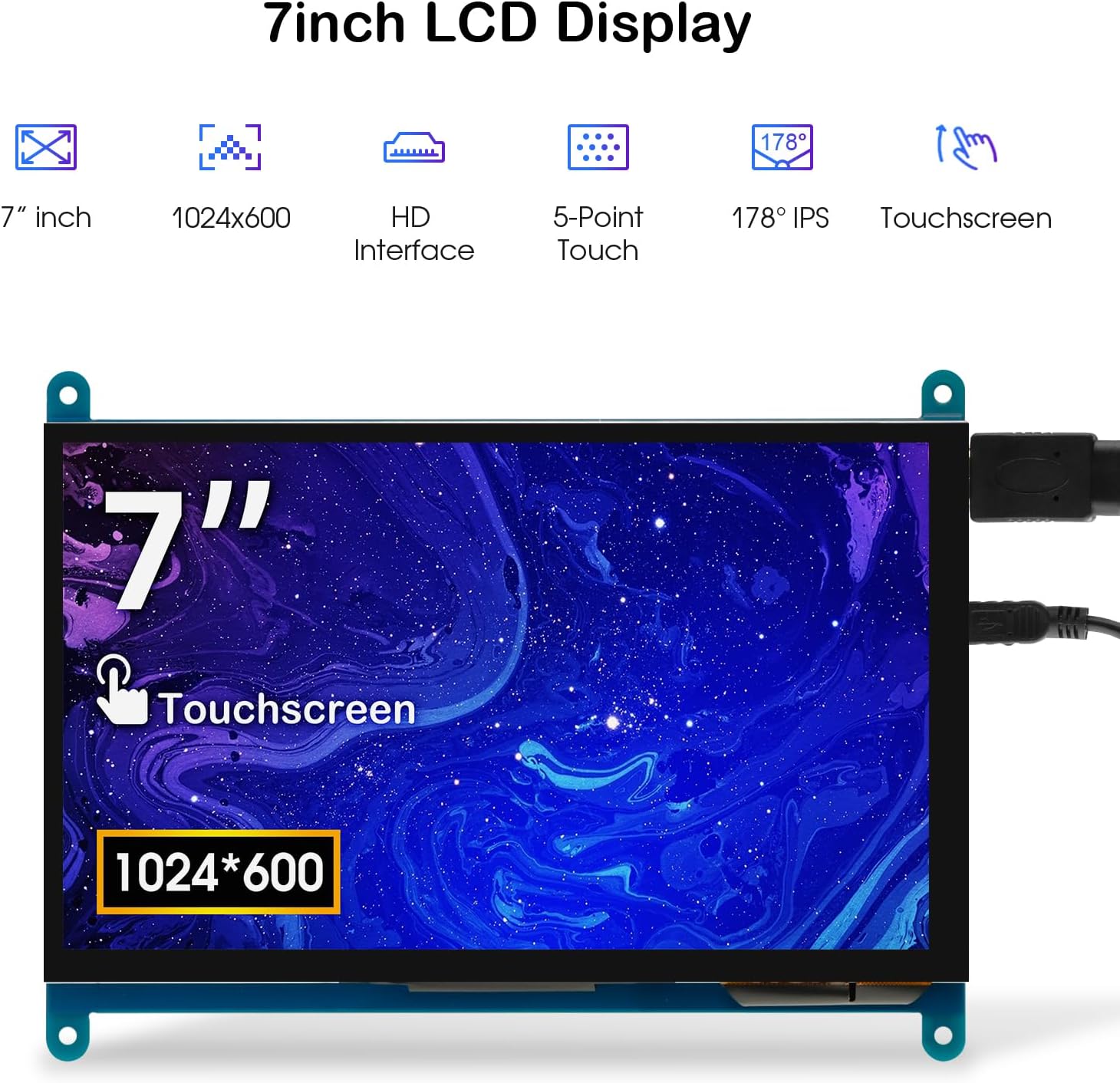
Image: The 7-inch touchscreen connected to a Raspberry Pi board, displaying a graphical user interface.
3.3 Connecting to Windows PC/Laptop
For Windows systems, the monitor functions as a plug-and-play display and touchscreen.
- Connect the HD cable from the monitor's Standard HD Port to an HDMI port on your PC or laptop.
- Connect the Micro USB cable from the monitor's Micro USB Port to a USB-A port on your PC or laptop. This provides power and enables touch functionality.
- Ensure the backlight switch is 'On'.
- Your Windows system should automatically detect the display and touchscreen. No additional drivers are typically required for Windows 7/8/10/11 for basic display and 5-point touch.

Image: The 7-inch touchscreen connected to a laptop, demonstrating seamless connectivity with various operating systems including Windows.
4. אַפּערייטינג ינסטרוקטיאָנס
4.1 ריר פונקציאָנאַליטעט
The monitor supports 5-point capacitive touch, allowing for various gestures.
- צאַפּן: Single touch for selection or activation.
- דרוק: Sustained touch for context menus or drag operations.
- פארגרעסער אין/אויס: Pinch gestures with two fingers.
- Mouse Click: A single tap typically registers as a left-click.
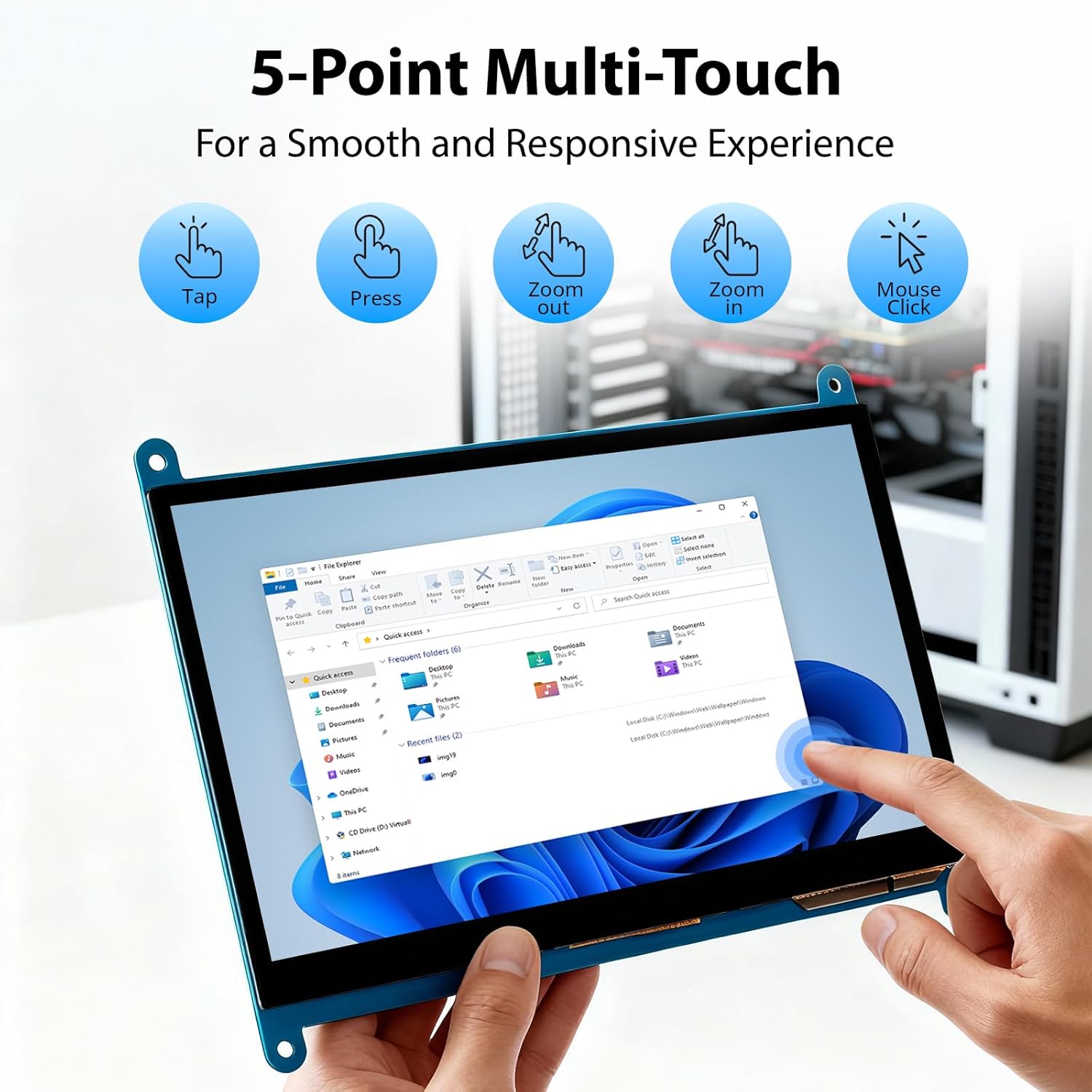
Image: Visual guide to the 5-point multi-touch capabilities of the screen, showing common gestures.
4.2 אַרויסווייַזן מאָדעס
ווען פארבונדן צו א קאמפיוטער, קען דער מאָניטאָר ארבעטן אין עטלעכע דיספּלעי מאָדעס:
- דופּליקאַט מאָדע: The monitor mirrors the content of your primary display.
- פאַרברייטערן מאָדע: The monitor acts as an extension of your primary display, providing additional screen space.
- צווייטע סקרין מאָדע: The monitor functions as the sole display, with the primary display turned off.
די מאָדעס קענען טיפּיש קאָנפיגורירט ווערן דורך אייער אָפּערייטינג סיסטעם'ס דיספּליי סעטטינגס.

Image: Illustrations demonstrating the three display modes: Duplicate, Extend, and Second Screen, showing how the monitor can be used with a laptop.
4.3 באַקלייט קאָנטראָל
The monitor features a physical switch to control the backlight. This allows you to turn the display illumination on or off without disconnecting power. Note that there is no granular brightness control; it is an on/off function only.
Video: This video demonstrates the backlight control switch on the ELECROW 7 Inch Touchscreen, showing how to turn the display illumination on and off.
5. וישאַלט
געהעריגע אויפהאלטונג גאראנטירט די לאנגעוויטי און אפטימאלע פערפארמאנס פון אייער מאניטאר.
- רייניקונג די פאַרשטעלן: ניצן אַ ווייך, לינט-פֿרייַ שטאָף אַ ביסל דampened with water or a screen-cleaning solution. Avoid harsh chemicals or abrasive materials that could damage the screen surface.
- אַלגעמיינע זאָרגן: Keep the monitor in a clean, dry environment. Avoid exposing it to extreme temperatures, direct sunlight, or high humidity.
- האַנדלינג: Handle the monitor by its edges. Avoid applying excessive pressure to the screen.
6. טראָובלעשאָאָטינג
אויב איר טרעפט פּראָבלעמען מיט אייער מאָניטאָר, זעט די פאלגענדע געוויינטלעכע פּראָבלעמען און לייזונגען.
| פּראָבלעם | מעגלעך סיבה | לייזונג |
|---|---|---|
| קיין עקראַן/שוואַרצער עקראַן |
|
|
| טאָוטשסקרעען ריספּאַנד נישט |
|
|
| Display resolution incorrect |
|
|
| קיין ברייטנאַס קאָנטראָל | The monitor only has an on/off switch for the backlight, not adjustable brightness. | This is expected behavior. The monitor does not support adjustable brightness. |
7. ספּעסאַפאַקיישאַנז
Detailed technical specifications for the ELECROW 7 Inch Touchscreen Monitor.
| שטריך | דעטאַל |
|---|---|
| סאָרט | עלעקראָוו |
| מאָדעל נאָמען | RC070 |
| פאַרשטעלן גרייס | 7 אינטשעס |
| ווייַז האַכלאָטע מאַקסימום | 1024 X 600 |
| געבוירן האַכלאָטע | 1024x600 |
| ווייַז טיפּ | לקד |
| ווייַז טעכנאָלאָגיע | IPS |
| אַספּעקט פאַרהעלטעניש | 1.71:1 |
| דערפרישן קורס | 60 הז |
| ענטפער צייט | 8 מיליסעקאַנדז |
| קאַנטראַסט פאַרהעלטעניש | 800:1 |
| ברייטנאַס | 300 לם |
| Viewינג אַנגלע | 170 דיגריז |
| באַשרייַבונג פון דער אויבערפלאַך פון דעם עקראַן | גלאָסי |
| קאַנעקטיוויטי טעכנאָלאָגיע | HDMI |
| ייַזנוואַרג קאַנעקטיוויטי | HDMI, וסב |
| Total Number of HDMI Ports | 1 |
| גאַנץ וסב פּאָרץ | 2 (Micro USB for power/touch, USB-A for power/touch) |
| מאַכט קאַנסאַמשאַן | 12.5 וואטס |
| Voltage | 5 וואלטס |
| נומער דימענשאַנז (ד רענטגענ וו רענטגענ ה) | 0.3"ד רענטגענ 6.1"וו רענטגענ 4.8"ה |
| פּונקט וואָג | 7.36 אונסעס |
| קאַמפּאַטאַבאַל דעוויסעס | Raspberry Pi, BB Black, Banana Pi, Jetson Nano, Computers, Laptops, Gaming Consoles |
8. וואָראַנטי און שטיצן
Your ELECROW 7 Inch Touchscreen Monitor comes with a manufacturer's warranty.
- וואָראַנטי טיפּ: 1 יאָר מאַנופאַקטורער וואָראַנטי
- וואָראַנטי באַשרייַבונג: 1 יאָר פאַבריקאַנט
For technical support or warranty claims, please contact ELECROW customer service through their official webוועבזייטל אדער פּלאַטפאָרמע וואו דער פּראָדוקט איז געקויפט געוואָרן.