
Microsoft ST9-00001
מייקראָסאָפֿט סורפֿאַס פּראָ 3 באַניצער מאַנואַל
Model: ST9-00001
הקדמה
This manual provides essential information for setting up, operating, maintaining, and troubleshooting your Microsoft Surface Pro 3. The Surface Pro 3 is a versatile device designed to function as both a tablet and a laptop, powered by the Windows 10 operating system.
It features a 12-inch high-resolution screen, ample internal storage, dual HD cameras, and robust connectivity options, including a full-size USB 3.0 port. Its integrated kickstand allows for comfortable viewing in various positions, and the magnesium frame ensures a lightweight and durable design.
זיכערקייַט אינפֿאָרמאַציע
- שטעלט נישט אויס דעם אפאראט צו עקסטרעמע טעמפעראטורן, דירעקטע זונשייַן, אדער הויכע הומידיטי.
- פֿאַרמײַדט צו לאָזן פֿאַלן אָדער אויסשטעלן דאָס אַפּאַראַט צו שווערע קלאַפּן.
- Use only Microsoft-approved power adapters and accessories.
- Keep the device away from liquids. In case of liquid contact, power off immediately and seek professional assistance.
- פרובירט נישט צו צענעמען אדער פאררעכטן דעם אפאראט אליין. דאס קען בטל מאכן די גאראנטיע און פארשאפן שאדן.
- Ensure proper ventilation when using the device to prevent overheating.
סעטאַפּ
1. ונבאָקסינג און ערשט דורכקוק
Carefully remove the Surface Pro 3 and all accessories from the packaging. Inspect the device for any visible damage. Retain the packaging for future transport or service needs.
2. פּאַוערינג אויף און ערשט סעטאַפּ
- Connect the power supply to the Surface Pro 3 and a power outlet.
- Press the power button located on the top edge of the device.
- Follow the on-screen prompts to complete the Windows 10 initial setup, including language selection, network connection, and user account creation.
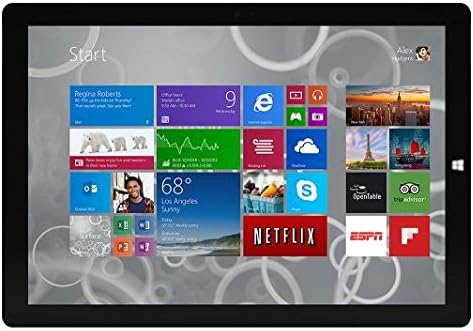
Figure 1: Windows 10 Start Screen during initial setup.
This image shows the Microsoft Surface Pro 3 screen displaying the Windows 10 Start menu, characterized by a grid of live tiles representing various applications and services. This is typically seen during the initial setup or when navigating the operating system.
3. Attaching Accessories (Sold Separately)
The Surface Pro 3 is compatible with various accessories, such as the Surface Type Cover keyboard and the Surface Pen, which are sold separately.
- Surface Type Cover: Align the magnetic connector of the Type Cover with the bottom edge of the Surface Pro 3 until it clicks into place.
- Surface Pen: The Surface Pen can be magnetically attached to the side of the Surface Pro 3 for storage. For initial pairing, follow the instructions provided with the pen.
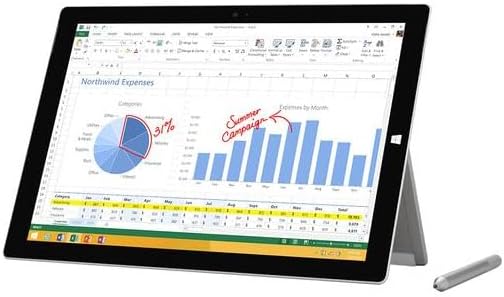
Figure 2: Surface Pro 3 with optional Surface Pen.
This image illustrates the Microsoft Surface Pro 3 in use, displaying an Excel spreadsheet on its screen. A Surface Pen is positioned next to the device, highlighting its compatibility for precise input and navigation.
4. Expanding Storage with a MicroSD Card
You can expand the internal storage of your Surface Pro 3 using a microSD card (sold separately).
- Locate the microSD card slot on the side of the Surface Pro 3, typically behind the kickstand.
- Insert the microSD card into the slot until it clicks into place.
- The device will automatically detect the card. You may need to format it if it's a new card or if prompted by the system.

Figure 3: MicroSD card slot.
This close-up image shows the microSD card slot on the side of the Microsoft Surface Pro 3, with a microSD card partially inserted, demonstrating how to expand the device's storage.
אַפּערייטינג ינסטראַקשאַנז
1. Navigating Windows 10
- אָנהייב מעניו: דריקט דעם Windows בילדל אין דער אונטערשטער לינקער ווינקל צו צוקומען צו אַפּליקאַציעס, סעטטינגס און מאַכט אָפּציעס.
- טאָוטשסקרעען: Use gestures for navigation, zooming, and scrolling.
- Edge Browser: Utilize the pre-installed Edge browser for web browsing, which includes features for marking up web בלעטער.

Figure 4: Using the Surface Pro 3 for productivity.
This image depicts the Microsoft Surface Pro 3 in an active use scenario, showcasing a note-taking application open on its screen. The display features handwritten notes, diagrams, and sketches, illustrating the device's capability for creative and productive tasks.
2. ניצן דעם אינטעגרירטן קיקסטאַנד
The multi-position kickstand allows you to adjust the viewing angle for optimal comfort, whether you are typing, watching videos, or drawing.
- Gently pull the kickstand out from the back of the device.
- Adjust it to your desired angle. The kickstand offers a wide range of positions for versatility.
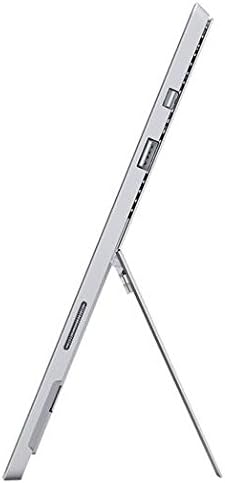
Figure 5: Adjustable kickstand.
דאָס בילד גיט אַ זײַט view of the Microsoft Surface Pro 3, clearly showing its integrated kickstand extended to support the device at an angle, demonstrating its versatile viewינג קייפּאַבילאַטיז.
3. קאַמעראַ פאַנגקשאַנאַליטי
The Surface Pro 3 is equipped with 5.0MP front and rear cameras.
- Open the Camera application from the Start Menu.
- Switch between front and rear cameras as needed for photos or video calls.

Figure 6: Front camera.
This close-up image focuses on the front-facing camera and associated sensors located at the top edge of the Microsoft Surface Pro 3 screen.
4. קאַנעקטיוויטי
The full-size USB 3.0 port allows for connecting various peripherals and transferring data.
- Insert USB devices (e.g., flash drives, external hard drives, printers) into the USB 3.0 port.
- The device also supports Wi-Fi (802.11a/b/g/n/ac) for wireless internet connectivity.
וישאַלט
1. Cleaning Your Surface Pro 3
- ניצן אַ ווייך, לינט-פֿרייַ שטאָף דampened with water or a screen cleaner specifically designed for electronics.
- פֿאַרמײַדן ניצן שטרענגע כעמיקאַלן, אַברייסיוו רייניגער, אָדער אַעראָסאָל ספּרײַס.
- Gently wipe the screen and exterior surfaces.
2. ווייכווארג דערהייַנטיקונגען
Regularly check for and install Windows updates to ensure your device has the latest security patches and performance improvements.
- גיין צו סעטטינגס > דערהייַנטיקן & זיכערהייַט > Windows Update.
- דריקט "קוק פֿאַר דערהייַנטיקונגען" און ינסטאַלירן אַלע בנימצא דערהייַנטיקונגען.
3. סטאָרידזש מאַנאַגעמענט
To maintain optimal performance, manage your device's storage space.
- רעגולער אויסמעקן נישט-נייטיקע זאכן files און אַפּלאַקיישאַנז.
- Utilize cloud storage services or external drives for large files.
- Consider using the Disk Cleanup tool in Windows to remove temporary files.
טראָובלעשאָאָטינג
This section addresses common issues you might encounter with your Surface Pro 3.
מיטל נישט פּאַוערינג אויף
- Ensure the power supply is securely connected to both the device and a working power outlet.
- פּרוּווט אַ אַנדערש מאַכט ווענטיל.
- Press and hold the power button for 10-15 seconds to perform a forced shutdown, then press it again to restart.
Wi-Fi קאָנעקטיוויטי פּראָבלעמען
- קוק אויב Wi-Fi איז ענייבאַלד אין די ווינדאָוז סעטטינגס.
- ריסטאַרט דיין Wi-Fi ראַוטער.
- פארגעסט דאס נעץ און פארבינדט זיך ווידער, נאכאמאל אריינשרייבנדיג דאס פאסווארט.
- לויפט דעם ווינדאָוס נעטוואָרק טראָובלעשאָאָטער.
פּאַמעלעך פאָרשטעלונג
- שליסט אומנייטיקע אַפּליקאַציעס וואָס לויפן אין הינטערגרונט.
- קוקט נאָך און אינסטאַלירט אַלע וואַרטנדיקע ווינדאָוז דערהייַנטיקונגען.
- זייט זיכער אַז איר האָט גענוג פרייען סטאָרידזש פּלאַץ.
- לויפט א ווירוס סקען.
For more detailed troubleshooting or issues not covered here, please refer to the official Microsoft Support webפּלאַץ אָדער קאָנטאַקט קונה דינסט.
ספּעסאַפאַקיישאַנז
| שטריך | דעטאַל |
|---|---|
| מאָדעל | Microsoft Surface 1631 Pro 3 |
| אָפּערייטינג סיסטעם | Windows 10 |
| פאַרשטעלן גרייס | 12 אינטשעס |
| פאַרשטעלן האַכלאָטע | 2160 X 1440 |
| פּראַסעסער | ינטעל קאָר י3 1.5 גהז |
| באַראַן | 4 גיגאבייט |
| אינערלעכער סטאָרידזש | 128 GB Flash Storage |
| גראַפיקס קאָופּראַסעסער | ינטעל הד גראַפיקס |
| קאַמעראַס | 5.0MP Front and Rear |
| ווירעלעסס טיפּ | 802.11ב, 802.11אַ, 802.11ג |
| פּאָרץ | Full-size USB 3.0 |
| פּונקט וואָג | 1.8 פונט |
| פּראָדוקט דימענשאַנז | 11.5 X 0.36 X 7.93 אינטשעס |
| קאָליר | זילבער |
וואָראַנטי און שטיצן
Your Microsoft Surface Pro 3 comes with a standard manufacturer's warranty. For detailed warranty terms and conditions, please refer to the documentation included with your purchase or visit the official Microsoft support webפּלאַץ.
For technical assistance, troubleshooting guides, driver downloads, and service requests, please visit the Microsoft Surface Support בלאַט.
Ask a question about this manual
Ask about setup, troubleshooting, compatibility, parts, safety, or missing instructions. Manuals+ will review the question and use this page’s manual context to help answer it.