
הקדמה
This manual provides detailed instructions for the installation, operation, maintenance, and troubleshooting of your Clarion NX514 Car Navigation System. The NX514 is an advanced AV navigation unit featuring a 6.2-inch VGA display, SmartAccess Link for smartphone integration, Google Voice Search, Mapple Navi 5 for comprehensive navigation, and various media playback options including DVD, USB, SD, and Bluetooth.
ביטע ליינט דעם מאַנואַל גרינטלעך איידער איר ניצט דעם פּראָדוקט צו ענשור זיכער און אָפּטימאַל פאָרשטעלונג.
סעטאַפּ
Proper installation is crucial for the performance and safety of your navigation system. It is highly recommended that installation be performed by a qualified professional.
1. אַנפּאַקקינג און קאָמפּאָנענט טשעק
באַשטעטיקן אַז אַלע קאָמפּאָנענטן זענען פאַראַן:
- Clarion NX514 Main Unit
- גפּס אַנטענע
- Wiring Harnesses (Power, Speaker, etc.)
- מאַונטינג ייַזנוואַרג
- באַניצער מאַנואַל (דעם דאָקומענט)
2. וויירינג קאַנעקשאַנז
Connect the wiring harness to your vehicle's power supply, ground, and speaker outputs. Ensure all connections are secure to prevent malfunctions. The GPS antenna should be mounted in a location with a clear view פון הימל פֿאַר אָפּטימאַל סיגנאַל אָפּנאַם.
For SmartAccess Link functionality, connect your smartphone via the HDMI input. An appropriate adapter may be required for certain iPhone models (e.g., iPhone 5s/5c/5).
3. SD קאַרטל אַריינשטעלן
Insert the provided 8GB SD card containing map data into the designated SD card slot on the unit. Ensure it is inserted correctly and securely.

פיגורע 1: פראָנט view of the Clarion NX514 unit. This image shows the main display and control buttons, illustrating the general appearance of the device during setup.
אַפּערייטינג ינסטראַקשאַנז
1. Basic Interface and Touchscreen
The Clarion NX514 features a 6.2-inch VGA touchscreen for intuitive control. Tap icons and menus to navigate through functions. Physical buttons are also available for common operations like volume control and menu access.
2. Google Voice Search
The system integrates Google Voice זוכן פֿאַר hands-free operation. To activate, press the voice command button (if available on your steering wheel or unit) and speak your command. You can search for destinations, points of interest, or control navigation functions. A smartphone is required for full voice recognition capabilities.
- Exampדי קאַמאַנדז: "Find a Japanese restaurant," "Navigate to [address]," "Change route."
- Gourmet Search: Access restaurant information from services like Gurunavi, Hot Pepper Gourmet, and Yahoo! JAPAN. You can narrow down destinations, view details, make calls (requires Bluetooth pairing with a smartphone), and set routes via voice.

Figure 2: Clarion NX514 demonstrating Google Voice Search. The image shows the navigation unit displaying a map, with speech bubbles illustrating voice commands for searching for Japanese food and filtering by price.
3. SmartAccess Link (Smartphone Integration)
Connect your iPhone or Android smartphone to the NX514 via the HDMI input to access various popular apps directly on the navigation screen. This allows for playback of music, videos, and other content from your smartphone. Ensure your smartphone is compatible and any necessary adapters are used.
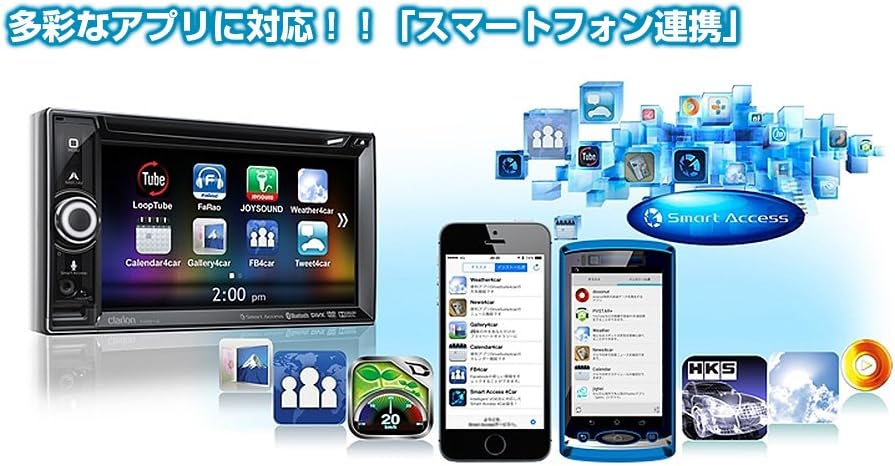
Figure 3: Clarion NX514 displaying various smartphone applications via SmartAccess Link. The image shows the unit's screen mirroring apps like YouTube, Calendar, and Weather, alongside two smartphones.
4. Navigation (Mapple Navi 5)
The Mapple Navi 5 system provides comprehensive navigation features designed to enhance your driving experience.
- Destination Search: זוכן פֿאַר destinations by address, name, or category.
- Tourism Navigation: Access a vast database of tourist spots, including recommended drive courses, seasonal attractions (flowers, seasonal fish, fruit picking), and local gourmet information.
- SA/PA & Roadside Stations: Find information on service areas, parking areas, and roadside stations across Japan.
- רוטע אנווייזונגען: Follow clear visual and voice prompts for turn-by-turn directions.

Figure 4: Clarion NX514 showcasing Mapple Navi 5 features. This image highlights various tourism-related functions such as recommended drive courses, spot search, and information on SA/PA and local gourmet.
5. מידיאַ פּלייַבאַקק
The NX514 supports various media formats:
- די-ווי-די ווידערשפּיל: Insert a DVD into the disc slot for video and audio playback.
- USB/SD קאָרט: שפּילן אַודיאָ און ווידעאָ files stored on USB devices or SD cards.
- בלועטאָאָטה אַודיאָ: Stream music wirelessly from your Bluetooth-enabled smartphone or other devices.
- One-Seg TV: Watch digital terrestrial television broadcasts (where available).

Figure 5: Clarion NX514 demonstrating Bluetooth phone and audio functions. The image shows the unit's screen displaying a phone dialer and a music playback interface, along with a smartphone connected via NaviCon and Bluetooth.
6. Steering Wheel Remote Control
If your vehicle is equipped with steering wheel controls, the NX514 can be integrated to allow safe and convenient operation of audio and navigation functions without taking your hands off the wheel. This includes volume adjustment, track skipping, and activating voice commands.
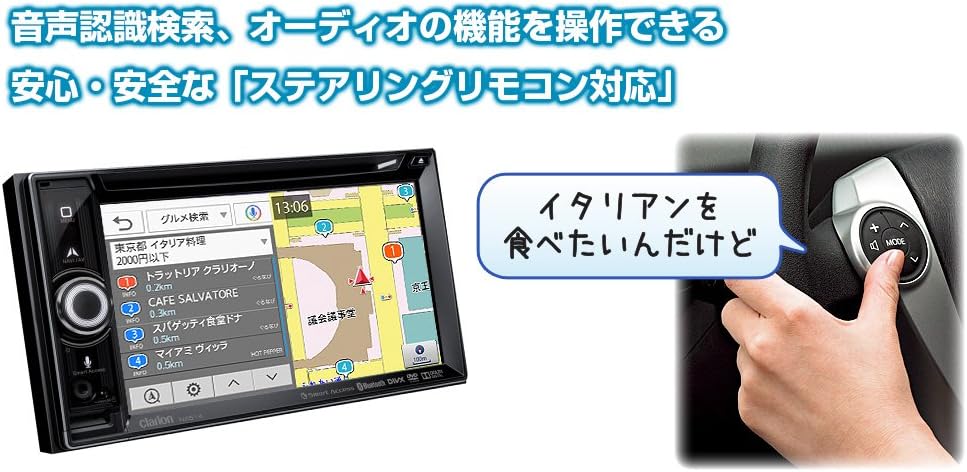
Figure 6: Clarion NX514 unit shown alongside a steering wheel with integrated remote controls. This illustrates the convenience of operating the navigation system using steering wheel buttons, including voice recognition activation.
וישאַלט
To ensure the longevity and optimal performance of your Clarion NX514, follow these maintenance guidelines:
- סקרין רייניקונג: Gently wipe the touchscreen with a soft, dry cloth. For stubborn smudges, use a cloth lightly dampened with a screen cleaner specifically designed for electronic displays. Avoid abrasive materials or harsh chemicals.
- אַלגעמיינע רייניקונג: האַלט דעם אַפּאַראַט פריי פון שטויב און שמוץ. ניצט אַ ווייכע באַרשט אָדער קאָמפּרעסירטע לופט צו רייניקן אַרום קנעפּלעך און שפּאַלטן.
- סד קאָרט זאָרגן: Handle the SD card carefully. Avoid exposing it to extreme temperatures, moisture, or static electricity. Always ensure the unit is powered off or in a safe state before inserting or removing the SD card to prevent data corruption.
- Firmware דערהייַנטיקונגען: Periodically check the official Clarion website for any available firmware updates to ensure your system has the latest features and bug fixes.
טראָובלעשאָאָטינג
If you encounter issues with your Clarion NX514, refer to the following common problems and solutions:
קיין מאַכט / אַפּאַראַט טוט זיך נישט אָן
- קאָנטראָלירט אַלע מאַכט קאַנעקשאַנז צו זיכער מאַכן אַז זיי זענען זיכער אַטאַטשט.
- Verify the vehicle's fuse related to the car audio system.
- Ensure the vehicle's ignition is in the ACC or ON position.
No GPS Signal / Incorrect Position
- Ensure the GPS antenna is mounted in a location with an unobstructed view פון הימל.
- Avoid placing objects near the antenna that could block the signal.
- Allow a few minutes for the system to acquire satellites after starting the vehicle.
SD Card Errors / Map Data Not Loading
- Ensure the SD card is fully and correctly inserted into the slot.
- The SD card contains critical map data. Avoid removing it while the unit is operating or during power fluctuations.
- If data corruption is suspected, contact Clarion support for assistance. Do not attempt to modify the SD card contents yourself, as this may void the warranty.
בלועטאָאָטה קאַנעקשאַן ישוז
- Ensure Bluetooth is enabled on both the NX514 and your smartphone.
- אויסמעקן פריערדיקע פּאָרינגז אויף ביידע דעוויסעס און פּרוּווט צו ווידער פּאָרן.
- Move your smartphone closer to the NX514 unit.
טאָוטשסקרעען ניט ריספּאַנסיוו
- Perform a soft reset of the unit (refer to the device's specific reset procedure, usually a small reset button).
- זיכער מאַכן אַז דער עקראַן איז ריין און פריי פון שמוץ.
ספּעסאַפאַקיישאַנז
| שטריך | באַשרייַבונג |
|---|---|
| סאָרט | קלאַריאָן |
| מאָדעל נאָמען | נקסקסנומקס |
| פאַרשטעלן גרייס | 6.2 אינטשעס |
| ווייַז טיפּ | LCD (VGA with high-brightness LED) |
| פֿעיִקייטן | Voice Operation, Touchscreen |
| קאַנעקטיוויטי | בלועטאָאָטה, וסב, הדמי |
| מאַפּע טיפּ | City Tour (Mapple Navi 5) |
| מאַונטינג טיפּ | דאַשבאָרד בארג |
| זכּרון סטאָרידזש | 8 גיגאבייט (SD קאַרטל) |
| פּראָדוקט וואָג | 2000 גראַמז |
| Compatible Satellite System | גפּס |
| קאָמפּאַטיבלע פאָרמיטל טיפּ | פּאַסאַזשיר מאַשין |
וואָראַנטי און שטיצן
Your Clarion NX514 Car Navigation System is covered by a manufacturer's warranty. Please refer to the warranty card included with your product for specific terms and conditions, including the warranty period and coverage details.
For technical support, service, or further inquiries, please contact Clarion customer service or visit the official Clarion webפּלאַץ:
Clarion Official Product Page (Japanese)
When contacting support, please have your product model number (NX514) and purchase information readily available.