
1. הקדמה
This manual provides essential information for the proper installation, operation, and maintenance of the Aiphone GF-4P Four-Call Button Panel. The GF-4P is an integral component of the Aiphone GF and GT Series modular multi-tenant entry security systems, designed to facilitate communication between visitors and building occupants.
2. פּראָדוקט איבערview
The Aiphone GF-4P is a specialized four-call button panel intended for integration into compatible Aiphone modular entrance panel backboxes. Its primary function is to allow visitors to initiate calls to up to four distinct occupants within a multi-tenant building. Each call button is accompanied by a viewing window, enabling clear identification of the occupant associated with that button.
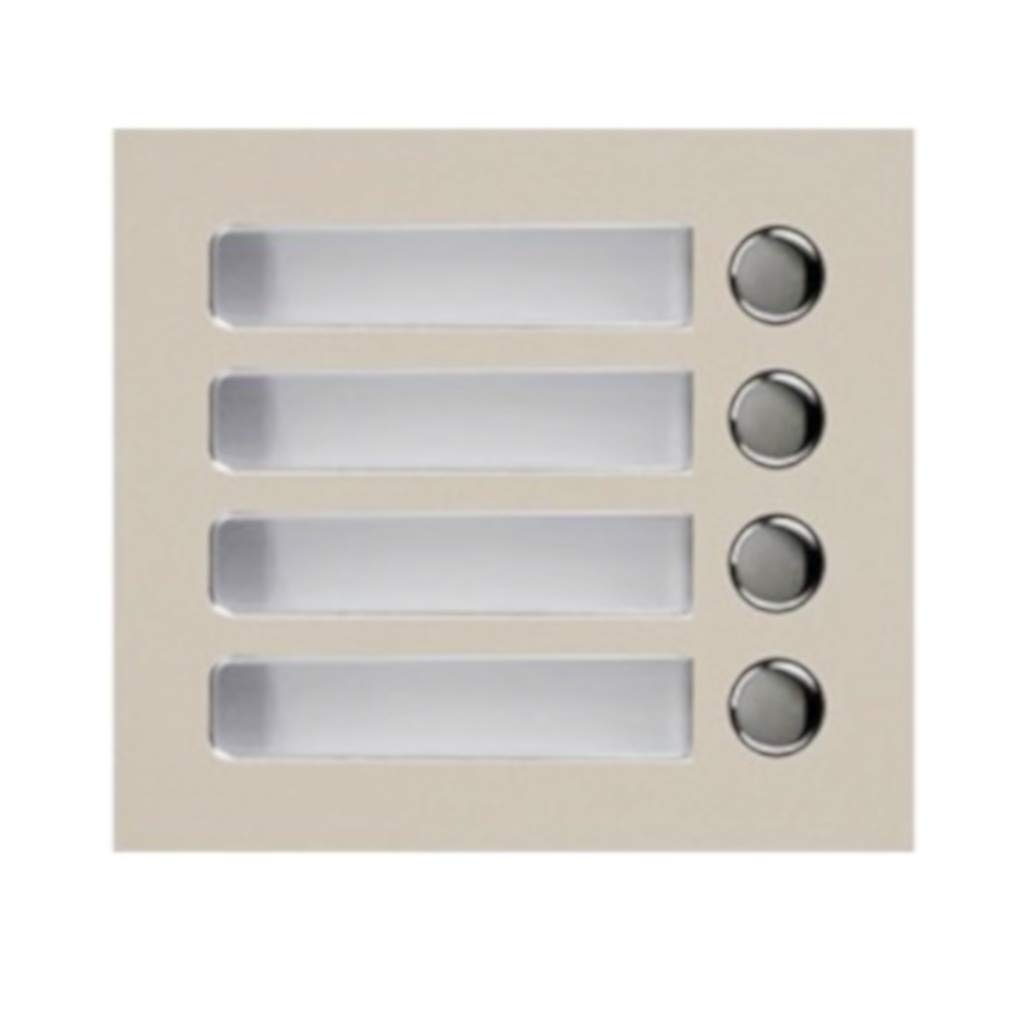
Image of the Aiphone GF-4P Four-Call Button Panel, showing its four buttons and viewאין פֿענצטער.
3. פֿעיִקייטן
- Four-button panel for contacting up to four individual occupants.
- ינטעגראַטעד viewing window for clear occupant identification.
- Designed for seamless installation into Aiphone GF-SW or GT-SW modular entrance panel backboxes.
- Durable construction suitable for entry security system environments.
4. סעטאַפּ און ייַנמאָנטירונג
The GF-4P panel is designed for installation into a compatible Aiphone GF-SW or GT-SW modular entrance panel backbox (sold separately). Proper installation is crucial for optimal performance.
- Prepare the Backbox: Ensure the GF-SW or GT-SW backbox is securely mounted according to its own installation instructions and all necessary wiring conduits are in place.
- וויירינג קאַנעקשאַנז: Carefully connect the GF-4P panel to the main system wiring. Refer to the complete Aiphone GF or GT Series system manual for detailed wiring diagrams and connection points. Ensure all connections are secure and correctly terminated.
- פּאַנעל איינשטעלונג: Align the GF-4P panel with the designated slot or opening within the modular entrance panel backbox.
- באַוואָרענען די פּאַנעל: Gently push the panel into place until it sits flush. Secure it using the provided fasteners or mounting clips, ensuring it is firmly attached and cannot be easily removed.
- לעצטע וועריפיקאַציע: Before powering on the entire system, double-check all wiring connections and ensure the panel is properly seated and secured.
Note: Installation should ideally be performed by a qualified technician familiar with Aiphone security systems.
5. אַפּערייטינג ינסטרוקטיאָנס
Operating the Aiphone GF-4P Four-Call Button Panel is straightforward for visitors.
- Identify Occupant: The visitor will first identify the desired occupant by reading the name or unit number displayed in the viewing window next to each call button.
- אָנהייבן רוף: To contact the occupant, the visitor presses the corresponding call button.
- קאָמוניקאַציע: Upon pressing the button, the system will initiate a call to the designated occupant's indoor station. The occupant can then communicate with the visitor and grant access if the system is configured for such functionality.
6. וישאַלט
Regular maintenance helps ensure the longevity and reliable operation of your GF-4P panel.
- רייניקונג: Clean the panel surface and the viewing window periodically with a soft, slightly damp cloth. Avoid using abrasive cleaners, solvents, or harsh chemicals, as these can damage the finish or plastic components.
- דורכקוק: Routinely inspect the panel for any signs of physical damage, loose components, or wear. Ensure the call buttons operate smoothly and are not stuck.
- Viewאין פֿענצטער: האַלטן די viewing window clear and ensure the occupant identification insert is legible and correctly positioned.
- פאַכמאַן סערוויס: For any internal repairs, wiring issues, or significant damage, contact a qualified Aiphone service technician. Do not attempt to disassemble the unit yourself.
7. טראָובלעשאָאָטינג
If you encounter issues with your GF-4P panel, refer to the following troubleshooting steps.
- רוף קנעפּל ענטפֿערט נישט:
- Check System Power: Ensure the entire Aiphone entry security system is powered on and functioning correctly.
- באַשטעטיקן וויירינג: Loose or incorrect wiring connections can prevent button functionality. Consult the main system's wiring diagram and ensure all connections to the GF-4P are secure.
- פיזישע שטערונג: Inspect the button for any physical obstruction or damage that might prevent it from being pressed or registering.
- Occupant Name/Number Not Visible:
- Check Insert: Ensure the paper or label insert behind the viewing window is correctly placed and has not shifted.
- Clean Window: ריין די viewing window if it is obscured by dirt, dust, or condensation.
- No Audio During Call:
- The GF-4P panel is primarily for initiating calls. Audio issues are typically related to the main GF or GT Series system's audio components, indoor stations, or wiring. Refer to the comprehensive system manual for audio troubleshooting.
If these steps do not resolve the issue, contact Aiphone technical support or a qualified service technician.
8. ספּעסאַפאַקיישאַנז
| באַשרייַבונג | דעטאַל |
|---|---|
| מאָדעל נומער | GF-4P |
| פּראָדוקט דימענשאַנז | 4.7 X 4.2 X 2.1 אינטשעס |
| פּונקט וואָג | 8.8 אונסעס |
| פאַבריקאַנט | אייפאָון קאָמוניקאַציעס |
| קאַמפּאַטאַבילאַטי | Aiphone GF and GT Series modular multi-tenant entry security systems |
9. וואָראַנטי און שטיצן
For detailed warranty information regarding the Aiphone GF-4P Four-Call Button Panel, please refer to the documentation provided with your complete Aiphone GF or GT Series system. Warranty terms and conditions are typically outlined by the manufacturer and may vary.
For technical support, service, or to inquire about replacement parts, please contact your authorized Aiphone distributor or visit the official Aiphone webזייטל פֿאַר קונה סערוויס קאָנטאַקט אינפֿאָרמאַציע.